
Password
Shared passwords that guests use to sign in — either a fixed Static password or a Subscription that rotates on a set interval. Subscribers get the next password by email before each rotation.
The Password module issues shared passwords that guests use to sign in to the Captive Portal. Each password entry is one of two variants:
- Static — a fixed password that doesn’t rotate. It changes only when an admin edits it.
- Subscription — a rotating password that advances automatically on a set interval (day, week, or month). When the interval elapses, yesterday’s password stops working and today’s takes over.
Both variants live side-by-side under the same module. The same Sign-In Context can run several Static passwords, several Subscriptions, or a mix — one row per entry.
Typical audiences: conference attendees, day-pass visitors, co-working drop-ins, short-stay hotel guests, shared WiFi in reception or classroom environments.
How a guest signs in
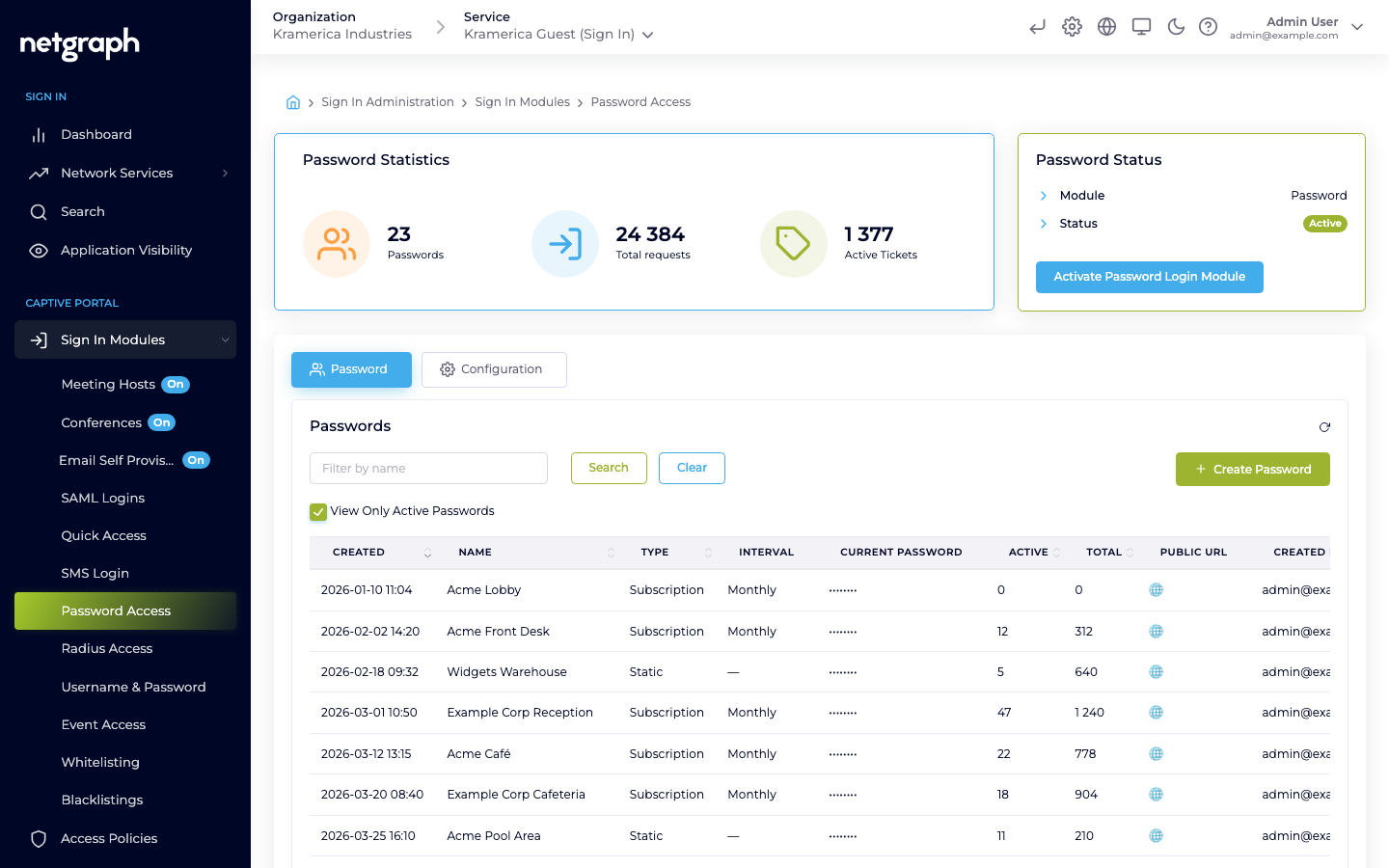
Section titled “How a guest signs in”- The guest is handed the current password — printed card, reception screen, digital signage, or a Public URL that displays the current password automatically.
- On the Captive Portal, they pick Password and enter it.
- If the password is active and the guest’s Access Policy allows the module, access is granted.
A guest on a Subscription loses access automatically when the password rotates — no admin action needed. A guest on a Static password keeps access until the admin rotates or revokes it manually.
Activate the module
Section titled “Activate the module”-
Open the module
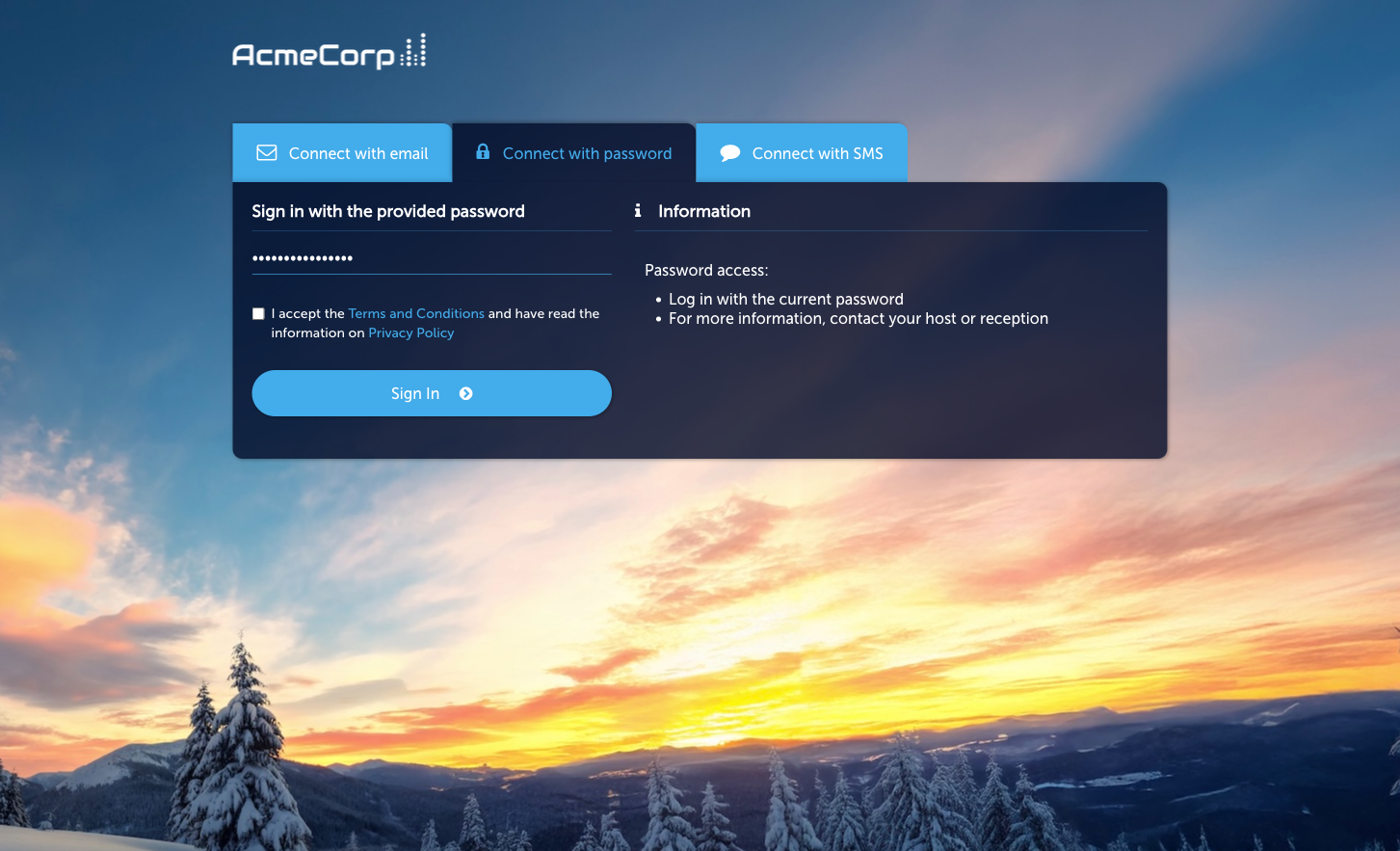
Go to Sign In Modules → Password Access.
-
Activate
Click Activate Password Login Module.
-
Create a password entry
Click Create Password and choose the variant — Static or Subscription.
The password list
Section titled “The password list”Each row in the Passwords table is one entry. The columns:
| Column | Meaning |
|---|---|
| Name | Admin-only label. |
| Type | Static or Subscription. |
| Interval | Rotation interval for Subscription (day / week / month). Blank for Static. |
| Current password | The password that works right now. |
| Active | Validity window — the date range during which this entry is usable. |
| Total | Running count of logins that used this entry. |
| Public URL | Optional shareable URL that displays the current password. Useful for digital signage or a lobby screen. |
| Created by | The admin who set up the entry. |
Use View Only Active Passwords to hide expired or retired entries.
Choosing Static vs Subscription
Section titled “Choosing Static vs Subscription”- Static — for audiences that stay the same for an extended period (a leased office floor, a long-running campaign) and admins are fine rotating the password manually when needed.
- Subscription — for audiences that refresh on a predictable cadence (daily conferences, weekly events, monthly resident turnover) and the password should cycle without admin intervention.
Subscription variant in depth
Section titled “Subscription variant in depth”A Subscription entry has two moving parts the Static variant doesn’t:
- The rotation interval — how often the password changes (day, week, month).
- The subscriber list — the people who should know about the upcoming password before it takes effect so they can relay it to guests.
Subscribers
Section titled “Subscribers”Add an email address to the Subscribers list on the Subscription entry. Each subscriber receives one email ahead of every rotation telling them the next password that’s about to take effect and the exact time it takes over. That heads-up is the only automatic email per cycle — there is no separate confirmation after the rotation. If someone needs the password that’s live right now, use the per-subscriber Resend action (below), which sends the current password on demand.
Typical subscribers:
- Reception staff who hand the password to arriving guests.
- A school class or seminar group that needs to hand out the next weekly code before Monday morning.
- Duty managers at a venue with evening or weekend handovers — so whoever’s on shift always has the password ready without checking the admin UI.
- Shared mailboxes (e.g.
frontdesk@example.com) so the list survives staff turnover.
Admins control the list from the Subscription entry:
- Add email subscriber — a single email-address input that appends to the list. Validates that the address looks well-formed before accepting it.
- Subscribers — the current list. Each entry has a Remove action, and a Resend action that re-sends the current password to that one subscriber on demand — useful when someone reports they never received the latest email.
Notification Heads Up
Section titled “Notification Heads Up”Notification Heads Up (hours) controls how far before the rotation the notification goes out. Pick a value that matches how much lead-time subscribers need:
- 1–2 hours — last-minute reminder for staff who’ll be on shift at handover.
- 24 hours — typical for daily or weekly rotations so tomorrow’s code lands the evening before.
- One interval’s worth — e.g. a 168-hour heads-up on a weekly rotation gives a full week’s lead time; good for print-ahead use cases.
When the Heads-Up value is larger than the rotation interval, each subscriber effectively sees both the next and the currently live password in the same window — fine, just intentional.
Lifecycle of a Subscription rotation
Section titled “Lifecycle of a Subscription rotation”For a weekly Subscription with a 24-hour heads-up:
- Sunday evening — all subscribers receive one heads-up email: “Next password for <name> takes effect Monday morning. The new password is …”
- Monday morning — the password rotates. The previous password stops working. Every connected guest on the previous password is signed out. No further email is sent at rotation; the next heads-up goes out before the following Monday.
- The cycle repeats for the next rotation.
The detail panel for a Subscription shows both the last notification timestamp and the next notification timestamp, so admins can confirm subscribers are being reached on schedule.
Displaying the current password
Section titled “Displaying the current password”Three common patterns:
- Public URL on a signage screen — point a lobby or break-room display at the Public URL; the shown password stays up-to-date automatically. Works for both Static and Subscription entries.
- Printed cards — fine for Static entries and long-interval Subscriptions (weekly, monthly).
- Staff briefing / reception — operations staff relay the current password to guests on demand. Adding them as subscribers on a Subscription entry means they always have tomorrow’s code before guests ask.
Access Policies
Section titled “Access Policies”Password is not gated by an Access Policy — if the module is active at Context level, every entry is available to any guest who reaches the Captive Portal. Validity windows are controlled on each password entry (Static validity dates, or Subscription interval and notification lead time).