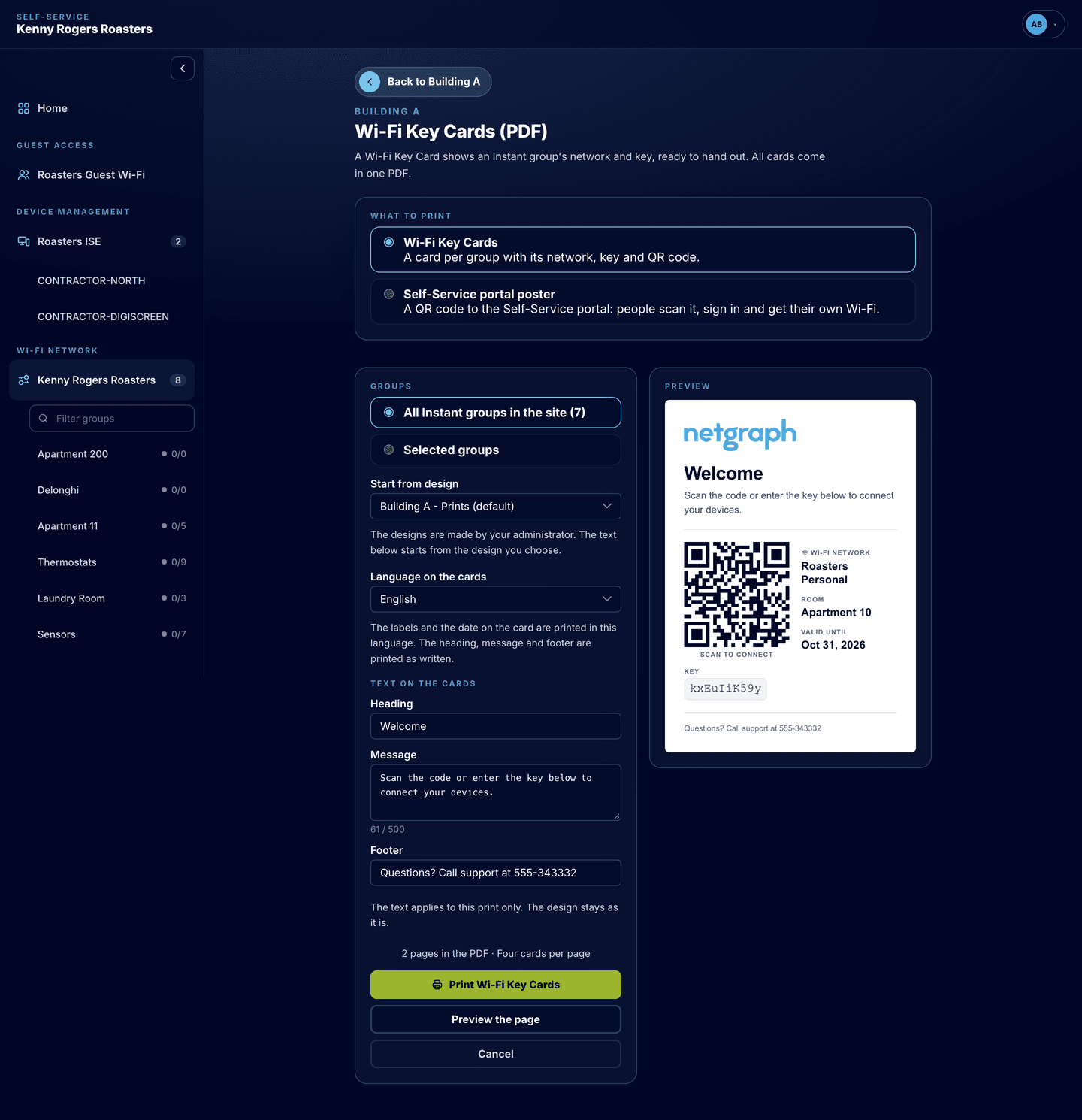
Wi-Fi Key Cards
Print a card per group with the network name, the key and a QR code: the designs, the print wizard with 1 to 12 cards per page, the Self-Service portal poster, and what Site managers print from the portal. Cards are printed, never emailed.
A Wi-Fi Key Card is a printed card for one group: the Wi-Fi network name, the group’s key, a QR code labelled “Scan to connect”, the group’s label, the group name and, when the group has an end date, that date. It is the handover you give a new resident, a booth crew or a hotel guest instead of reading a key out loud. Cards come out as a PDF you print. Keys and key cards are never sent by email.
Key cards belong to EasyPSK via RADIUS. The page is Print designs, under Configuration in the service’s menu in the Admin Console; Print Wi-Fi Key Cards on the Groups page and on a site lead to the same place.
Designs
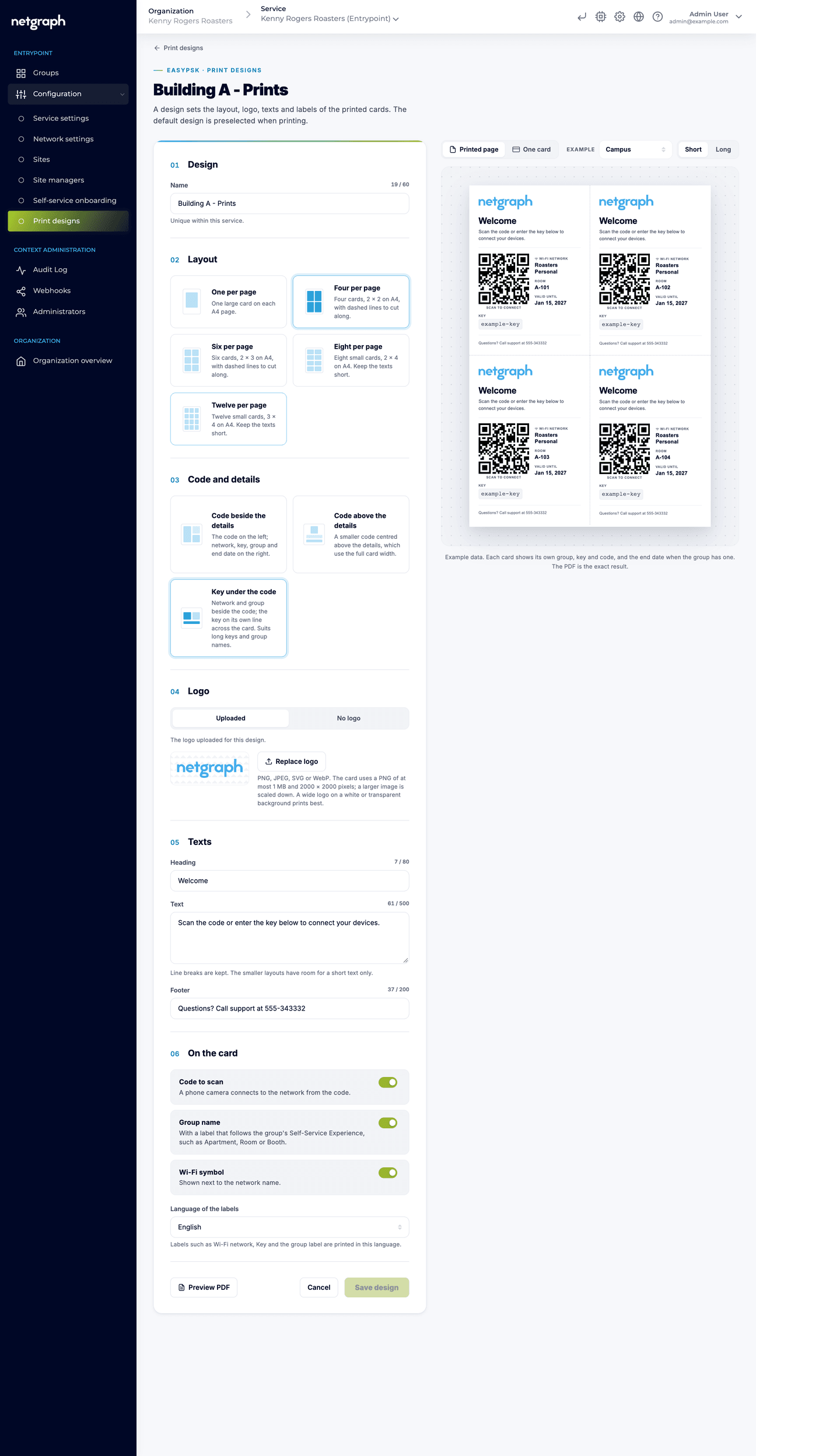
Section titled “Designs”A design decides how the cards look. A service can have many named designs, and one of them is the default.
- Layout: how many cards go on each A4 page: one, four, six, eight or twelve.
- Code and details: the QR code beside the details, the code above them, or the key on its own line under the code, which suits long keys and group names.
- Logo: a PNG, JPEG, SVG or WebP, or no logo.
- Texts: a heading, a text and a footer.
- On the card: the QR code, the group name and the Wi-Fi symbol can each be turned on or off.
- Language of the labels: the language of the fixed words on the card, such as “Scan to connect”.
Long network names and long keys shrink to fit the card instead of being clipped. The editor previews the printed page, or one card, with example data as you change the design.
The default design’s logo is also what a member sees on the Apple Wallet pass of the group key, added from the Self-Service portal.
The group label on the card
Section titled “The group label on the card”The card names the kind of group it belongs to, in the words of the group’s Self-Service Experience, next to the group’s name:
| Experience | Label on the card |
|---|---|
| Home-like Wi-Fi | Apartment |
| Co-working | Team |
| Campus | Room |
| Expo halls | Booth |
| Hospitality | Room |
| IoT | Group |
Printing cards
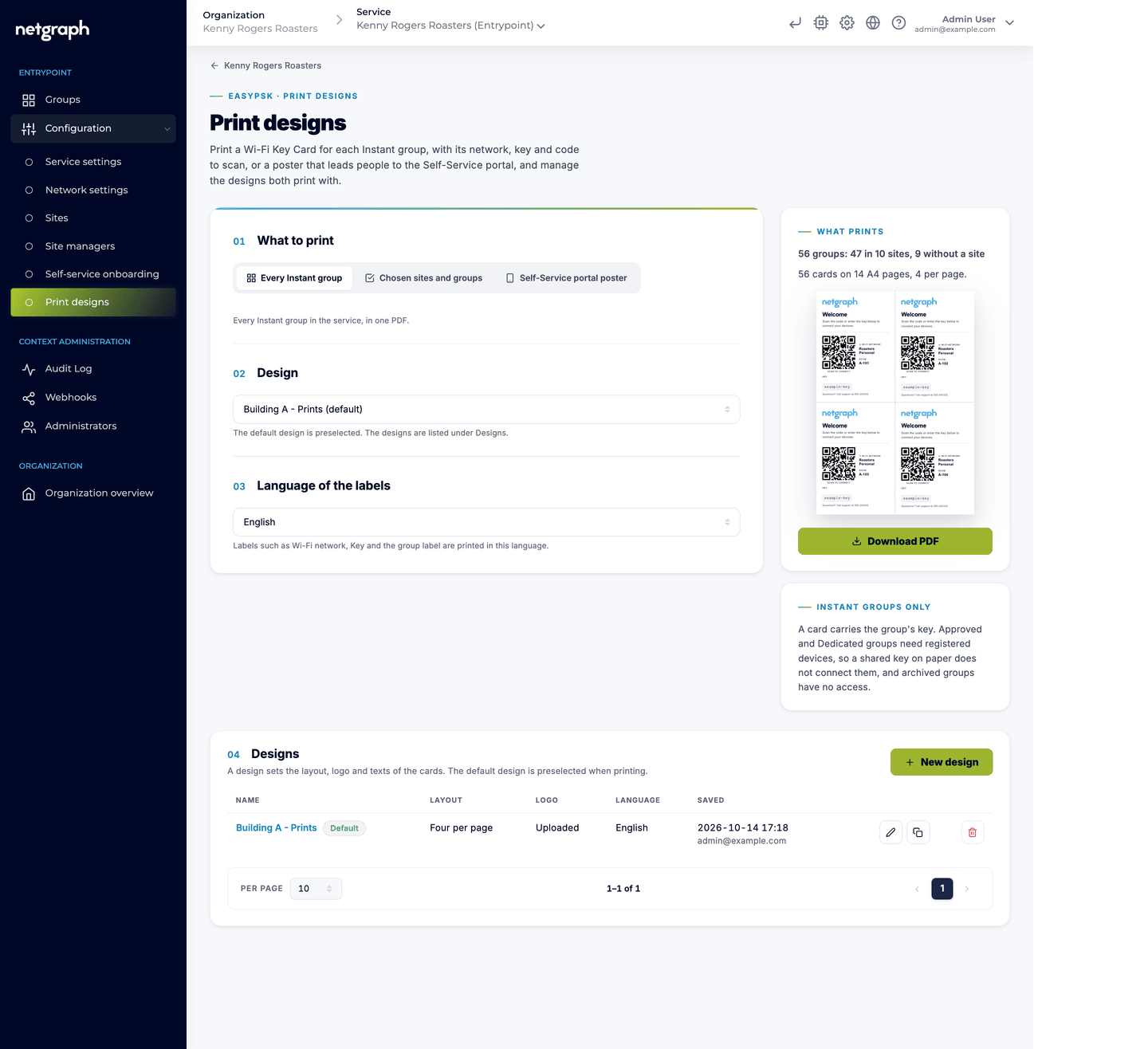
Section titled “Printing cards”Print opens a wizard.
-
Choose what to print
Every Instant group in the service, Chosen sites and groups you pick, or the Self-Service portal poster.
-
Choose the design
The default design is preselected. The design decides the layout, 1 to 12 cards per A4 page, and the texts: one per page suits a welcome folder; twelve per page suits a reception desk that cuts them out.
-
Choose the language of the labels
The fixed words on the card, such as Wi-Fi network, Key and the group label, are printed in this language.
-
Download the PDF
What prints sums it up, for example “56 cards on 14 A4 pages, 4 per page”, with a preview. The file is named
wifi-key-cards.pdf. Print it on the office printer or send it to a print shop.
Every printed PDF is written to the service’s Audit Log, so you can see who printed which groups’ keys and when.
Only Instant groups print
A card only makes sense when the key alone lets a device in. Approved and Dedicated groups need registered devices, so a printed key would not connect anything; ended groups have no access. The wizard therefore prints Instant groups only. Each card carries the group’s end date when it has one, so a guest can see how long the key is good for.
The Self-Service portal poster
Section titled “The Self-Service portal poster”The poster is the other thing the wizard prints: One per A4, or Four per A4 to cut out, with the design’s logo and footer, the heading “Your own Wi-Fi”, a message that invites the reader to sign in to the Self-Service portal to get their Wi-Fi network and its password and to see their devices, and a QR code that opens the portal’s sign-in page (“Scan with your phone’s camera to sign in”). The heading, the message and the footer are written for this print; the logo comes from the design. It needs the Organization’s Self-Service portal address.
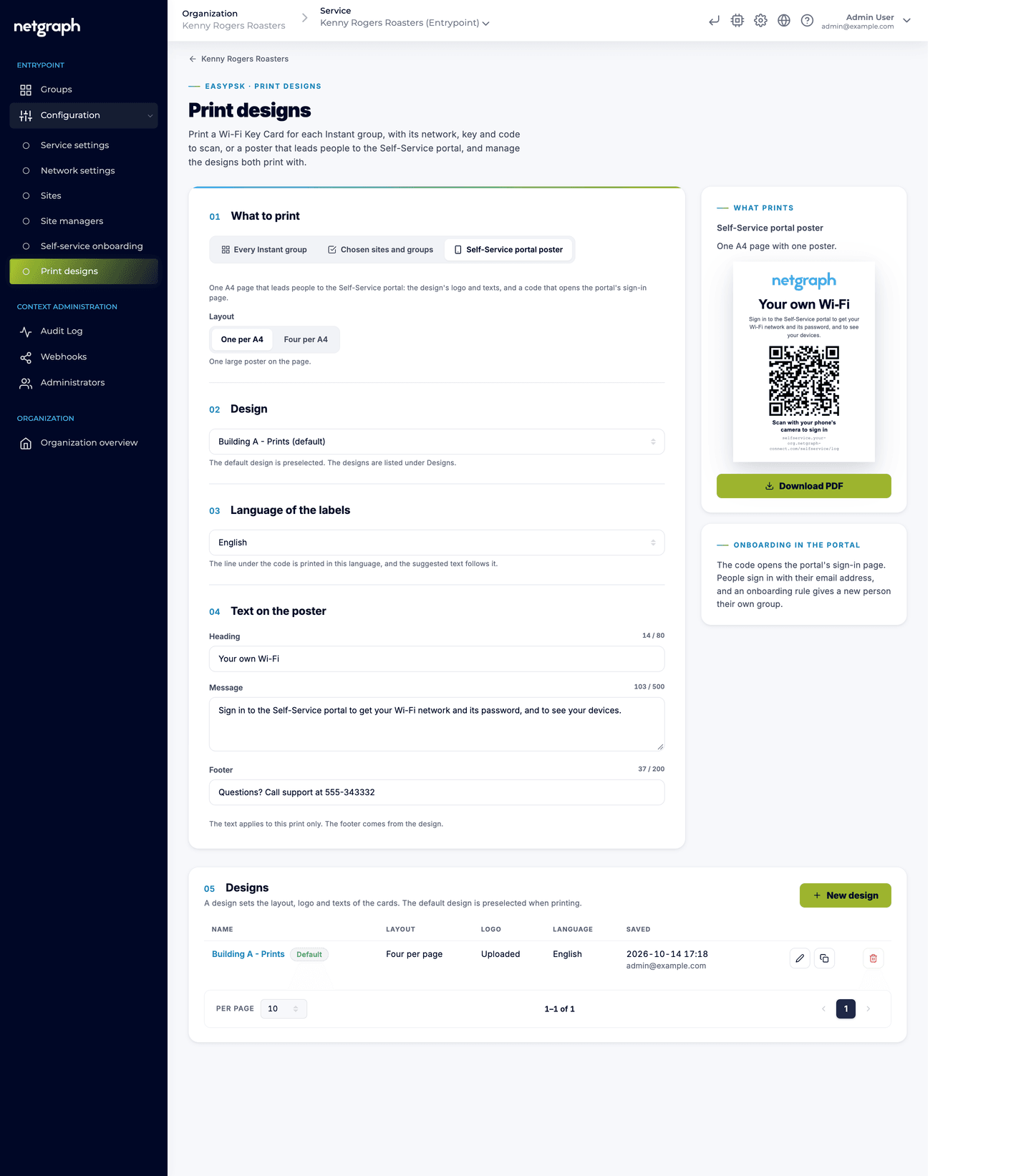
The poster carries no key. It is the companion of onboarding rules: the reader signs in, the rule creates their group, and they see their key in the portal. The same poster can be printed from the Self-service onboarding page.
Site managers print from the portal
Section titled “Site managers print from the portal”A Site manager whose role allows Print Wi-Fi Key Cards prints from the Self-Service portal: the cards of a selection of groups or the whole site, or the poster. They start from a design you made in the Admin Console, choose the language and write their own heading, message and footer for the print. Printing does not require the Group key right, so a role can print cards without ever seeing a key on screen. Their prints are written to the Audit Log like yours.