
Cisco Meraki
Set up an 802.1X (WPA2-Enterprise) SSID on Cisco Meraki for EntryPoint. Meraki uses the platform as its RADIUS server, so devices authenticate with EAP at association time. No captive portal, no on-site hardware.
The Cisco Meraki integration lets EntryPoint authenticate Wi-Fi clients over 802.1X on Meraki wireless networks, with no extra hardware. The two sides meet over RADIUS: Netgraph is the RADIUS server, Meraki is the authenticator. Devices present their EAP credentials (PEAP, EAP-TLS, and so on) when they associate, and Meraki forwards them to the platform. There is no captive portal and no walled garden.
1. Read off the RADIUS details
Section titled “1. Read off the RADIUS details”In the Administration Portal, open the EntryPoint context’s Network Integration page. It shows the RADIUS host, authentication and accounting ports, and the shared secret to enter in Meraki. Keep it open while you configure the SSID.
No Meraki API key is required for EntryPoint. The integration is pure RADIUS, so there is nothing to connect with an API key.
2. In the Meraki Dashboard
Section titled “2. In the Meraki Dashboard”Navigate to Wireless → Configure → Access control and pick (or create) the SSID, then:
-
Name and enable the SSID
Under Basic info, give the SSID a name (for example
Kramerica dot1x) and set SSID status to Enabled.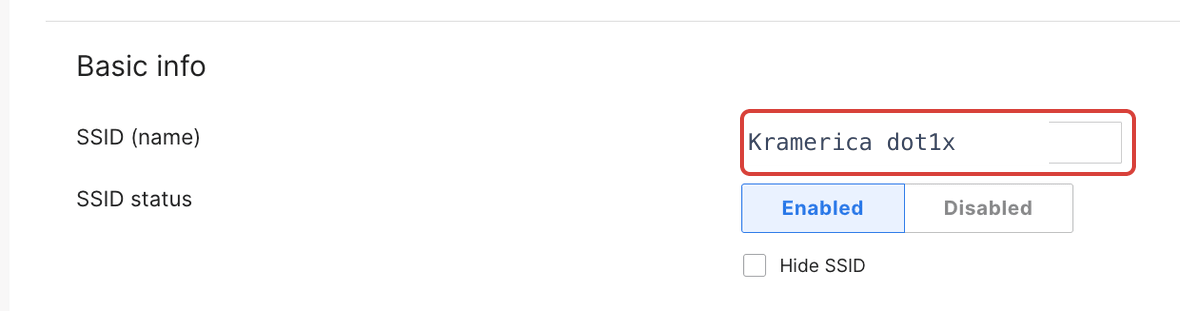
Name the SSID and enable it. -
Security
Under Security, select Enterprise with my RADIUS server. Client credentials are then validated with 802.1X at association time.
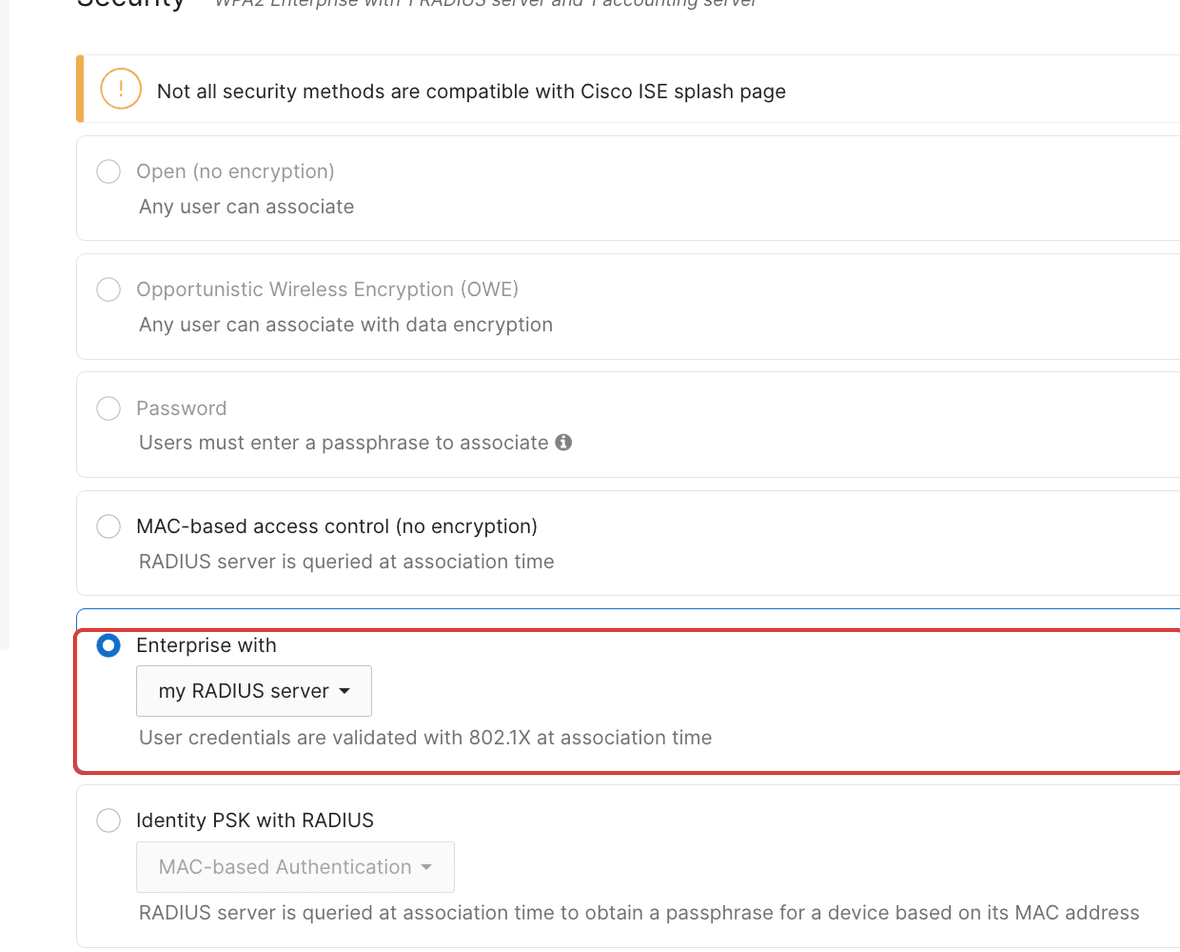
Set Security to Enterprise with my RADIUS server (WPA2-Enterprise, 802.1X). -
RADIUS servers
Under RADIUS, add the platform as the RADIUS server with the host, authentication port, and shared secret from the Network Integration page. Keep RadSec disabled.
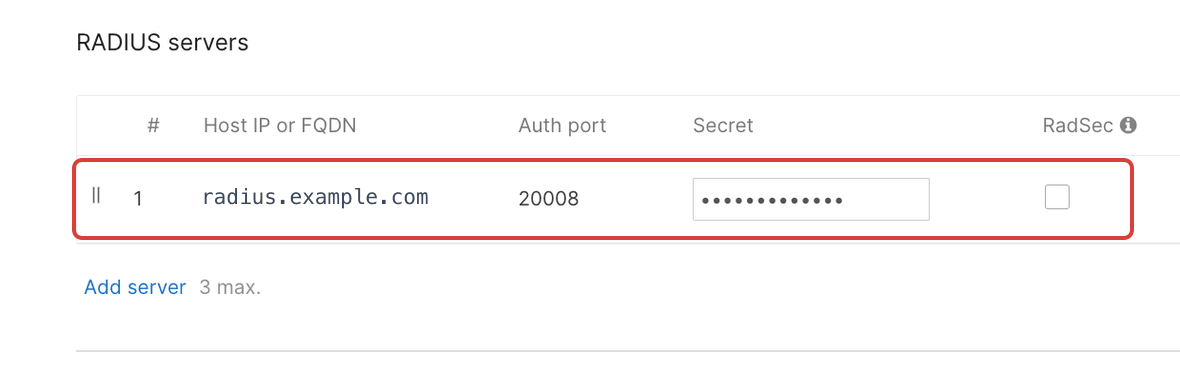
Add the platform as the RADIUS server: host, port, and the shared secret from the Network Integration page. -
RADIUS accounting servers
Add the same server under RADIUS accounting servers with its accounting port and secret, and set an Accounting interim interval (around 10 minutes). EntryPoint uses accounting to track live sessions.
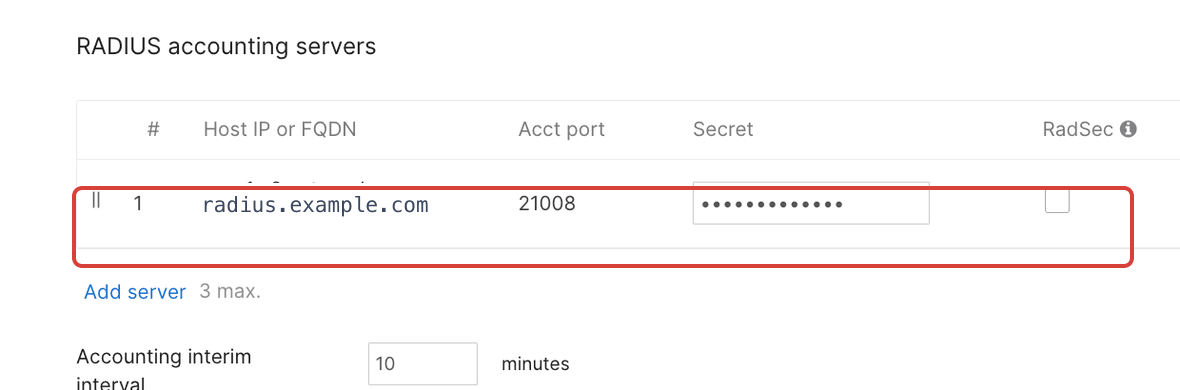
Fill in the RADIUS accounting server too: same host, accounting port, and secret. -
Device profiling
Enable RADIUS Accounting Device Profiling support. Meraki then includes device-profiling information in the RADIUS Accounting-Request messages it sends to the accounting server, which EntryPoint uses to recognise and classify connected devices.

Enable RADIUS Accounting Device Profiling support. -
Called-station-ID
Under Advanced RADIUS settings, add AP Name to the Called-station-ID category list. It is not there by default. EntryPoint uses it to identify which Access Point a client connected through.
-
Save and test
Save the Meraki Access Control page and connect a test device to the SSID. The device should complete 802.1X authentication, and the session should appear on the EntryPoint dashboard.
Everything above is what EntryPoint needs. The customer is free to configure the rest of the SSID (VLAN, bandwidth, IP assignment, scheduling, and so on) however they want their network to behave.
Identity PSK with RADIUS
Section titled “Identity PSK with RADIUS”802.1X is not the only way EntryPoint drives a Meraki SSID. The same Context family also delivers Identity PSK with RADIUS, where devices join with a per-group key instead of an individual 802.1X identity, and EntryPoint validates that key over RADIUS. This is the EasyPSK delivery; the SSID setup, security mode, and RADIUS settings are covered in Cisco Meraki (Identity PSK with RADIUS).
It adds one concern 802.1X does not have: micro-segmentation between
the key groups. On Meraki, the groups on one Identity-PSK SSID are
not isolated from each other by default, so EntryPoint returns a
UDN (User Defined Network) tag in the RADIUS response, as a Cisco
AV-pair udn:private-group-id=<id>, to fence each group into its own
personal network. You set those values with the Context’s
Attribute Profiles,
which is also where VLAN and Security Group Tag attributes live.
Note
This UDN tag is a Cisco Meraki requirement. On a Cisco Catalyst 9800, the WLC segments Identity-PSK groups through its own iPSK tag, so no UDN attribute is returned.