
Group rules
The Rules card of a group in EasyPSK via RADIUS: the site, the Self-Service Experience, the device cap, Valid until and wired devices through MAB, plus blocking a single device. A correct key only admits a device that also passes the rules.
Every group in an EasyPSK via RADIUS Context carries a Rules card on top of its security flavour: site, Self-Service Experience, device cap, validity and wired devices. The flavour decides how a device gets in; the rules decide how many, for how long, and where the group belongs. A device that presents the correct key but falls outside the rules is refused: that is configured behaviour, not a fault.
When the group belongs to a site, each rule shows whether its value still matches the site’s policy for new groups.
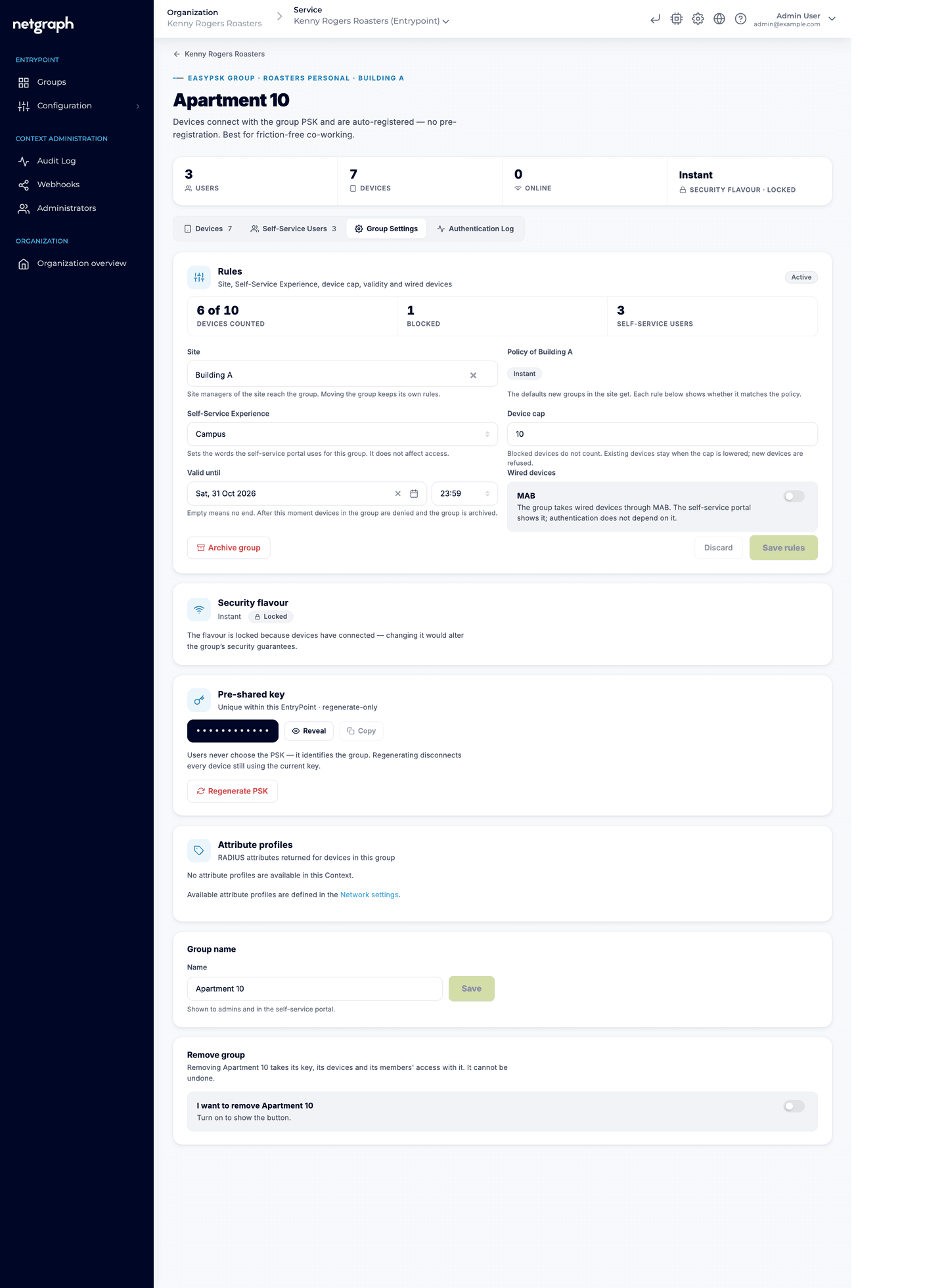
The site the group belongs to. The Site managers of that site reach the group in the Self-Service portal and look after it there. A group keeps its own rules when it moves between sites; the Self-Service Experience is the exception, since a group without an experience of its own follows its site. See Sites and Site managers.
Self-Service Experience
Section titled “Self-Service Experience”The experience sets the words the Self-Service portal uses for the group and its members, the wording of invitations and the label on a printed key card. It never affects access or RADIUS. There are six:
| Experience | The group is a | A member is a | Invitation |
|---|---|---|---|
| Home-like Wi-Fi | Apartment | Resident | Invite a family member |
| Co-working | Team | Colleague | Invite a colleague |
| Campus | Room | Student | Invite a roommate |
| Expo halls | Booth | Exhibitor | Invite someone from the booth |
| Hospitality | Room | Guest | Invite a travel companion |
| IoT | Device group | Administrator | Invite an administrator |
The experience is chosen on the service, can be set in a site’s policy, and can be set on the group; the group’s own choice wins over the site’s, which wins over the service’s. An Approved or Dedicated group with no experience of its own shows IoT (automatic).
Device cap
Section titled “Device cap”The largest number of devices the group may hold. Blocked devices do not count. When the cap is reached, new devices are refused and the group’s members get a mail saying the group is full, with a link to the portal. Lowering the cap keeps the devices already in the group; only new ones are refused.
There is no fixed ceiling: set the number that fits the group. Groups created by an onboarding rule start at the rule’s cap, which is 30 for a new rule, and groups a Site manager creates take the site policy’s cap. You may give a group a higher cap than its site policy; a Site manager cannot.
Useful when access is allocated per device count: a trade-fair booth that includes exactly five devices, a co-working desk with two, a room in Northfield Hall with a fair-use ceiling.
Valid until
Section titled “Valid until”An end for the group. Leave it empty for a group without an end. From that moment devices are denied, even with the correct key, and the group is Ended: kept, with its devices and members, but closed. The Self-Service portal shows it as ended and offers no new device and no key. Only an administrator brings it back: Reactivate in one step, which opens the group again as it was, or delete it permanently. The service’s archive retention setting says how many days an ended group is kept before it is removed.
There is no start date. A group is open from the moment it is created; create it close to the day it is needed, or hand out the key cards when it is time.
Typical shapes: a semester, a conference, a short-stay booking. Sites give new groups a Valid for (days) instead, counted from the day each group is created.
Wired devices through MAB
Section titled “Wired devices through MAB”The group takes wired devices through MAB tells the Self-Service portal that members may register wired devices (by MAC address) in this group. A member registers one in three steps in the portal: device type and name, MAC address and a description, and confirm. The group’s wired devices are listed apart from the wireless ones, and a member can remove one. In the Admin Console you can name a MAB device yourself and see the name a member gave it. Authentication does not depend on the switch; it only decides whether members see the option.
Blocking a device
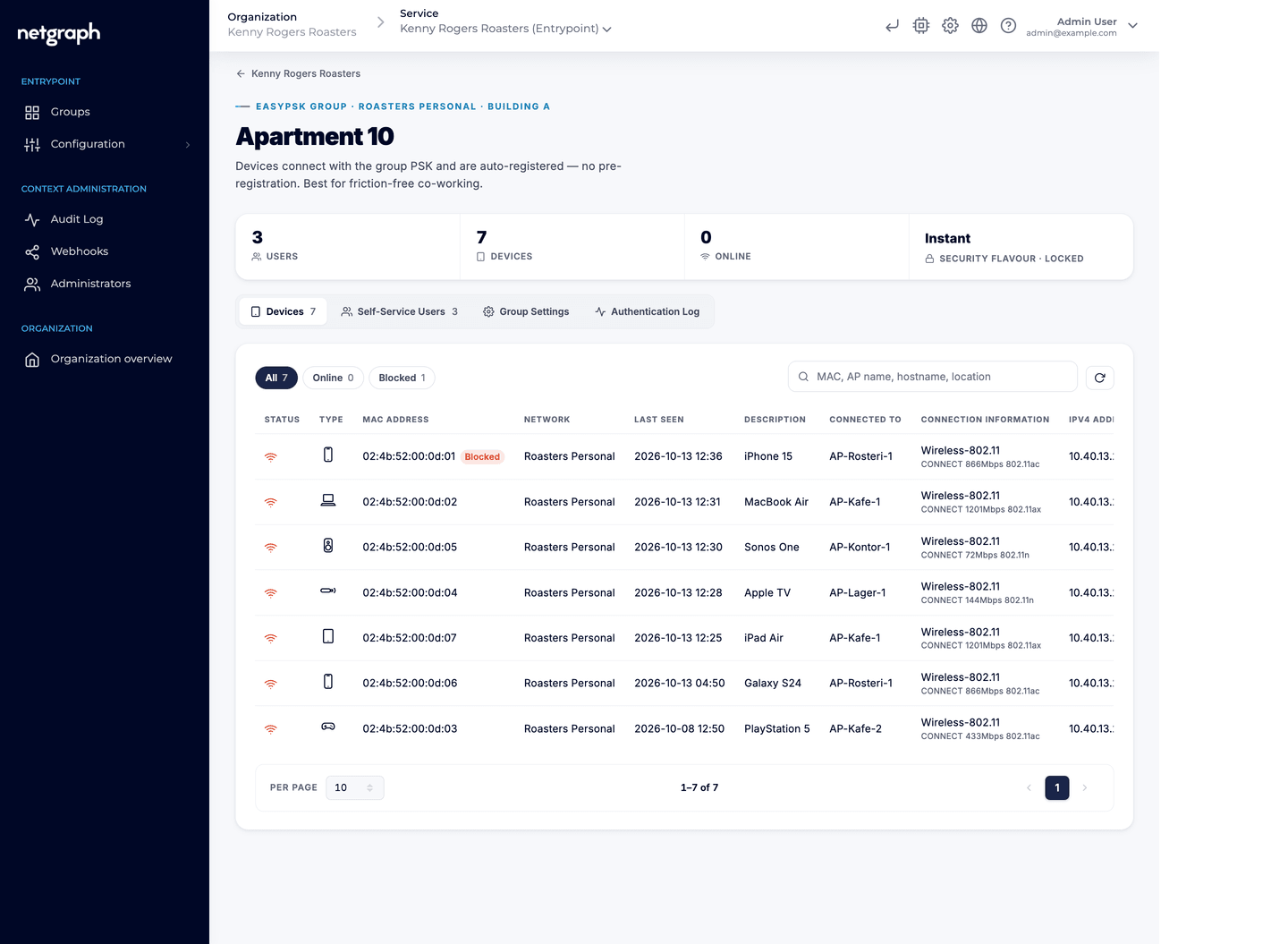
Section titled “Blocking a device”Block a single device, in the Admin Console device list or in the Self-Service portal (Block and Unblock on a device). A blocked device is refused even when it presents the correct key, and an Instant group does not register it again on its next attempt. It stays in the list marked as blocked, so you can see what was blocked and let it back in later. This is the precise tool when one device must go: a lost phone, a device that should not be on the network, a departed roommate’s laptop, all without renewing the group’s key for everyone else.
Troubleshooting with the rules in mind
Section titled “Troubleshooting with the rules in mind”When a device with a correct key is refused, check the group’s rules before anything else: is the device cap reached, has the group passed its Valid until and become Ended, is the device blocked, or, on an Approved or Dedicated group, is the device simply not registered yet?
Groups and security flavours
Instant, Approved, and Dedicated, and how keys behave in each.
Sites and Site managers
The site a group belongs to, its policy, and who runs it from the portal.
Self-service onboarding
Rules that create a group of their own for a person at first sign-in.
EasyPSK via RADIUS overview
The primary delivery method and how to set it up.