
Self-Service Teams
A Self-Service Team is a named list of email addresses. Bound to a Sign In Access Policy, an EasyPSK group, an onboarding rule or a Site manager role, it gives its members self-service access, kept by hand or straight from your identity provider over SCIM.
A Self-Service Team is a named list of email addresses. Bound to an access policy or a group, it gives its members self-service access. Instead of inviting people one by one, you keep the list in one place (or let your identity provider keep it) and bind the team where the access should apply. Teams live at Selfservice Access Control → Teams in the Organization left navigation.
Not the same as administrator Teams
The **Teams** under Admin Access Control hold administrator roles for people who sign in to the Admin Portal. Self-Service Teams are for end users of the Self-Service Portal: residents, students, exhibitors, staff. See [Organizing administrators in Teams](/wiki/organization/features/managing-teams/) for the administrator side.Create a team
Section titled “Create a team”Click Add Team, name it and add members by email address. A team from your identity provider arrives on its own: with SCIM provisioning for self-service users in place, every provisioned group becomes a Self-Service Team. Such a team carries a SCIM origin badge, and its name and members are locked here, since the identity provider owns them.
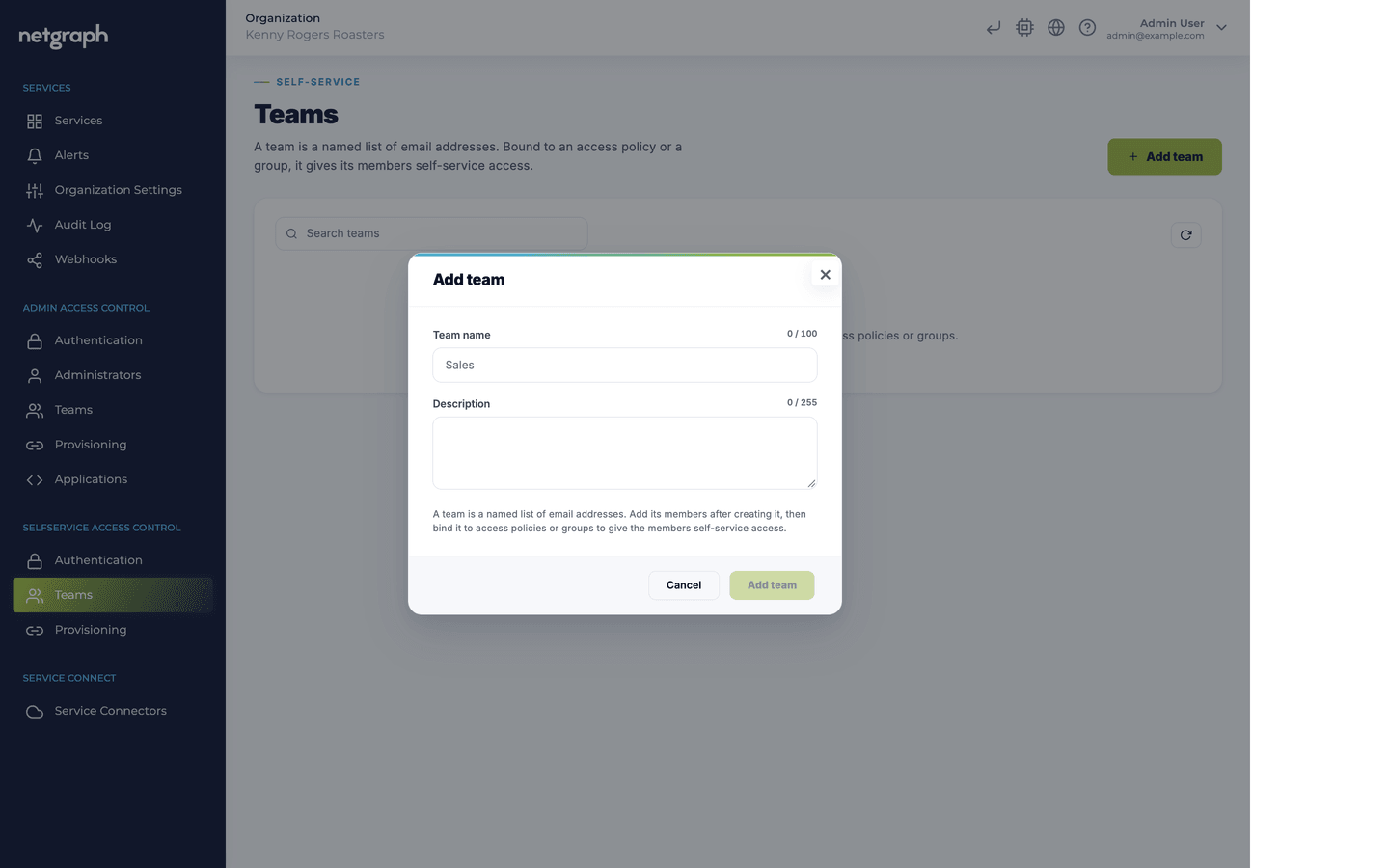
A team by itself grants nothing. Access comes from where you bind it.
Where a team is bound and what members get
Section titled “Where a team is bound and what members get”| Bound to | How | What every member gets |
|---|---|---|
| A Sign In Access Policy | On the policy’s Applies To tab, Add Team | The policy applies to them, beside the policy’s email patterns. See Access Policies |
| An EasyPSK group | On the group’s Self-Service Teams card, Add Self-Service Team, with the roles User admin, Password admin and Device admin and the switch Send a welcome mail to new members | Membership of the group with those roles. With the switch on, a person who joins the team later gets a mail about their access to the group |
| An onboarding rule | Under Who, add the team | A group of their own the first time they sign in to the Self-Service Portal. See Self-service onboarding |
| A Site manager role | Under the role’s members, add the team | The role’s rights in the sites it covers. See Sites and Site managers |
In the member lists of a group or a policy, people who are there through a team show a Team pill and are read-only: you cannot change or remove them one by one, because the team is the source. Change the team, or the binding, instead.
Changes take effect at once
Section titled “Changes take effect at once”- A person who leaves the team loses what the team gave, the moment they leave. A personal group an onboarding rule created for them through the team is archived, unless another rule keeps it.
- Removing a member, unbinding a team from a policy, group, rule or role, and deleting a team all take effect at once. There is no grace period.
When the identity provider blocks or deletes a person
Section titled “When the identity provider blocks or deletes a person”For the users and teams that come from your identity provider, the provider governs the whole portal. A person who is blocked or deleted there loses their Self-Service session on its next request and can no longer sign in, with an email link or through single sign-on. What the provider blocked is kept for 30 days so that a return restores it untouched; after that it is removed. The lists in the Admin Portal show such a person as blocked, with the date, and a Show blocked filter brings them into view. If the person’s address changes in the identity provider, everything they have moves to the new address.
Related pages
Section titled “Related pages”- SCIM provisioning: the administrator registration and the self-service one.
- Organizing administrators in Teams: the administrator counterpart.
- SAML configuration: the SAML sign-in that provisioned users rely on.
- Self-Service portal: what members of an EasyPSK group see.