
Sites and Site managers
Group the groups of an EasyPSK service into sites, give each site a policy for new groups, and hand the daily work of a site to Site managers who create and maintain its groups from the Self-Service portal.
A site is a named set of groups that belong together in an EasyPSK via RADIUS service: the apartments of one building, a wing, a floor, an exhibition hall. A site belongs to one EasyPSK service and carries a policy for new groups, so every group created in the site starts with the same rules. A Site manager is a role you create in the service and tie to one or more sites; its members run those sites from the Self-Service portal, and nowhere else.
Sites and Site managers are part of EasyPSK via RADIUS. Meraki WPN Contexts do not have them.
What a site holds
Section titled “What a site holds”- Name, unique within the service, and a description.
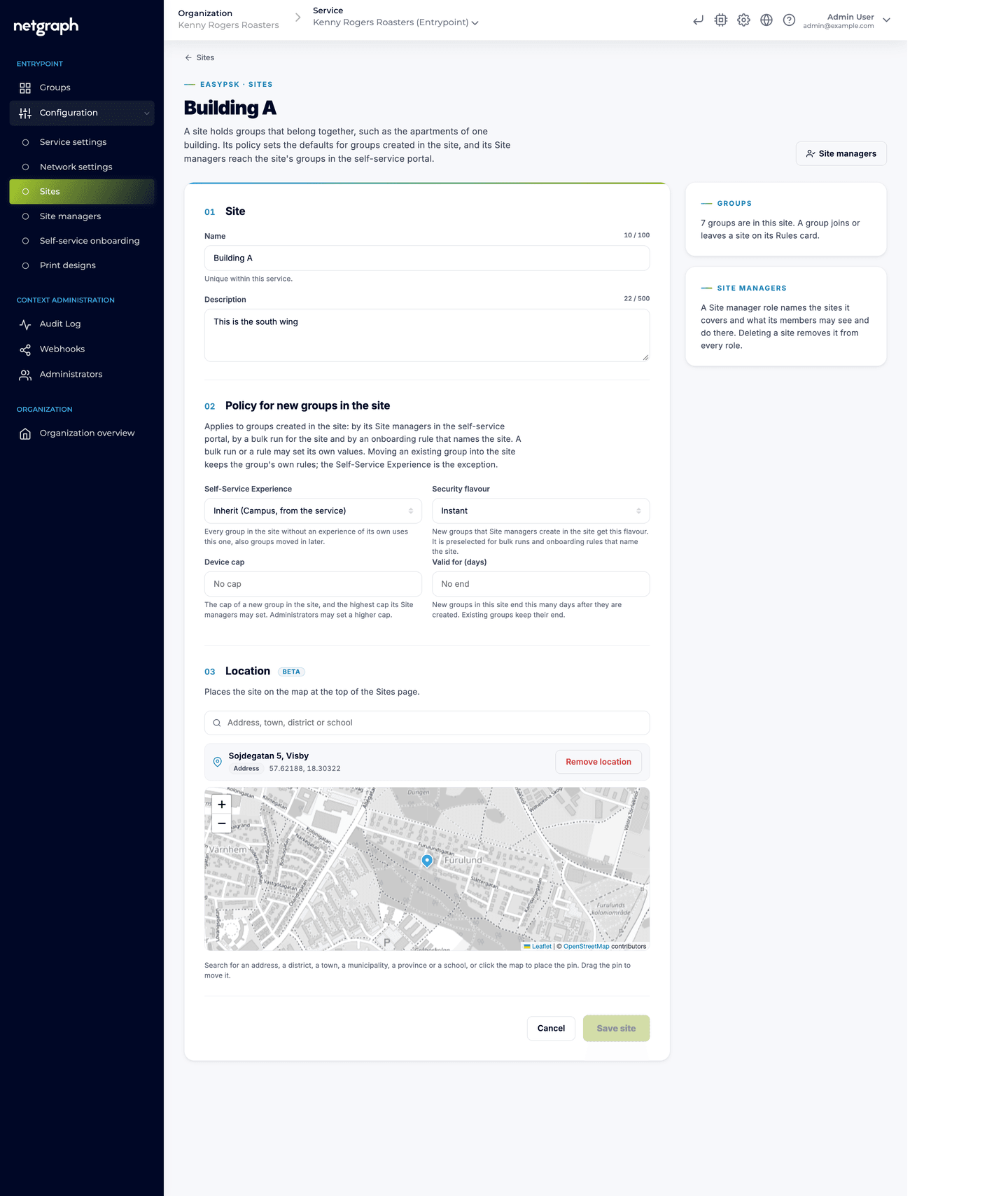
- Policy for new groups in the site: the Self-Service Experience, the security flavour, the device cap and Valid for (days). The policy is the starting point for every group a Site manager creates in the site and for every group an onboarding rule that names the site creates. A group keeps its own rules once it exists; the group’s Rules card shows, rule by rule, whether the value still matches the site policy.
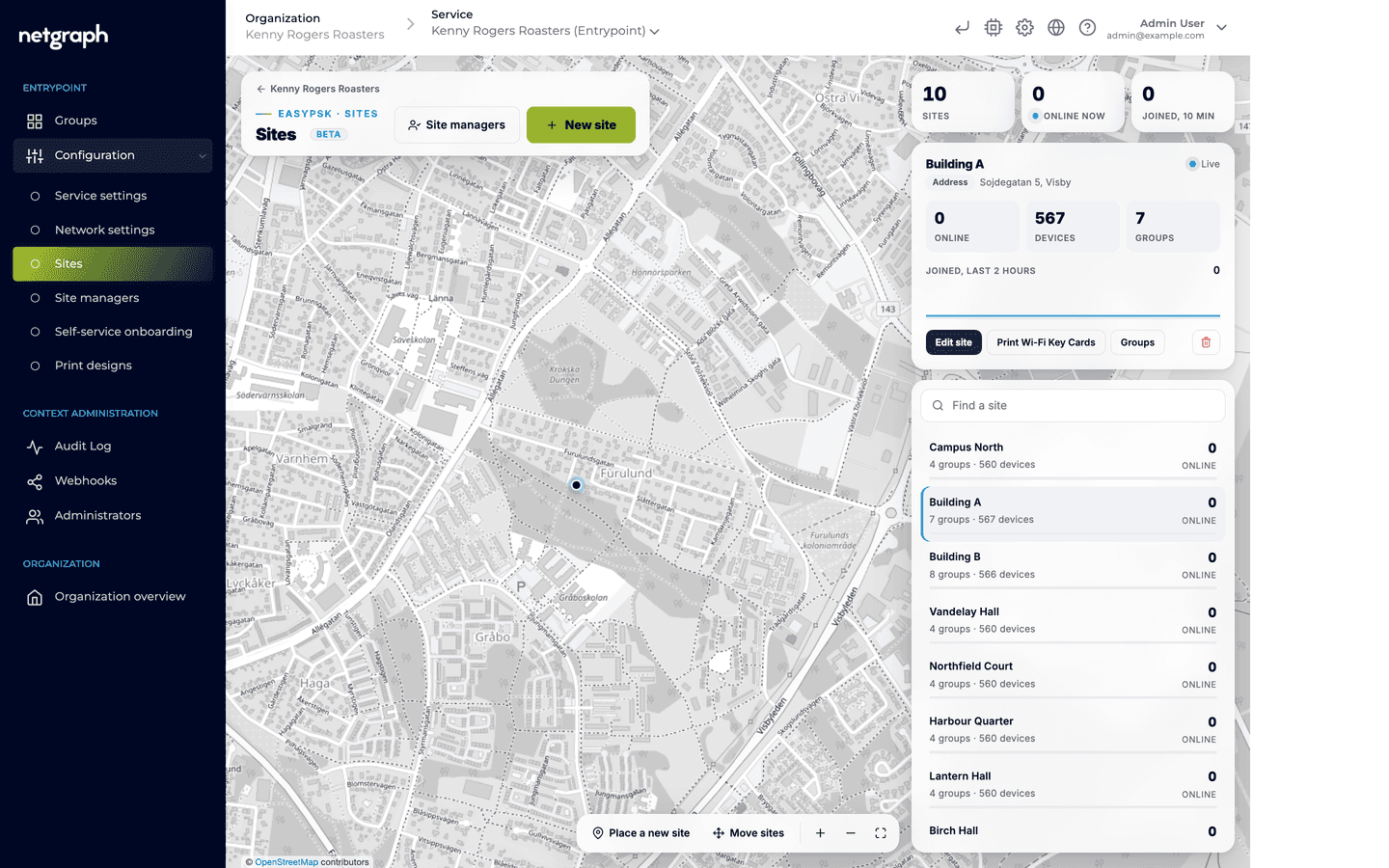
- In beta, a Location on a map (see below).
An administrator may give a group a higher device cap than the site policy allows; a Site manager cannot exceed the policy’s cap.
Creating a site
Section titled “Creating a site”-
Open Configuration › Sites
In the EasyPSK service’s menu in the Admin Console, open Configuration and then Sites. The page lists the service’s sites.
-
Add the site
Give it a name and a description. “Northfield Hall” or “Building B, floor 3” is the right size: a site is the unit one Site manager looks after.
-
Set the policy for new groups
Choose the Self-Service Experience, the security flavour, the device cap and, when the groups should end by themselves, how many days a new group is valid for.
Moving a group into a site
Section titled “Moving a group into a site”A group joins a site from its own page: open the group’s Rules card and pick the site under Site. From that moment the Site managers of that site reach the group in the portal. The group keeps its own device cap and validity when it moves. The Self-Service Experience is the exception: a group that has no experience of its own follows the policy of the site it is now in.
A group can also be placed in a site when it is created, in the Create group wizard or as part of a bulk run.
Beta: the Sites map and a site's Location
The Sites page can also be shown as a map with every site placed on it and the number of online devices per site, with Place a new site and Move sites, and each site can carry a Location (address, district, city, municipality, region, country, or the school, university or place it belongs to). Both are in beta and are opened per Organization on request. A site itself, with its name, description, policy and Site managers, is not beta.
Site manager roles
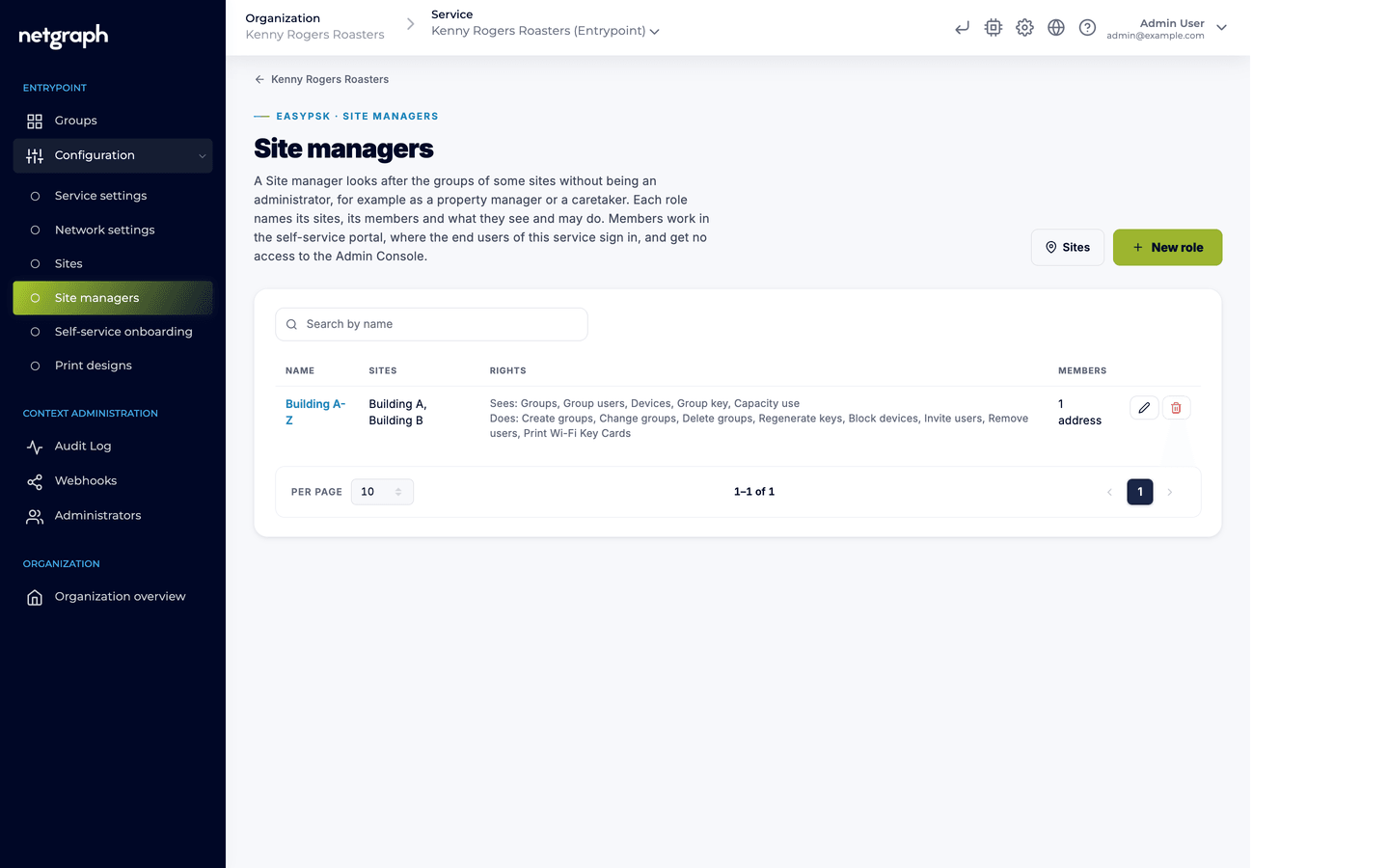
Section titled “Site manager roles”A Site manager is a role, not a person. You create roles under Configuration › Site managers in the service’s menu, and each role says which sites it covers, who is in it, and what its members may see and do in the Self-Service portal.
- Name: what the role is called, for example “Northfield Hall caretakers”.
- Sites: the sites the role covers. A role can cover several.
- Members: email addresses, or Self-Service Teams. A team member holds the role for as long as they are in the team and loses it the moment they leave.
Saving the role sends no email. Members sign in to the Self-Service portal as usual and find the Site manager entry there. A Site manager gets no access to the Admin Console.
Visible in the self-service portal
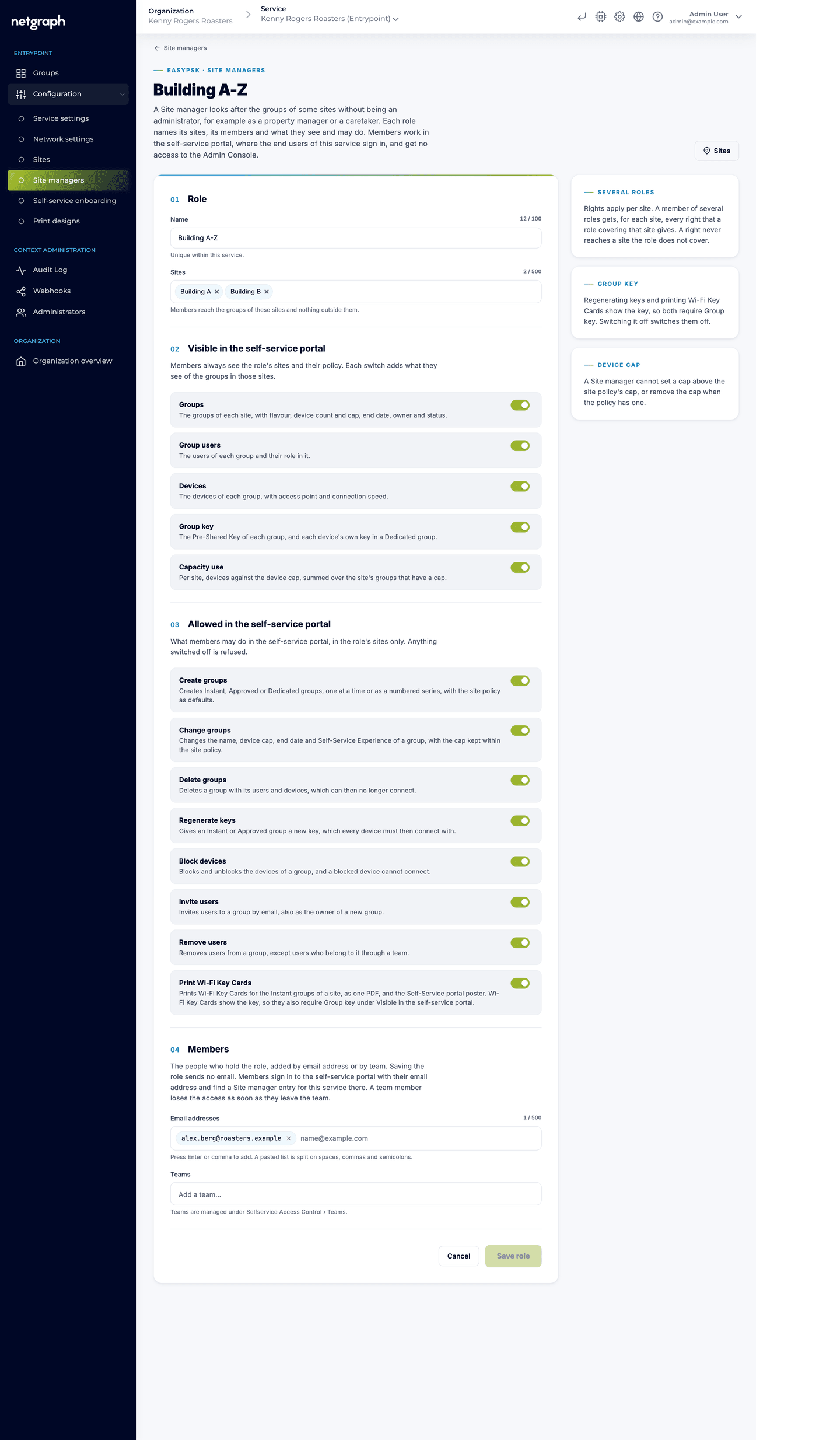
Section titled “Visible in the self-service portal”| Switch | What a member sees |
|---|---|
| Groups | The site’s groups, with their status and how full each one is |
| Group users | The members of each group |
| Devices | The devices of each group, with their online state |
| Group key | The Wi-Fi key of each group |
| Capacity use | Devices in use against the device caps, summed over the site’s groups that have a cap |
Allowed in the self-service portal
Section titled “Allowed in the self-service portal”| Switch | What a member may do |
|---|---|
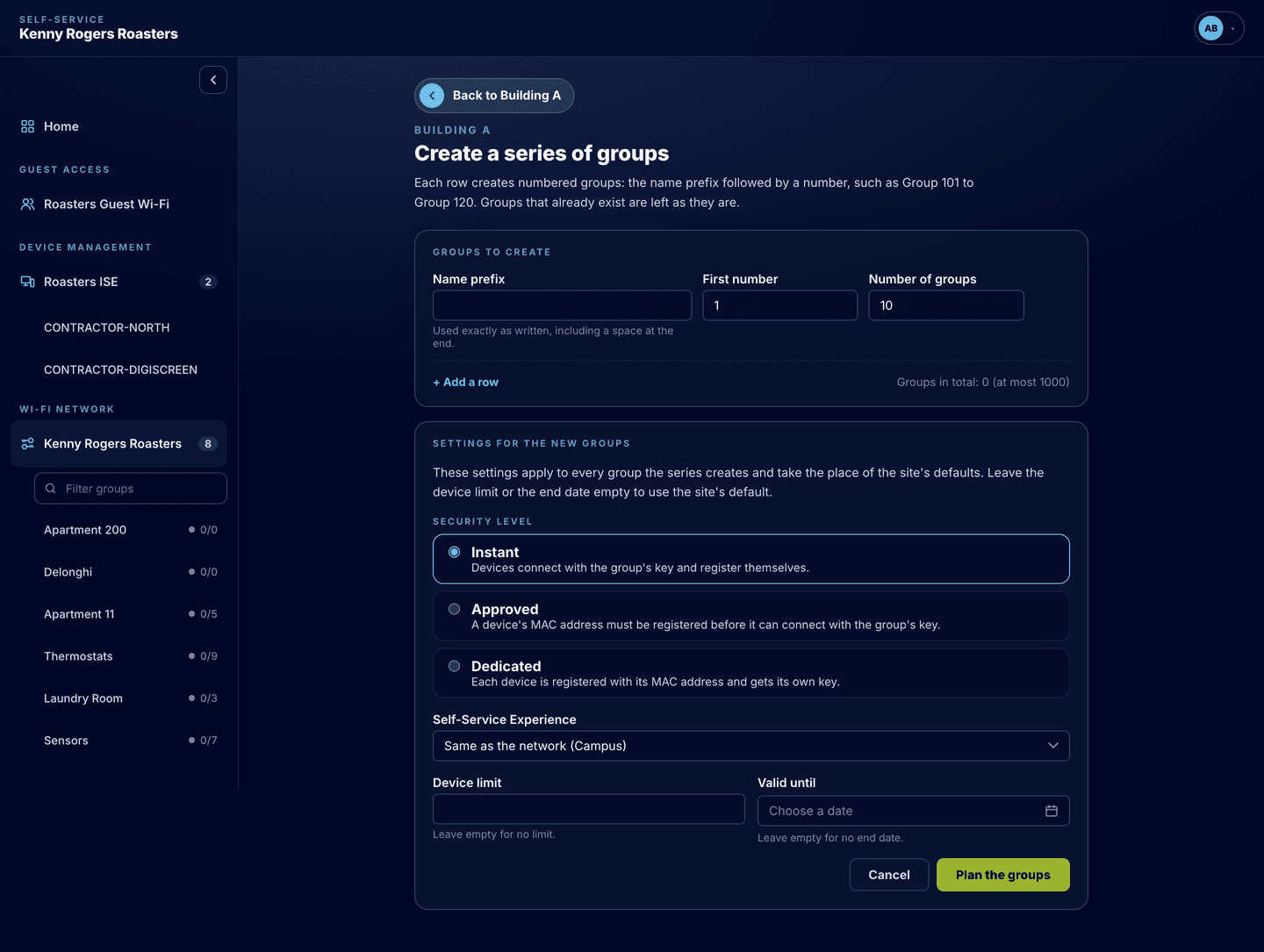
| Create groups | Create groups in the site, one at a time or as a numbered series, with the site policy as the defaults |
| Change groups | Change a group’s name, device cap, end date and Self-Service Experience. The cap stays within the site policy |
| Delete groups | Delete a group in the site |
| Regenerate keys | Give a group a new Wi-Fi key. Requires Group key |
| Block devices | Block and unblock devices in the site’s groups |
| Invite users | Invite people to a group, including the owner of a group the member creates |
| Remove users | Remove people from a group, except those who belong to the group through a team |
| Print Wi-Fi Key Cards | Print the key cards of the site’s groups and the Self-Service portal poster. Does not require Group key |
A new role starts with every switch on; turn off what the role should not have. Regenerate keys requires Group key, since a member cannot renew a key they are not allowed to see. Printing does not: a reception desk can print a fresh key card for a room without the key ever being shown on screen.
Rights per site
Section titled “Rights per site”Rights apply per site. A person who is a member of several roles gets, for each site, the union of what the roles covering that site give. One role may let them print in Northfield Hall while another lets them create groups in the annex; neither right leaks into the other site.
What a Site manager does in the portal
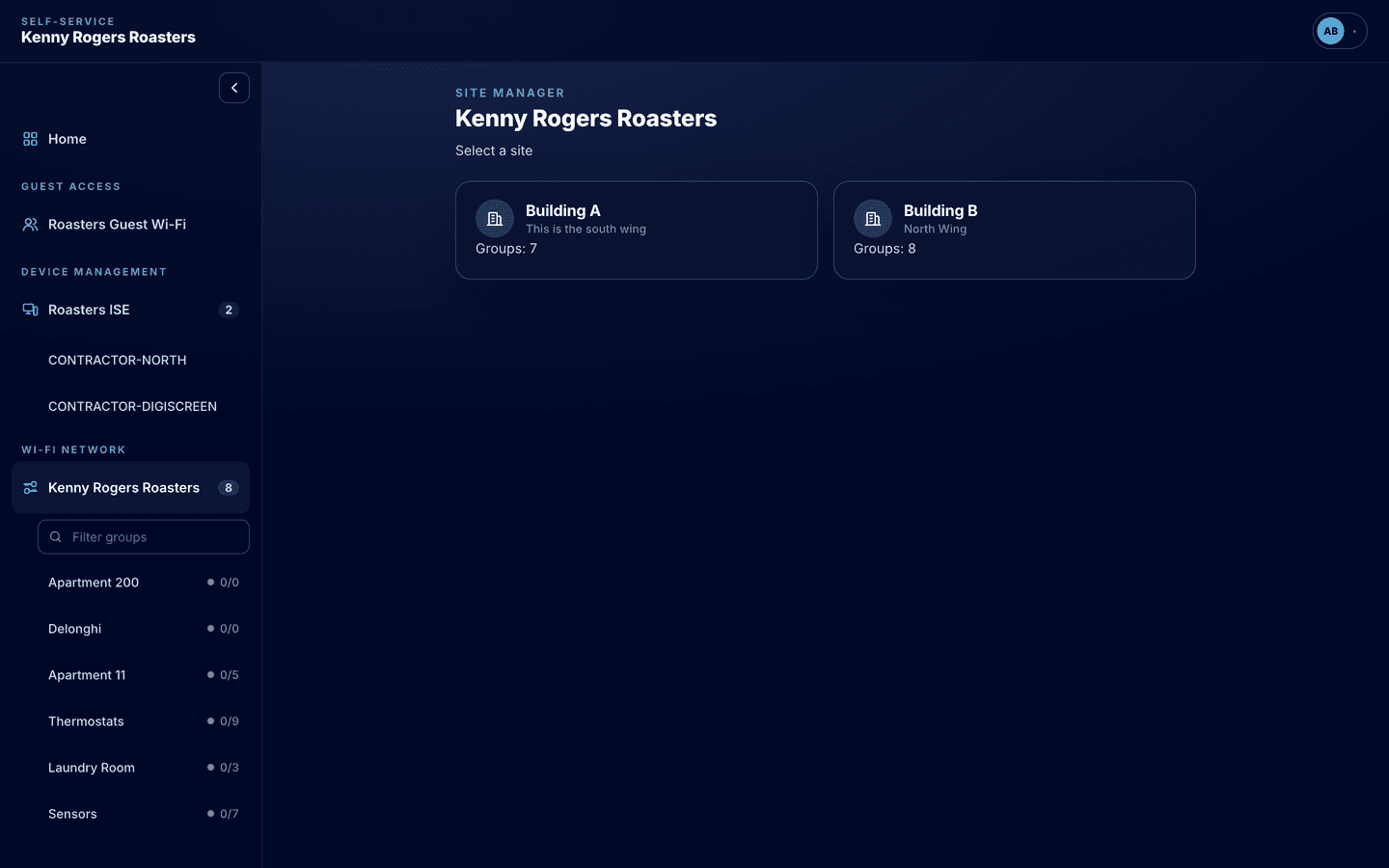
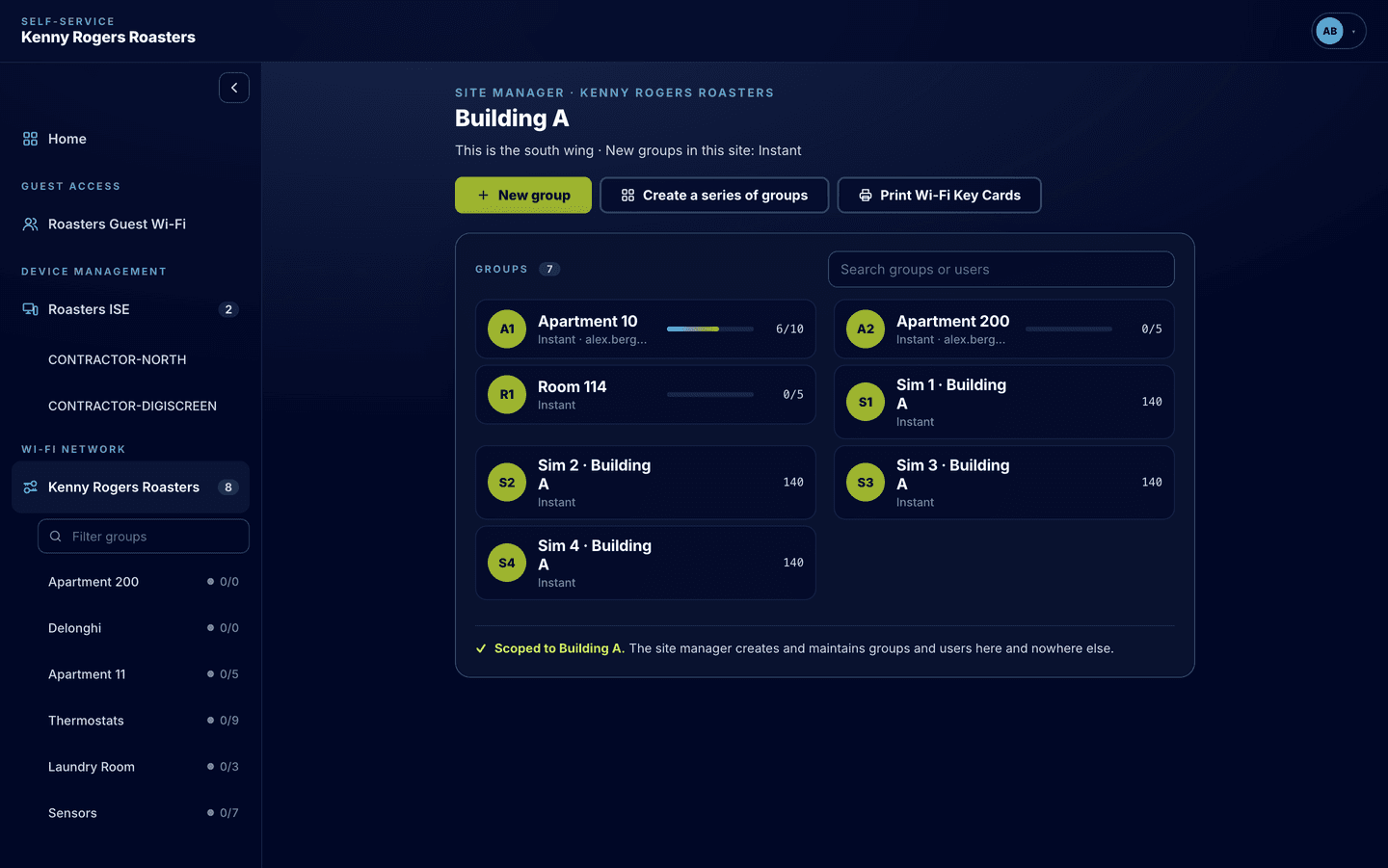
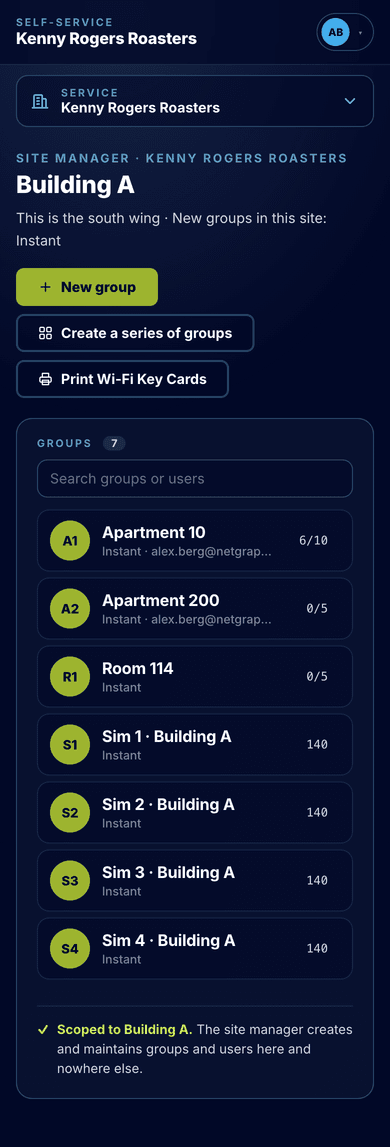
Section titled “What a Site manager does in the portal”After signing in to the Self-Service portal, a Site manager finds a Site manager card on the start page with their sites. Each site is a workspace of its own, scoped to that site: the Site manager creates and maintains groups and users there and nowhere else.
- The site’s groups, each with a bar showing devices against the cap and the group’s status, and a search by group name or a member’s email address.
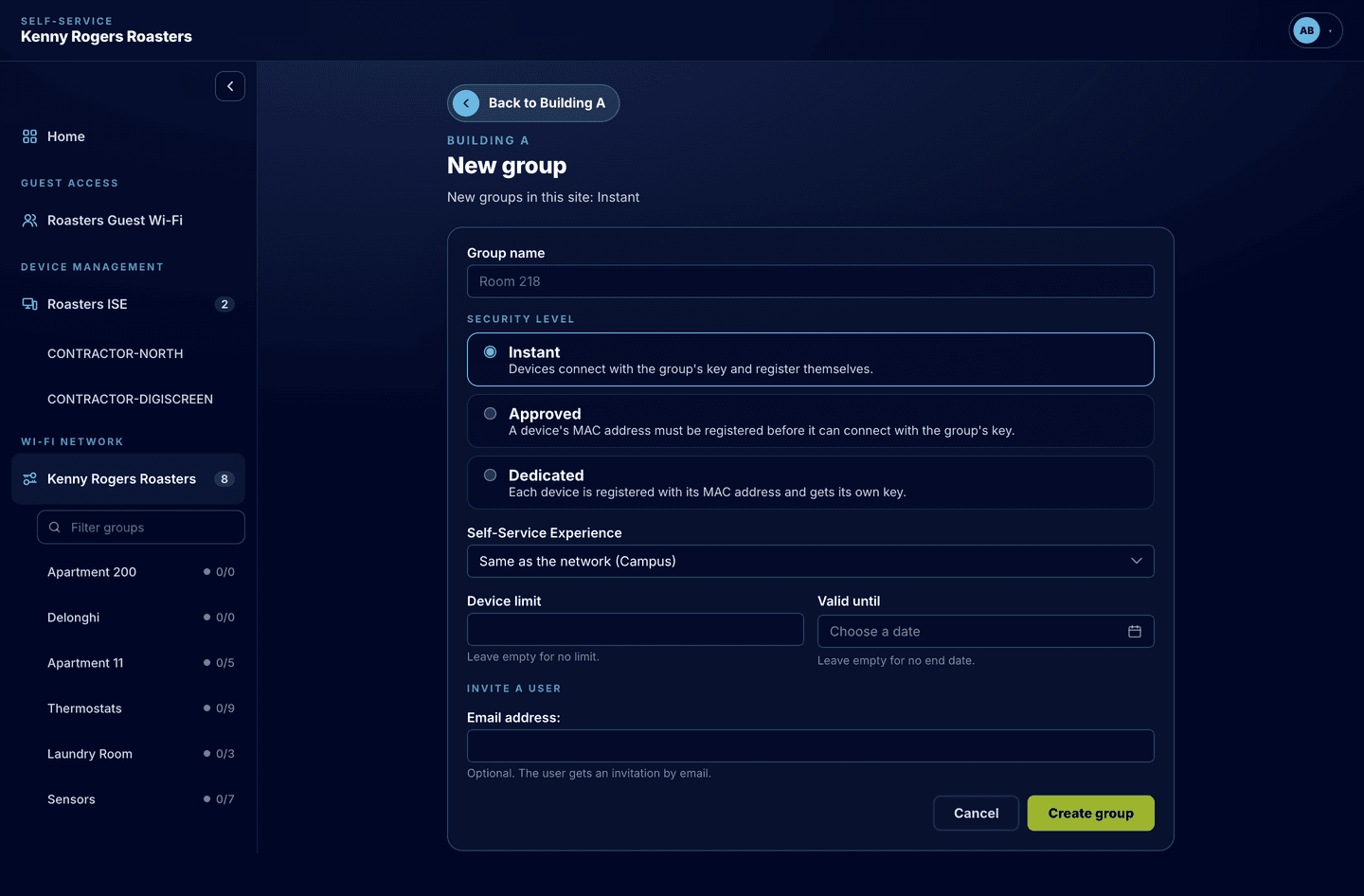
- New group: a name, the security level (preselected to Instant), the device cap and the end date prefilled from the site policy, and the owner invited in the same step. A name that is already taken is warned about.
- Series: several groups at once, numbered from a prefix.
- The group page: members, devices with their online state, and the group’s rules, each marked with whether the value comes from the site policy or was changed here. From the page: Edit, Regenerate key, Print key card, Block device, Invite, Remove user and Delete group, as far as the role allows.
- Print: Wi-Fi Key Cards for a selection of groups or the whole site, or the Self-Service portal poster, starting from a design you made in the Admin Console.
- Capacity use: devices in use against the site’s caps.
A group that has reached its end date is shown as ended; the Site manager can see it but not change it. Only an administrator reactivates an ended group.
Deleting a site
Section titled “Deleting a site”Delete a site from Configuration › Sites. A site that still has groups, or that an onboarding rule names, is not removed silently: move the groups and change the rules first, or confirm that the groups leave the site. The groups themselves and their devices are kept; they just no longer belong to a site, and the Site managers of the deleted site no longer reach them.
Related
Section titled “Related”Group rules
Site, Self-Service Experience, device cap, validity and wired devices on the group's Rules card.
Self-service onboarding
Rules that give a person a group of their own at first sign-in, placed in a site.
Wi-Fi Key Cards
Designs, the print wizard and the poster Site managers print from the portal.
Self-Service Teams
Named lists of email addresses that can be the members of a Site manager role.