
Organizing administrators in Teams
A Team is a named group of administrators. Grant roles to the Team once and every member inherits them, with different roles per Service Context. Create teams, add members, and grant access.
A Team is a named group of administrators. Instead of assigning roles to people one by one, you grant roles to a Team and manage who belongs to it — every member inherits the Team’s roles. A Team can hold different roles in different Service Contexts, so one team can run a Sign-In context while holding read-only access to an EntryPoint context.
Teams live at Admin Access Control → Teams in the Organization left navigation.
Administrators here, end users elsewhere
These Teams hold administrator roles for the Admin Portal. End users of the Self-Service Portal (residents, students, exhibitors, staff) are grouped in [Self-Service Teams](/wiki/organization/features/self-service-teams/) under Selfservice Access Control instead.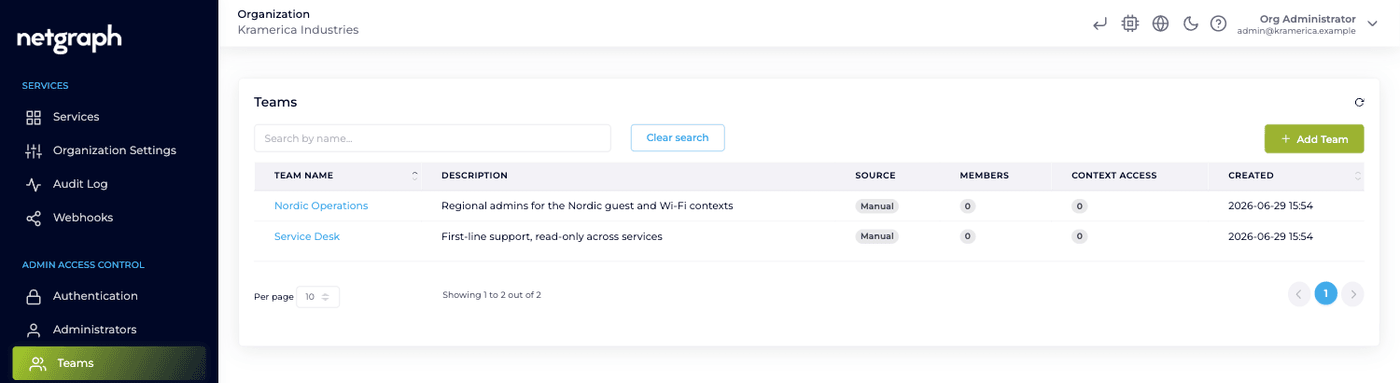
Create a team
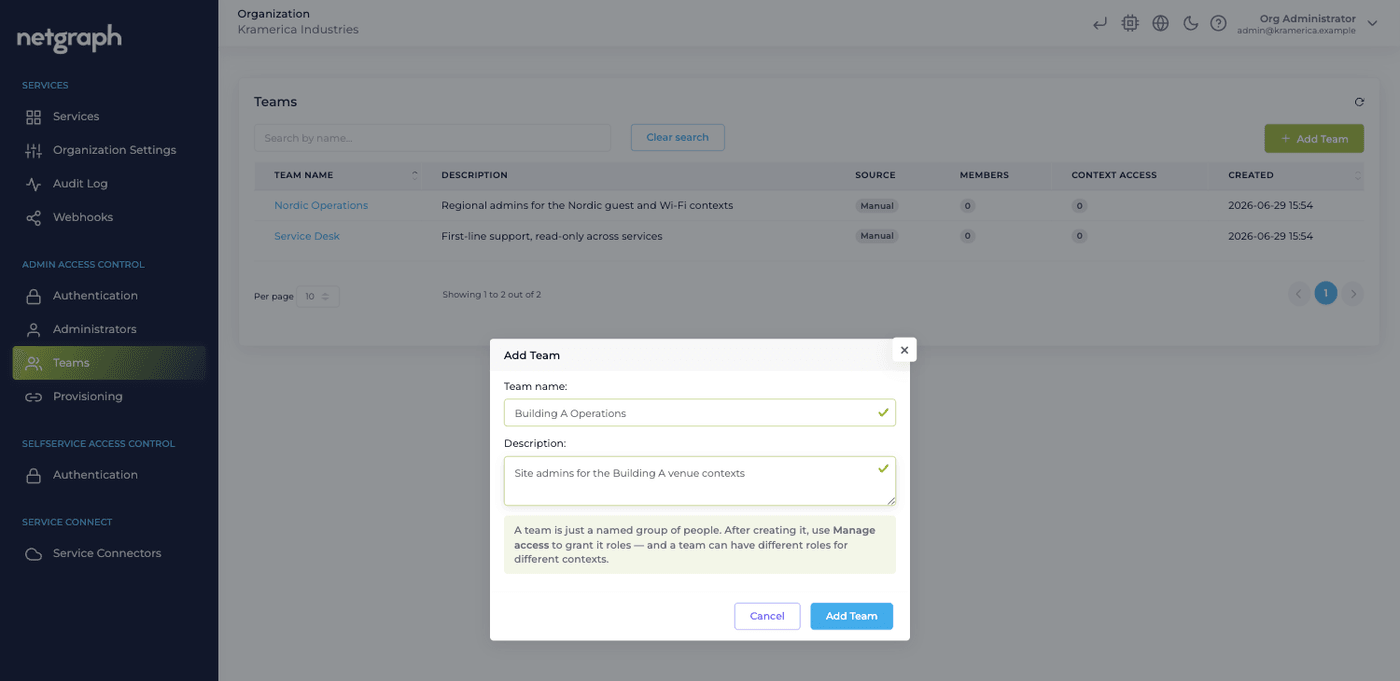
Section titled “Create a team”Click Add Team and give it a name and a short description. A new team starts empty and holds no access yet.
Add members
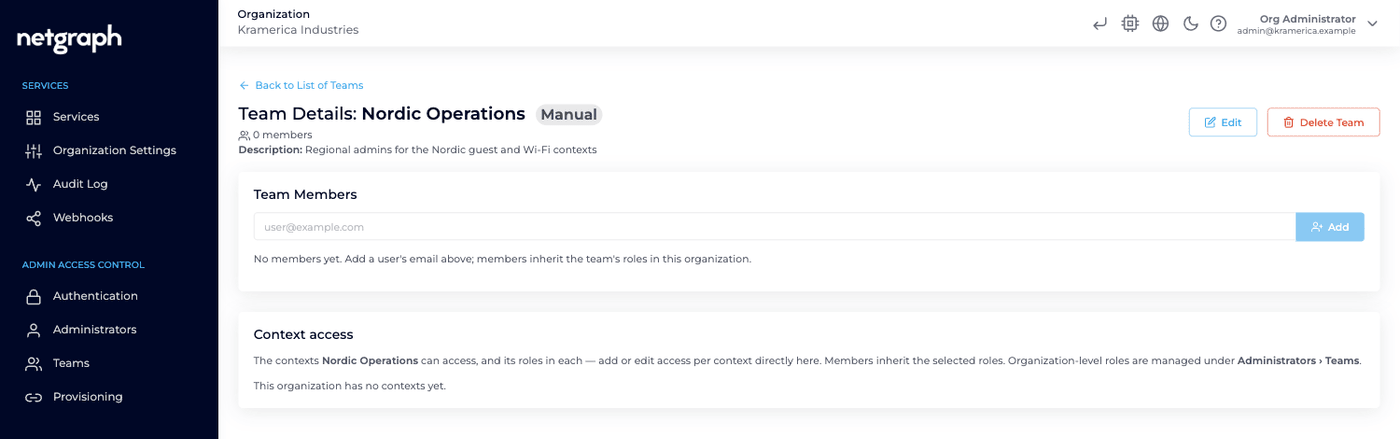
Section titled “Add members”Open the team and add members by email on the Team Members tab. Members inherit the team’s roles in the Organization.
Members must be administrators first
You can only add someone who is already a member of the Organization. If you enter an email that isn't, Netgraph offers to invite them as an Organization Member and add them to the team in one step — they accept the invitation before they can sign in.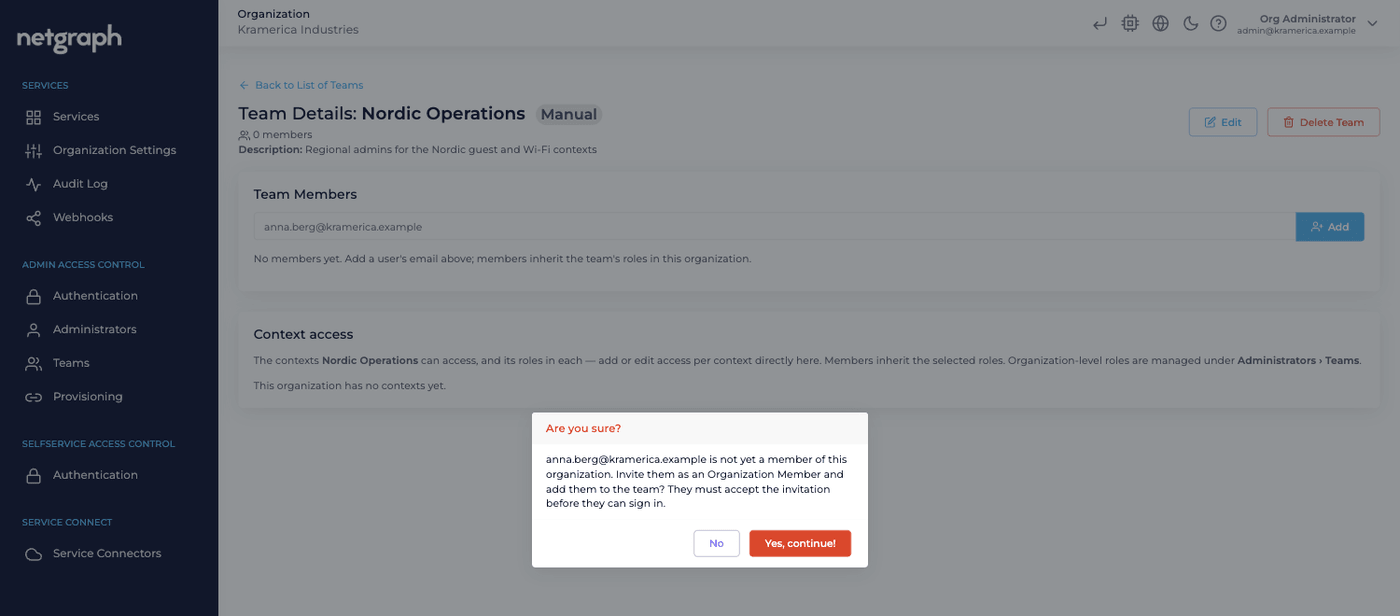
Grant the team roles
Section titled “Grant the team roles”Creating a team and granting it roles are deliberately separate. You grant roles under Admin Access Control → Administrators, on the Teams tab — at the Organization level, or inside any Service Context.
-
Open Administrators → Teams
Go to Administrators and switch to the Teams tab. Do this at the Organization level for Organization-wide roles, or inside a specific Context for roles there.
-
Add the team and pick roles
Click Add Team, choose the team, and tick the roles to grant. Each role lists exactly what it allows.
-
Repeat per context as needed
Grant the same team different roles in Sign-In, EntryPoint, EasyPSK or Endpoint Manager for Cisco ISE, whatever each context needs.
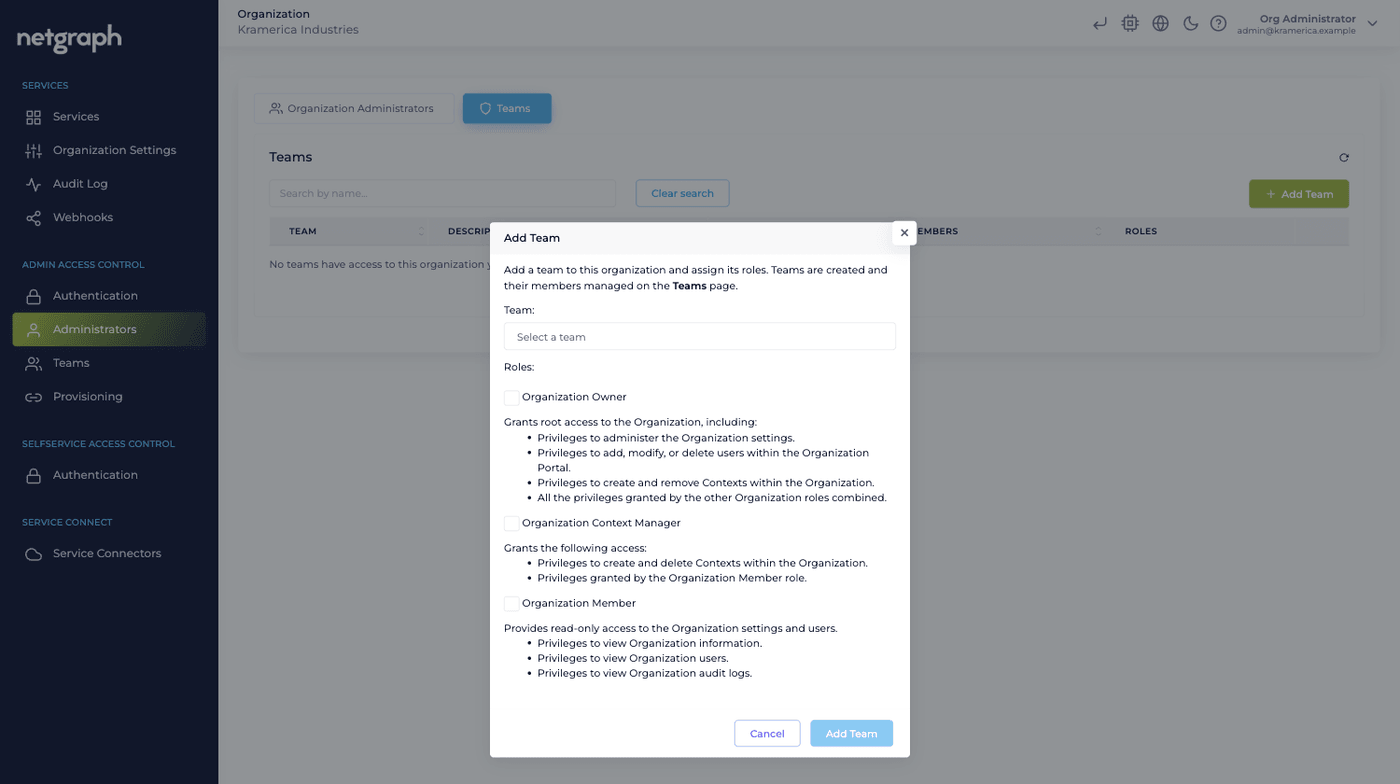
This split means you can change who is in a team without touching what the team can do, and the reverse.
Teams from SCIM
Section titled “Teams from SCIM”A group synced from your identity provider through SCIM provisioning appears here as a team whose Source is SCIM and whose membership follows the IdP group. SCIM keeps the membership in step but never sets the team’s roles — you grant those exactly as above.
Related pages
Section titled “Related pages”- Set up SCIM provisioning: fill teams automatically from your IdP.
- Managing Administrators: the individual administrators a team is built from.
- Administrator roles: what each role grants.