
Self-Service portal
What a delegated administrator sees — a per-group workspace with device management, batch upload and, for Group Administrators, user management. No Cisco ISE access involved.
The Self-Service portal is where Group Administrators and default users live. It’s the delegated-administration surface of Endpoint Manager: scoped to the groups a user is a member of, stripped of everything they don’t need to see, and available from any browser without a Cisco ISE login.
Landing — the groups you belong to
Section titled “Landing — the groups you belong to”When a Self-Service User opens the portal they see a landing card
for each Context in the Organization that they’re a Self-Service
User of. A user who only exists on one Endpoint Identity Group
sees a single card. A user who is, for example, a Group
Administrator on IP_Phones and also a default user on
Digital_Signage sees cards for both.
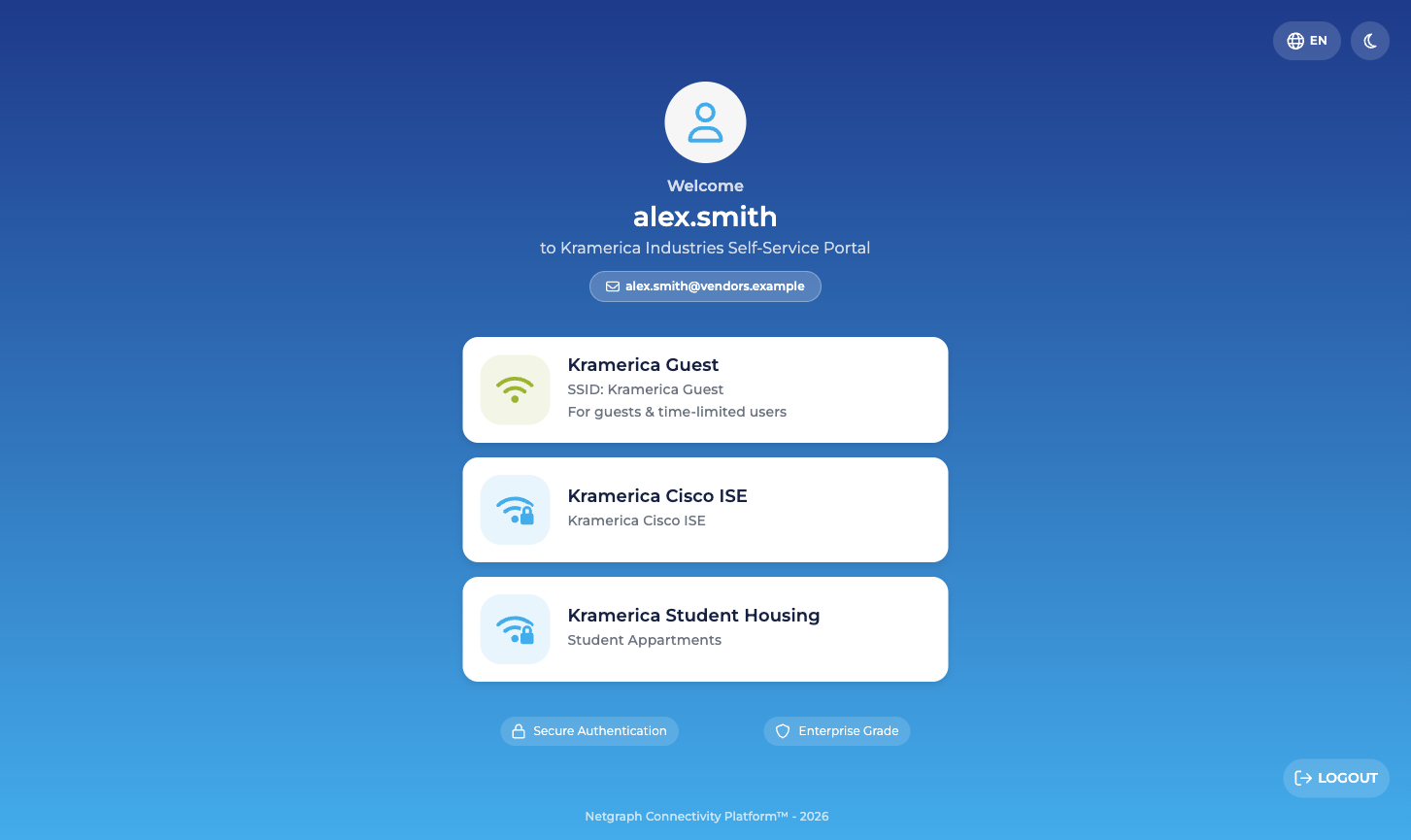
Clicking the Endpoint Manager card drops them into their group’s detail view.
Inside a group — the two or three cards
Section titled “Inside a group — the two or three cards”Each group’s detail view presents two cards for a User (default), three cards for a Group Administrator:
- Devices. The group’s endpoint list. Every user sees this.
- Group Users. The list of Self-Service Users on the group. Only Group Administrators see this card.
- Batch Add Devices. A shortcut to the four-step CSV wizard.
Devices — view, add, update, revoke
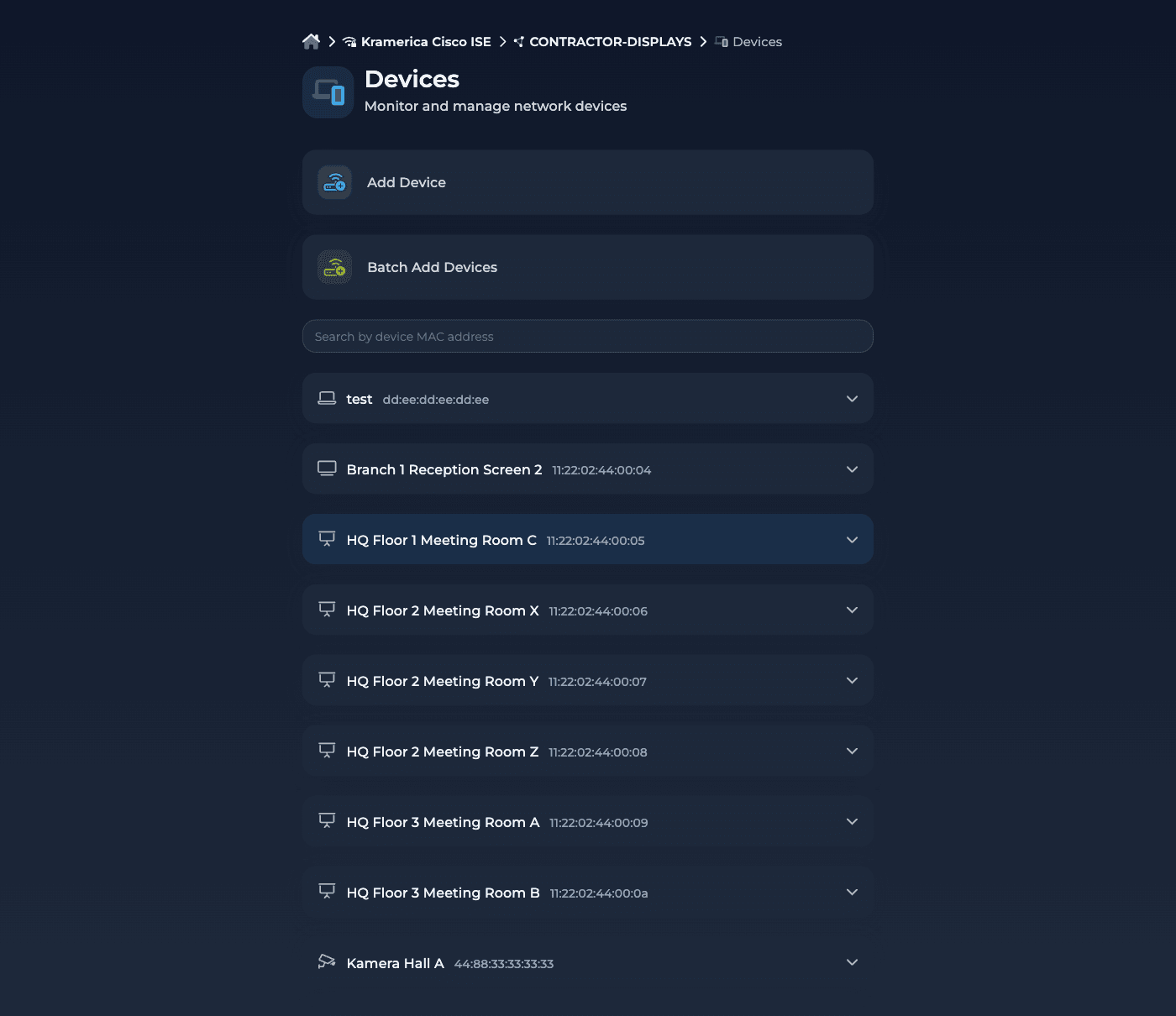
Section titled “Devices — view, add, update, revoke”The Devices view opens on an accordion list of endpoints in the group. Each entry shows the MAC, the description, and — if the endpoint is currently authenticated on the network — the live session data Cisco ISE reports for it:
- Description
- Added by / Added (when, by whom)
- Updated by / Updated
- MAC address
- Device type
- IPv4 address
- Network Device (NAS)
- Port / VLAN
- Session Duration
- Data Usage (DL/UL)
- Connection Information
Row actions on each endpoint:
- Modify — edit the endpoint’s description and any endpoint level attribute the Context has marked Editable, including Device Type. Attributes marked Display are shown but read-only. Changes are pushed into ISE.
- The device’s Wi-Fi key, if the group uses a per-device Identity PSK. Each device carries its own key block: the key itself behind a reveal control, a Wi-Fi network line naming the group’s SSID, and buttons to copy it, show it as a QR code, update it or regenerate it. Revealing needs only membership of the group; changing the key needs the attribute to be Editable and the user to hold the group’s device-administration role.
- Revoke — remove the endpoint from the group. If the endpoint isn’t a member of any other group it’s deleted from ISE entirely.
Across the top of the list:
- A search box that filters by MAC address.
- Online / Offline / All pills to show only endpoints with live sessions, endpoints without, or everything.
- Add Device to add a single endpoint.
- Batch Add Devices to open the CSV wizard.
Group Users — only for Group Administrators
Section titled “Group Users — only for Group Administrators”Group Administrators see a Group Users card on the group’s landing. The view inside it is a list of every Self-Service User on the group — the member’s email, which of the two permissions they hold, and who invited them.
From here the Group Administrator can:
- Add User — invite a new Self-Service User by email. The invitee receives a portal login link.
- Modify — change permissions (for example, promote a default user to Group Administrator).
- Revoke — remove a Self-Service User. Removing a user does not affect the endpoints they added.
A User (default) can see the Devices card but not the Group Users card. They cannot see or change any other member of the group.
How a Self-Service User signs in
Section titled “How a Self-Service User signs in”Two paths into the portal:
- Email invitation link. The default when you add a Self-Service User from the admin side with Send email invite? checked. The link lands the user directly in their group. Only while the Organization keeps Email Magic Link enabled; with it turned off, platform emails link to the portal’s sign-in page and the user signs in through SAML.
- SAML Single Sign-On. If the Organization has a SAML Identity Provider configured for Self-Service authentication, Self-Service Users can sign in with their corporate identity, and new members can be provisioned automatically on first login when the group has Self-Service enrollment enabled. See Self-Service Portal authentication.
Self-Service sessions are scoped to the Organization. A user who is a Self-Service User in multiple Contexts sees all of them on the landing page once signed in.
What a Self-Service User cannot do
Section titled “What a Self-Service User cannot do”A delegated administrator, even a Group Administrator, has no access to:
- The Admin Dashboard. Different portal entirely.
- Cisco ISE itself. They never touch it.
- Groups they aren’t a member of — even other groups in the same Context, even the Organization’s other Services.
- Context-level configuration: API credentials, Managed Attribute definitions, Context name, group connect / disconnect.
If any of those become something a particular person needs, the answer is to promote them to an Organization administrator instead of stretching the Self-Service portal to do things it wasn’t built for.