
Your own lists
Keep blocklists of your own, by subscribing to a published list at a URL or maintaining the domains by hand, and use allowlists to make exact-name exceptions.
Alongside the curated categories, a context keeps lists of its own for the domains that are specific to your organization. They all live under Lists, and a list does nothing until a policy selects it.
There are three of them, and the page says which is which in each card’s title:
- Downloaded from a URL, fetched and refreshed automatically.
- Maintained in this context, whose domains an administrator adds.
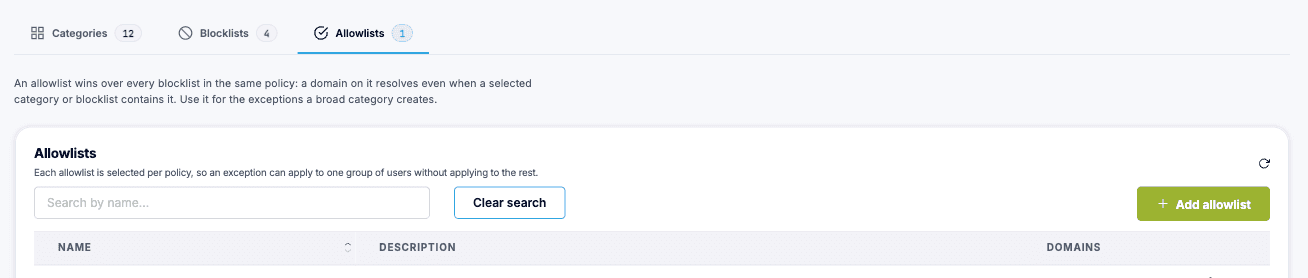
- Allowlists, the domains that must always resolve.
Give every list a description as well as a name. The description is shown on the tile when you pick the list in a policy, which is what tells two similar lists apart six months later.
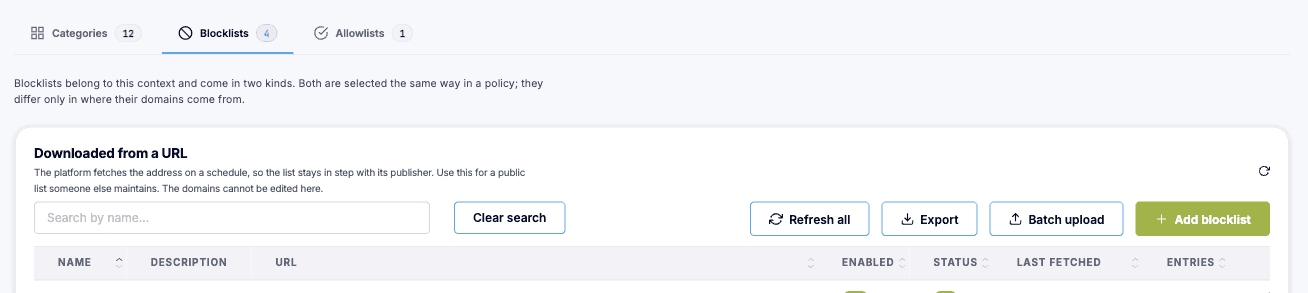
Downloaded from a URL
Section titled “Downloaded from a URL”A subscription to a published list of domains somewhere on the web. Cloud DNS fetches it, keeps it refreshed and reports the result.
Use this when a list you want is published and maintained by someone else, and it is not already covered by a category. The categories cover the common subjects, so reach for a URL subscription when you need something more specific, such as a list maintained by your industry or your own security team.
-
Add the subscription
On the Downloaded from a URL card, add a list. Give it a name and a description, paste the URL, and leave it enabled so it is kept refreshed.
-
Check that it fetched
The status reads OK once the list has been read, Error if the URL could not be reached, and Stale if it has not been refreshed for a while. In every case the last content that was fetched stays in use, and an error is also called out at the top of the Policies page. You can fetch again on demand from the row, or refresh every enabled list at once. A list you disable shows as Paused in the policy editor and blocks nothing until you enable it again.
-
Review what arrived
Download the content from the row to see exactly what was fetched. You can also export the whole set of subscriptions, or add many at once from a file.
Maintained in this context
Section titled “Maintained in this context”A list of domains you keep yourself, for the domains nobody else publishes: a competitor, an internal service that should not be reachable from the guest network, or the handful of sites a particular customer asked you to block.

-
Create the list
On the Maintained in this context card, add a list with a name and a description.
-
Add domains
Open the list’s entries and add them. An entry is a domain name, and it covers that name and everything under it:
ads-tracker.examplealso blockscdn.ads-tracker.example, so there is no wildcard to write. If you type*.ads-tracker.exampleorads-tracker.example.anyway, the entry is accepted and stored asads-tracker.example; capital letters are lowered and an international name is stored in its ASCII form. Something that cannot be a domain name is refused with a message, and in a batch upload it is counted as invalid. To add many at once, paste one domain per line, or upload a text or CSV file.
Allowlists
Section titled “Allowlists”An allowlist holds the domains that must resolve even when a category or a blocklist in the same policy contains them. An allowlist entry removes that exact name from what the policy blocks, whichever list it came from, so this is how you make an exception without giving up the protection around it.
Use one for the services the network depends on: payment providers, booking systems, the identity provider people sign in with, your own services.
Allowlists are created and filled exactly like a list you maintain by hand: add the list on the Allowlists card, then open it and add the domains.
The exact name is what matters, and it works the other way round from a blocklist entry:
- A blocklist entry covers the domain and everything under it.
- An allowlist entry covers the one name you wrote. It does not cover the names under it, and it does not undo a block that comes from a parent domain.
So if a category lists example.com and you allowlist pay.example.com,
pay.example.com is still blocked: the resolver matches the parent entry. To let
it through, either remove example.com from the list that holds it, if it is one
of yours, or allowlist example.com, which then allows everything under it.
Look up a domain on the Policies
page shows exactly this situation when it occurs, names the list the block comes
from, and says which of the two fixes applies.
Note
When a category blocks something your network needs, the fix is an allowlist entry, not removing the category. You keep everything else the category covers and make one documented exception. Look up a domain on the Policies page confirms the result and tells you whether the block came from the name itself or from a parent domain.
Which to reach for
Section titled “Which to reach for”| You want to block | Use |
|---|---|
| A common subject such as malware, gambling or ads | A category |
| A published list someone else maintains, that no category covers | Downloaded from a URL |
| Domains specific to your organization | Maintained in this context |
| Nothing, but something must never be blocked | An allowlist |
Once the lists exist, combine them in a policy to put them into effect.