
Groups per audience
Create one 802.1X-PEAP Group per audience — employees, a contractor firm, a vendor team, an event cohort — and attach an Attribute Profile for VLAN or Security Group Tag. Delegate day-to-day account management to the audience's lead.
The natural unit of EAP-PEAP administration is one Group per audience. Each Group carries its own Self-Service Users, its shared access policy (via an Attribute Profile), and a clean audit trail of who did what on whose behalf. This page covers the admin-side lifecycle — create, configure, delegate, retire.
“Audience” is deliberately broad. It’s whatever group of people should share one RADIUS response and one person-in-charge: staff, a consulting firm, the HVAC vendor, an event’s production crew, a research cohort, a subsidiary. See EAP-PEAP overview for the common audience shapes worth their own Group.
Prerequisites
Section titled “Prerequisites”- The Context is an EntryPoint 2.0 (Dot1x PEAP, Entra) variant.
- EAP-PEAP is toggled on under Configuration → Basic Configuration → Client Authentication Methods and saved.
- No Identity Store work is needed: PEAP accounts are created and held in EntryPoint. The Backend Identity Store setting concerns only EAP-TLS User Certificate Groups. See Entra connection.
- At least one Attribute Profile exists on the Context if you want per-audience VLAN or Security Group Tag assignment. See Attribute Profiles.
Create a PEAP Group
Section titled “Create a PEAP Group”-
Open the Context's Groups tab
From the Context overview, click Groups in the left navigation.
-
Click Add Group
Opens the Create Group dialog. When only EAP-PEAP is enabled on the Context, the form is short: Group Name and one checkbox.
-
Name the Group after the audience
The name shows up in breadcrumbs, on the Context’s Groups list, and in the Self-Service portal for every user of the Group. Pick the name the audience itself uses — a firm’s trading name, a team’s internal label, the event’s title. Examples:
- Corporate Staff (employees on corporate Wi-Fi)
- Acme Consulting / Beta Advisory / Gamma Partners (consulting firms on-site)
- HVAC Contractors / AV Contractors (vendor teams)
- Summer Interns 2026 (timeboxed cohort)
- Lab 4 — Thermal Imaging Project (research cohort)
-
Tick Personal PEAP accounts
The Personal PEAP accounts checkbox gives every Self-Service User in the Group an auto-generated Personal PEAP Account. Keep it on. Leave it off only when you intend to create the Group’s PEAP accounts by hand on the PEAP Accounts tab instead.
-
Click Create PEAP Group
The Group lands on its own detail page. Now continue below: attach an Attribute Profile and invite the audience’s lead.
What’s on the Group detail page
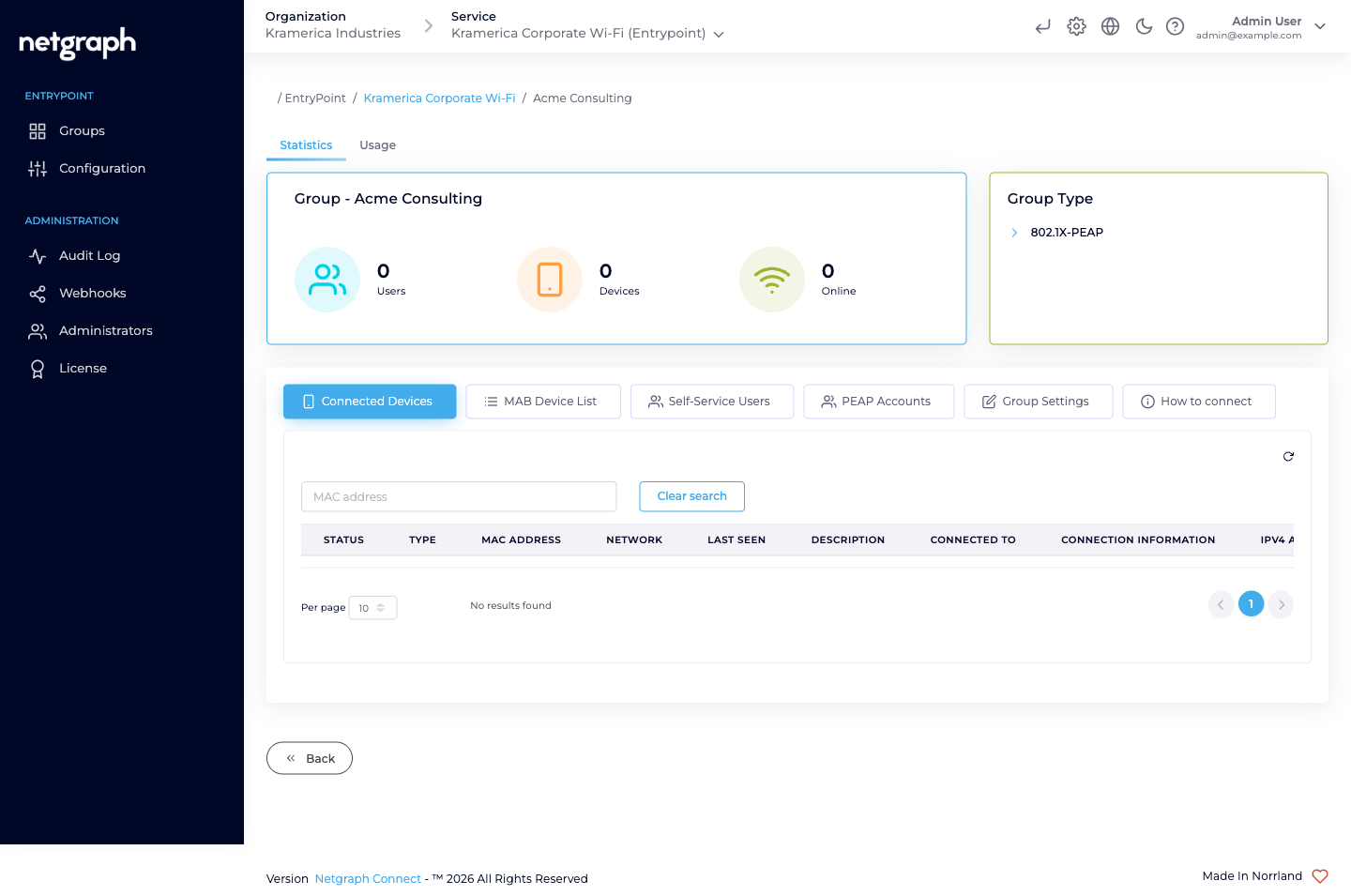
Section titled “What’s on the Group detail page”A PEAP Group detail carries a Group statistics card up top (Users
/ Devices / Online counters) and a Group Type card on the right
(802.1X-PEAP), plus six tabs:
| Tab | What it’s for |
|---|---|
| Connected Devices | Devices that have authenticated with this Group’s PEAP accounts. Columns cover MAC, OS, browser, last seen online, network, connection info. |
| MAB Device List | A per-Group fallback list for headless gear that can’t do 802.1X — printers, phones, sensors — that should land on the same VLAN as this Group’s PEAP users. See Combining with EAP-TLS & MAB. |
| Self-Service Users | The audience’s roster — see Self-Service & Personal PEAP Accounts. |
| PEAP Accounts | The Personal PEAP Accounts auto-generated for this Group’s Self-Service Users. Admins see usernames here; passwords remain visible only to the user in the Self-Service portal. |
| Group Settings | Rename, attach an Attribute Profile, delete the Group. |
| How to connect | Admin-side summary of the connection details end-users will see in the portal — SSID, masked credentials, step-by-step per-OS instructions. |
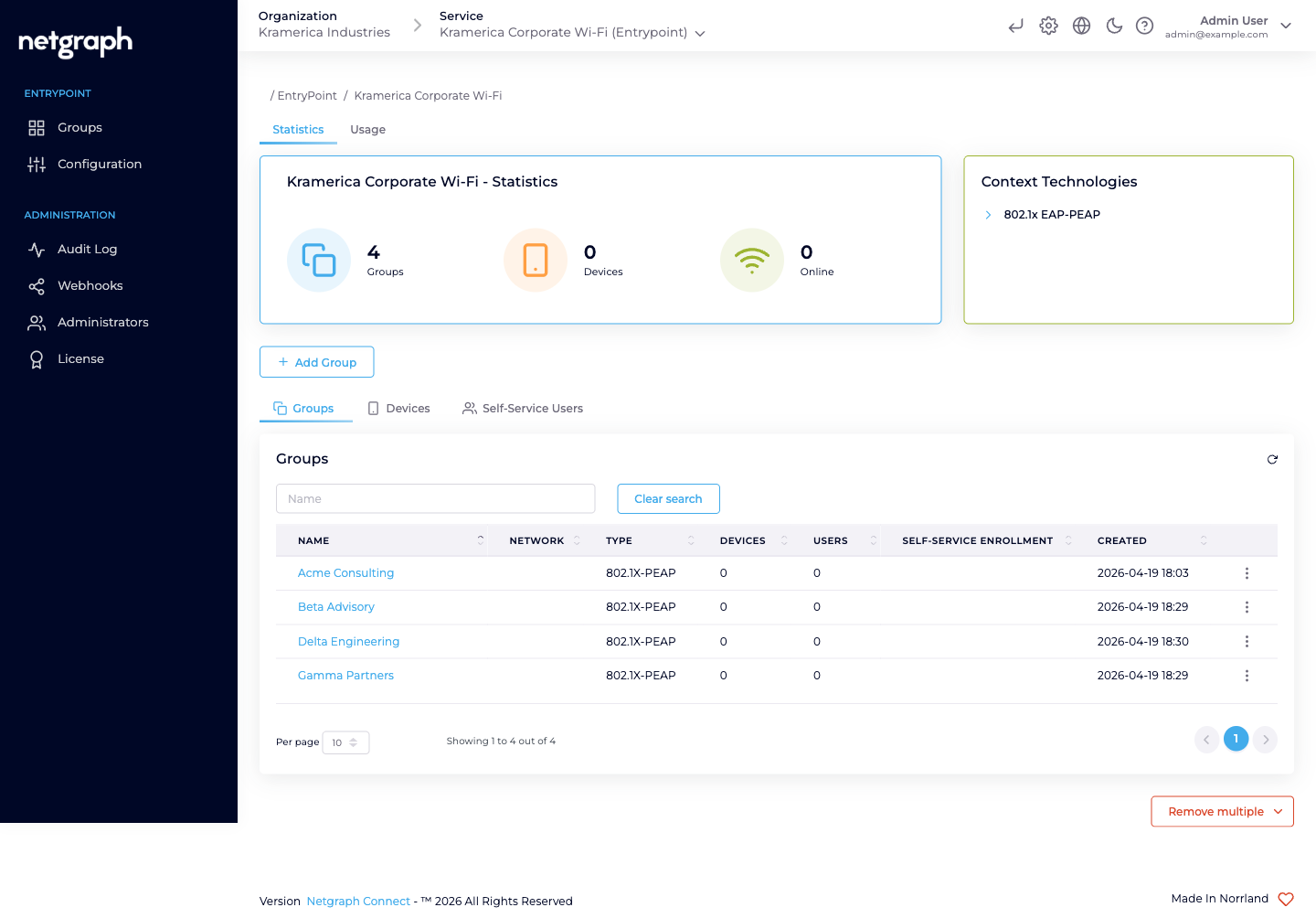
The Groups list on the Context has columns for Name, Network, Type, Devices, Users, Self-Service Enrollment, and Created.
Attach the audience’s Attribute Profile
Section titled “Attach the audience’s Attribute Profile”Per-audience VLAN or Security Group Tag assignment is where the shape of “one Group per audience” pays off. Staff land on a staff VLAN; a contractor firm lands on a contractor VLAN with tighter egress; the HVAC vendor team lands on the operational-technology VLAN; event staff land on a time-limited VLAN. You arrange this by creating one Attribute Profile per policy and attaching it to each Group’s Dot1x settings card on Group Settings.
-
Create the Profile first, if it doesn't exist
On the Context, Configuration → Attribute Profiles → Add attribute profile. Name it for the treatment (VLAN 210 — Staff, VLAN 810 — External Contractors), add the three tunnel attributes that assign the VLAN. See Attribute Profiles.
-
Open the Group's Settings tab
The Dot1x settings card lists the Attribute Profiles attached to the Group.
-
Attach the Profile
Pick the Profile from the dropdown and save. Every successful PEAP authentication for a user in this Group now returns the Profile’s attributes on the RADIUS Access-Accept.
One Group can attach more than one Profile — useful for stacking a Cisco AV-pair (URL redirect, SGT) alongside the VLAN assignment. Multiple Groups can share one Profile too — if the HVAC and AV contractor Groups should both land on the same VLAN, one Profile attached to both Groups is the right shape.
Invite the audience’s lead as a Group Administrator
Section titled “Invite the audience’s lead as a Group Administrator”Self-Service is what turns “one Group per audience” from a naming convention into real delegation. You invite one person per audience as a Group Administrator Self-Service User; they then invite their own colleagues.
-
Open the Group's Self-Service Users tab
From the Group detail page.
-
Click Add Self-Service User
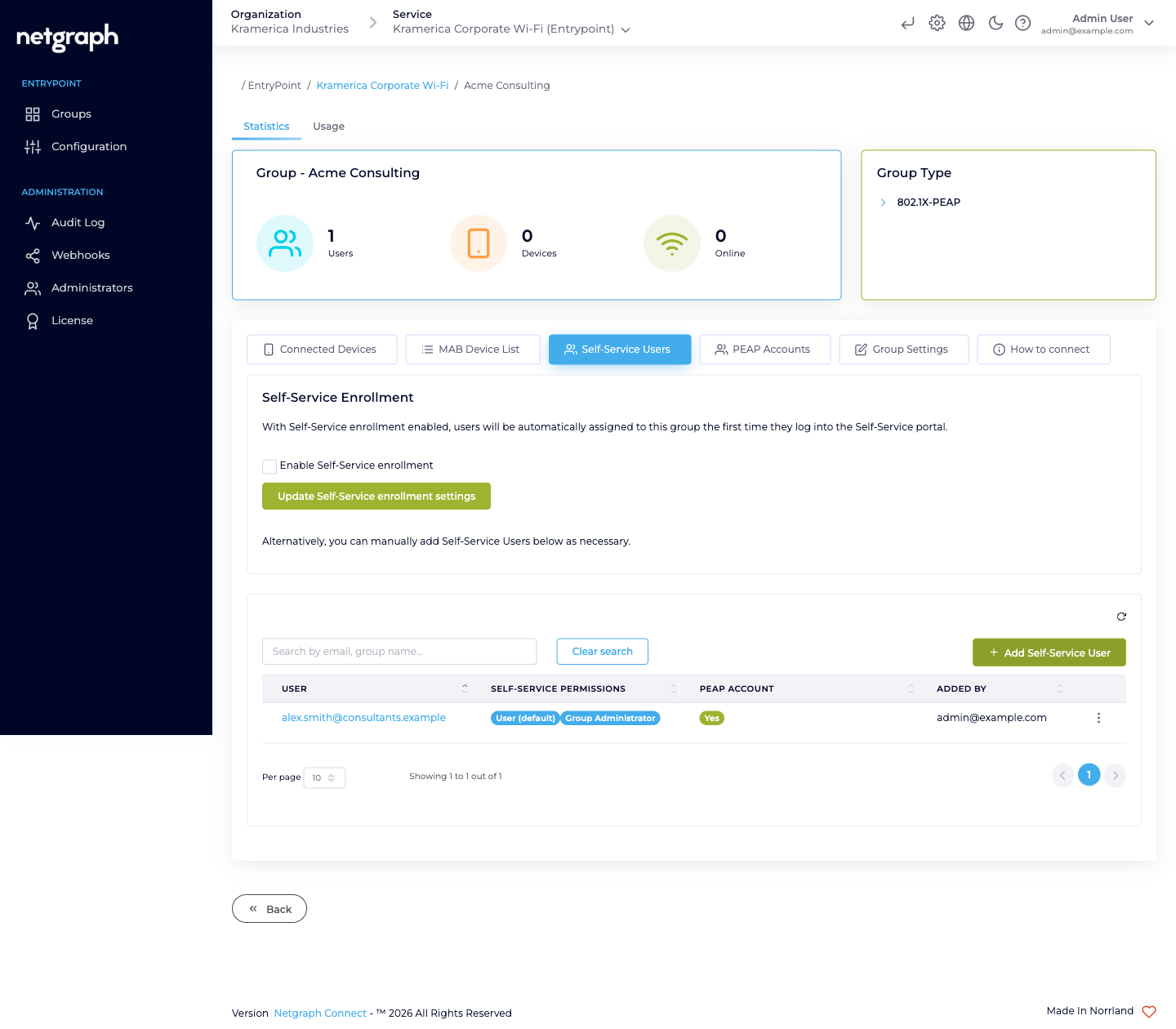
Enter the lead’s email, check Group Administrator (the User (default) permission is always on and cannot be removed), and leave Send email invite? checked.
-
Click Add Self-Service User
The lead appears in the list with both role pills. They receive a Self-Service portal login email; on first sign-in their own Personal PEAP Account is auto-generated and they see the Group Users card from which they’ll invite the rest of their team.
See Self-Service & Personal PEAP Accounts for the end-user experience and the full role matrix.
PEAP and Microsoft Entra ID
Section titled “PEAP and Microsoft Entra ID”PEAP Groups are not mapped to Entra groups, and PEAP passwords are never validated against Entra: authentication always resolves against the Personal PEAP Accounts held in EntryPoint, whatever the Context’s Identity Store is set to. (The inner MSCHAPv2 exchange needs password material no directory exposes, so this holds for any RADIUS service.) The Context’s Backend Identity Store is consulted by the EAP-TLS User Certificate Groups that can share the same Context.
Two ways Entra still fits a PEAP audience:
- Self-Service sign-in. The Self-Service portal can use SAML single sign-on, so staff retrieve their Personal PEAP Account with the sign-in they already have.
- The certificate path. Where access should follow Entra group membership, put that audience on EAP-TLS with Entra instead. PEAP and EAP-TLS Groups coexist on one Context.
Note
Audiences outside your tenant (contractor firms, event staff, visiting researchers) are exactly who Personal PEAP Accounts are for: EntryPoint is the only system in the loop.
Day-to-day: the audience runs itself
Section titled “Day-to-day: the audience runs itself”After the first invite, the audience’s Group Administrator does the day-to-day work. From the Self-Service portal they:
- Add a member. Enter the new user’s email; the platform sends a portal invitation. On first sign-in the member sees their auto-generated Personal PEAP Account and per-OS setup instructions.
- Revoke a member. Remove them from the Group Users card. Their Personal PEAP Account is deleted and their devices drop off at the next re-auth.
- See who’s connected. The Connected Devices card on the Self-Service portal renders the same list the admin side does — filtered to this Group.
- Promote a second lead. Group Administrators can invite additional Group Administrators for redundancy. Two-admin coverage matters when the primary lead is on vacation and a member needs removing urgently.
You (the Organization admin) only need to intervene for exceptions — when the lead themselves changes, when a Group needs retiring, or when a policy change is wider than one audience.
Retiring a Group
Section titled “Retiring a Group”When the audience no longer needs access — the project ends, the engagement closes, the event is over:
-
Confirm the lead is done
Ideally they revoke their own team first from the Self-Service portal so audits show the audience tidying up after themselves.
-
Open the Group's Settings tab
Scroll to the Remove / Delete section.
-
Delete the Group
Confirm. The Group’s Personal PEAP Accounts are deleted, remaining Self-Service Users lose portal access to the Group immediately, and devices stop re-authenticating on the next attempt.
Attribute Profiles are Context-scoped — deleting a Group does not delete its Attribute Profile. If the Profile isn’t reused by another Group, retire it separately from the Context’s Attribute Profiles tab.
Operational tips
Section titled “Operational tips”- One Group per audience, not per person or per sub-team. The delegation model depends on the audience’s own lead managing the roster. Splitting further than the audience boundary breaks that.
- Rename Groups as audiences change. Mergers, acquisitions, rebrands, team renamings — renaming a Group is free and keeps audits readable.
- Two Group Administrators per audience is a resilient default. When the primary lead leaves or goes on vacation, the secondary keeps things moving until a new primary is appointed.
- Attribute Profile per policy, not per Group. If three audiences share the same VLAN treatment (say, all external contractor Groups), one Profile attached to all three Groups is correct — Profiles don’t have to mirror Group count.
Related
Section titled “Related”Self-Service & Personal PEAP Accounts
Role matrix, per-OS setup, password rotation.
Combining with EAP-TLS & MAB
Run PEAP alongside certificate-auth'd Groups on the same Context.
Attribute Profiles
VLAN, SGT, tunnel attributes — reusable across Groups.
EAP-TLS with Entra
The variant for audiences whose access should follow Entra group membership.