
RADIUS clients
Point your network equipment at the EntryPoint Context: hostname, ports, per-Context shared secret, and the CIDR allow-list.
EntryPoint doesn’t keep a registry of individual RADIUS clients. A Context has one RADIUS hostname, one shared secret, and an IP access allow-list. Any switch, WLAN controller, or router whose source IP is inside the allow-list and that presents the right secret can authenticate against the Context.
All of this lives on Configuration → Network Integration inside the Context.
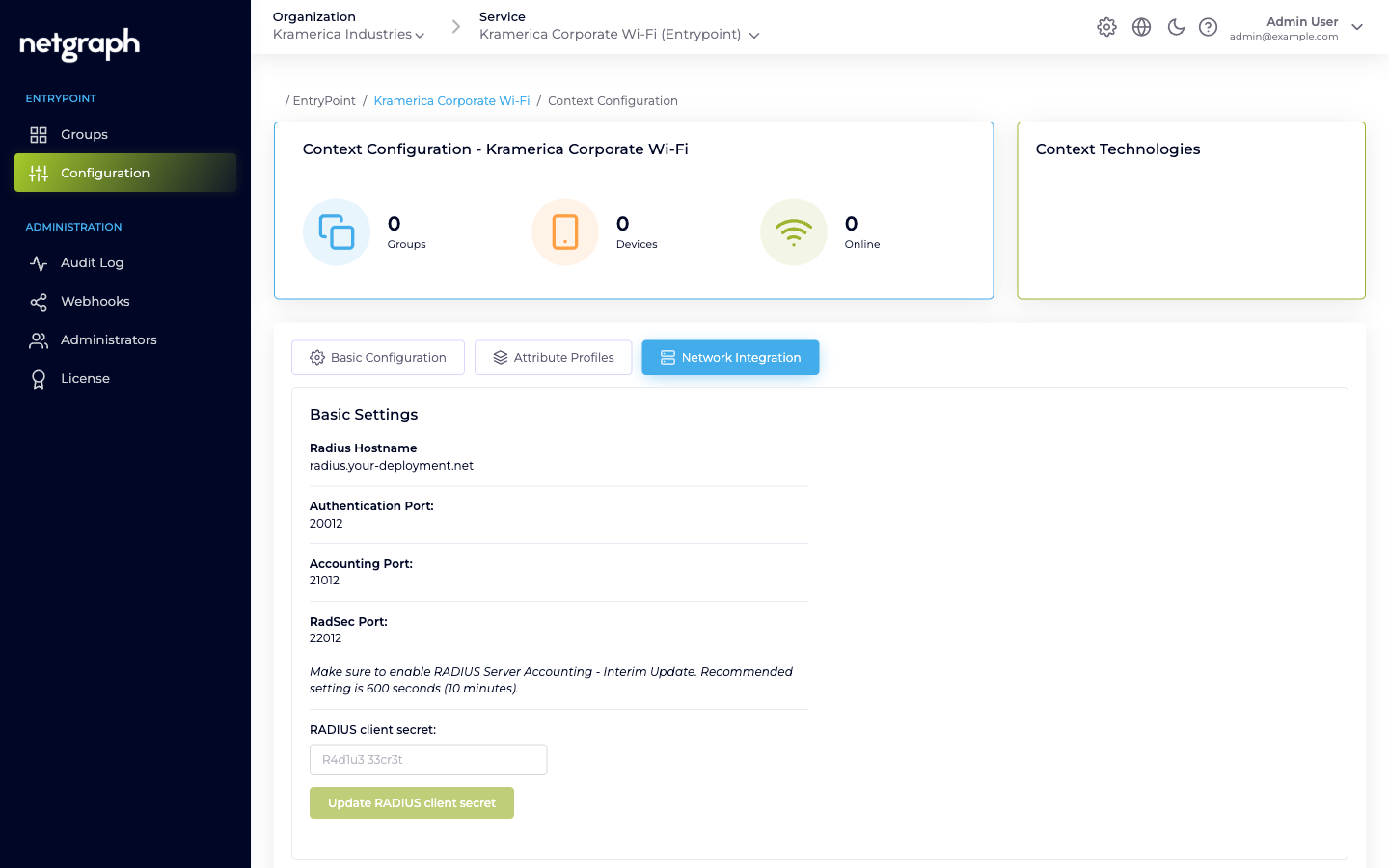
What the Basic Settings card shows
Section titled “What the Basic Settings card shows”- Radius Hostname — the hostname your equipment points at. Read-only; generated per Context.
- Authentication Port — UDP port for authentication requests.
- Accounting Port — UDP port for accounting records.
- RadSec Port — TCP port for RADIUS-over-TLS, if you enable RadSec.
- RADIUS client secret — a single shared secret per Context. This is what every attached WLAN controller / switch / Meraki integration uses.
The card also carries an operational reminder worth heeding:
Make sure to enable RADIUS Server Accounting - Interim Update. Recommended setting is 600 seconds (10 minutes).
With Interim Updates off, the Context’s Devices and Online counters will drift.
Attaching a piece of network equipment
Section titled “Attaching a piece of network equipment”-
Copy the hostname and ports
From the Basic Settings card, note the Radius Hostname, the Authentication Port, the Accounting Port, and the RADIUS client secret.
-
Allow the source IP
Under Configure RADIUS Access Restrictions, add the public IP range of your WLAN controller / switch / Meraki in CIDR format (for example,
203.0.113.0/28). If the allow-list is empty, the RADIUS service refuses all traffic. Using0.0.0.0/0allows any source — avoid it in production. -
Configure the RADIUS server on the client side
On the network equipment, add a new RADIUS server with:
- Hostname from the Basic Settings card.
- Authentication port and Accounting port as shown.
- Shared secret exactly as copied.
- Accounting enabled with an Interim-Update interval near 600 seconds.
-
Test
Authenticate a test identity. The Context’s counters on the Configuration page (Groups / Devices / Online) should pick up the device within seconds.
Rotating the RADIUS client secret
Section titled “Rotating the RADIUS client secret”Because the secret is per-Context rather than per-client, rotating it forces coordination across every attached piece of equipment.
-
Enter a new secret
Type the new secret into the RADIUS client secret field and click Update RADIUS client secret.
-
Update every attached piece of equipment
Immediately update the RADIUS server configuration on every controller / switch / router / Meraki network connected to this Context. Until they’re all updated, authentications from equipment still using the old secret are rejected.
-
Verify
Confirm that authentications resume. Roll back if not.
For a less disruptive rotation, consider creating a second Context with the new secret, migrating equipment Group by Group, and retiring the old one — but that’s only worthwhile for large fleets.
RadSec (RADIUS over TLS)
Section titled “RadSec (RADIUS over TLS)”EntryPoint supports RadSec for equipment that speaks RADIUS over TLS rather than UDP. Toggle Enable RadSec on the Network Integration tab, then upload the CA certificate the client side uses to authenticate its RadSec session. Point the equipment at the RadSec port rather than the UDP ports.
Access restrictions — recommended pattern
Section titled “Access restrictions — recommended pattern”- Enumerate your public IPs explicitly. Use the narrowest CIDR
you can; avoid
0.0.0.0/0. - Document the mapping elsewhere (asset inventory / network diagram) so someone can still answer “why did we allow this range?” later.
- Review quarterly. IP ranges change as offices move and circuits rotate; stale ranges either break auth or leave the allow-list open for equipment that’s been retired.