
Creating an EntryPoint Context
The Create RADIUSaaS Context wizard — variant picker, name and description, and where you land afterwards.
Every EntryPoint deployment starts with creating a Context inside an Organization. This page walks through the wizard and where each variant lands you afterwards.
Open the wizard
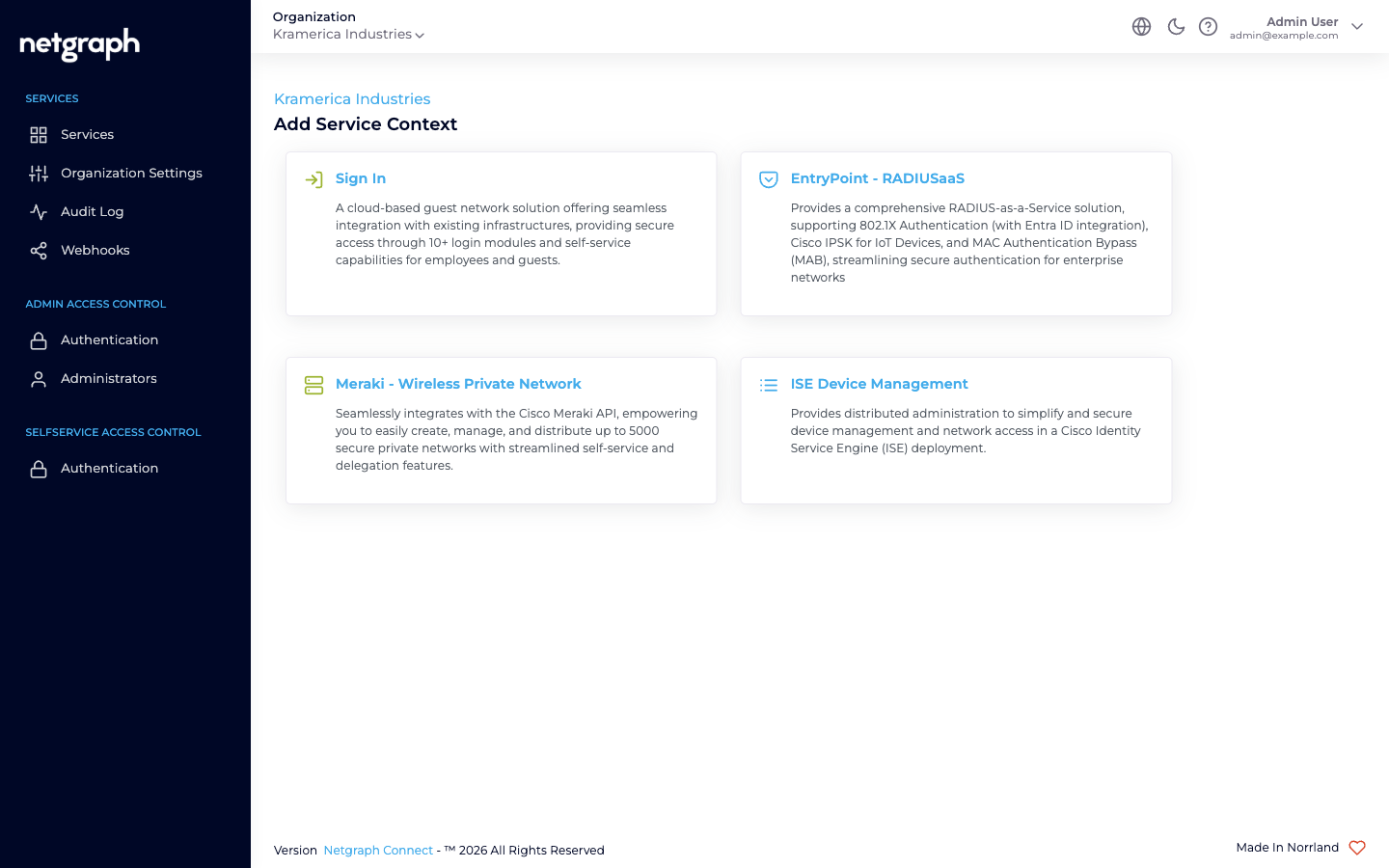
Section titled “Open the wizard”From the Organization’s Services overview, click Add Service Context, then pick the EntryPoint - RADIUSaaS card.
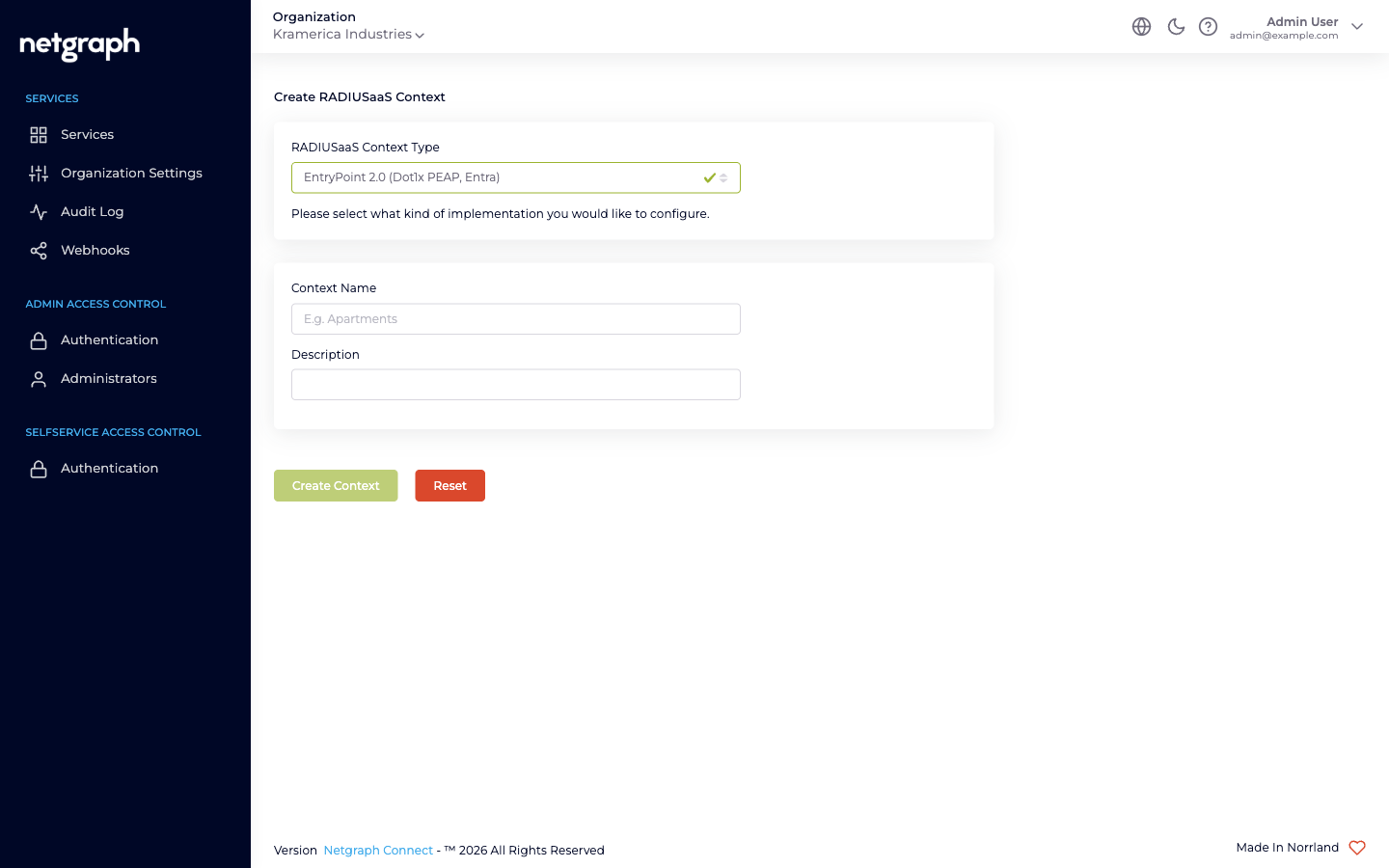
The wizard is called Create RADIUSaaS Context and has three inputs:
- RADIUSaaS Context Type — dropdown choosing the variant.
- Context Name — free text (3–80 chars, alphanumeric-ish). Shows up in breadcrumbs and the Services list.
- Description — free text (3–200 chars).
Pick a variant
Section titled “Pick a variant”The dropdown offers three options (verbatim):
EntryPoint 2.0 (Dot1x PEAP, Entra)— default. Hosts both EAP-PEAP and EAP-TLS with Microsoft Entra ID Groups — the two method families live side-by-side on one Context.EntryPoint 2.0 (Radius Proxy / eduroam)— the Radius Proxy variant.EntryPoint 1.0 (IPSK)— the iPSK variant.
See Comparing variants for the side-by-side matrix and picking guidance.
Fill in Name and Description
Section titled “Fill in Name and Description”Pick something descriptive. Names show up in breadcrumbs, the Service selector, and the Services list. Good names read as a noun: Corporate Wi-Fi, Campus eduroam, Building IoT.
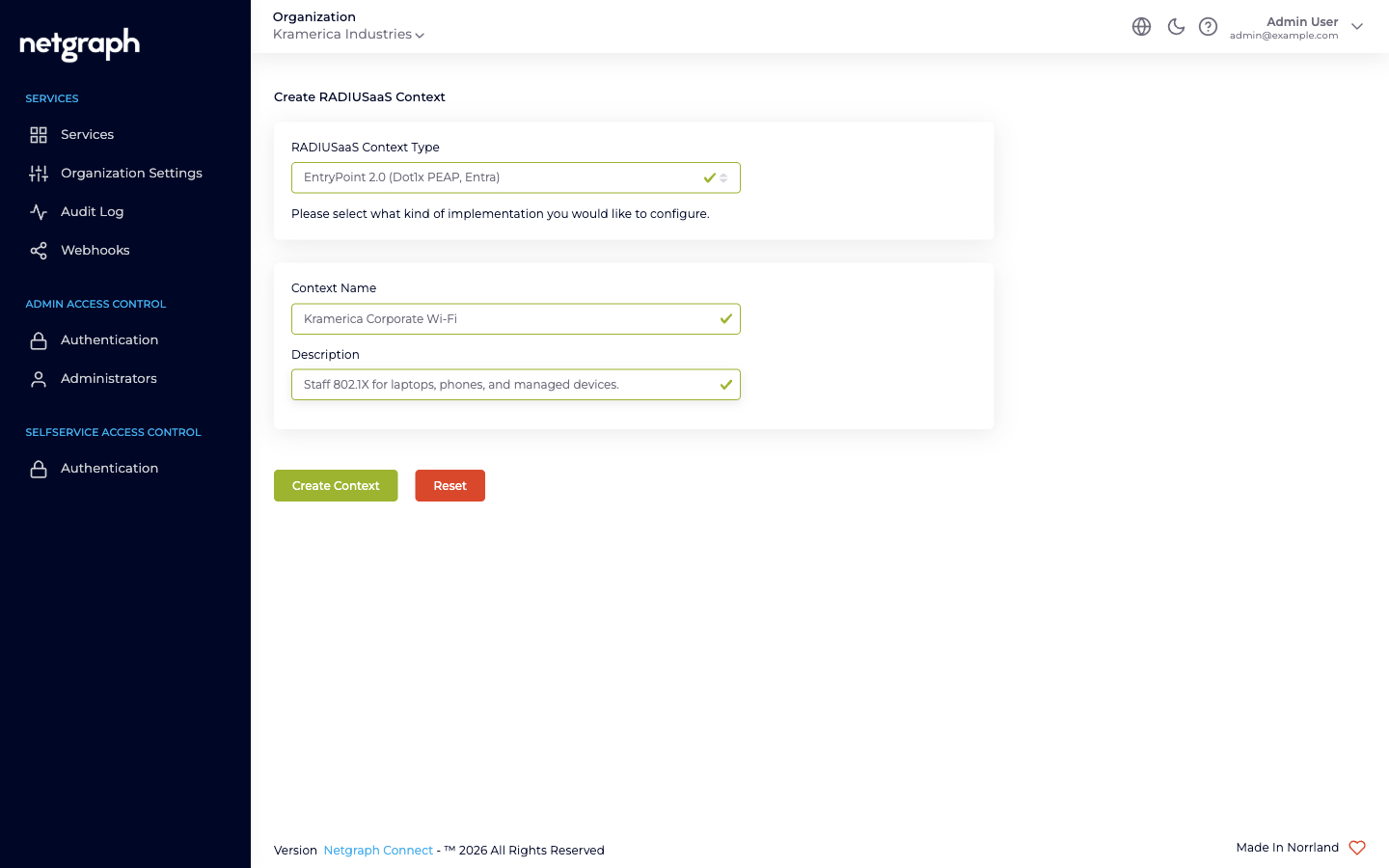
Click Create Context.
Where you land
Section titled “Where you land”The post-create destination differs per wizard variant:
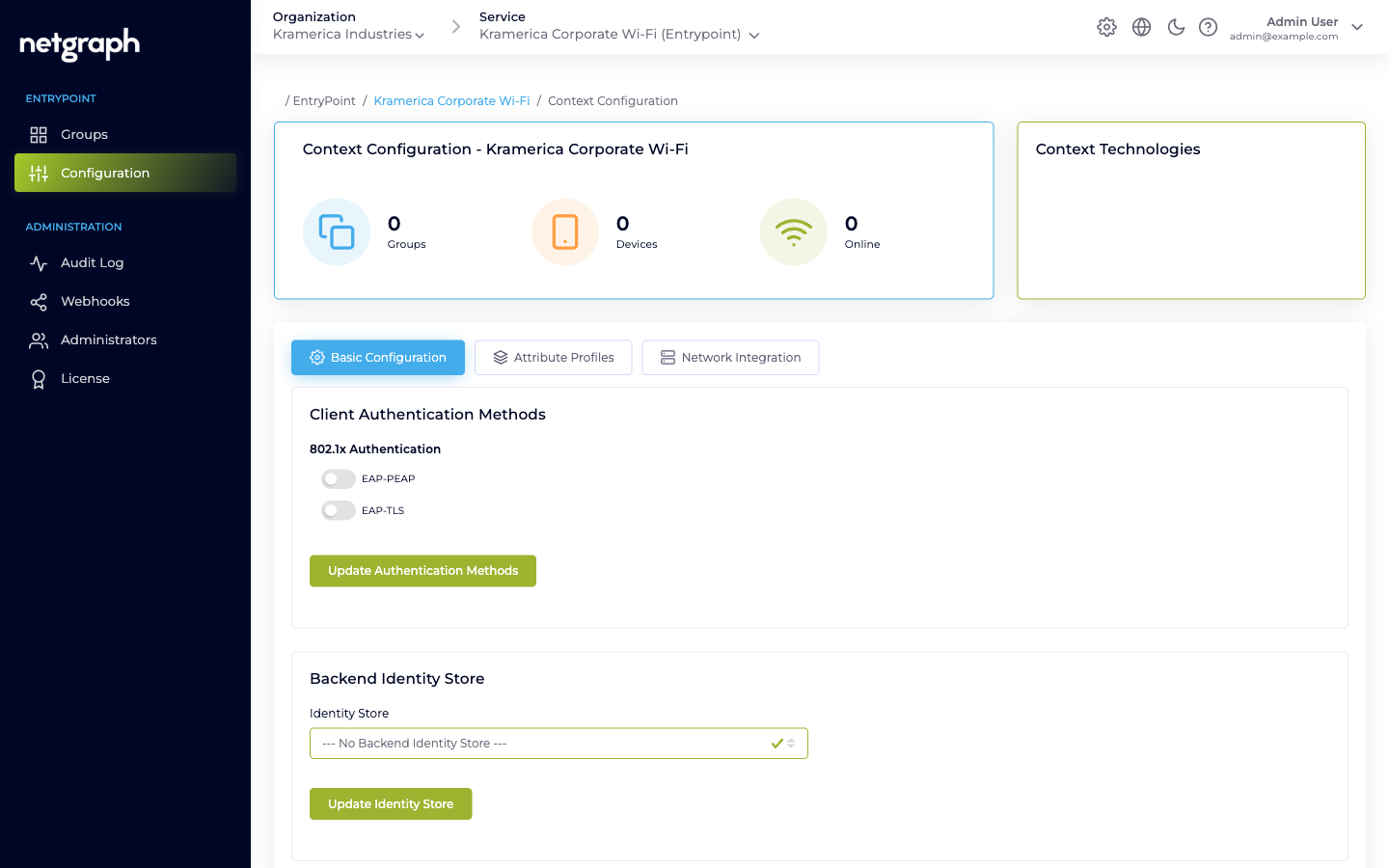
- Dot1x (PEAP, Entra) — lands on the Context’s Configuration → Basic Configuration tab. The Client Authentication Methods card has independent toggles for EAP-PEAP and EAP-TLS, and the Backend Identity Store card lets you wire to Microsoft Entra ID (used by EAP-TLS User Certificate Groups). Whether you end up on the EAP-PEAP or EAP-TLS with Entra path — or both — is decided by which toggles you enable and which Group types you create.
- Radius Proxy — same Configuration page, but the Basic tab shows a Radius Proxy Default Attribute Group card and a link to the auto-created Default Device Group (you won’t create additional Groups here). See Radius Proxy overview.
- iPSK — lands on the iPSK variant’s Configuration page. Basic Configuration includes CoA listeners, Security Group Tag, default member roles, default attribute profiles, and a Self-Service card. See iPSK overview.
All three landing pages have the same counter cards (Groups / Devices / Online) and a Configuration tabs bar whose tabs differ per variant.
What’s next
Section titled “What’s next”- EAP-PEAP → on a Dot1x Context: enable EAP-PEAP, attach network equipment, create Groups per firm, invite the firm leads. The Quickstart walks a first-time PEAP setup end-to-end.
- EAP-TLS with Entra → on a Dot1x Context: enable EAP-TLS, configure the Entra connection, upload Trusted CAs, create one EntryPoint Group per Entra group you want to authorize.
- Radius Proxy → open the Remote Radius Server tab and enter the upstream RADIUS endpoint; enable RadSec if the upstream requires it.
- iPSK → configure Network Integration, create Groups per device class, import devices (single or CSV batch), invite the delegated PSK Administrators.
Every Context also needs at least one Attribute Profile and a RADIUS access restrictions allow-list before network devices can authenticate — see the respective pages under Setup.