
Cisco Meraki (Identity PSK with RADIUS)
Point a Cisco Meraki SSID running Identity PSK with RADIUS at your EasyPSK Context: the platform validates the key a device typed and places it in the right group.
On Cisco Meraki, EasyPSK via RADIUS uses the Identity PSK with RADIUS security mode: the access point asks the SSID’s RADIUS server which key a connecting device presented, and the platform — acting as that RADIUS server — matches the key to the right group and admits the device. No keys are pre-provisioned in the Meraki dashboard, so the 5,000-keys-per-Meraki-network cap of Meraki WPN does not apply.
Meraki sends each connection attempt to the Context's RADIUS endpoints (over the internet, with RadSec, or privately through a Service Connector). The key the user typed identifies the group.
What it requires on the Meraki side
Section titled “What it requires on the Meraki side”- MR firmware 30.6 or later.
- SSID security mode: Identity PSK with RADIUS.
- Client IP assignment: External DHCP server assigned (Bridged) — the same rule as Meraki WPN.
- The Context’s RADIUS endpoint(s) configured as the SSID’s RADIUS server(s), with the Context’s RADIUS client secret.
Warning
External DHCP required. Like Meraki WPN, this delivery does not work with Meraki access-point-assigned DHCP (NAT mode).
Configuring the SSID
Section titled “Configuring the SSID”In the Meraki dashboard, open Wireless → Configure → Access control for the SSID, then:
-
Name and enable the SSID
Give the SSID a name that matches the Context’s SSID Name exactly (for example
Kramerica EasyPSK) and set SSID status to Enabled.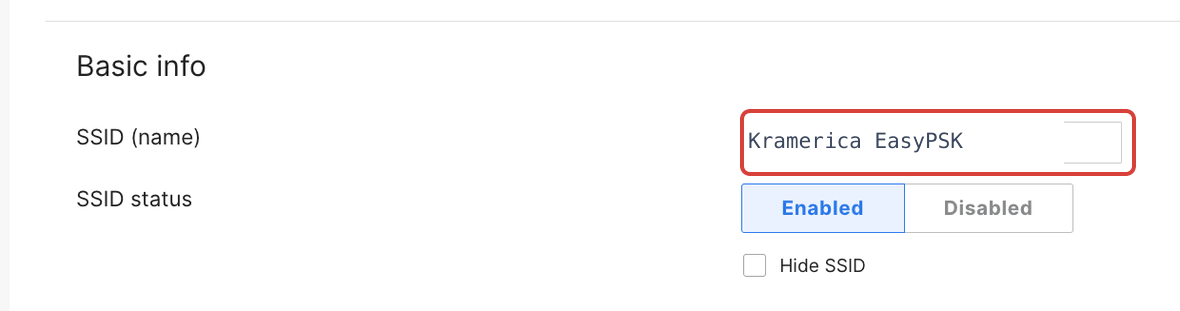
Name the SSID and enable it. -
Security
Set Security to Identity PSK with RADIUS, with the mode set to Easy PSK. The access point then asks the Context’s RADIUS service for the key a device typed and places it in the right group.
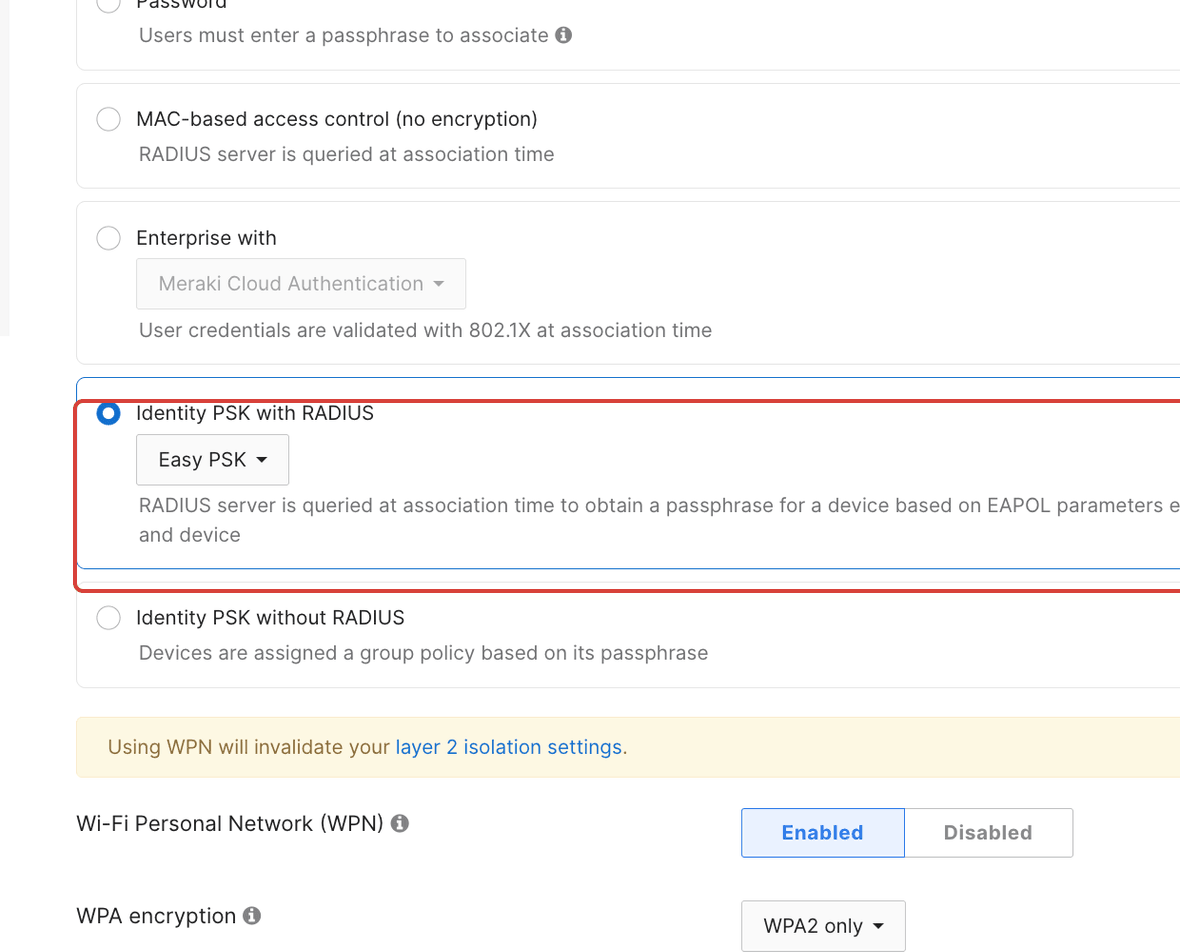
Set Security to Identity PSK with RADIUS, mode Easy PSK. -
RADIUS server
Add the Context’s RADIUS server: the hostname and authentication port from Configuration → Network Integration, and the RADIUS client secret set there.
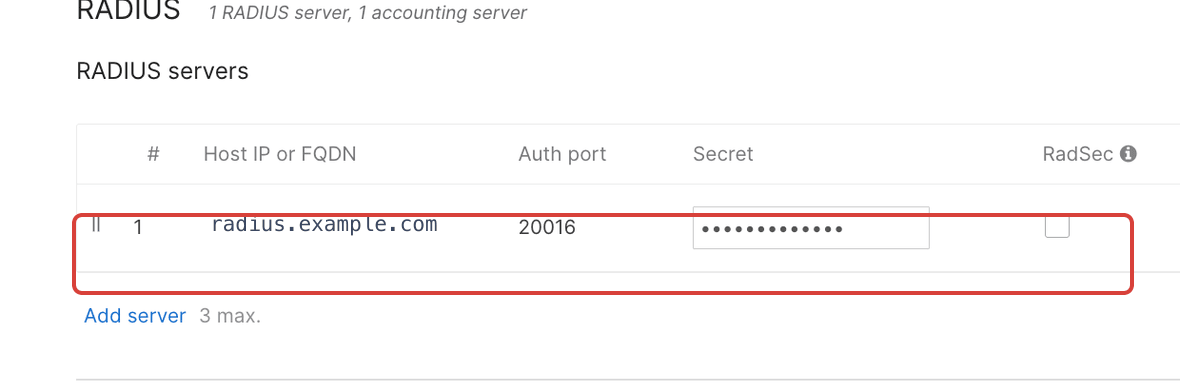
Add the Context as the RADIUS server: host, port, and shared secret. -
RADIUS accounting
Add the accounting server the same way, and enable interim updates (the platform recommends 600 seconds).
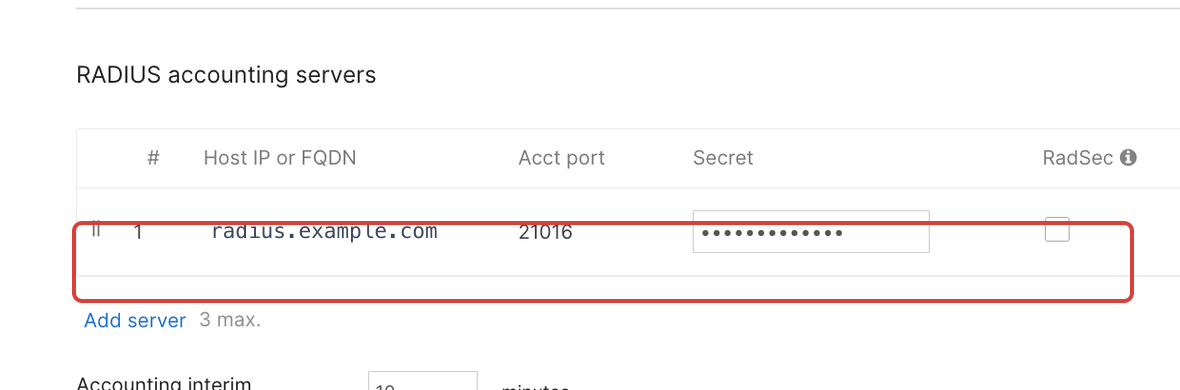
Add the RADIUS accounting server too. -
Device profiling
Enable RADIUS Accounting Device Profiling support. Meraki then includes device-profiling information in its accounting messages, which EasyPSK uses to recognise and classify connected devices.

Enable RADIUS Accounting Device Profiling support. -
Called-station-ID
Under Advanced RADIUS settings, add AP Name to the Called-station-ID category list. It is not there by default. EasyPSK uses it to identify which Access Point a device connected through.
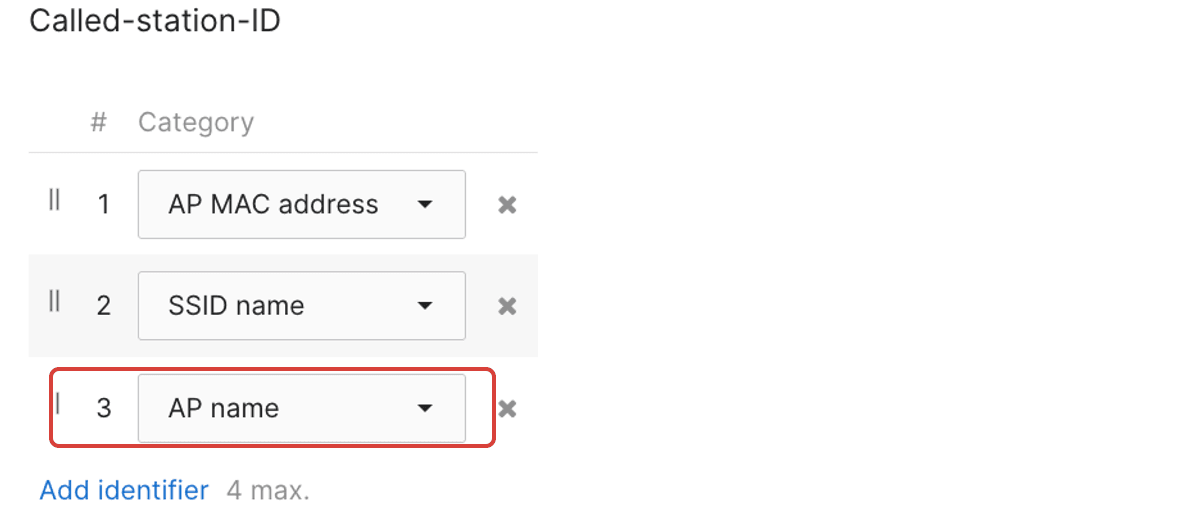
Add AP name to the Called-station-ID list. -
Turn on WPN for the group isolation
Set Wi-Fi Personal Network (WPN) to Enabled, so the access points accept the UDN tag the platform returns per group. What the tag does, and how each group gets one, is under Micro-segmentation with UDN tags below.
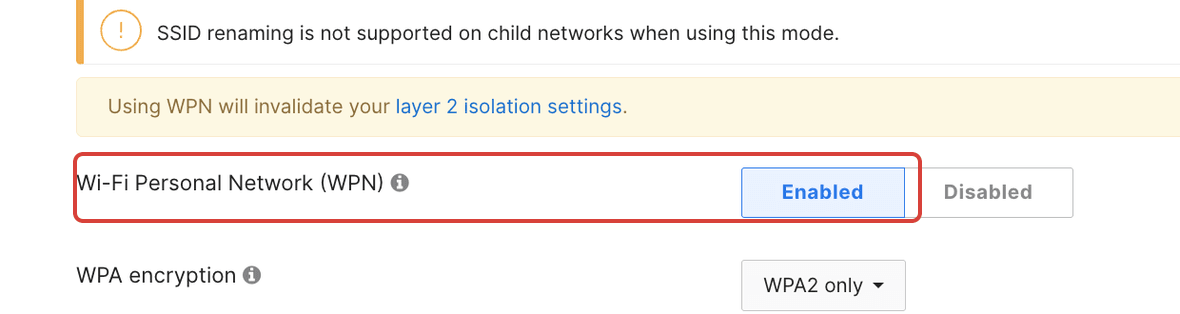
WPN on, so the UDN tag from the RADIUS response takes effect.
The RADIUS access allow-list on the Context’s Network Integration page must include the public source ranges your Meraki networks egress from, or skip the public path entirely and bind the Context to a Service Connector.
Micro-segmentation with UDN tags
Section titled “Micro-segmentation with UDN tags”On Meraki, the groups sharing one Identity-PSK SSID are not
isolated from each other by default. Without a UDN tag, every client
on the SSID can reach every other, whatever key it joined with. To
fence each group into its own personal network, the Context returns a
UDN (User Defined Network) tag in the RADIUS Access-Accept, as the
Cisco AV-pair udn:private-group-id=<id> (lowercase, id 2–16777200).
Clients that receive the same UDN tag can reach each other; clients
with different UDN tags are isolated, even on the same SSID, VLAN, and
IP range.
Two things turn it on:
- On the Meraki SSID, enable the WPN checkbox so the access points accept the UDN id from the RADIUS response.
- On the Context, add a
Cisco:cisco-av-pairwith valueudn:private-group-id=<id>to each group’s Attribute Profile, one distinct id per group.
This is the runtime, RADIUS-driven counterpart to Meraki WPN: WPN provisions the keys and personal networks through the Dashboard API (Identity PSK without RADIUS), while this delivery assigns the UDN at authentication time. On a Cisco Catalyst 9800, the WLC keeps the groups segmented through its own iPSK tag, so no UDN tag is needed there.
Per-group network attributes
Section titled “Per-group network attributes”VLAN assignment, the UDN tag above, Security Group Tags, and other Cisco AV-pairs are all controlled with Attribute Profiles on the Context, assignable per group. See Attribute Profiles for the exact attribute types and the Meraki VLAN, UDN, and SGT value formats.