
Rulesets
Combine blocklists and allowlists into a policy, choose who it applies to, and put it on a weekly schedule.
A ruleset is the policy that puts your lists into effect. It combines the blocklists and allowlists you chose, decides who the policy applies to, and optionally when. Nothing is filtered until a ruleset references it, so the ruleset is where a network’s DNS policy actually comes together. Rulesets live on the Rulesets tab of the DNS settings, in Cloud DNS mode.
Build a ruleset
Section titled “Build a ruleset”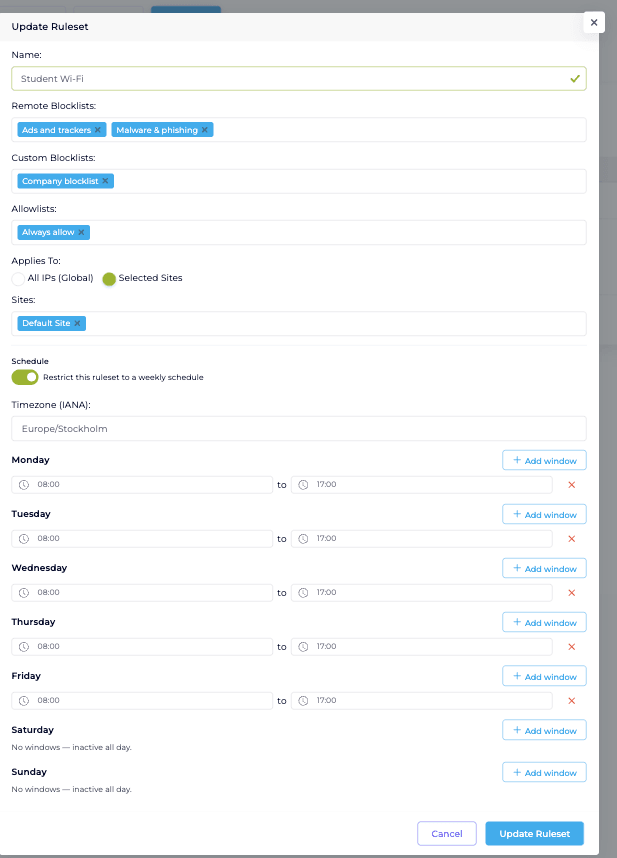
-
Name the ruleset
On the Rulesets tab, click Add Ruleset and give it a Name that describes the policy, for example Student Wi-Fi.
-
Choose the lists
Select any combination of Remote Blocklists, Custom Blocklists and Allowlists. Cloud DNS blocks the union of the blocklists, minus everything on the allowlists.
-
Choose who it applies to
Under Applies To, pick All IPs (Global) to cover the whole network, or Selected Sites to scope the ruleset to specific sites. When you choose Selected Sites, pick the sites in the Sites field.
-
Add a schedule (optional)
Turn on Restrict this ruleset to a weekly schedule to filter only during certain hours. Choose a Timezone, then add one or more time windows per day with Add window. A day with no windows is inactive. A ruleset with the schedule turned off is always active.
-
Save
Click Add Ruleset. The policy takes effect on the network, within its schedule and for the sites you chose.
Read a ruleset at a glance
Section titled “Read a ruleset at a glance”The Rulesets list summarizes each policy: the sites it applies to, whether it is scheduled or always on, and the lists it combines.

To see exactly what a ruleset blocks, use its Download effective list action. It downloads the resolved set of domains the policy produces, so you can confirm a rule does what you expect.
An example
Section titled “An example”To block distractions on a student network during school hours: create a ruleset that references your ads, trackers and social blocklists, allowlist the services students still need, set Applies To to the school’s sites, and schedule it Monday to Friday, 08:00 to 17:00. Outside those hours the ruleset is inactive and the network resolves normally.