
DNS
The DNS tab under Service Gateway: run the network on plain forwarding, or switch to Cloud DNS for filtering with categories, your own lists and scheduled policies.
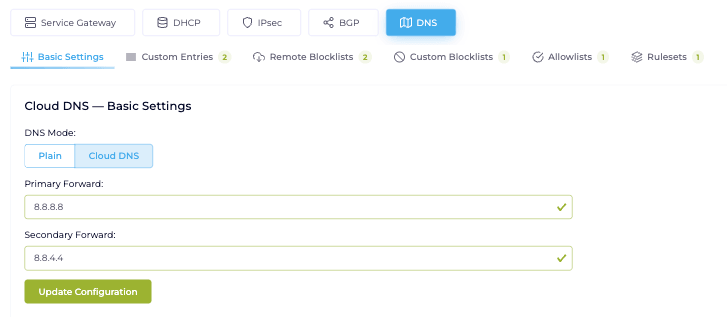
The DNS tab under Service Gateway controls how the network resolves names. It holds a single choice, the DNS mode switch:
- Plain — the network resolves through the Service Gateway router and nothing is filtered.
- Cloud DNS — a managed filtering resolver applies this context’s policies, and the Cloud DNS section appears in the menu.
Switching is a live change and takes effect as soon as you confirm it.
Plain mode
Section titled “Plain mode”In Plain mode the DNS tab has two things to configure:
- Forwarders — the upstream resolvers the network forwards queries to.
- Custom Entries — static hostname-to-IP records for names the public DNS does not advertise (internal services, venue-local shortcuts, or a name you need to force to a specific IP for the sign-in flow).
To verify a custom entry, run dig <host> or nslookup <host> from a device in
the venue’s DHCP scope and confirm it returns the IP you configured. Per-query
logs are not surfaced in the Context admin, so dig / nslookup is the fastest
way to confirm resolution.
Cloud DNS mode
Section titled “Cloud DNS mode”Switch DNS mode to Cloud DNS to turn the network into a filtering resolver. Confirm, and the resolver starts immediately. Everything else about Cloud DNS is managed from its own Cloud DNS section in the menu, not from this tab: the Forwarders and Custom Entries tabs disappear, and the resolvers and internal records live under DNS settings instead. The tab shows a note that Cloud DNS is on for this context, with an Open Cloud DNS button that takes you there.
Switching back to Plain stops the filtering immediately, and keeps the policies and lists so you can switch back without rebuilding them.
The DNS mode, like the rest of the Service Gateway settings, is managed by the context’s connector manager role, and the Cloud DNS configuration pages are shown to that role only. The section’s Statistics page follows the roles that read the context’s other statistics.
Cloud DNS overview
Switch a network to filtering and learn the four pages.
Statistics
Queries answered and blocked, as totals and a trend.
Policies
What to block, what to allow, where it applies and when, and a domain lookup.
Categories
The curated lists Netgraph maintains for you.
Your own lists
Subscribe by URL, maintain domains by hand, and set allow exceptions.
Internal DNS records
Upstream resolvers and host-to-IP records.