
Cloud DNS overview
What Cloud DNS is, how to switch a network from plain DNS to filtering, and the four pages you manage and follow it from.
Cloud DNS turns a network from plain DNS forwarding into a managed, filtering resolver. Every lookup is checked before it is answered: blocked domains do not resolve, allowlisted domains always do, and a policy decides which part of the network is covered and when.
Cloud DNS is delivered as part of the Service Gateway integration, but it is managed from its own Cloud DNS section in the menu. The section appears for every context that runs Cloud DNS, and disappears again if the context is switched back to plain DNS.
Requirements
Section titled “Requirements”- A Sign In context delivered through the Service Gateway integration.
- Network DNS routed through the Service Gateway, so lookups reach Cloud DNS.
- An administrator with the context’s connector manager role, the same role that manages the Service Gateway settings. Policies, Lists and DNS settings are shown to that role only. The Statistics page follows the roles that read the context’s other statistics, such as the context owner, so a reader who cannot change the filtering can still follow how it is used.
Plain or Cloud DNS
Section titled “Plain or Cloud DNS”The mode switch lives on the DNS tab of your Sign In context’s Service Gateway settings, under DNS mode:
- Plain resolves through the Service Gateway router and filters nothing.
- Cloud DNS adds the resolver that applies this context’s policies, and opens the Cloud DNS section of the menu.
-
Open the DNS tab
In your Sign In context, open the Service Gateway settings and select the DNS tab.
-
Switch DNS mode to Cloud DNS
Choose Cloud DNS and confirm. This is a live change: the resolver starts immediately and the context’s policies begin to apply. The Cloud DNS section appears in the menu as soon as you confirm, and the DNS tab now shows a note that Cloud DNS is on for this context, with an Open Cloud DNS button.
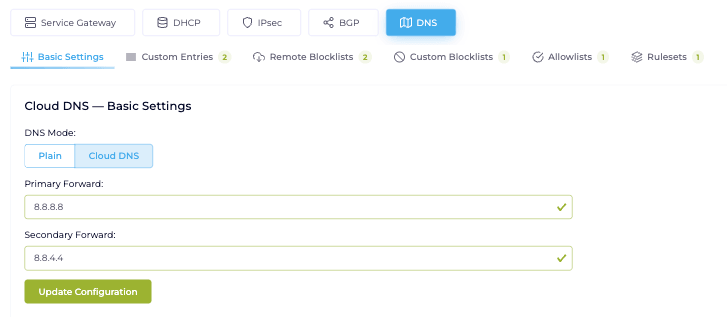
The DNS mode switch on the Service Gateway's DNS tab, after the context has been switched to Cloud DNS.
Switching back to Plain stops the filtering immediately. Your policies and lists are kept, so you can switch back without rebuilding them. Until a policy exists, a context in Cloud DNS mode resolves every domain and blocks nothing.
The Cloud DNS section
Section titled “The Cloud DNS section”Four pages. Statistics comes first in the menu; the other three are in the order you normally build things.
Statistics
Section titled “Statistics”How many DNS queries the network answered and how many it blocked, as three figures (queries answered, blocked, share blocked) and a trend for today, the last 7 or 30 days, or the last 6 or 12 months. Usage is sampled every few minutes and counted per network; there is no per-client or per-domain breakdown, and no per-query log. See Statistics.
Policies
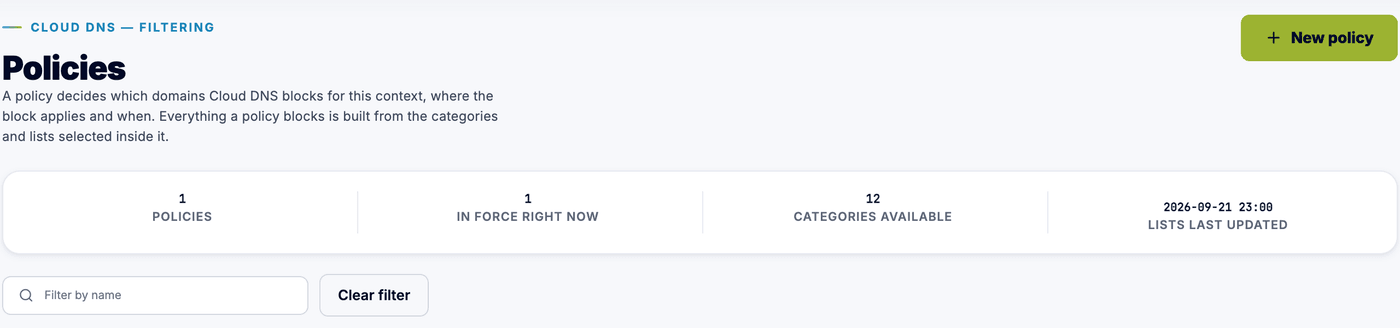
Section titled “Policies”The landing page, and the object you actually reason about. A policy names what to block, what to always allow, where it applies and when. The page opens on a row of figures (how many policies exist, how many are in force right now, how many categories are available, and when the lists were last updated), then a card per policy summarising it.
A context with no policies yet offers Start from the recommended categories, which opens the editor with the two categories we recommend for most networks already selected. The page also holds Look up a domain, which checks one name against every policy and names the list that blocks it. See Policies.
Everything a policy can draw domains from, behind three tabs that each carry a count:
- Categories are the curated lists Netgraph maintains for you. See Categories.
- Blocklists holds your own, in two cards: Downloaded from a URL and Maintained in this context. See Your own lists.
- Allowlists hold the domains that must always resolve. Also covered under Your own lists.
A list does nothing on its own. It takes effect when a policy selects it.
DNS settings
Section titled “DNS settings”The resolver itself rather than the filtering: the upstream resolvers Cloud DNS forwards to for everything it does not block, and the internal DNS records you publish on the network. See Internal DNS records.
How a lookup is decided
Section titled “How a lookup is decided”- A client on the network makes a DNS lookup.
- Cloud DNS finds the policies that apply to that client at that moment, and combines what they block.
- If the domain, or a parent domain of it, is on a blocklist the policy selected, and the exact name is not on an allowlist, the lookup is dropped. There is no block page and no prompt: the name simply does not resolve.
- Everything else is resolved through the upstream resolvers.
A blocklist entry covers the domain and everything under it; an allowlist entry removes exactly the name it holds. Look up a domain on the Policies page runs this decision for one name against every policy, and says which list the answer comes from.