
Groups and security flavours
An EasyPSK group maps one Wi-Fi key to a set of devices. The security flavour — Instant, Approved, or Dedicated — sets how strict device onboarding is, and is locked once the group has its first device.
A group in an EasyPSK Context maps one Wi-Fi pre-shared key to a set of devices, with a device cap you set per group. When you create the group you choose how strict device onboarding should be — you can dial it up later, but only while the group still has no devices.
Creating a group
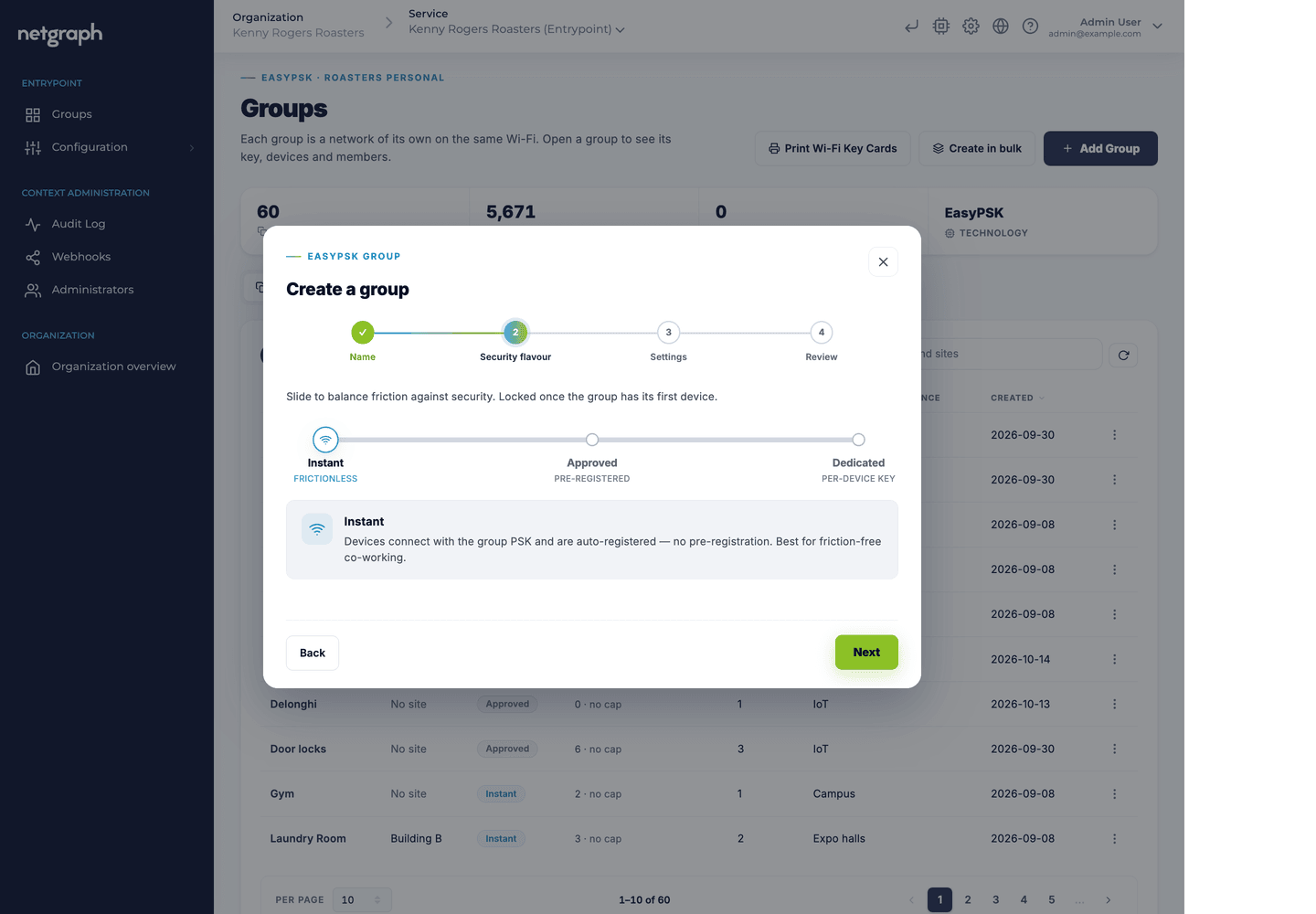
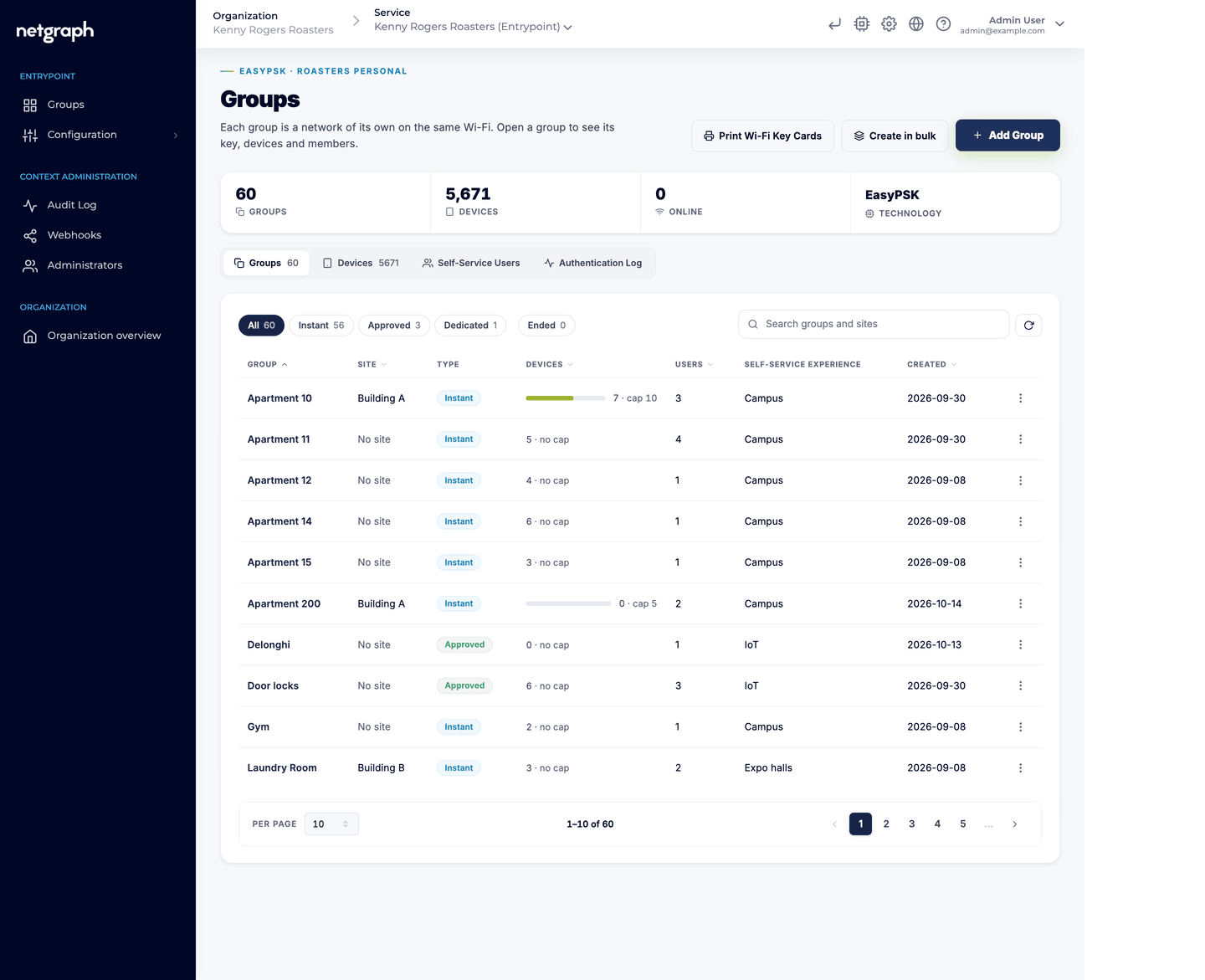
Section titled “Creating a group”Open Groups and click Add Group. The Create a group wizard has four steps:
- Name: the Group name, shown to admins, to the group’s members in the Self-Service portal and on a printed key card.
- Security flavour: a three-position slider. Slide to balance friction against security; the choice is locked once the group has its first device.
- Settings: the site the group belongs to and its rules: Self-Service Experience, device cap and Valid until. An empty field takes the policy of the chosen site; without a site it stays unset.
- Review: a summary before the group is created.
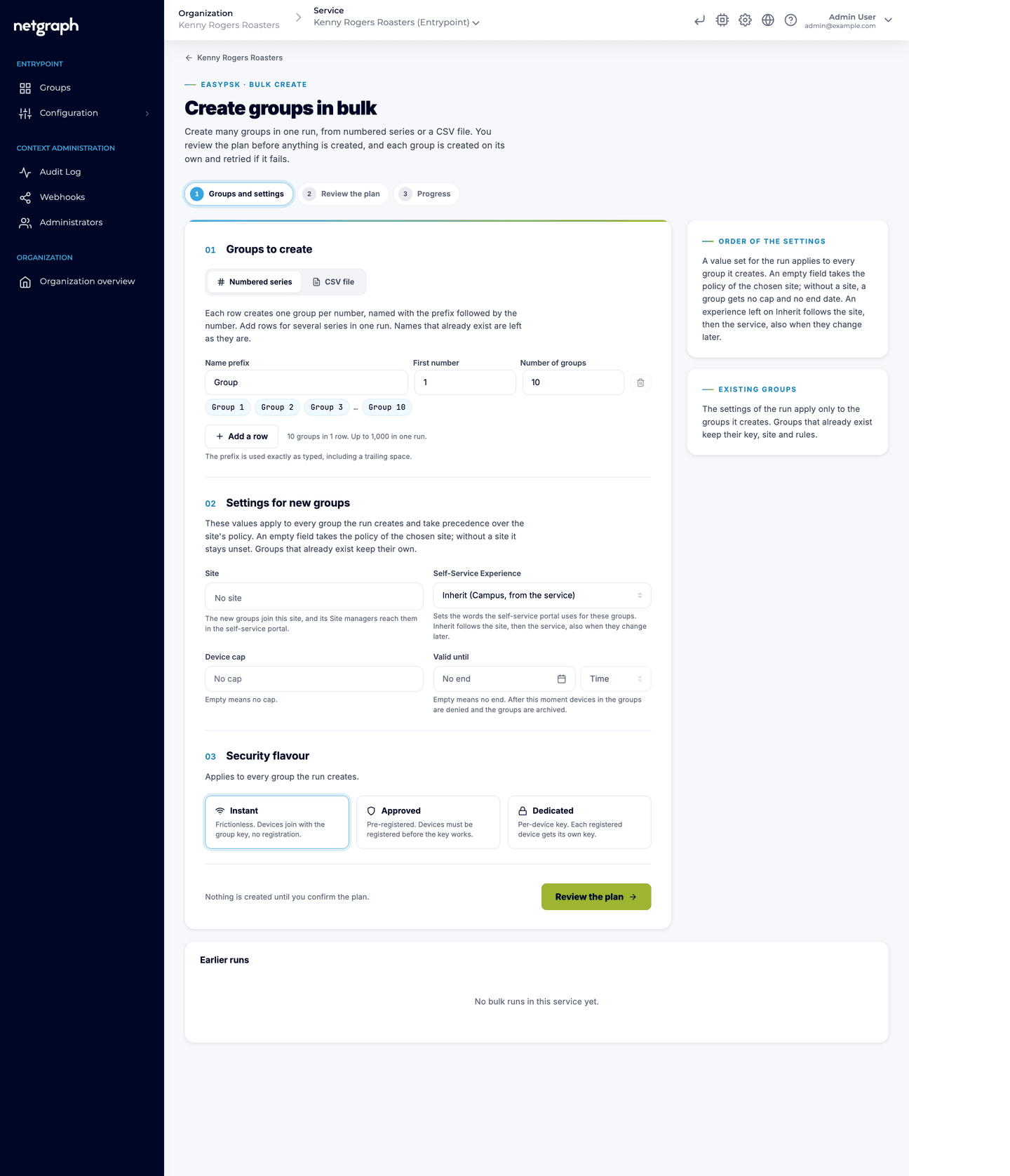
To create many groups at once, click Create in bulk on the Groups page: a numbered series in rows (a prefix, a first number and a count per row, for example Room 201 to 240, in several rows if you like) or a CSV file, with the settings the new groups share (site, Self-Service Experience, device cap, Valid until and security flavour). The run is analysed into a plan you review, then runs at once, and the page keeps the earlier runs. A run whose end date has already passed cannot be approved.
The three flavours
Section titled “The three flavours”| Instant | Approved | Dedicated | |
|---|---|---|---|
| Tagline | Frictionless | Pre-registered | Per-device key |
| Key model | One group key | One group key | A unique key per device |
| Device onboarding | Auto-registered on first connect | MAC must be pre-registered; a correct key is otherwise rejected | MAC pre-registered together with its unique key; both must match |
| Best for | Friction-free co-working and residential units | Groups where only known devices may join | The strictest environments and headless fleets |
- Instant — devices connect with the group key and are auto-registered: no pre-registration. Best for friction-free co-working and residential use.
- Approved — devices must be pre-registered. A correct key is rejected unless the device’s MAC is already registered in the group, by you, by a Group Administrator or by a Site manager.
- Dedicated — a unique key per device. Pre-register the device’s MAC; both the MAC and the device’s own key must match at connect time. There is no shared group key at all.
The platform generates every key. Keys are unique within the EntryPoint and regenerate-only: users never choose them. The key is what identifies the group at connect time — “one key, the right group”.
Beyond the flavour: the Rules card
Section titled “Beyond the flavour: the Rules card”Each group also carries a Rules card with its group rules: the site, the Self-Service Experience, a device cap, Valid until and whether the group takes wired devices. They apply on top of the flavour, so a correct key only admits a device that also passes the group’s rules. Groups are organised into sites with Site managers, can be created on demand by onboarding rules, and hand their key over as printed Wi-Fi Key Cards.
The group page
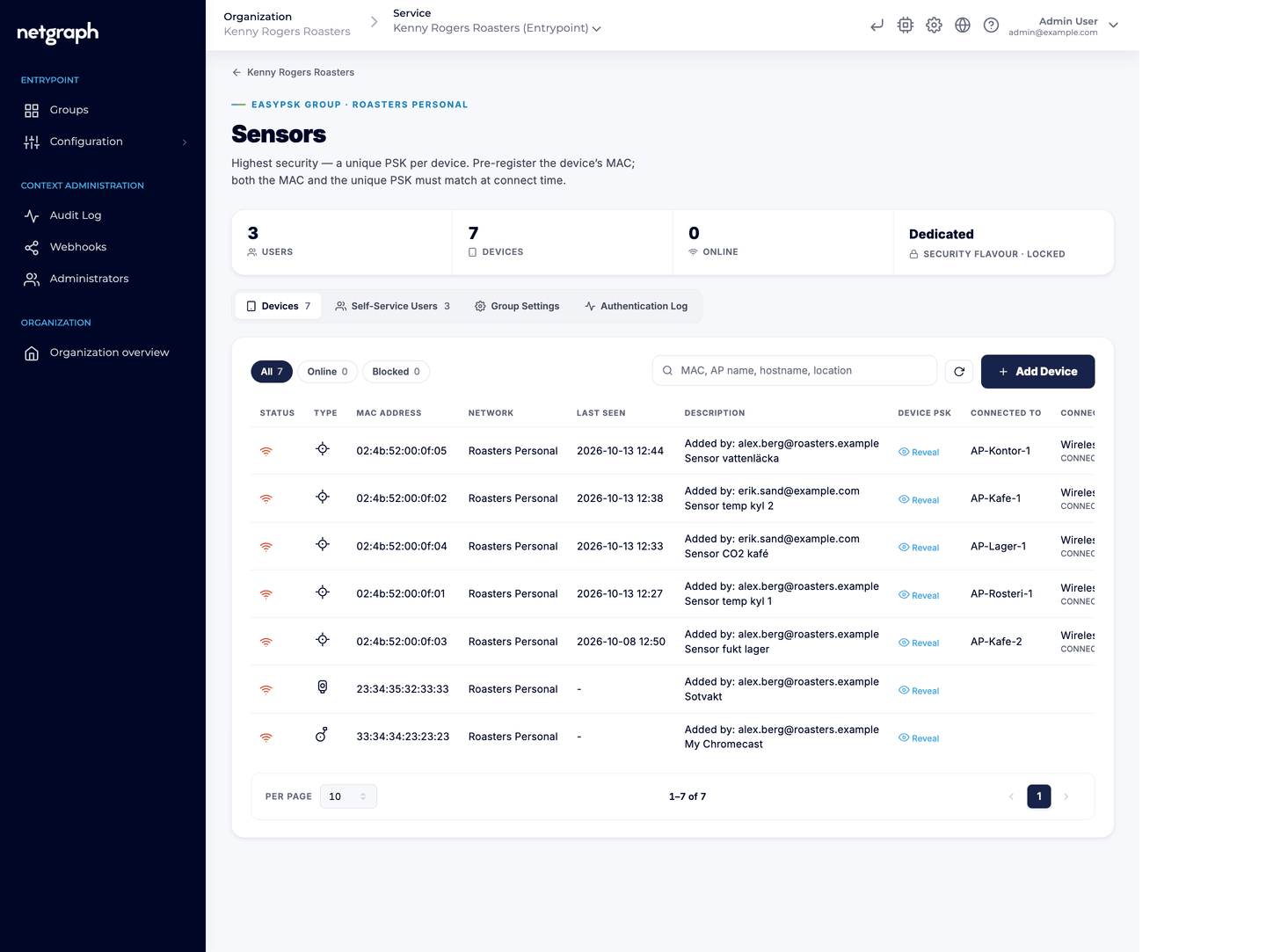
Section titled “The group page”Each group has stat cards (Users: self-service members, Devices: registered in the group, Online, and the group’s Security flavour) and four tabs: Devices, Self-Service Users, Group Settings and Authentication Log.
Group Settings
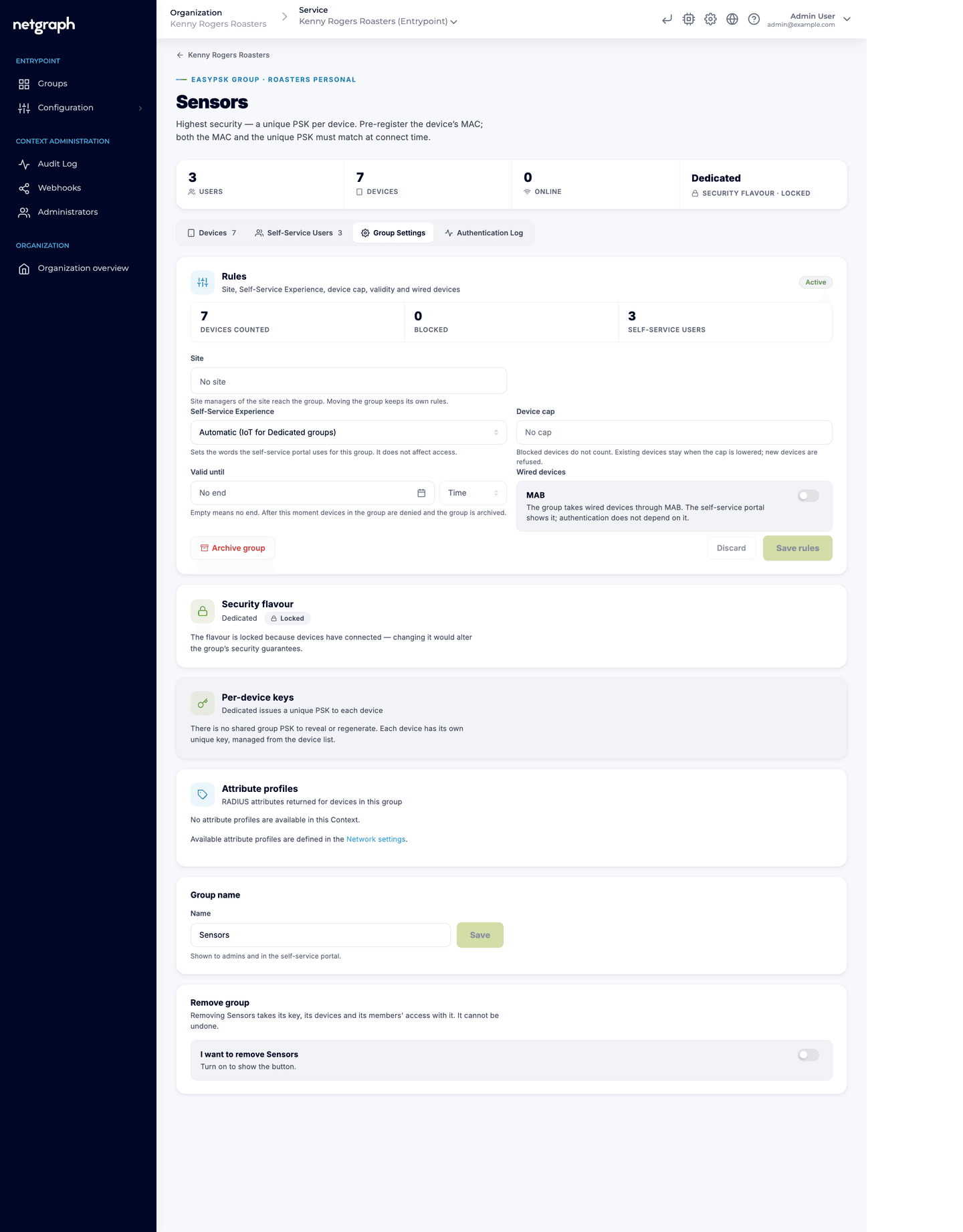
Section titled “Group Settings”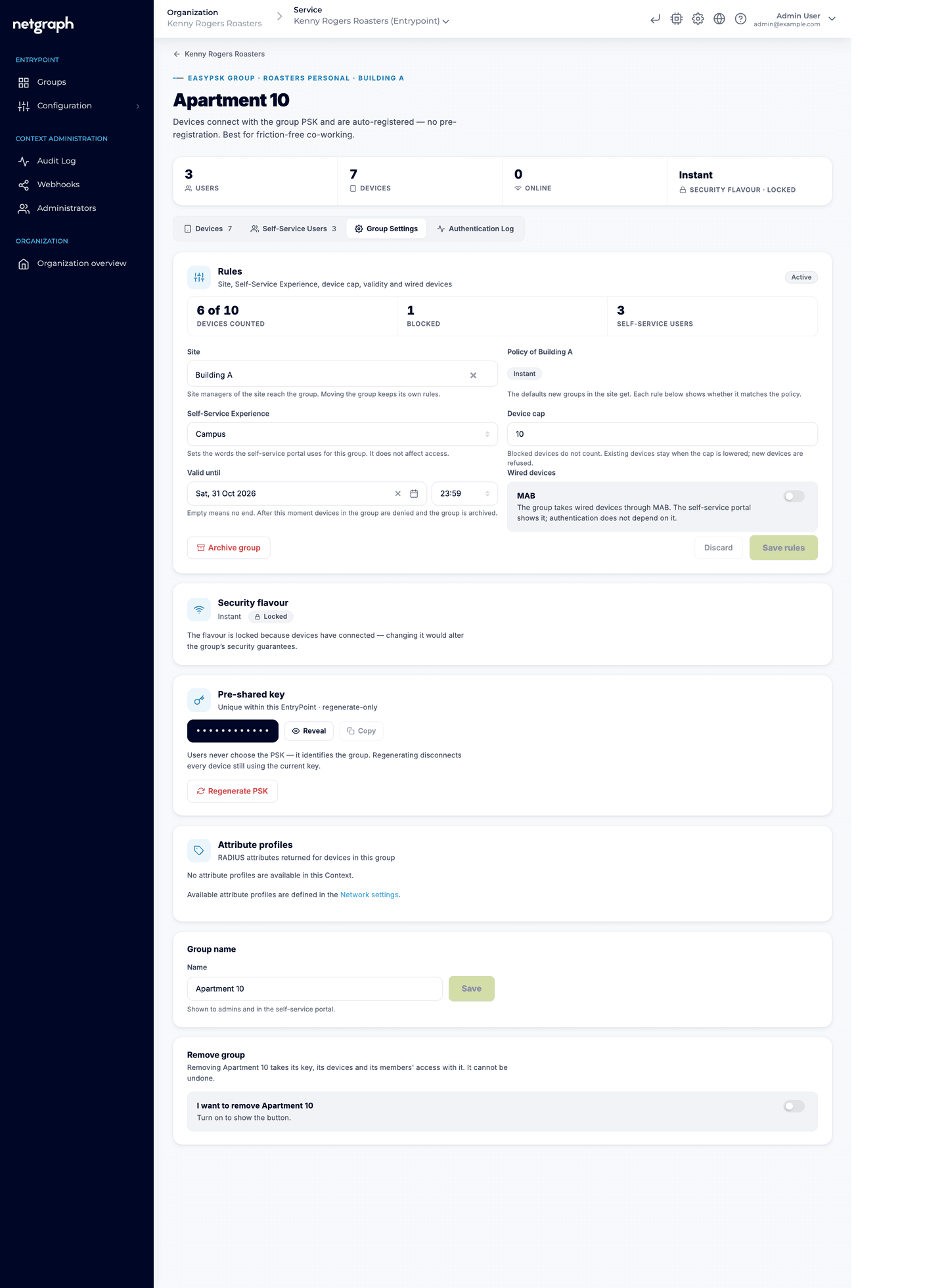
- Rules: the group’s rules, with its site’s policy shown beside them.
- Security flavour: shows the group’s flavour. It stays editable until the first device connects, then locks.
- Pre-shared key (Instant and Approved): the group’s key, masked with Reveal and Copy controls. Regenerate PSK disconnects every device still using the current key; they reconnect with the new one.
- Per-device keys (Dedicated): there is no shared group key to reveal or regenerate. Each device has its own unique key, revealed and managed from the device list.
- Attribute profiles: the RADIUS attributes returned for the group’s devices, from the profiles defined in the service’s network settings.
- Group name and Remove group: rename the group, or remove it together with its key, its devices and its members’ access.
Who may rotate the key from the Self-Service portal follows the member’s permissions: a member with PSK Administrator regenerates the group key, or the device keys in a Dedicated group.
Self-Service
Section titled “Self-Service”Invite residents or team members from the Self-Service Users tab. From the Self-Service portal they see the SSID and their group’s key and, with PSK Administrator, rotate it. In Dedicated groups, device keys are issued and rotated per device instead.
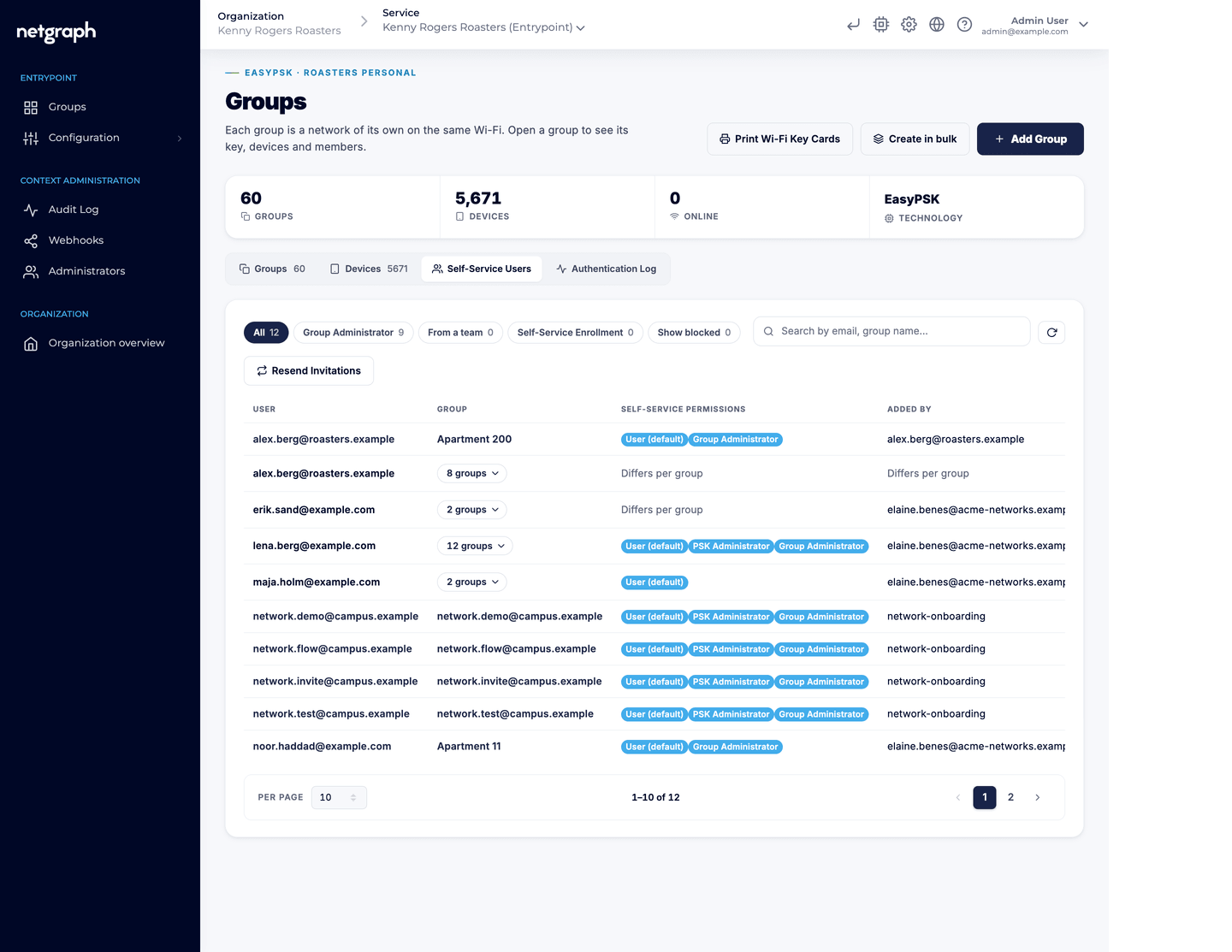
Two more ways in: bind a Self-Service Team on the group’s Self-Service Teams card, and every member of the team is a member of the group with the roles you pick (User admin, Password admin, Device admin); or let an onboarding rule create a group for each person at their first sign-in. The words the portal uses for the group and its members (“Apartment” and “Resident”, “Booth” and “Exhibitor”) come from the group’s Self-Service Experience.
Related
Section titled “Related”EasyPSK via RADIUS overview
The Context, the RADIUS endpoints, and the setup flow.
Group rules
Site, Self-Service Experience, device cap, Valid until and wired devices.
Sites and Site managers
Groups that belong together, and the roles that run them from the portal.
Wireless Personal Networks
The per-unit concept EasyPSK is built around.