
SAML SSO
BYOD sign-in for guests who already have an account with your identity provider. Uses the Organization's Self-Service IdP — which user gets through is controlled by the Sign-In Context's Access Policy.
SAML SSO — labelled SAML Logins in the admin — lets guests sign in to the Captive Portal using their existing corporate or Organization account instead of creating a new credential.
Captive Portal SAML uses the Organization’s Self-Service identity provider (configured once under Selfservice Access Control → Authentication). The same IdP that lets your colleagues sign in to the Self-Service Portal also lets them sign in through the Captive Portal on any Sign-In Context where the module is enabled. Who actually gets through is decided by the Context’s Access Policy — see below.
How a guest signs in
Section titled “How a guest signs in”- The guest picks SAML on the Captive Portal.
- Their browser is redirected to the Organization’s Self-Service IdP.
- After IdP authentication, the browser returns to the portal with a signed SAML assertion.
- Netgraph validates the assertion, then consults the Access Policy for this Context. The policy decides whether this identity is allowed through.
- If allowed, network access is granted.
Who gets through: Access Policy filtering
Section titled “Who gets through: Access Policy filtering”Authentication and authorization are separate:
- Authentication — “is this person’s IdP account valid?” — handled by the Self-Service IdP.
- Authorization — “should this authenticated person get access on this Context’s Captive Portal?” — handled by the Access Policy.
A Captive Portal SAML sign-in only succeeds when both line up. On each policy’s Sign-In Permissions → SAML Login sub-tab:
- SAML Login — master flag. Must be on for SAML to appear on the portal for guests matched by this policy.
- Max devices — per-identity device cap.
- Redirect — where the guest lands after a successful SAML sign-in.
- Session length — a fixed timeout or a concrete end date. Only the flag chosen on Ticket policy is used — the other field is ignored.
Which SAML identities a policy catches in the first place is
governed by the policy’s Applies To email patterns. For
example, a policy with @your-company.example on Applies To
only accepts SAML identities with that email-domain suffix.
See Access Policies for how to decide which policy a given guest matches.
Activate the module on the Context
Section titled “Activate the module on the Context”Prerequisite: the Organization has a Self-Service IdP configured (see SAML configuration). Without that, the Captive Portal SAML module has nothing to authenticate against.
-
Open the module
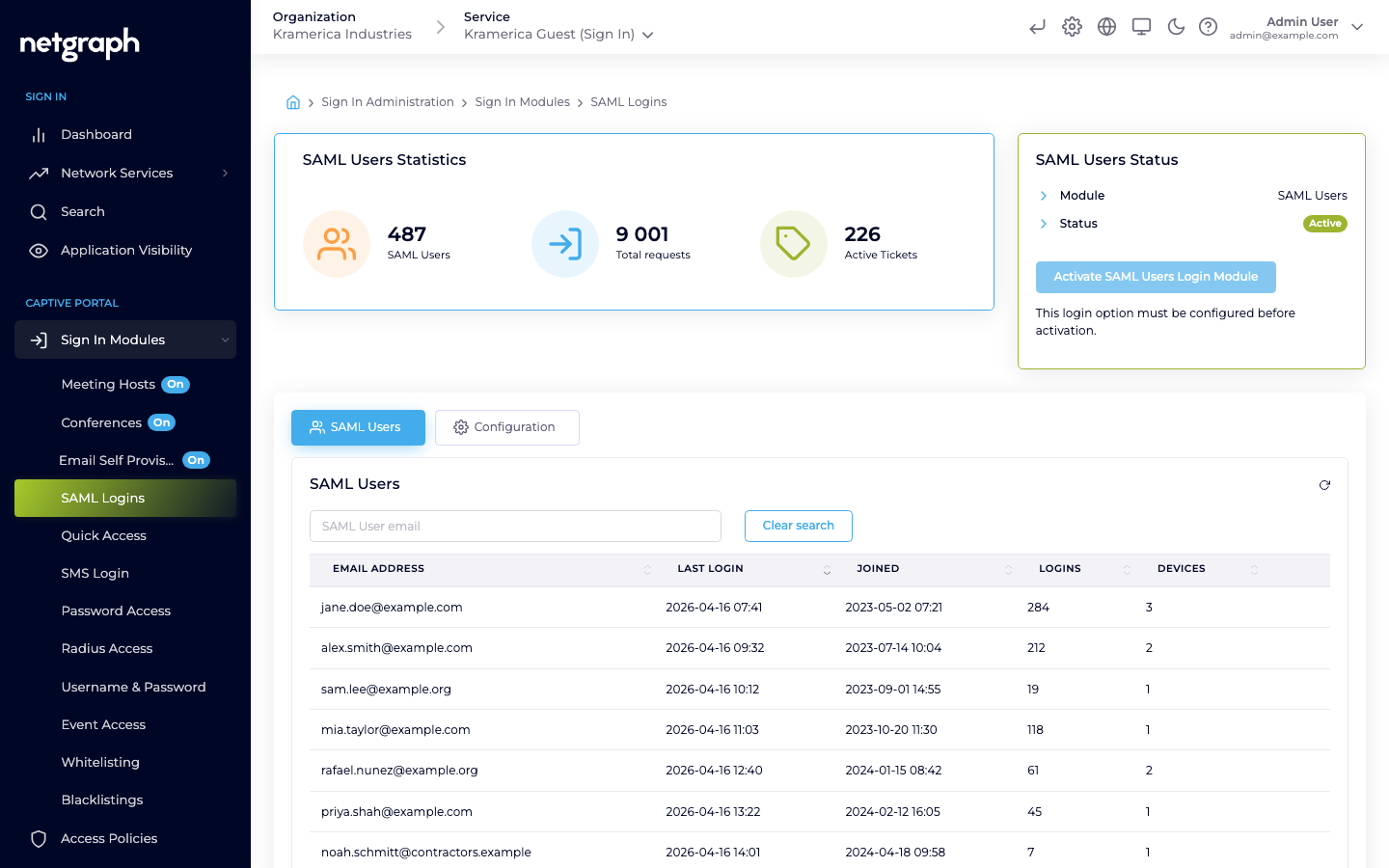
Sign In Modules → SAML Logins inside the Sign-In Context.
-
Activate
Click Activate SAML Users Login Module. The module is now available to Access Policies.
-
Enable SAML Login in the relevant Access Policy
Captive Portal → Access Policies → the policy you want SAML on → Sign-In Permissions → SAML Login → tick Enable SAML Login and click Update SAML Permission. Without it, guests matched by this policy are refused after signing in at the IdP.
-
Configure walled-garden entries
Guests’ browsers must reach the IdP before sign-in completes. Add the IdP’s hostnames to the Captive Portal walled garden. See SAML for the Captive Portal for the hostnames per IdP.
-
Test with a non-admin account
Sign in as a regular user from a clean browser session. Confirm the round-trip completes and a login appears in the Context’s Dashboard.
Managing SAML guests
Section titled “Managing SAML guests”The main tab lists SAML-authenticated guests by email with last login, total logins, and device counts.
- Filter by email.
- Revoke a guest — future sign-ins require another SAML round-trip (and still have to pass the Access Policy).
Compared to Organization-Admin SAML
Section titled “Compared to Organization-Admin SAML”An Organization has two separate SAML configurations, each under its own Authentication entry in the left navigation:
| Target | Configured under | Audience | Used for |
|---|---|---|---|
| Admin Portal | Admin Access Control → Authentication (guide) | Organization administrators | Signing in to the Admin Dashboard |
| Self Service | Selfservice Access Control → Authentication (guide) | Organization’s end users | Self-Service Portal and Captive Portal SAML |
A change to the Admin Portal IdP never affects guest Captive Portal sign-in, and vice versa.
MFA in the Captive Portal
Section titled “MFA in the Captive Portal”Multi-factor prompts can be difficult during Captive-Portal sign-in — many devices restrict multitasking while captive, so the guest can’t easily open an authenticator app. If MFA becomes a blocker, your IdP may support conditional policies that skip MFA specifically for the Captive Portal application. See SAML for the Captive Portal → disabling MFA.
Related
Section titled “Related”SAML configuration
Setting up the Self-Service Portal configuration that Captive Portal sign-in uses.
SAML signing certificate
Keeping your IdP in step when the platform's certificate changes.
SAML for the Captive Portal
Walled-garden hostnames per IdP and MFA on captive devices.
Microsoft Entra ID
Setting up the enterprise application.
Access Policies
Where SAML Login is enabled and users are filtered.
Walled garden
Pre-auth reachability for the IdP hostnames.