
Self-Service Portal
The end-user companion to the Captive Portal — where the people your Sign-In modules grant a self-service role come back to manage the footprint they own on the network.
Sign In exposes one Self-Service Portal per Organization. Where the Captive Portal handles the one-time act of signing on to the network, the Self-Service Portal is where the same people come back later to manage what they own — the devices they registered, the visitors they sponsor, the conferences they run, the headless devices they whitelisted.
The portal is a thin, permission-driven surface. Nothing appears unless a Sign-In Module contributes a self-service capability and the user’s Access Policy grants the matching permission. Two users on the same Sign-In Context can therefore see very different Self-Service Portals.
This page introduces the portal and points to each module’s own Self-Service walkthrough. For sign-in configuration (magic link versus SAML), see Self-Service Portal authentication.
How users sign in
Section titled “How users sign in”The Self-Service Portal is shared across every Sign-In Context in the Organization. End users authenticate through one of two methods, configured once at the Organization level:
- Email Magic Link — passwordless, on by default. The Organization can turn it off once SAML 2.0 is configured, which makes the portal SAML-only.
- SAML 2.0 — optional, federated with the Organization’s identity provider.
Who can reach it
Section titled “Who can reach it”Access Policies carry a Self-Service Portal master toggle plus four capability flags. Together they decide whether a user can reach the portal at all, and which cards appear once inside:
| Access Policy setting | Effect in the portal |
|---|---|
| Self-Service Portal (master toggle) | Required. When disabled, authentication succeeds but nothing is shown to manage. |
| Meeting Host Sign-In Permission | Enables the My Guests card. |
| Self-Provisioning by Email Sign-In Permission | Enables the My Devices card for the user’s email-verified registrations. |
| Manage Conferences Self-Service Permission | Enables the My Conferences card. |
| Manage Whitelistings Self-Service Permission | Enables the Add device button in My Devices for whitelistings the user creates themselves. |
A user whose policy grants none of these permissions cannot reach the portal at all. The My Devices card is shown when either Self-Provisioning by Email or Manage Whitelistings is enabled; both modules contribute to the same combined list.
Inside a Sign-In Context
Section titled “Inside a Sign-In Context”Once the user picks a Sign-In Context, the portal renders up to three cards — My Guests, My Conferences, and My Devices — each contributed by a Sign-In Module the administrator has activated on the Context and the user’s Access Policy permits.
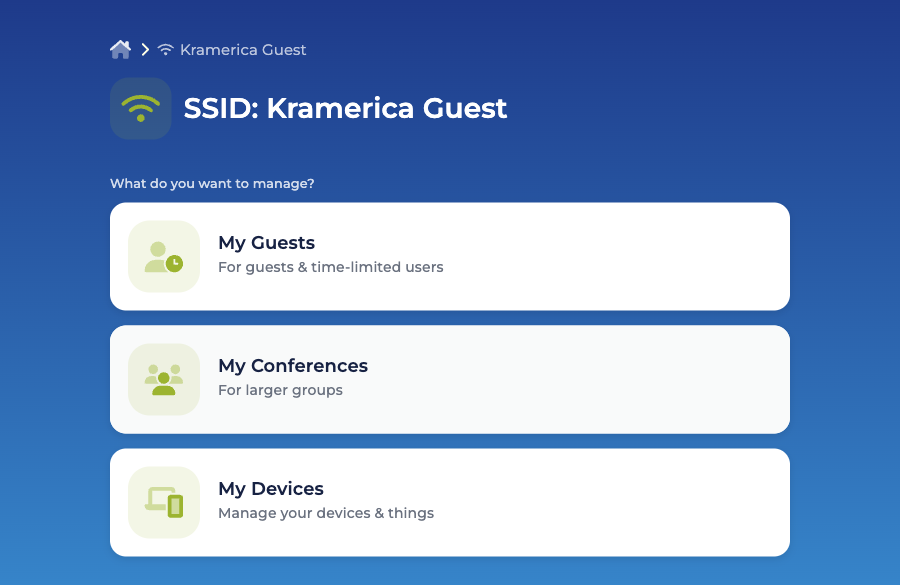
Each card is documented on the module that contributes it:
My Guests
The Meeting Host's approval surface — pending, active, and expired visitors in one filterable list.
My Conferences
Create and run conferences without admin intervention.
My Devices — email registrations
The email-verified devices a guest has registered through Self-Provisioning by Email.
My Devices — whitelistings
MAC-level whitelistings a user creates for their own headless devices.
Languages
Section titled “Languages”The Self-Service Portal’s language set is shared across the Organization, not per Context. See Languages for the split between Captive Portal language settings (per Context) and Self-Service Portal language settings (per Organization).