
SAML signing certificate
The platform signs every SAML request it sends to your identity provider. When a new signing certificate is published, add it to your identity provider first and switch to it in the platform second. An identity provider that verifies request signatures rejects sign-ins when the two are out of step.
The platform signs every SAML authentication request it sends to your identity provider (IdP). That covers Admin Portal sign-in and Self-Service Portal sign-in, which Captive Portal SAML also uses.
An IdP verifies that signature only if it is configured to; in Entra the setting is off by default. An IdP that verifies it accepts only requests signed with a certificate that has been added to it. When the platform publishes a new signing certificate, add the new certificate to the IdP first and then switch to it on the platform.
Check whether your IdP verifies signatures
Section titled “Check whether your IdP verifies signatures”In Microsoft Entra ID, open the Microsoft Entra admin center, go to Entra ID → Enterprise apps → All applications, select the application you created for the platform and open Single sign-on. Under SAML Certificates, find Verification certificates (optional).

- Required: No. Entra ignores the signature. No action is needed, and switching certificates does not affect sign-in.
- Required: Yes. Follow the steps below for every SAML configuration that uses the application. Admin Portal and Self-Service Portal sign-in are separate configurations, usually with separate applications in your IdP, so check both.
In other IdPs the setting is usually called request signature verification or signed authentication requests. The steps are the same: add the certificate there, then switch.
Where the platform shows its certificate
Section titled “Where the platform shows its certificate”Section 3. SAML Certificates on each SAML 2.0 configuration page has a Signing certificate block (see SAML configuration):
- Admin Portal: Admin Access Control → Authentication, then the SAML 2.0 configuration.
- Self-Service Portal and Captive Portal SAML: Selfservice Access Control → Authentication, then the SAML 2.0 configuration.
Each configuration signs with its own selection, so switch both if you use both.
With one certificate, the block shows its Valid to date and a Download link. Once the platform has published a replacement, the block lists two rows, each with its own Valid to date and Download link:
- In use: the certificate requests are signed with now.
- New: the replacement.
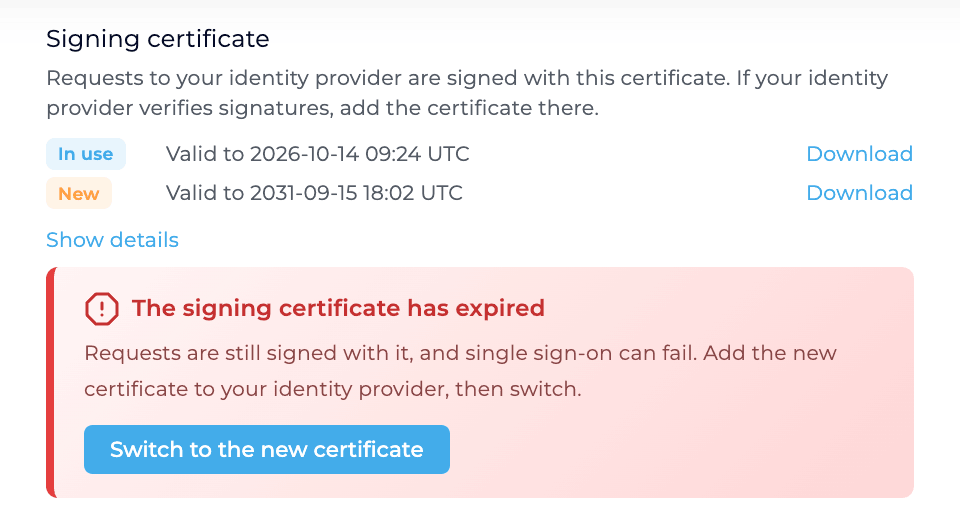
Show details lists the subject, validity period and SHA-256 fingerprint of each certificate.
When action is needed, the block shows one of these callouts:
| Callout | What it means |
|---|---|
| A new signing certificate is available | Add it to your IdP, then switch. |
| The signing certificate has expired | Requests are still signed with the expired certificate until you switch. |
| Using the new signing certificate | Requests are signed with the new certificate. No further action is needed. |
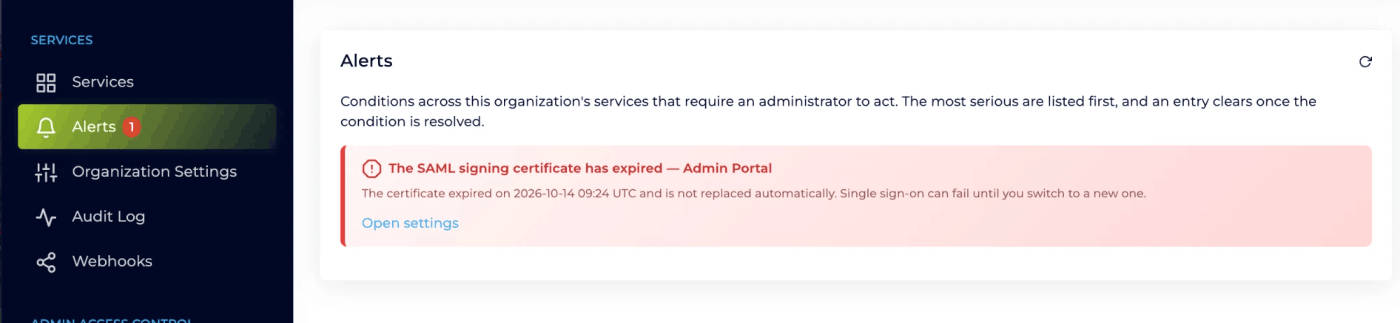
The same warnings are listed on the Alerts page in the left navigation, with a link to the configuration they concern.
Switch to a new signing certificate
Section titled “Switch to a new signing certificate”-
Download the new certificate
In the Signing certificate block, click Download on the row marked New. The file is saved as
signing-certificate-new.cer, so it is not mixed up with the one in use (signing-certificate-in-use.cer).If the new certificate is not valid yet, the block says from which date you can switch to it. You can add it to your IdP before that.
-
Add it to your identity provider
In Entra, on the application’s Single sign-on page, click Edit on Verification certificates (optional). Click Upload certificate, choose the downloaded file and click Save. Entra confirms with Verification certificate uploaded and lists the new certificate under the one in use.
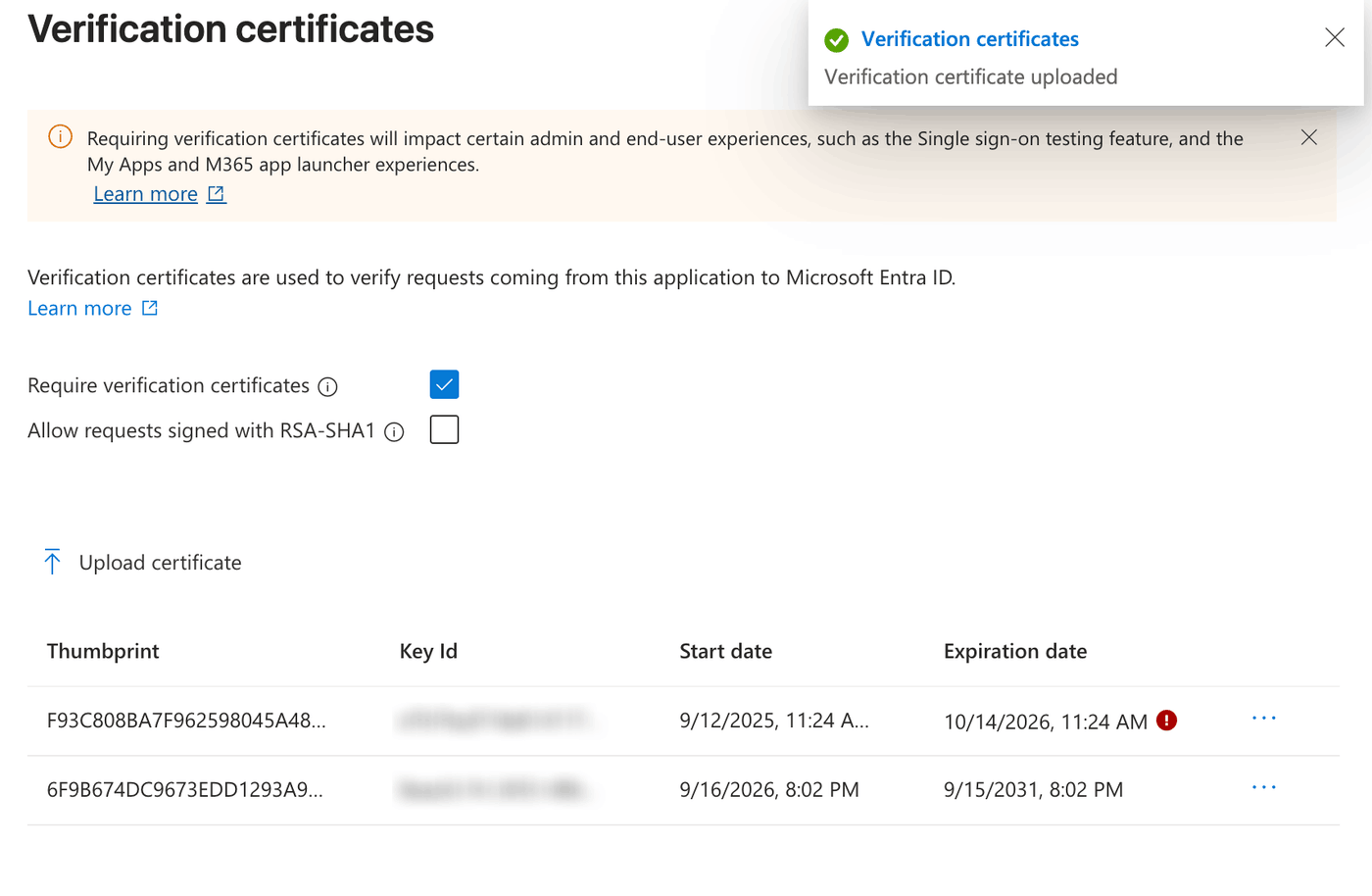
The certificate in use and the new one, side by side. Entra marks an expired certificate with a red icon. Keep the certificate in use in the list until you have switched. Entra checks a request against the two most recently added verification certificates, so the one in use and the new one must be those two.
-
Switch in the platform
Back in the Signing certificate block, click Switch to the new certificate. The platform asks you to confirm that your IdP already has the new certificate. Click Yes, continue!. The callout changes to Using the new signing certificate.
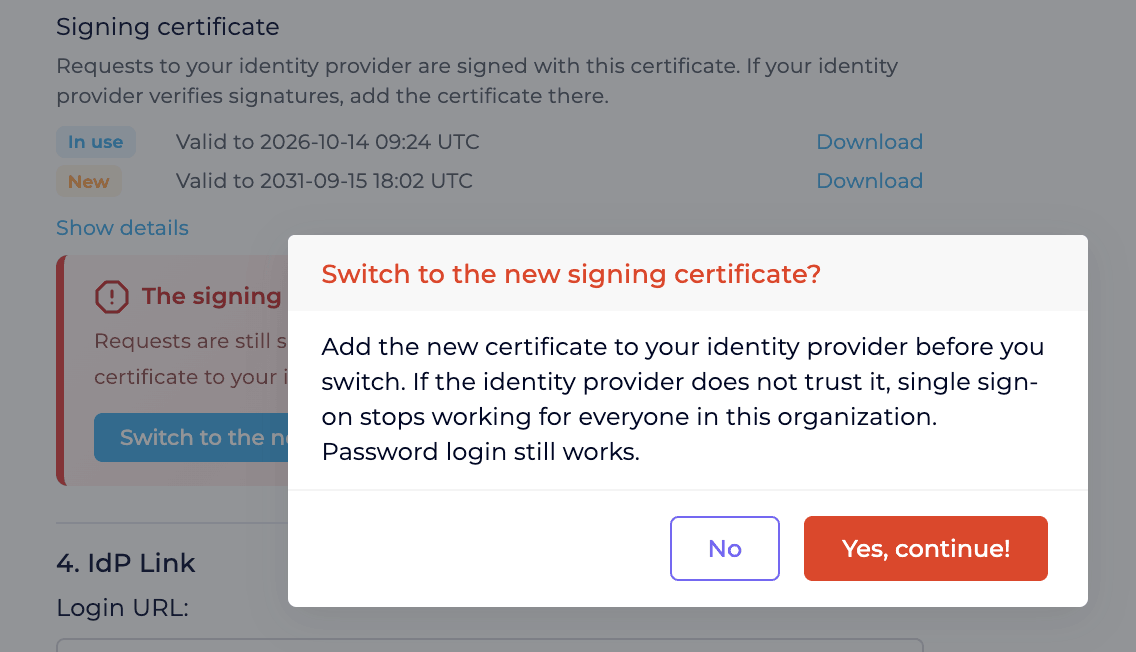
The switch takes effect for the next sign-in. -
Test SAML sign-in
Sign in with SAML in a private browser window and keep your current session open until it works. On the Admin Portal, Form Login still works if SAML sign-in fails.
-
Remove the old certificate from your IdP
Once SAML sign-in works and you no longer need to switch back, remove the old certificate from Verification certificates.
If you do not switch, your configuration moves to the new certificate when the platform makes it the default for all Organizations. If your IdP verifies signatures and does not have the new certificate by then, SAML sign-in stops.
Switching back
Section titled “Switching back”While the previous certificate is still valid, the Using the new signing certificate callout offers Switch back to the previous certificate. Your IdP must still have the previous certificate. Once the previous certificate has expired, switching back is no longer offered: add the new certificate to your IdP instead.
When the certificate in use has expired
Section titled “When the certificate in use has expired”The platform keeps signing requests with an expired certificate until you switch, and the block shows The signing certificate has expired.
- An IdP that ignores signatures keeps working.
- Microsoft Entra ID keeps accepting requests signed with an expired verification certificate. It marks the certificate as expired but does not reject the sign-in.
- Other identity providers can reject requests signed with an expired certificate.
In all cases, add the new certificate to your IdP, switch, and test sign-in.
Sign-in fails right after a switch
Section titled “Sign-in fails right after a switch”Your IdP rejects every SAML sign-in in the configuration. Microsoft Entra ID shows AADSTS76023: The signature of the received authentication request is invalid.
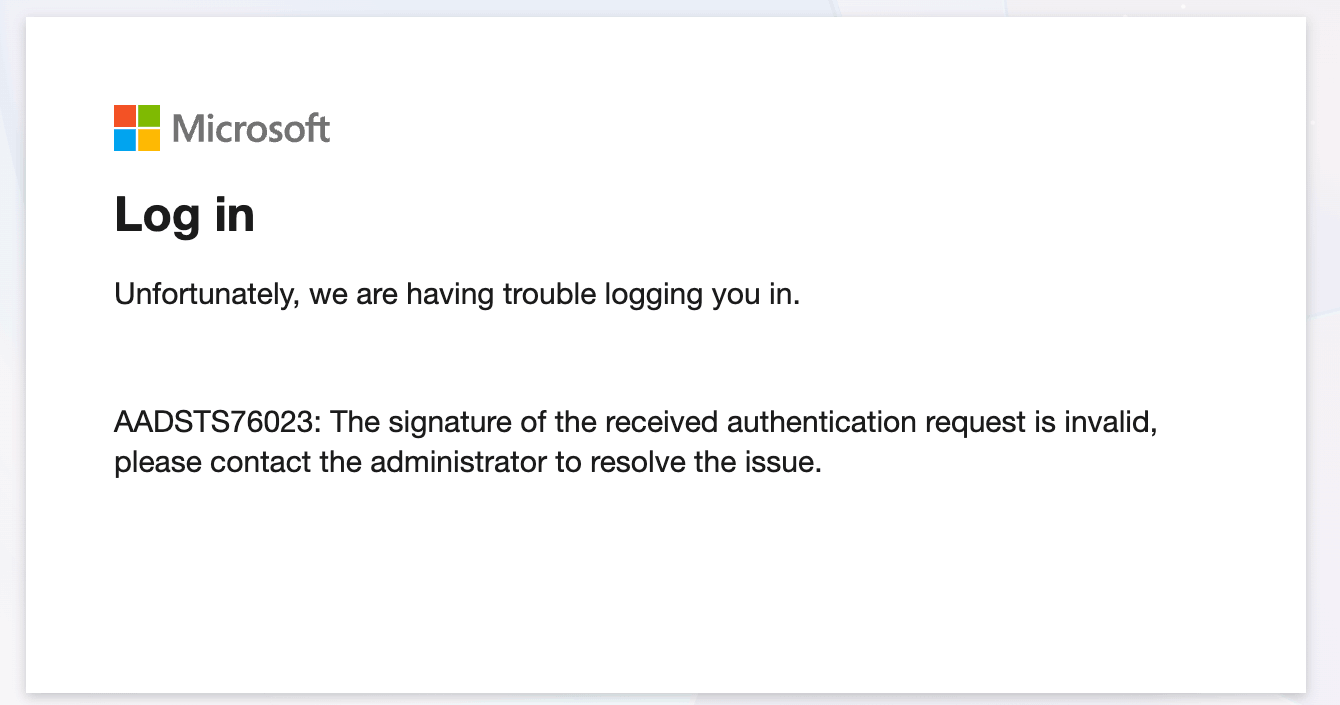
The IdP does not have the new certificate, or, in Entra, it is not one of the two most recently added verification certificates.
- Add the new certificate to your IdP as in step 2. Sign-in works again as soon as the IdP has saved it.
- Or switch back to the previous certificate while it is still valid, and add the new certificate before you switch again.