
Self-service onboarding
Onboarding rules give a person a group of their own the first time they sign in to the Self-Service portal: who qualifies, what the new group looks like, how it is named, and how to test a rule before move-in day.
Onboarding rules give a person a group of their own, the first time they sign in to the Self-Service portal. Nobody creates the group ahead of time: a student signs in with their school address, the rule that matches creates their group with a generated key in the right site, and the key is on screen before the student has unpacked. Rules live under Configuration › Self-service onboarding in the menu of an EasyPSK via RADIUS service, and a service can have several named rules.
What a rule says
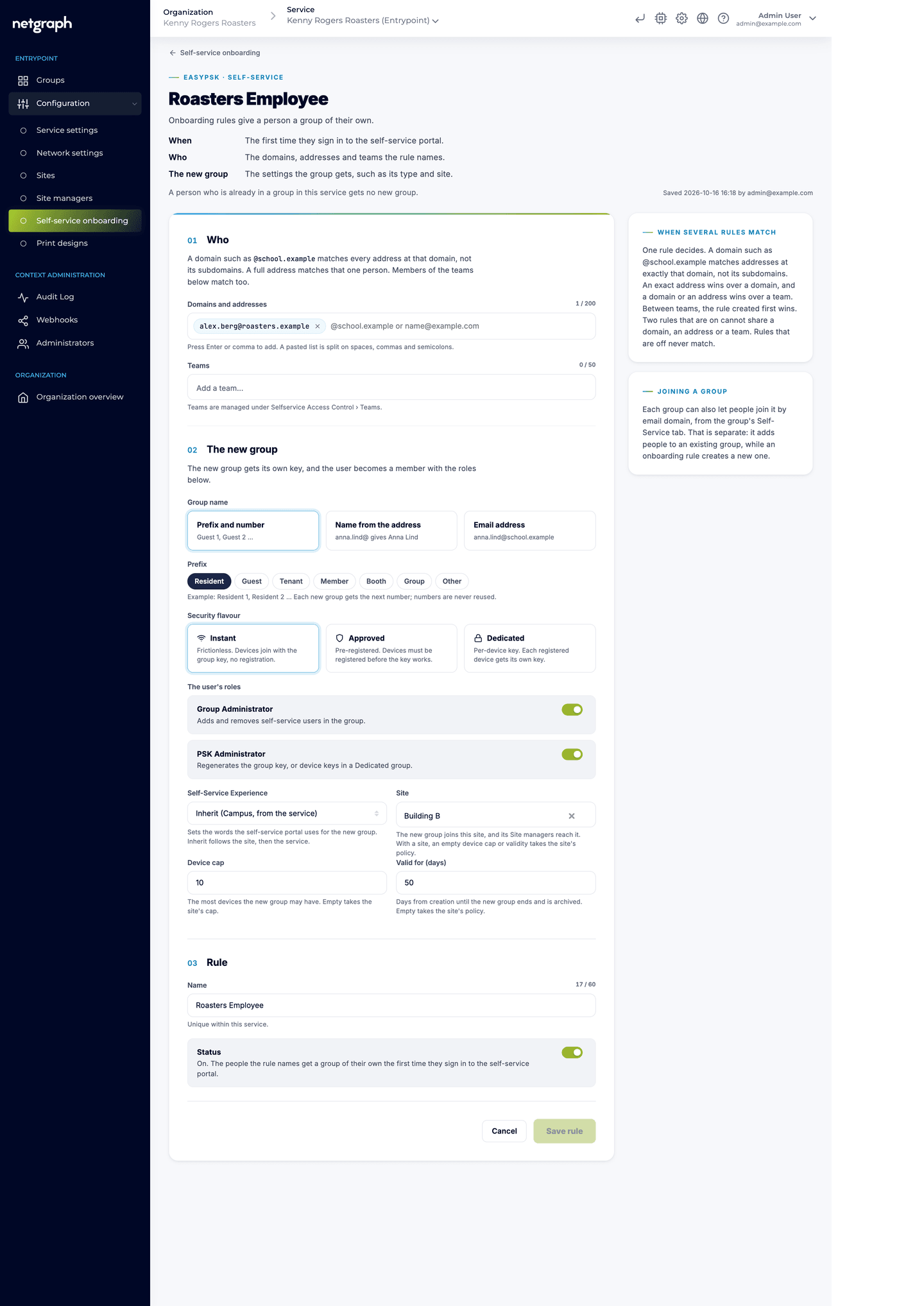
Section titled “What a rule says”Each rule has two halves: Who it applies to, and The new group it creates.
- Email domains: everyone with an address in the domain.
@school.examplematchesanna.lind@school.examplebut not an address in a subdomain such as@students.school.example; add the subdomain as a domain of its own if it should qualify. - Email addresses: one named person.
- Self-Service Teams: every member of a Self-Service Team, whether you entered the team by hand or it comes from your identity provider.
The new group
Section titled “The new group”- Security flavour: Instant, Approved or Dedicated, as for any group.
- Self-Service Experience: the words the portal uses for the group and its members. Inherit follows the site’s policy, and the service’s experience when the rule names no site.
- Site: the site the new group is placed in. A rule that names a site takes the site’s device cap.
- Device cap: how many devices the group may hold. New rules start at 30; set any number that fits.
- Valid for (days): how long the group lives from the day it is created. Leave it empty for a group without an end.
- The user’s roles: what the person gets in their own group beyond membership: Group Administrator (adds and removes self-service users in the group) and PSK Administrator (regenerates the group key, or the device keys in a Dedicated group), each on or off.
- Group name, one of three patterns:
- Prefix and number (the default): “Guest 1”, “Guest 2”, and so on. The suggested prefix follows the experience (Tenant, Member, Resident, Booth, Guest or Group), or type your own of at most 18 characters.
- Name from the address:
anna.lind@school.examplegives a group named “Anna Lind”. - Email address: the address as it is.
When several rules match
Section titled “When several rules match”The most specific rule wins: a rule that names the person’s full address beats a rule for their domain, and a domain rule beats a rule for a team they are in. A person who already belongs to a group in the service gets no new group, whichever rules match; the rules only ever act on a first sign-in.
Test a rule before you rely on it
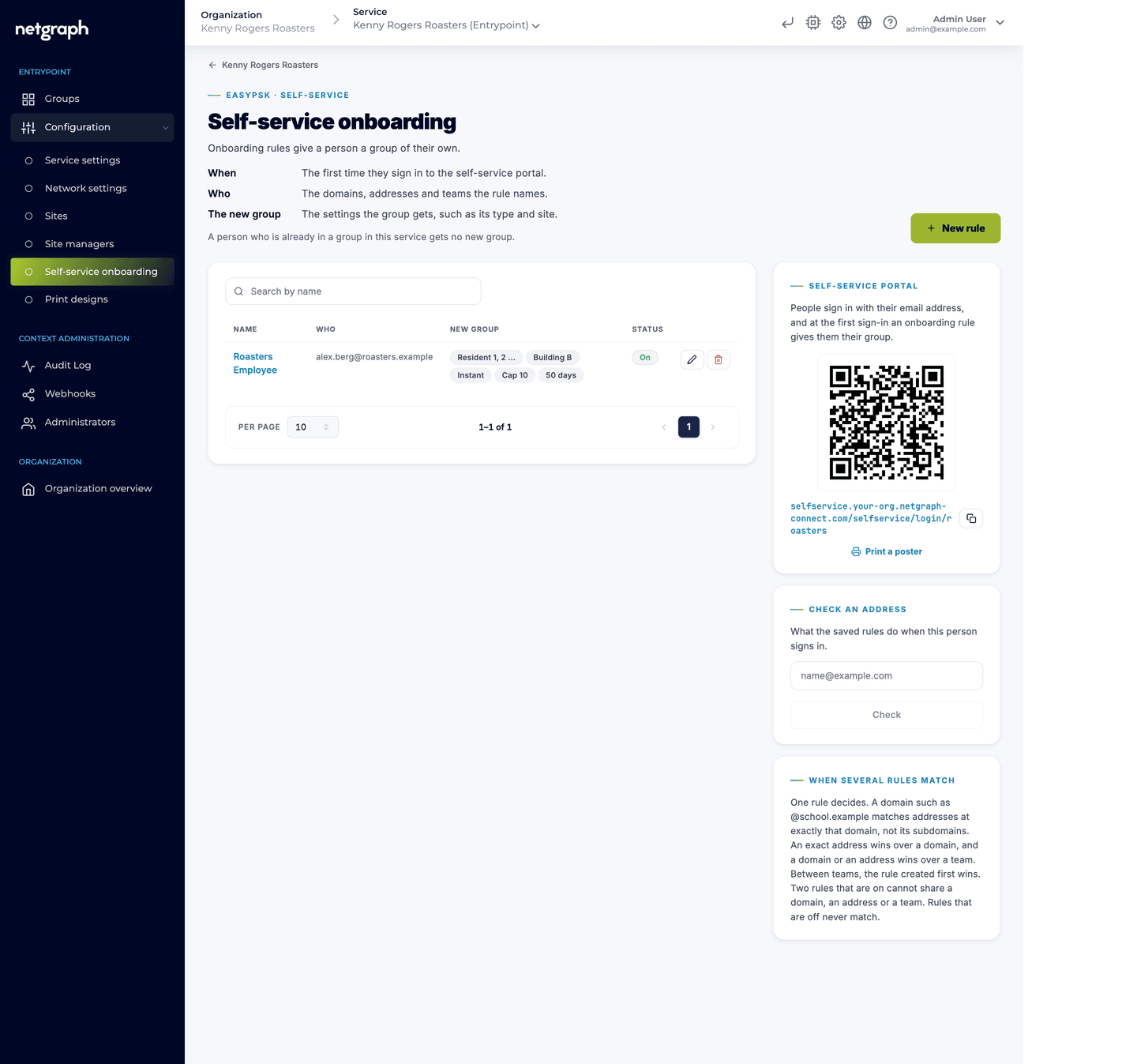
Section titled “Test a rule before you rely on it”The page has a Check field. Enter an email address and the page shows what the saved rules would do for that address. Try it with a colleague’s address and with an address from a domain you have not added, so you see both a match and a miss.
Creating a rule
Section titled “Creating a rule”-
Open Configuration › Self-service onboarding
In the EasyPSK service’s menu in the Admin Console. Existing rules are listed with who they apply to.
-
Name the rule and say who it is for
Add the email domains, the single addresses or the Self-Service Teams that qualify. One rule per audience is easiest to read later: “Students, Northfield Hall”, “Exhibitors, spring fair”.
-
Describe the new group
Choose the flavour, the experience, the site, the cap, the validity, the roles and the naming pattern. A rule that names a site takes the site’s cap and, with Inherit, its experience.
-
Check an address, then save
Enter a qualifying address in Check and confirm the outcome is what you meant before people start signing in.
Getting people to the portal
Section titled “Getting people to the portal”A rule only runs when the person signs in, so the last step is to tell them where. The onboarding page shows the Organization’s Self-Service portal address with a QR code, and prints the Self-Service portal poster: an A4 page (or four smaller ones to cut out) with “Your own Wi-Fi”, a short invitation to sign in, and a QR code that opens the portal’s sign-in page. Put it on the door, in the welcome folder or at the reception desk. The poster uses the logo and footer of a Wi-Fi Key Card design.
The person signs in with the email link or through your identity provider, exactly as any other self-service user; the rule creates the group behind the sign-in. Keys and key cards are never sent by email: the person sees the key in the portal once they are in.
Teams and personal groups
Section titled “Teams and personal groups”When a rule is bound to a Self-Service Team and a member leaves the team, the personal group the rule created for them is archived, unless another rule still keeps it. The same applies when the team is deleted or unbound from the rule.
Onboarding rules and Self-Service enrollment
Section titled “Onboarding rules and Self-Service enrollment”An onboarding rule is not the same thing as the older
Self-Service enrollment filter on a group’s Self-Service tab.
That filter adds people with a matching email domain to an
existing group: everyone from @residents.example lands in the
same group. An onboarding rule creates a new group for each
person. Use enrollment when many people share one key, and a rule
when each person should have a key of their own.
Related
Section titled “Related”Sites and Site managers
Where the new groups land, and who looks after them in the portal.
Wi-Fi Key Cards
The designs behind the portal poster and the printed key cards.
Self-Service Teams
Named lists of addresses, by hand or from SCIM, that a rule can be bound to.
Self-Service portal
What the person sees once the rule has created their group.