
Microsoft Entra ID
Set up an enterprise application in Microsoft Entra ID for SAML sign-in to the Admin Portal or the Self-Service Portal.
Keep the platform’s SAML configuration page open next to Entra, because you copy values in both directions.
Create one enterprise application per SAML configuration: one for Admin Portal sign-in and, if you use it, one for Self-Service Portal sign-in. The two configurations have different Entity IDs, and separate applications let you assign different users to each. Captive Portal SAML uses the Self-Service configuration, so it uses that application too.
Which configuration are you setting up?
Choose a configuration to show the instructions.
Create the enterprise application
Section titled “Create the enterprise application”-
Create the application
In the Microsoft Entra admin center, go to Entra ID → Enterprise apps → All applications and click New application. Click Create your own application, enter a name (for example Acme Admin Portal or Acme Wi-Fi), select Integrate any other application you don’t find in the gallery (Non-gallery) and click Create.
-
Choose SAML
On the new application, open Single sign-on and choose SAML. The page that opens is laid out in numbered sections; the steps below follow them.
-
1. Basic SAML Configuration
Click Edit and fill in the values from section 1. Basic SAML Configuration of the platform’s configuration:
- Identifier (Entity ID): click Add identifier and paste the platform’s Identifier (Entity ID).
- Reply URL (Assertion Consumer Service URL): paste the platform’s Reply URL.
- Relay State (Optional):
adminin the Admin Portal application.selfservicein the Self-Service Portal application. It lets sign-in start in Entra, from the Test button or a tile in My Apps. Leave it empty if users only ever start on the platform’s sign-in page.
Leave the other fields empty and click Save.
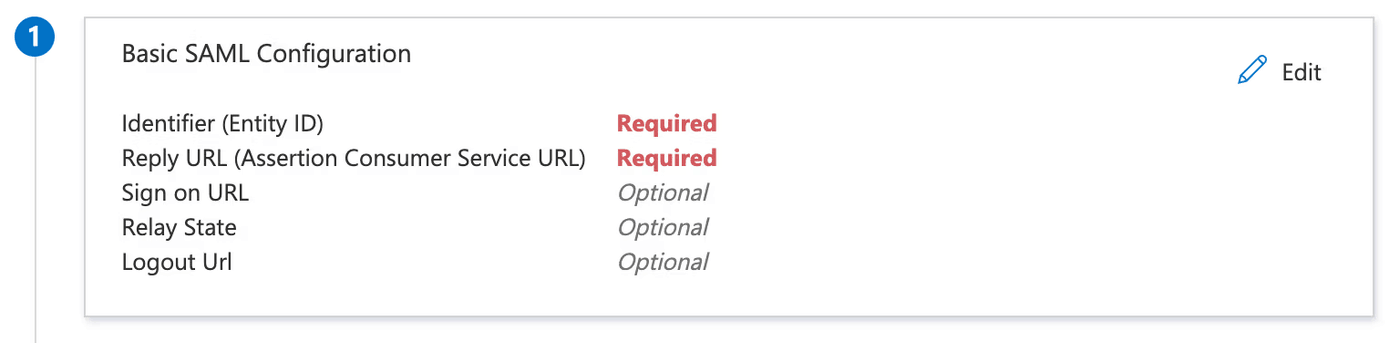
The Identifier and the Reply URL are required; Relay State is optional. -
2. Attributes & Claims
The default claims are enough. Entra sends the user’s email address (
user.mail) in the email-address claim, which the platform uses as the username. For a user with no email address in Entra, the platform falls back to the Unique User Identifier (Name ID), the user principal name by default.If users are known on the platform by another address than their Entra email, click Add new claim and add:
- Name:
username - Namespace:
https://adminconsole.netsign-in.se/saml/attributes - Source: Attribute, with the Entra attribute that holds the
right address as Source attribute, for example
user.userprincipalname.
The platform prefers this attribute over the email claim. See How the username is chosen.
- Name:
-
3. SAML Certificates
Next to Certificate (Base64), click Download. Open the file in a text editor and paste the whole content, including the
-----BEGIN CERTIFICATE-----and-----END CERTIFICATE-----lines, into IdP X.509 Certificate (Base64) on the platform.Verification certificates (optional) in the same section is off by default and can stay off. If your security policy requires Entra to verify signed requests, see SAML signing certificate before you turn it on.
-
4. Set up the application
Copy the two values into section 4. IdP Link on the platform:
- Login URL → Login URL.
- Microsoft Entra Identifier → IdP Identifier/EntityID.
-
Save on the platform
Fill in the login button text, turn on the enable switch in the last section of the platform’s configuration and click Save Settings.
Assign users
Section titled “Assign users”By default, Entra signs in only the users and groups that are assigned to the application. Other users get an error from Entra and never reach the platform.
On the application, open Users and groups, click Add user/group, select the users or groups and click Assign. Leave the role as the default User unless you use app roles (next section).
Tip: SCIM provisioning
To manage users and their access from groups in Entra, use SCIM provisioning. Changes to the groups in Entra are then applied on the platform.
(Optional) Drive Admin Portal roles from Entra
Section titled “(Optional) Drive Admin Portal roles from Entra”Only for Admin Portal sign-in. Without it, every administrator who signs in through SAML gets the platform’s Default Role Mapping. How roles work on the platform is described in Admin Portal roles.
To give roles by Entra group, SCIM provisioning with Teams is usually the better choice.
First create a Custom SAML Role Mapping on the platform for
each role you want to send, for example azure_full_admin. Then let
Entra send the mapping’s name in one of two ways.
With app roles (recommended)
-
Create matching app roles
Go to Entra ID → App registrations → All applications, open the application and choose App roles → Create app role. Use the mapping name as Value, allow Users/Groups and save.
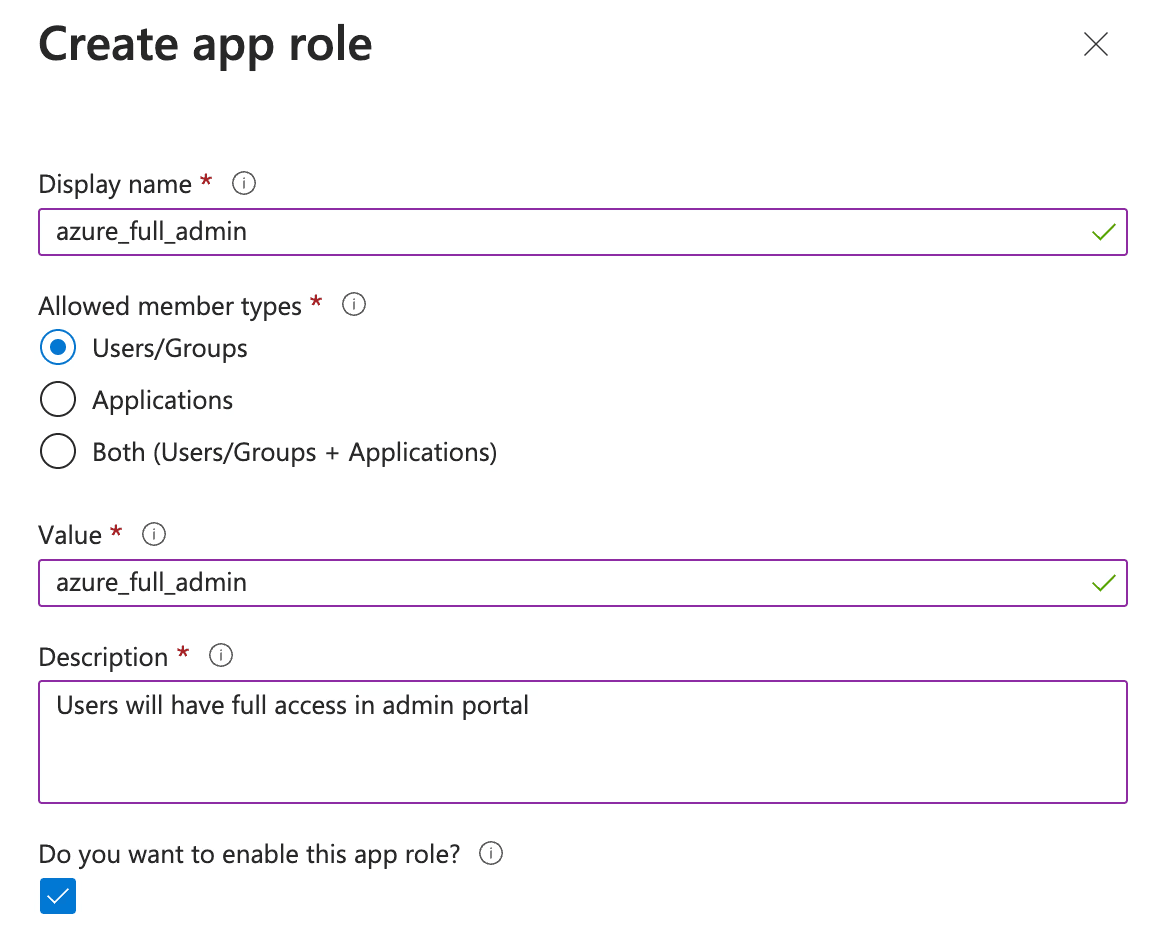
The Value must match the Custom SAML Role Mapping name exactly. -
Assign the app roles
Under Users and groups on the enterprise application, assign users or groups to the app role instead of User. Entra sends the assigned app role in its standard role claim, which the platform reads. No extra claim is needed.
With a custom role claim
If the role comes from somewhere else in Entra, add a claim under
Attributes & Claims with Name role, Namespace
https://adminconsole.netsign-in.se/saml/attributes and the Entra
attribute that holds the mapping name as Source attribute. The
platform prefers this claim over the standard role claim.
Test the configuration
Section titled “Test the configuration”Sign in through SAML from a private browser window and keep your current session open, so a mistake doesn’t lock you out.
Admin Portal: use the SAML button on the Admin Portal sign-in
page. Entra’s own Test button (Single sign-on → Test → Sign in
as current user) works when Relay State is set to admin, but
not when Verification certificates are required.
Self-Service Portal: use the SAML button on the Self-Service Portal sign-in page.
Captive Portal: sign in on the Captive Portal. The walled garden and MFA need attention there as well: see SAML for the Captive Portal.
If sign-in fails, see Organization diagnostics.