
Self-Service portal & roles
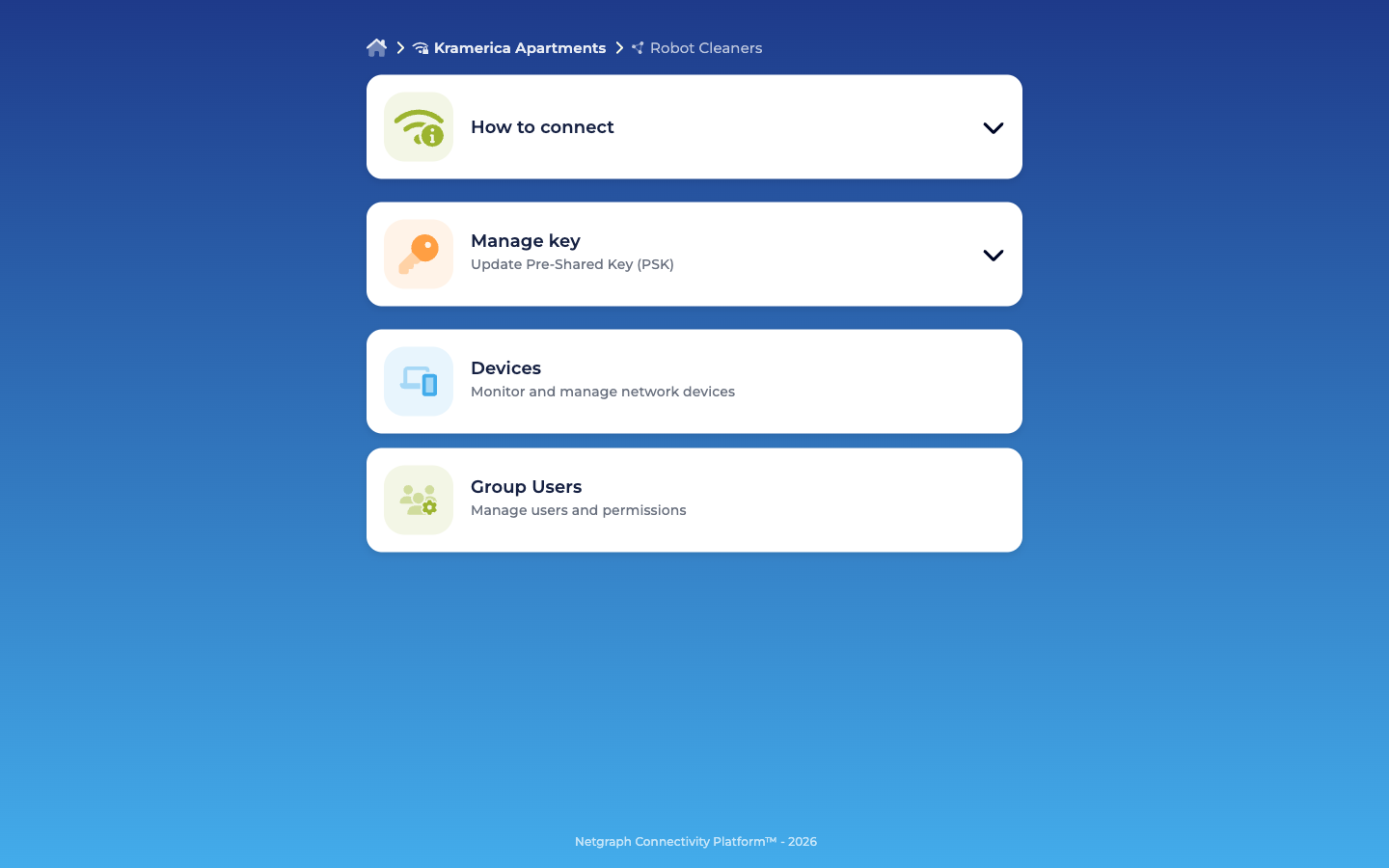
What a delegated iPSK administrator sees — a Group-scoped workspace with device management, PSK rotation (for the PSK Administrator role), and user management (for the Self-Service User Administrator role). No Cisco or EntryPoint admin access.
The Self-Service portal is where delegated iPSK administrators live. It’s separate from the Admin Dashboard, scoped to the Groups a user belongs to, and stripped of every surface a delegate doesn’t need. The facility-services lead who owns Robot Cleaners has no visibility of Digital Signage or Smart Locks; the marketing agency that runs Digital Signage sees nothing of the cleaning or access-control Groups.
This page covers what the portal renders, what each of the three roles is allowed to do, and how inviting / revoking flows work on the Self-Service side.
Inside a Group — cards by role
Section titled “Inside a Group — cards by role”The common case is a Self-Service User who belongs to exactly one Group (the vendor or internal team that manages this device class). The portal lands them on that Group’s detail view directly. Users who are members of multiple Groups see a quick picker screen first and then drill into the Group — but day-to-day life is the per-Group view described below.
The Group detail renders a set of cards that depend on the user’s roles. Every role sees How to connect and Devices; other cards appear only for users with the corresponding role.
| Card | Rendered for |
|---|---|
| How to connect | Everyone. Collapsible accordion with connection instructions — SSID name and the shared PSK (masked / copyable). |
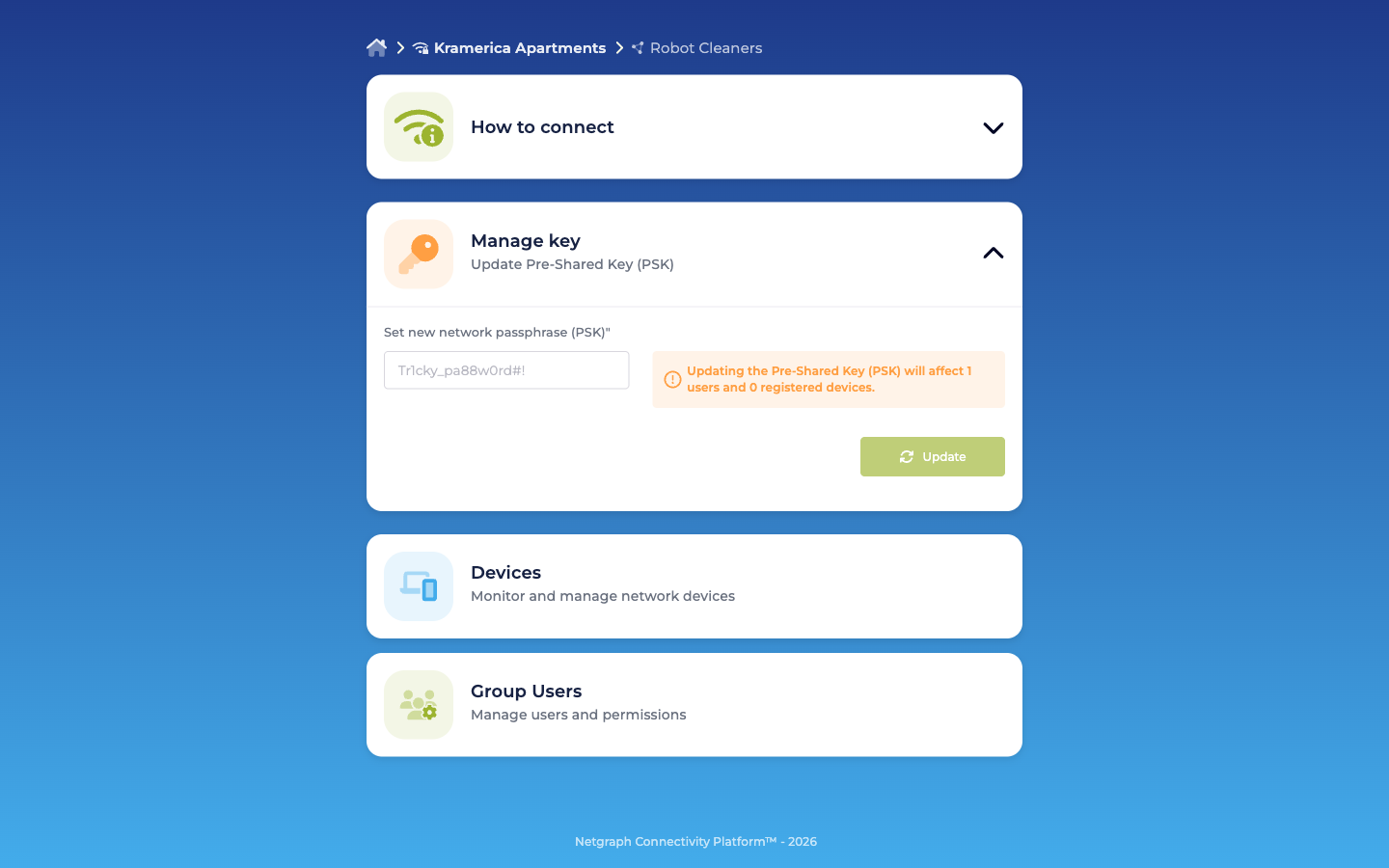
| Manage key | Only users with Pre-Shared Key (PSK) Administrator. Shows the current PSK and a Regenerate control for rotation. |
| Devices | Everyone. Add, update, revoke devices in this Group. Live session info (NAS, VLAN, session duration, data usage) where available. |
| Group Users | Only users with Self-Service User Administrator. Lists every member of the Group; invite / modify / revoke controls. |
A user who holds all three roles sees all four cards. The portal merges them — no mode switching, no submenu.
Rotating the shared PSK from the portal:
The three roles
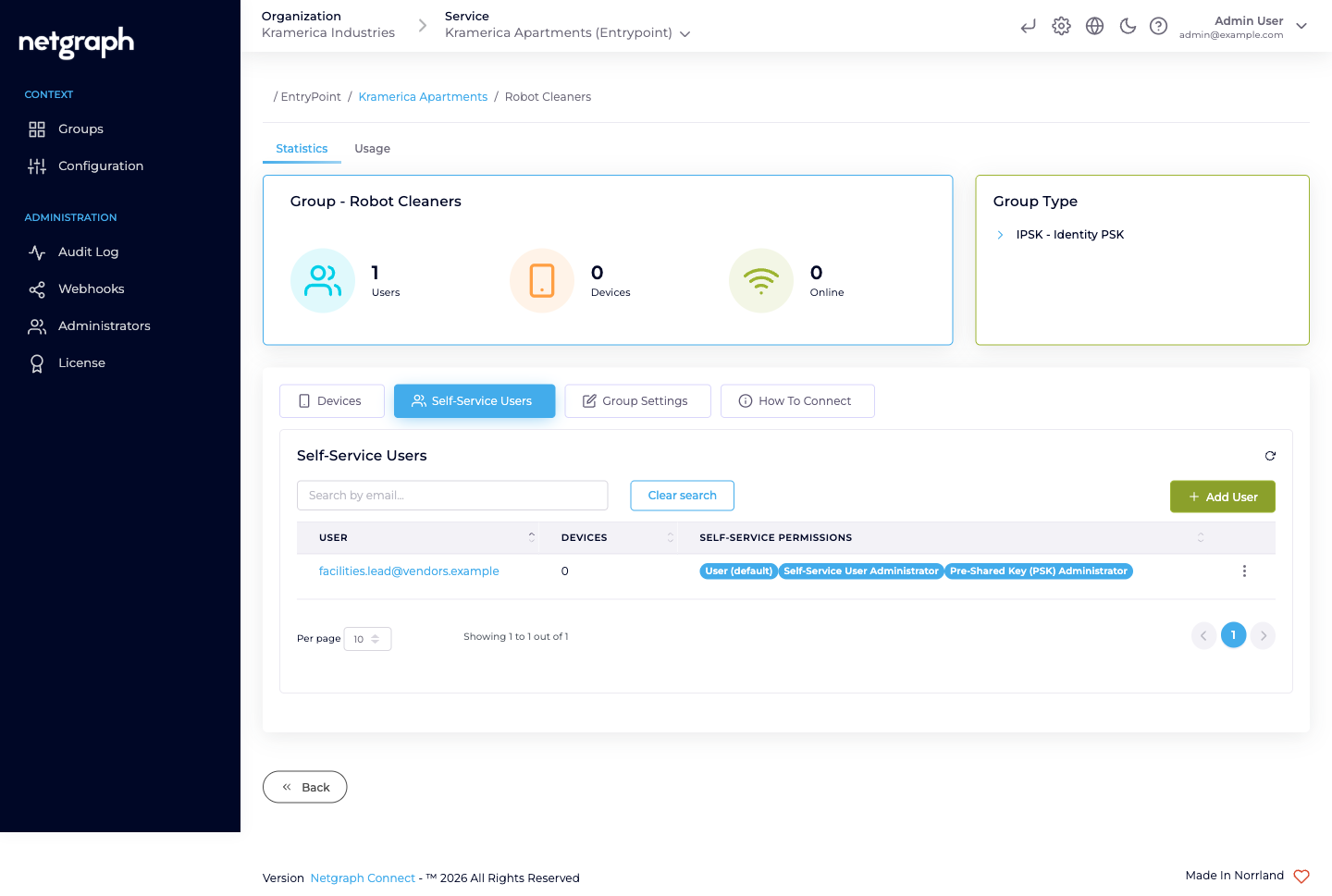
Section titled “The three roles”Role labels are verbatim what the Self-Service portal’s own UI shows; admins assign them on the admin-side Add Self-Service User dialog or in the portal’s Group Users card.
| Role | Authority |
|---|---|
| User (default) | Always on, cannot be removed. View the Group’s shared PSK. Add, update, remove devices in the Group. |
| Self-Service User Administrator | Invite, modify, and revoke other Self-Service Users in the same Group. |
| Pre-Shared Key (PSK) Administrator | Regenerate the Group’s shared PSK. |
Scope is always one Group. The same person can hold PSK Administrator on Robot Cleaners and nothing on Digital Signage without any conflict — those are separate Self-Service User records on separate Groups.
Who gets which role?
Section titled “Who gets which role?”For a real deployment:
- The Group’s lead (the person who actually operates the fleet — facility services lead for robots, marketing-agency lead for signage, security-contractor lead for smart locks, R&D lead for sensors) typically gets all three roles. They run the Group end-to-end.
- A secondary lead for redundancy also gets all three. When the primary is on vacation, rotations still work.
- Everyone else on the team gets only User (default). They can add devices, remove devices, and see the PSK — all they need to do day-to-day.
Inviting members from the portal
Section titled “Inviting members from the portal”A user with the Self-Service User Administrator role on a Group invites others directly from the portal:
-
Open the Group Users card
From the Group’s portal detail view.
-
Click Add Self-Service User
A dialog opens.
-
Enter the new member's email
This is the address they’ll sign into the portal with.
-
Pick roles
User (default) is always on and can’t be unchecked. Tick Self-Service User Administrator and/or Pre-Shared Key (PSK) Administrator if this person should be a backup admin.
-
Click Add Self-Service User
The row appears in the Group Users list. If Send email invite? was checked, the new member gets a portal login email; otherwise you hand them the portal URL out-of-band.
Modifying and revoking
Section titled “Modifying and revoking”From the Group Users card, each row has an action menu:
- Resend Invitation — for members who haven’t signed in yet.
- Modify User — change role assignments (promote a User to PSK Administrator, for example).
- Remove — revoke the member from this Group.
Revocation is immediate:
- Their portal session on this Group is terminated at the next request.
- They lose visibility of the Group.
- Devices they added previously stay in the Group — the Group still owns them, and the Added by field on each device preserves the historical attribution.
Regenerating the PSK (PSK Administrator)
Section titled “Regenerating the PSK (PSK Administrator)”From Manage Key → Regenerate:
- The platform generates a new random PSK for the Group.
- Every device currently in the Group continues to authenticate on the old PSK until it next re-associates — at which point it fails and prompts for the new key.
- If the Context has Change of Authorization (CoA) listeners configured (under Context → Configuration → Basic Configuration), the platform sends CoA messages to force re-auth immediately.
Rotations are a coordinated action:
- Before clicking Regenerate, make sure you (or whoever owns the physical fleet) can update each device with the new PSK. For visible fleets — signage units in lobbies — this typically means having technicians on-site.
- For less visible fleets — sensors rolled out across a building — rotations often ride an MDM / scheduled-task update cycle.
What a delegate cannot do
Section titled “What a delegate cannot do”Deliberately scoped out:
- No visibility of other Groups. Even inside the same Context.
- No admin-dashboard access. Delegates operate only in the Self-Service portal.
- No Context-level configuration. The Identity Store, the Trusted CAs (there aren’t any for iPSK anyway), the RADIUS client secret, the IP allow-list — all admin-only.
- No CoA listener configuration. The PSK Administrator rotates the key; configuring the network-side CoA receiver is an admin operation.
If any of those become something a specific delegate needs, promote them to an Organization administrator rather than stretching Self-Service to do things it wasn’t designed for.