
Cisco Catalyst 9800
Integrate EntryPoint with a Cisco Catalyst 9800 wireless LAN controller over RADIUS: 802.1X (EAP), Identity PSK with RADIUS, and EasyPSK. Netgraph is the external RADIUS server, the WLC is the authenticator, and no on-site hardware is added.
The Cisco Catalyst 9800 integration lets EntryPoint authenticate Wi-Fi clients on a Catalyst 9800 wireless LAN controller (including the virtual C9800-CL) over RADIUS, with no extra hardware on site. EntryPoint is the RADIUS server, the WLC is the authenticator, and one Context drives three SSID styles:
- 802.1X (WPA2/WPA3-Enterprise), for EAP identities (PEAP, EAP-TLS).
- Identity PSK with RADIUS, a per-client PSK the platform returns at association.
- EasyPSK, the Cisco “Easy PSK” feature, also a per-client PSK over RADIUS.
All three share one AAA setup. Only the WLAN security differs.
1. Read off the RADIUS details
Section titled “1. Read off the RADIUS details”In the Administration Portal, open the EntryPoint Context’s Network Integration page. It shows the RADIUS host, authentication and accounting ports, and the shared secret to enter on the controller. Keep it open while you configure the WLC. No API key is involved: this is pure RADIUS.
2. Shared AAA setup
Section titled “2. Shared AAA setup”Navigate to Configuration → Security → AAA.
-
Add the RADIUS server
On Servers / Groups → RADIUS → Servers, click + Add. Enter a Name, the Server Address (the RADIUS host from Network Integration), the Key (the shared secret) twice, and the Auth Port and Acct Port from Network Integration. Enable Support for CoA so the platform can re-authorize a session later.

The EntryPoint Context added as a RADIUS server on the Catalyst 9800. Use the host, ports, and shared secret from the Context's Network Integration page. -
Create a server group
On Server Groups, click + Add, name the group, and move the server into Assigned Servers. Set a non-zero Dead-Time (around 5 minutes) so a server marked dead is parked rather than retried on every request.
-
Create the method lists
On AAA Method List, add an Authentication list of type dot1x (Group Type group) pointing at the server group, an Authorization list of type network, and an Accounting list of type identity. The 802.1X SSID uses the authentication list; the iPSK and EasyPSK SSIDs use the network authorization list.

A dot1x authentication method list pointing at the EntryPoint server group.
3. 802.1X SSID (EAP)
Section titled “3. 802.1X SSID (EAP)”Navigate to **Configuration → Tags & Profiles → WLANs →
- Add**.
-
Name and enable the SSID
On General, set a Profile Name and SSID (for example
Kramerica dot1x) and set Status to Enabled. -
Security: Layer2
Set Layer 2 Security Mode to WPA + WPA2 (or WPA2 + WPA3), keep AES (CCMP128), and under Auth Key Mgmt (AKM) tick 802.1x. Leave MAC Filtering off.
-
Security: AAA
Set the Authentication List to the dot1x method list from step 2. That pointer is what forwards the client’s EAP exchange to EntryPoint.
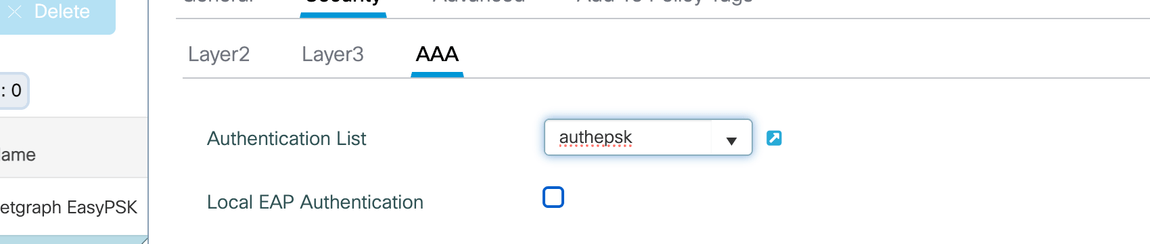
The 802.1X WLAN's Authentication List set to the dot1x method list that targets EntryPoint.
4. Identity PSK with RADIUS
Section titled “4. Identity PSK with RADIUS”Here each device joins with a per-client key that EntryPoint returns at association. MAC Filtering is what makes the WLC ask the platform for the key.
-
Security: Layer2
Set Layer 2 Security Mode to WPA + WPA2 and tick MAC Filtering, then set the Authorization List to the network authorization list from step 2. Under AKM tick PSK (leave 802.1x off), set PSK Format to ASCII, and enter a long placeholder Pre-Shared Key. The placeholder is only a fallback: the real per-client key comes from RADIUS.
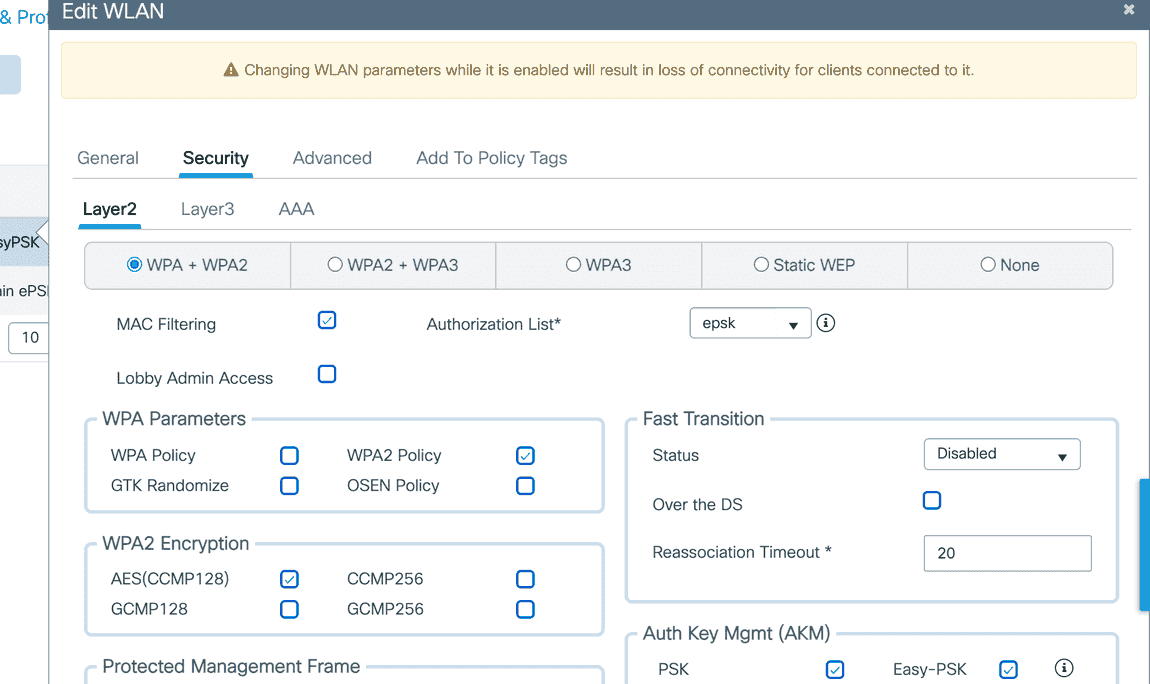
A PSK-over-RADIUS WLAN on the Catalyst: MAC Filtering on with an Authorization List, and AKM set to PSK. (The Easy-PSK AKM shown alongside is what section 5 adds for EasyPSK.) -
Return the key from EntryPoint
EntryPoint returns the per-client PSK in the Access-Accept as two Cisco AV-pairs:
cisco-av-pair = psk-mode=asciiandcisco-av-pair = psk=<key>. The encoding inpsk-modemust match the WLAN’s PSK Format.
Note
Catalyst carries the PSK in psk=, not Tunnel-Password. The
Tunnel-Password attribute is the Cisco Meraki convention. On a Catalyst
9800 the per-client key rides in the psk= Cisco AV-pair (paired with
psk-mode). Keep the two straight when a Context serves both platforms.
Micro-segmentation
Section titled “Micro-segmentation”On Catalyst, the controller enforces the per-key isolation itself: its Identity-PSK handling, with peer-blocking set to allow only same-group peers, keeps devices that hold different keys from reaching each other. You do not return a separate segmentation attribute. This is the counterpart to Cisco Meraki, where the same isolation needs an explicit UDN tag in the RADIUS response.
5. EasyPSK
Section titled “5. EasyPSK”EasyPSK is the same per-client-PSK-over-RADIUS idea delivered through Cisco’s named Easy PSK feature. On the WLAN’s Security → Layer2 tab it appears as an extra Easy-PSK AKM next to PSK, with MAC Filtering and the authorization list set exactly as in section 4. The full walkthrough, with the Context side, is in Cisco Catalyst 9800 (EasyPSK via RADIUS).
Note
Cisco’s “Easy PSK” feature supports Local mode with central switching only (not FlexConnect) and needs IOS-XE 17.6.1 or later. Plain Identity PSK (section 4) also works in FlexConnect local switching and from IOS-XE 16.10.
6. Bring the SSID live: Policy Profile and Tags
Section titled “6. Bring the SSID live: Policy Profile and Tags”A WLAN does nothing until a Policy Profile and a Policy Tag bind it to the access points.
-
Policy Profile
On Configuration → Tags & Profiles → Policy, add a profile. On Access Policies, set the VLAN. On Advanced, enable Allow AAA Override.
-
Policy Tag
On Configuration → Tags & Profiles → Tags → Policy, add a tag and map each WLAN Profile to the Policy Profile.
-
Assign to the access points
Assign the Policy Tag, along with a Site Tag and RF Tag, to the APs on Configuration → Wireless → Access Points.
Warning
Allow AAA Override is mandatory for the iPSK and EasyPSK SSIDs. Without
it the controller silently ignores the psk= key (and any VLAN) EntryPoint
returns, and devices fail to join. It is the single most common Catalyst
iPSK mistake.
Note
The default-policy-tag only auto-maps WLAN IDs 1 to 16. A WLAN with a higher ID needs a custom Policy Tag, or it will not broadcast.

7. Device profiling and the AP name
Section titled “7. Device profiling and the AP name”Two extra signals EntryPoint can use, the Catalyst counterparts of the Meraki options, are set once on the controller and then apply to every SSID. We recommend turning both on: they give EntryPoint the richer device and location data it uses to recognise, classify, and place connected devices, the same signals the Meraki integration enables.
Device profiling
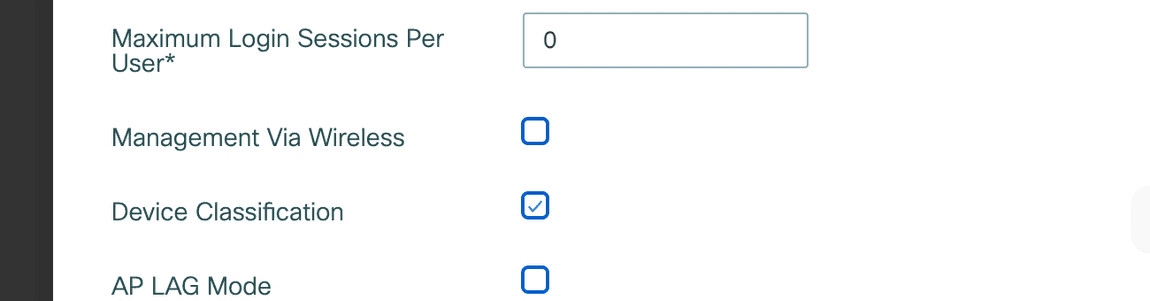
Section titled “Device profiling”Like Meraki’s RADIUS Accounting Device Profiling support, a Catalyst 9800 can send device-profiling information to EntryPoint so it recognises and classifies connected devices. This is Cisco’s Native Profiling. Enable it by ticking Device Classification on Configuration → Wireless → Wireless Global (it turns on MAC-OUI, DHCP, and HTTP profiling), then set the policy profile’s Accounting List (from section 2) so the controller streams the profiling data to EntryPoint in RADIUS accounting. The WLC sends further accounting updates as it learns new details about a client.
AP name in the Called-Station-ID
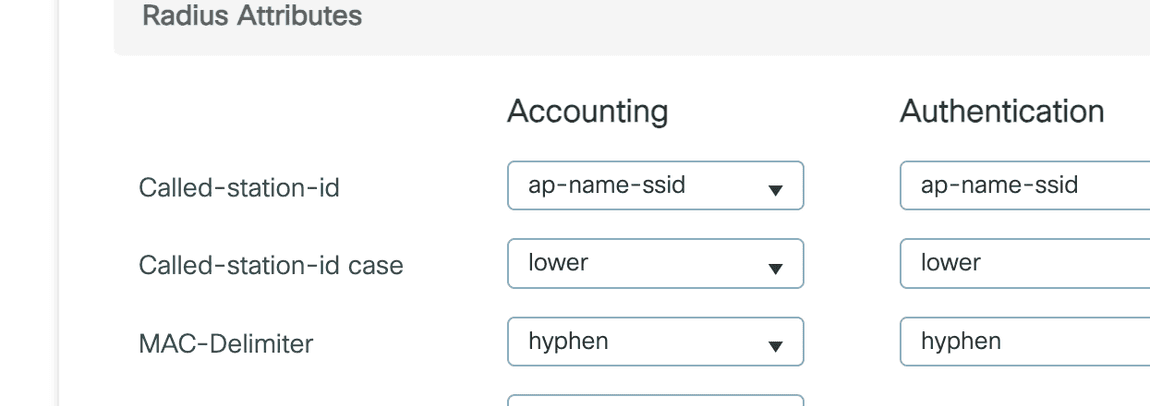
Section titled “AP name in the Called-Station-ID”To tell EntryPoint which access point a client joined through, set the
Called-Station-ID to an AP-name format. This is the counterpart of
adding AP Name to Meraki’s Called-Station-ID list. On Configuration
→ Security → AAA → AAA Advanced → Global Config,
click Show Advanced Settings, and under Radius Attributes set
Called-station-id to ap-name-ssid (recommended) or ap-name.
The value is set separately for Authentication and Accounting, so
set both so EntryPoint sees the AP name in either message.
Per-group network attributes
Section titled “Per-group network attributes”VLAN assignment and Security Group Tags are returned per group with the
Context’s Attribute Profiles:
the VLAN as the Tunnel-Type / Tunnel-Medium-Type /
Tunnel-Private-Group-ID triplet, and an SGT as a cts:security-group-tag
Cisco AV-pair. The UDN tag used on Cisco Meraki is not used on Catalyst.