
Cisco ISE connection
One-time setup: enable three ISE APIs, mint an API user, paste Base URL / Username / Password into API Configuration. Every Context goes through this once.
Before the Context can manage anything, it needs to talk to your Cisco ISE. That’s an HTTPS connection from the platform’s egress FQDN to an ISE that has three API families enabled, authenticated as an API user you create specifically for this purpose.
This page is the field reference for the API Configuration tab and the one-time work that has to happen on the ISE side first.
Prerequisites on Cisco ISE
Section titled “Prerequisites on Cisco ISE”You need three things on the ISE deployment before you touch the admin dashboard:
1. Enable the three API families
Section titled “1. Enable the three API families”Endpoint Manager uses three of Cisco ISE’s API families in parallel:
- ERS (External RESTful Services) — for reading and creating Endpoint Identity Groups and listing endpoints in bulk.
- Open API — for per-endpoint CRUD and bulk endpoint upserts (used by both admin-side and Self-Service-side operations).
- Monitoring API (MnT) — for reading live session data and issuing Change of Authorization.
All three must be enabled on the ISE deployment. If any one is off, the Cisco ISE API Status table will report it as Down and the Context will refuse to operate.
2. Create a dedicated API user
Section titled “2. Create a dedicated API user”Mint an ISE admin user specifically for Endpoint Manager. The user needs permission to:
- Read Endpoint Identity Groups.
- Create Endpoint Identity Groups (only if you’ll create groups from the platform rather than only connecting existing ones).
- Read, create, update and delete endpoints.
- Read endpoint session data from the Monitoring API.
- Issue Change of Authorization requests.
Assign a strong, unique password. Don’t reuse a human administrator’s credentials.
3. Allow the platform’s egress FQDN
Section titled “3. Allow the platform’s egress FQDN”Cisco ISE must accept inbound HTTPS connections from the
platform’s egress FQDN. The exact FQDN is shown in the admin’s
API Configuration card — it looks like
pn.sr1.c0.example.net. Add it to whatever firewall, proxy or
ACL sits in front of the ISE admin node.
Note
ISE can be on-premises or cloud-hosted — Endpoint Manager only cares that it’s reachable over HTTPS from that FQDN. Deployment topology makes no difference to the platform.
The API Configuration tab
Section titled “The API Configuration tab”Open the Context’s Configuration → API Configuration tab.
Fields
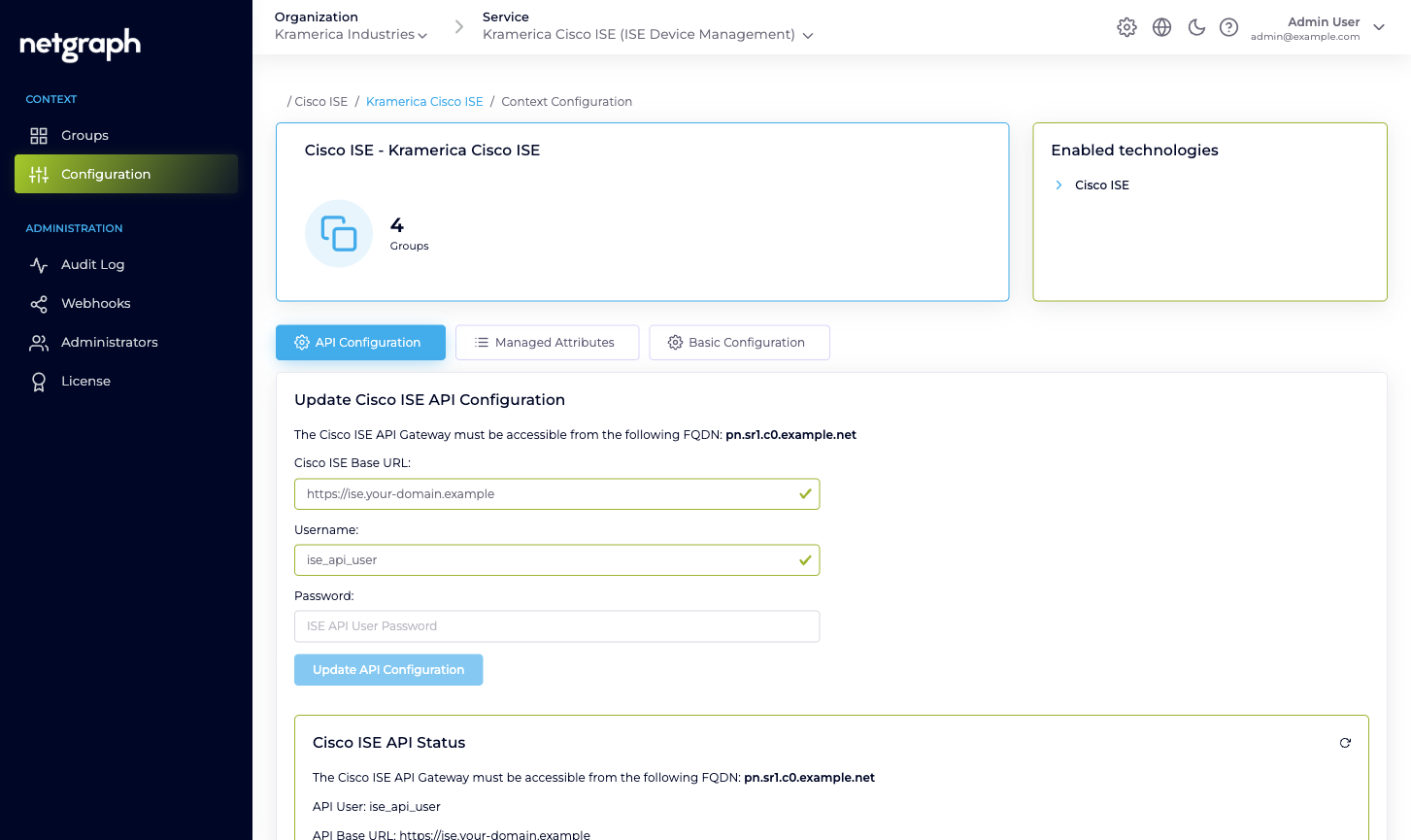
Section titled “Fields”- Cisco ISE Base URL. The HTTPS URL of your ISE admin node,
for example
https://ise.your-domain.example. The platform talks to the same base URL for all three API families — ERS, Open API and Monitoring paths are all rooted there. - Username. The API user you created above.
- Password. The API user’s password. Stored encrypted, never shown back. The field is blank when you return to the tab even though the saved password is still in use — enter a new password only if you want to rotate it.
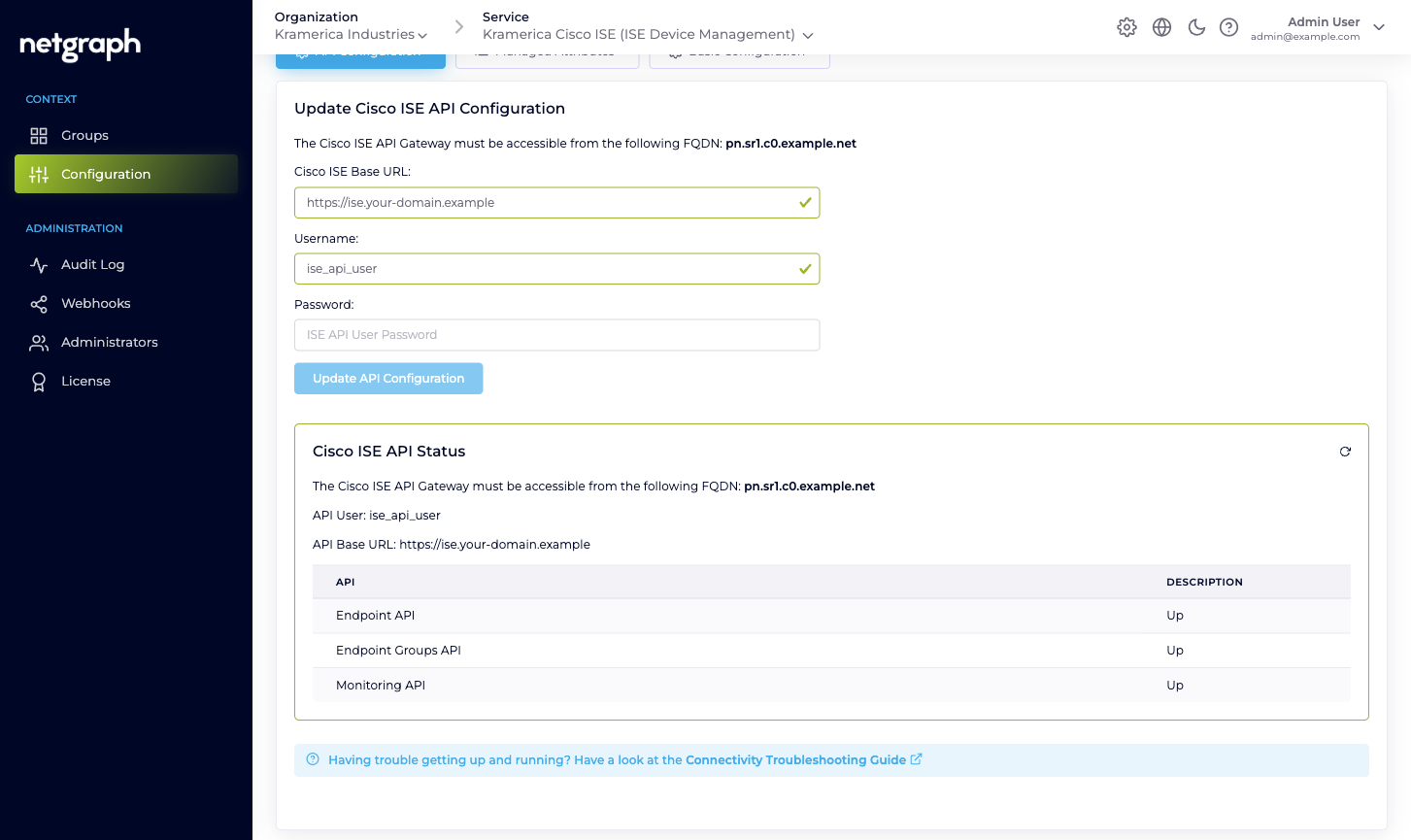
Below the form you’ll see the current API User and API Base URL for reference, and the Cisco ISE API Status table.
Saving
Section titled “Saving”Click Update API Configuration. The platform immediately exercises the credentials against all three API families:
- Lists a page of Endpoint Identity Groups via ERS.
- Fetches a page of endpoints via Open API.
- Pings the Monitoring API for a harmless query.
The Cisco ISE API Status table reports the result per API:
| API | What Up means | What Down usually means |
|---|---|---|
| Endpoint API | Open API is reachable and the user can read endpoints. | Open API isn’t enabled, or the user lacks endpoint permissions. |
| Endpoint Groups API | ERS is reachable and the user can read groups. | ERS isn’t enabled, or the user lacks group permissions. |
| Monitoring API | MnT is reachable and the user can query session data. | MnT isn’t enabled on the deployment or the user isn’t authorised for it. |
If any row reads Down, fix the ISE side and click Update API Configuration again. There’s no partial-readiness state — every row must read Up before the Context can manage groups.
Help text
Section titled “Help text”The API Configuration tab carries a Connectivity Troubleshooting Guide link that walks you through the ISE-side enablement step by step if something isn’t working.
When to re-verify
Section titled “When to re-verify”Re-open API Configuration and re-save whenever any of these change on your ISE:
- The API user’s password.
- The API user’s role / permission set.
- The ISE Base URL (for example, a cert renewal that reissues the admin node under a different hostname, or a migration to a new deployment).
- Enablement of any of the three API families.
No admin-dashboard restart is needed — the Context is ready again as soon as the status table reads Up.