
Admin Portal vs Self-Service Portal
Two completely separate sign-in surfaces serve two completely different audiences. The Admin Portal is for the Organization administrators who run the platform; the Self-Service Portal is for the end users they delegate work to. Each has its own authentication configuration.
The Netgraph Connectivity Platform exposes two web sign-in surfaces to your Organization, and they serve different audiences with different lifecycles. Understanding which surface is which — and that each has its own authentication configuration — makes the rest of the Organization setup obvious.
The two portals
Section titled “The two portals”| Admin Portal | Self-Service Portal | |
|---|---|---|
| Audience | Organization administrators (you and your colleagues) | Delegated end users — Sign-In Self-Service Users, EasyPSK for Cisco Networks residents, ISE delegated administrators, conference hosts |
| What you do there | Configure Service Contexts, manage administrators, review audit, set up webhooks, federate sign-in | Manage your apartment’s Wi-Fi key, your endpoint group, your conference whitelist, your venue’s whitelisting |
| Who provisions accounts | The Organization invites administrators directly | Each Service Context invites its own Self-Service Users |
| Default authentication | Form Login (email + password, with optional MFA) | Email Magic Link (passwordless one-click sign-in) |
| Federated authentication | Optional SAML 2.0 with Default Role Mapping | Optional SAML 2.0; role assignment delegated to each Service’s own permission model |
| Identity scope | A single platform identity, optionally bound to multiple Organizations | A Self-Service User is bound to a specific Service Context |
| Configured at | Admin Access Control → Authentication | Selfservice Access Control → Authentication |
The same person can use both portals — you, the Organization admin, will land on the Admin Portal as yourself, and you can also appear as a Self-Service User inside any Service Context where you’ve been added. The platform treats these as separate authentications.
Why each portal has its own SAML configuration
Section titled “Why each portal has its own SAML configuration”When you federate sign-in, your IdP needs to know which platform endpoint to send assertions to. The two portals have different audiences and different role-assignment rules, so the platform gives each portal its own SAML Service Provider endpoint — its own Entity ID, its own Reply URL.
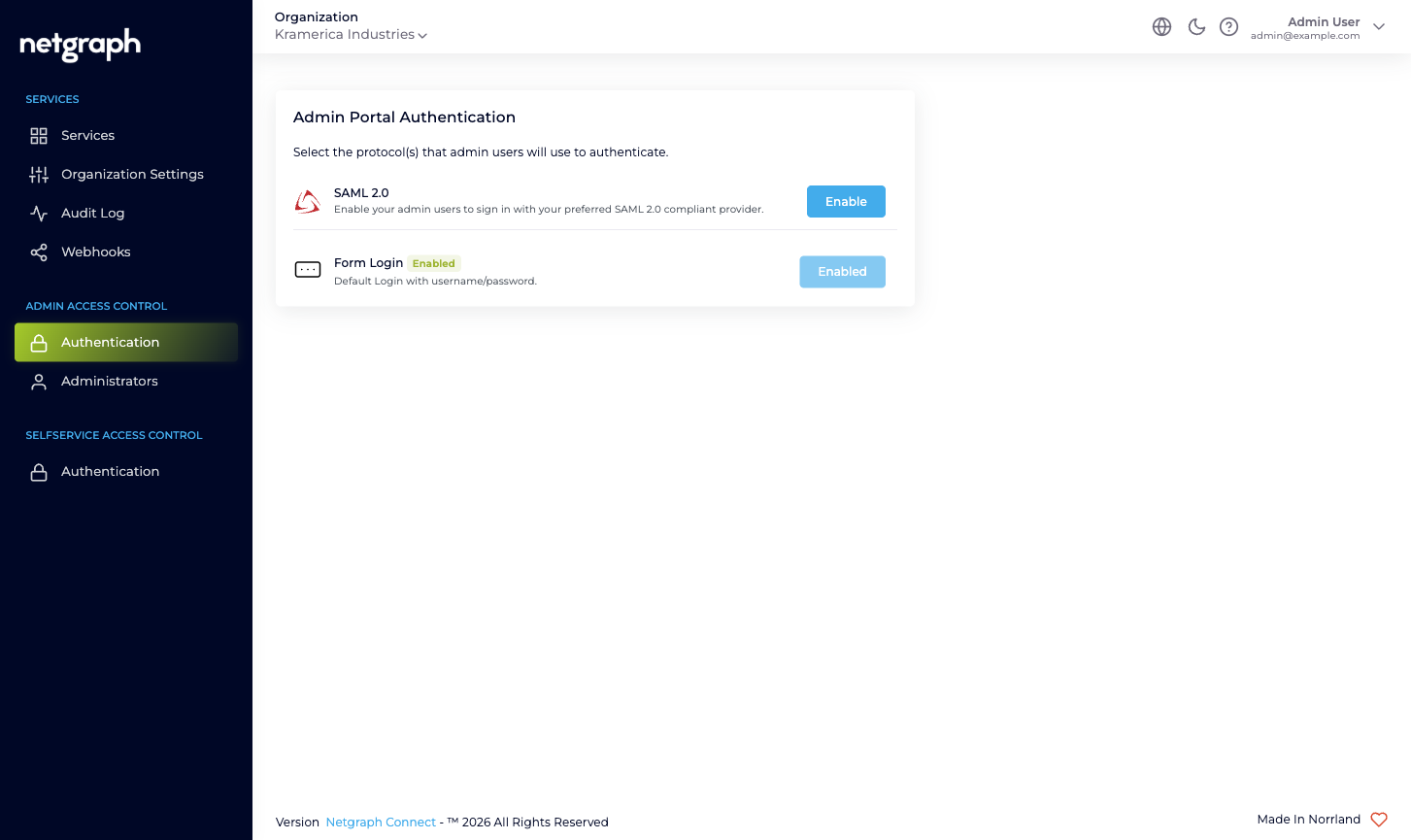
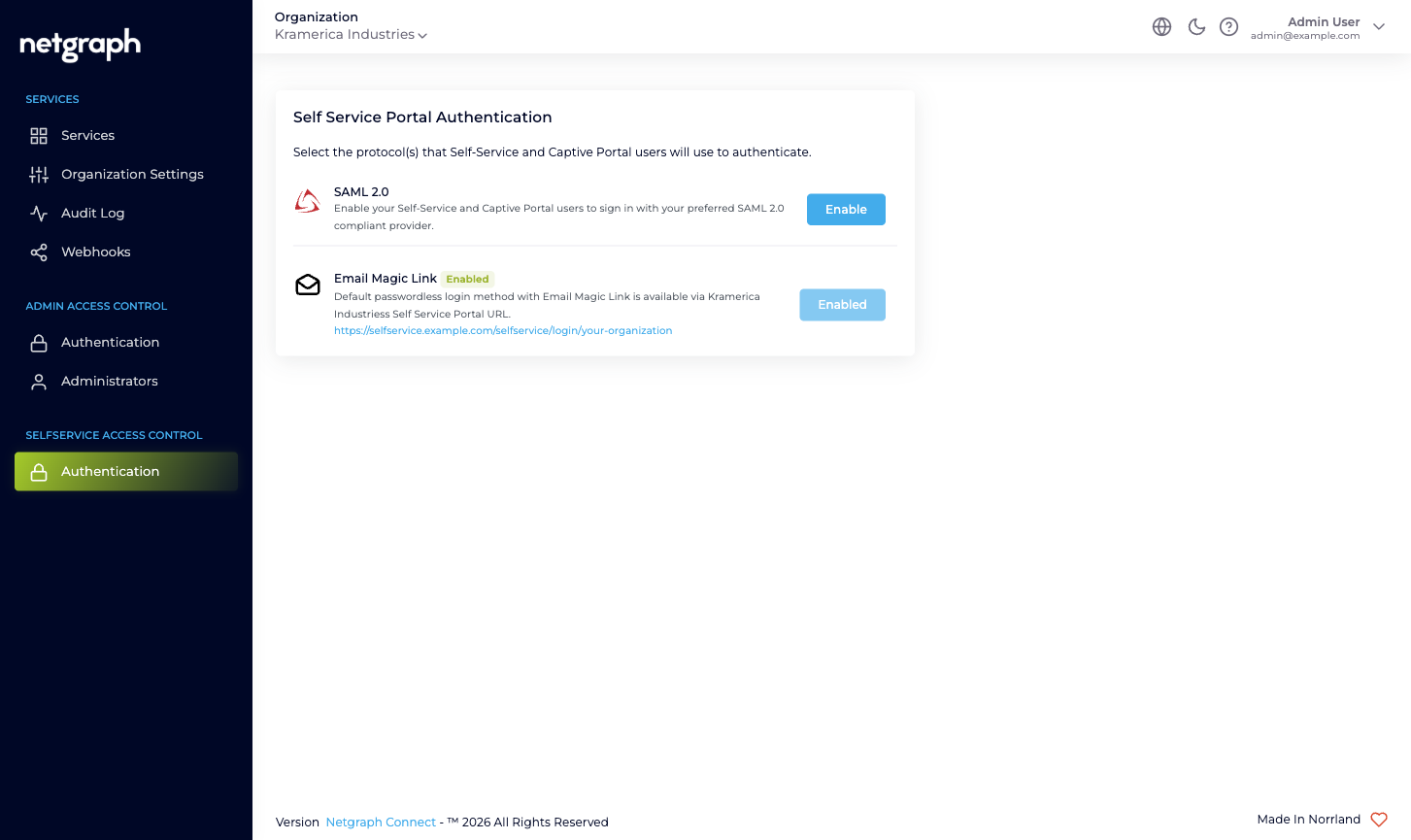
When you set up SAML for both portals, you typically register two separate applications in your IdP — one with the Admin Portal Entity ID, one with the Self-Service Portal Entity ID. You can point both at the same IdP, but the SP-side is two distinct integrations.
Why role assignment differs between the two
Section titled “Why role assignment differs between the two”The Admin Portal and Self-Service Portal don’t share an authorization model, so SAML role assignment also differs:
- Admin Portal SAML. You configure a Default Role Mapping with one or more Organization-scope roles (Owner / Context Manager / Member). Every user who signs in via that SAML configuration is auto-provisioned as an Organization administrator with those roles. You can override per-user from the IdP by sending a role that matches a Custom SAML Role Mapping you’ve defined. See Custom SAML Role Mappings.
- Self-Service Portal SAML. No Default Role Mapping. The Self-Service Portal doesn’t have a single shared role list — what a Self-Service User can do depends on which Service Context they were invited to, and which permission level they were granted inside that Context. SAML hands you a verified email and the platform looks the email up in each Service Context’s Self-Service User list to decide what’s accessible.
This is why the Self-Service Portal SAML page omits the role section entirely — there isn’t one role to assign.
Why the default-on methods are different
Section titled “Why the default-on methods are different”Each portal ships with one method enabled out of the box:
- Admin Portal: Form Login. Sensible for the small, named set of administrators an Organization typically has. Pair it with Mandatory Email MFA in Organization Settings for a baseline second factor without an external IdP.
- Self-Service Portal: Email Magic Link. Removes the password problem for end users (residents, hosts, group administrators) who only sign in occasionally. The portal sends a one-click link to the email the Self-Service User was invited under. The link’s validity is set in the Organization’s Self-Service Portal Settings.
You can layer SAML on top of either default method — having both SAML and the default enabled means users get a choice on the sign-in screen. Disabling the default once SAML is wired up turns the portal into a SAML-only surface.
How this maps onto the left navigation
Section titled “How this maps onto the left navigation”The Organization’s left navigation reflects the split directly. You’ll see two grouping headers near the bottom:
- Admin Access Control: Authentication (the picker above; clicking SAML 2.0 takes you to the Admin Portal SAML configuration), Administrators (who exists, what role they hold), Teams, Provisioning (SCIM) and Applications (API keys).
- Selfservice Access Control with one item inside: Authentication (the picker above; clicking SAML 2.0 takes you to the Self-Service Portal SAML configuration). The actual Self-Service Users are managed inside each Service Context, not here, because they’re Context-scoped.