
Organization Settings
The Organization Settings page is the configuration root for your Organization on Netgraph Connectivity Platform. It carries your Organization's name, the slugs that route SAML and Self-Service Portal traffic to you, the languages your admins can choose from, the Admin Portal access whitelist, the mandatory MFA toggle, and the Self-Service token lifetime.
Open Organization Settings from the Organization left navigation to reach the configuration root for everything Organization-scope. The page is laid out as a column of cards, each one a focused slice of configuration with its own edit affordance and its own audit trail.
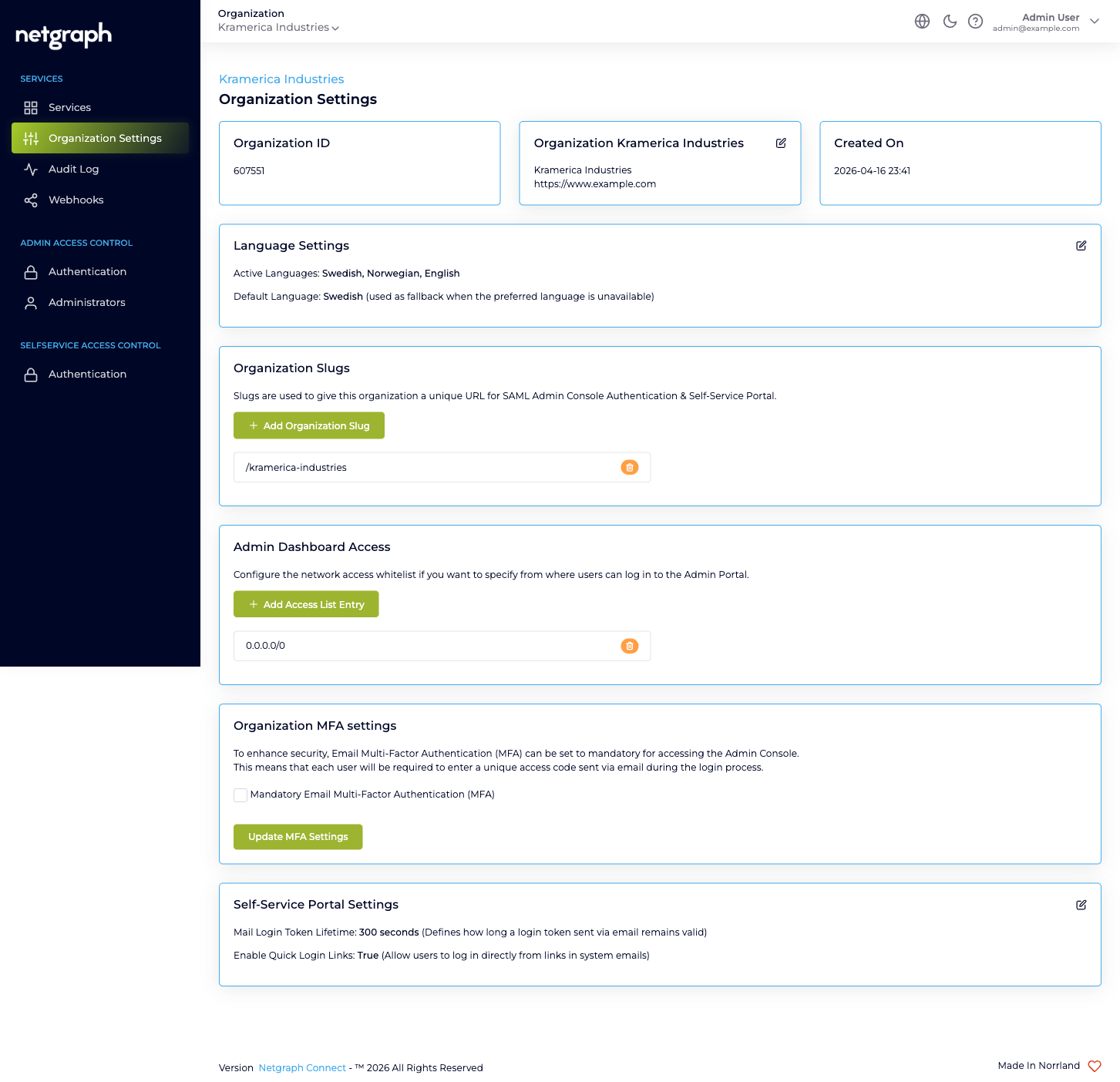
Organization ID
Section titled “Organization ID”Read-only. The platform assigns a numeric ID when your Organization is provisioned and it never changes. You’ll occasionally need it when filing a support ticket or scripting against the API; otherwise it’s purely informational.
Organization name and website
Section titled “Organization name and website”The Organization name appears throughout the Admin Portal and on the Self-Service Portal landing surfaces. The optional website URL is shown alongside the name. Edit either through the pencil affordance on the Organization card.
Renaming the Organization here doesn’t rename anything inside existing Service Contexts. Each Sign-In Context, EntryPoint Context, EasyPSK Context, and Endpoint Manager Context keeps its own name and configuration; only the Organization-level surfaces update.
Created On
Section titled “Created On”Read-only. The timestamp the Organization was provisioned. Useful when you’re correlating audit history.
Language Settings
Section titled “Language Settings”Two related controls:
- Active Languages — the list of languages an admin can pick for translatable content (Sign-In Module copy, conference notices, Self-Service Portal copy). The default is English plus whichever languages your Organization was provisioned with.
- Default Language — the fallback used when a user’s preferred language isn’t in the active list. New Service Contexts created inside this Organization start out using this language as their default, but each Service Context manages its own language configuration after that — changing the Organization-level default never overwrites an existing Context.
Organization Slugs
Section titled “Organization Slugs”Slugs are the URL-path segments that identify your Organization on the platform’s public surfaces. They appear in:
- The Admin Portal SAML sign-in URL for your Organization (when you’ve enabled SAML 2.0 for Admin Portal Authentication).
- The Self-Service Portal magic-link URL that the platform builds for each Service Context’s invitations.
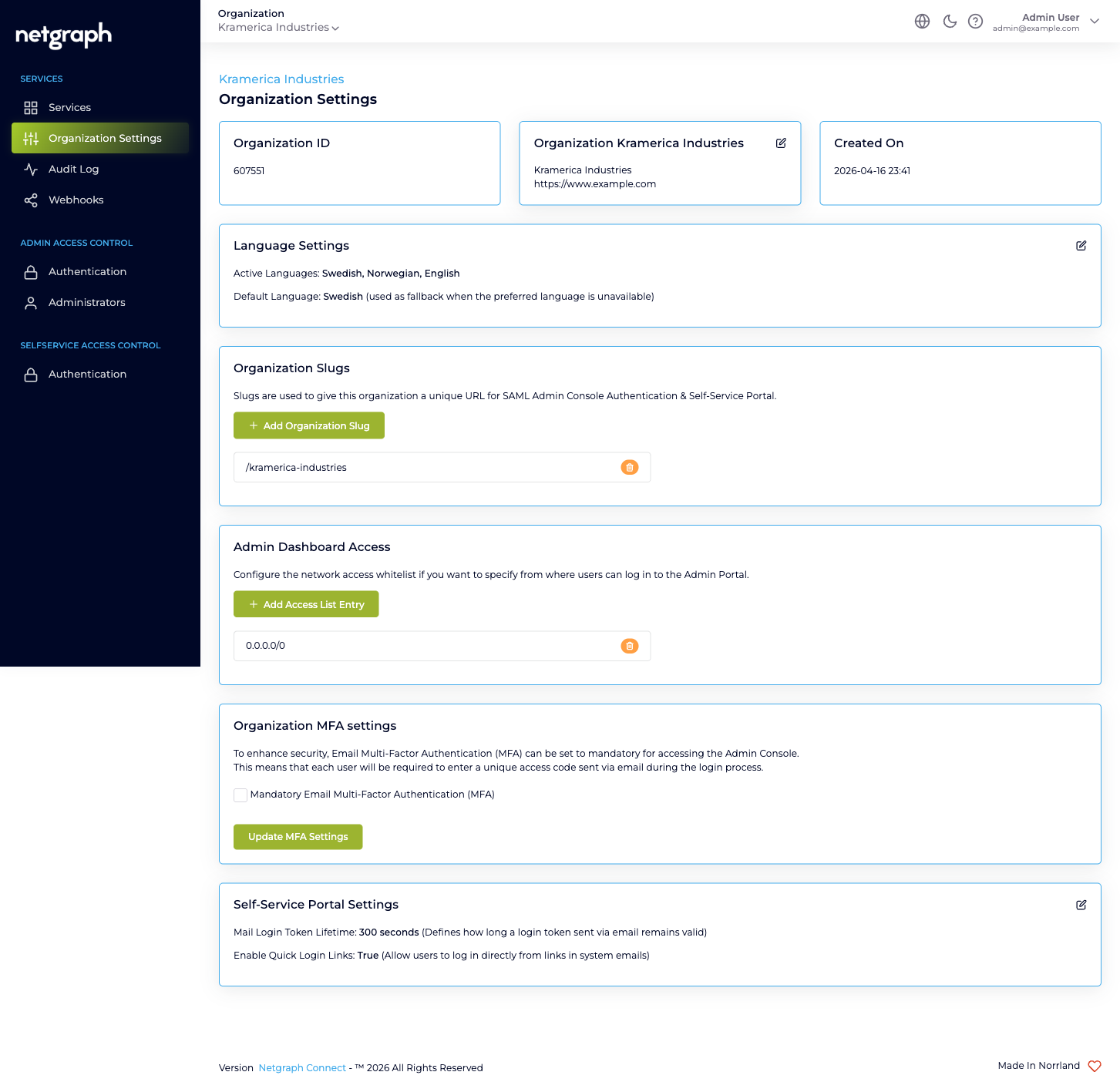
Most Organizations only need one slug. You can add more if a rename is needed without breaking existing bookmarks: keep the old slug active while you migrate, then remove it once everyone’s moved over. Use the Add Organization Slug button to add one, and the trash icon next to a slug row to retire it.
Warning
Deleting a slug breaks any existing SAML-sign-in URLs and Self-Service Portal magic links that included it. Add the replacement slug first, give users time to migrate to the new URL, then remove the old slug.
Admin Dashboard Access
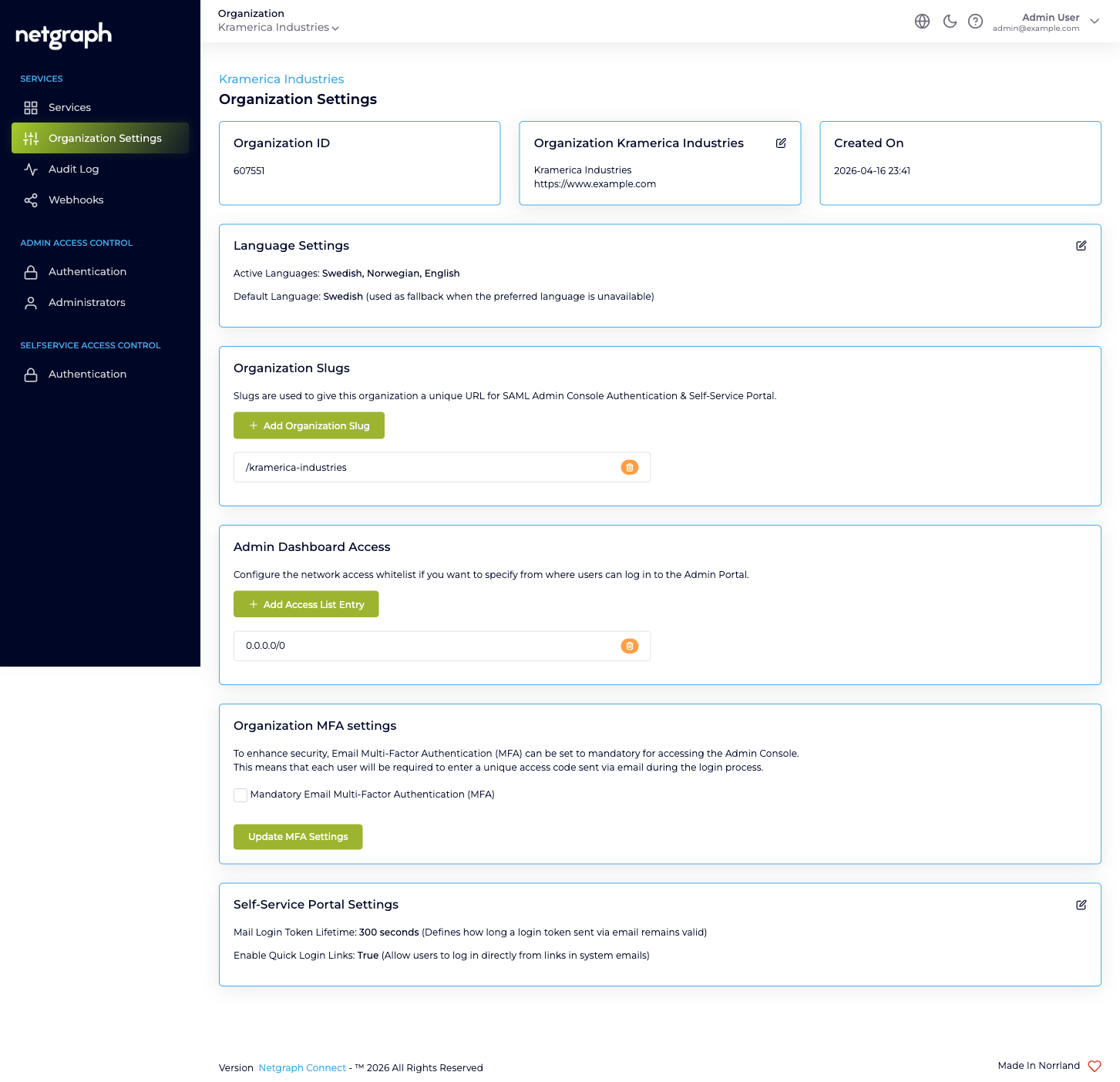
Section titled “Admin Dashboard Access”Optional network-level whitelist for Admin Portal sign-in. By
default this card holds a single entry, 0.0.0.0/0, meaning any
network can reach the Admin Portal. To restrict admin sign-in to
specific corporate or VPN ranges, replace 0.0.0.0/0 with the
ranges you want to allow.
The whitelist is a union: an admin sign-in attempt from any IP that matches any listed CIDR is allowed. Use Add Access List Entry to add a range; the trash icon removes one.
Warning
Tightening this whitelist can lock you out. Always confirm your
current sign-in IP is covered by at least one of the new entries
before you remove 0.0.0.0/0. Test from each network you’ll
rely on before tightening further.
The whitelist applies to administrative sign-ins only. It does not affect end users on the Self-Service Portal, RADIUS clients on EntryPoint, or any other Service Context surface.
Organization MFA settings
Section titled “Organization MFA settings”A single checkbox: Mandatory Email Multi-Factor Authentication (MFA). When on, every administrator who signs in via Form Login must enter a one-time code emailed to them after entering their password. The MFA prompt appears between the password screen and the Admin Portal landing page.
Click Update MFA Settings to apply.
Tip
Email MFA stacks usefully with Form Login but is generally redundant if your administrators sign in via SAML, since your IdP almost certainly already enforces an MFA policy. Mandatory Email MFA still applies to any Form Login attempt for an Organization Owner — handy as a safety net for the break-glass account you keep on Form Login.
Self-Service Portal Settings
Section titled “Self-Service Portal Settings”Three values that affect every Self-Service Portal sign-in across every Service Context in your Organization:
- Default Portal: Classic or New, the Self-Service Portal users land in after signing in. The new portal is the redesigned one; the classic portal stays available, and every user can switch between the two from the portal itself. An Organization starts on Classic until you switch.
- Mail Login Token Lifetime — the validity period of the email magic link, in seconds. The default is 300 seconds (5 minutes); raise it for users who collect mail through a slow workflow, lower it for tighter security. Only relevant while Email Magic Link is enabled under Selfservice Access Control → Authentication.
- Enable Quick Login Links — whether system emails sent to Self-Service Users (invitations, password resets, conference notifications) include a one-click sign-in link directly to the relevant page. With this off, users sign in to the Self-Service Portal explicitly first. Quick login links are email sign-in links, so they are also left out while Email Magic Link is disabled; the emails then link to the portal’s sign-in page.
What’s audited from this page
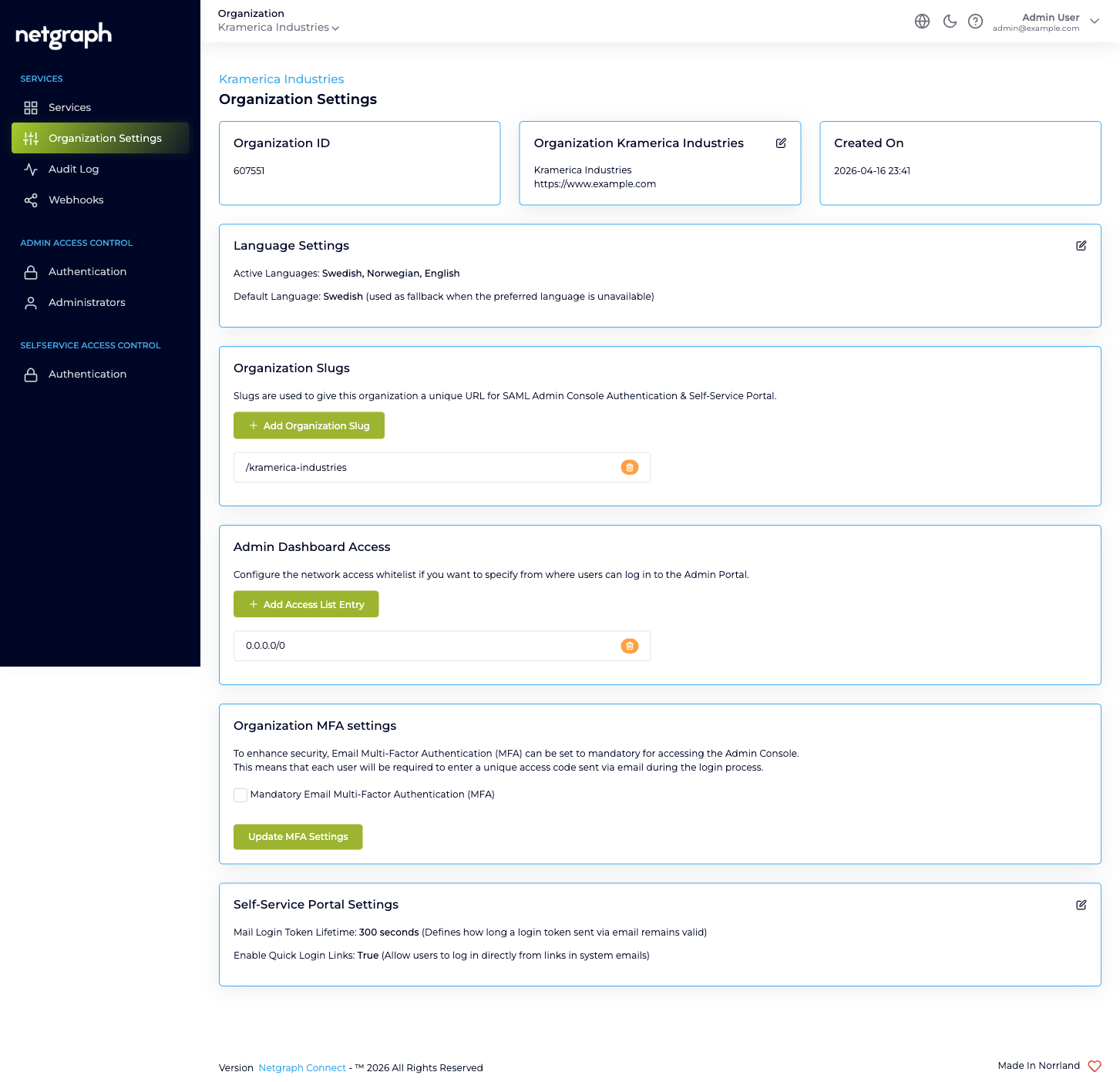
Section titled “What’s audited from this page”Every change made to any card on this page is captured in the Audit Log under the user who saved it, with a Property / Old Value / New Value drill-down. Mandatory MFA changes, slug additions and removals, Admin Dashboard Access whitelist edits, and Self-Service Portal Settings adjustments all flow into the same Change log.