
Meeting Host
Visitors provide the email of an employee host; the host approves the request, and the visitor gains access. Ideal for corporate lobbies and scheduled visits.
The Meeting Hosts module — also known as Sponsor approval — requires each visitor to identify an employee who can authorize their visit. The host receives an approval request and either approves or denies it; the visitor’s network access depends on the host’s response.
Typical audiences: corporate lobbies, scheduled business visits, customer meetings, and any venue where every guest is expected to be accounted for in advance.
How a guest signs in
Section titled “How a guest signs in”The request flow spans three surfaces: the Captive Portal form the visitor completes, the confirmation screen shown while the host is being notified, and the notification email delivered to the host.
1. The visitor submits the request
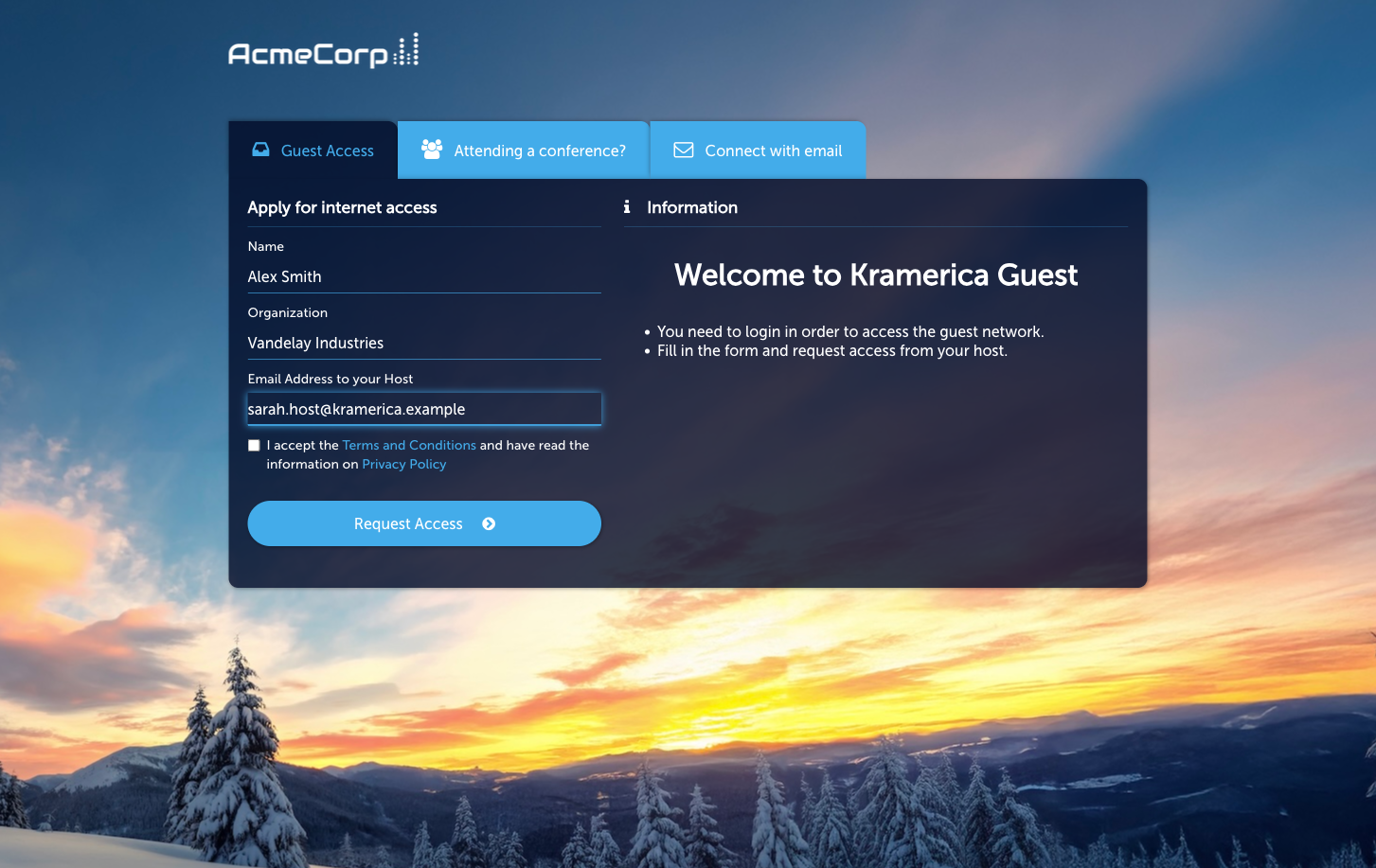
Section titled “1. The visitor submits the request”On the Captive Portal the visitor selects Meeting Host and enters their name, optionally their company, and the host’s email address. Submitting the form creates a pending request against the Sign-In Context.
2. The visitor waits for a response
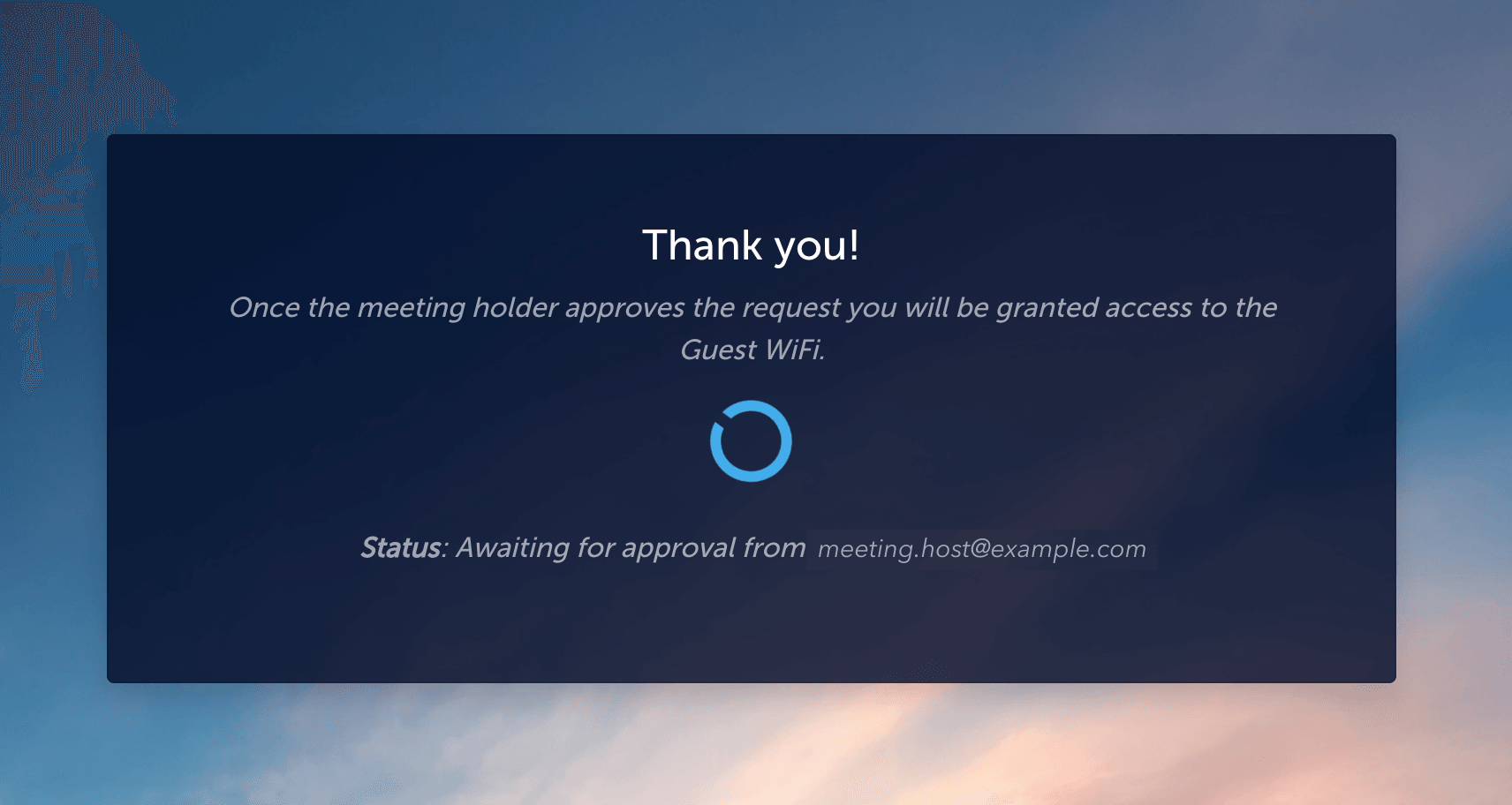
Section titled “2. The visitor waits for a response”The Captive Portal then displays a confirmation screen that identifies the host the request has been sent to. The visitor remains on this screen — without network access — until the host responds. If the host approves, access is granted and the visitor is redirected according to the Access Policy. If the host denies the request, or does not respond within the session window, access is refused.
3. The host responds from email or the portal
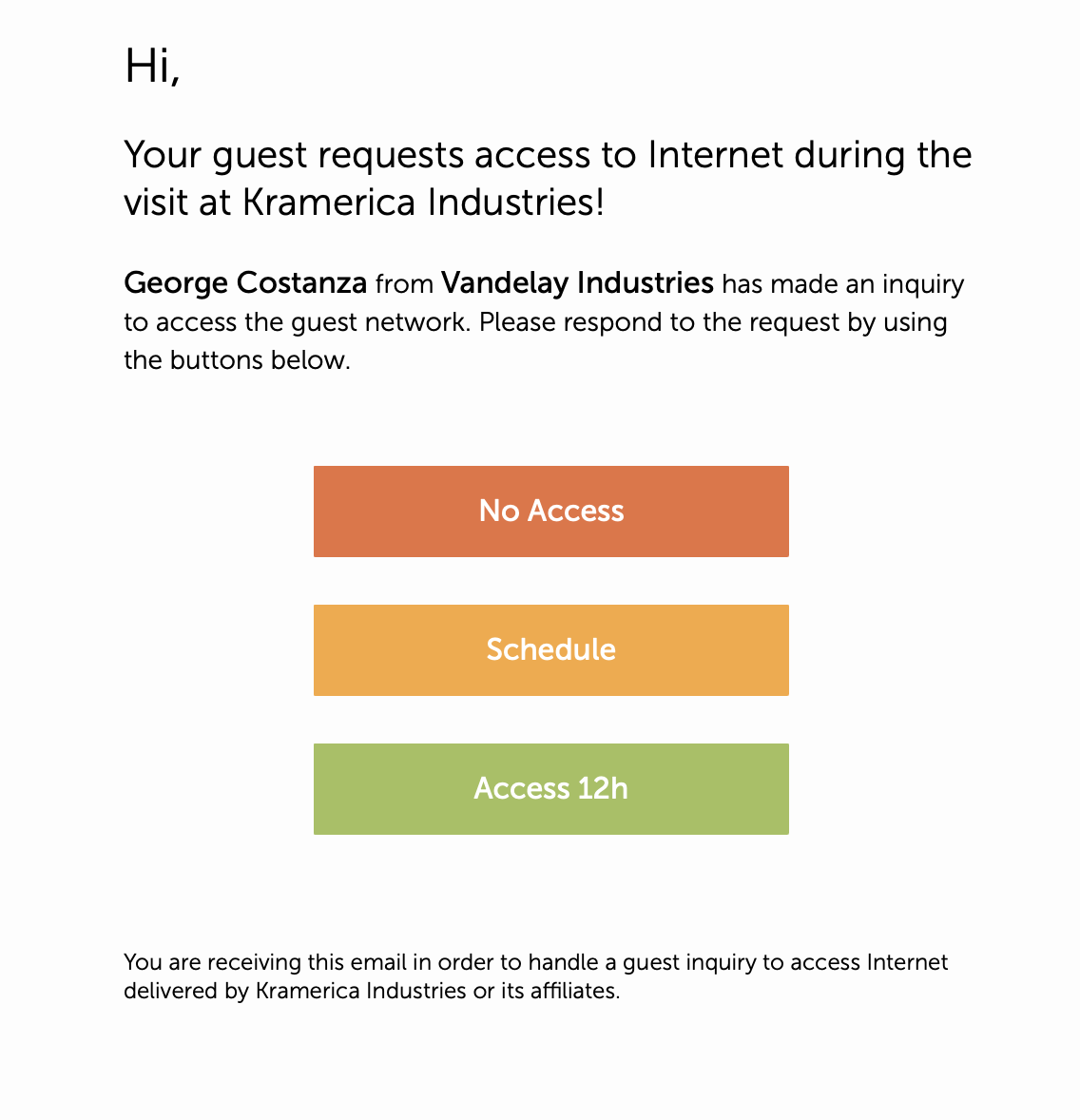
Section titled “3. The host responds from email or the portal”The host receives a notification email identifying the visitor and offering three one-click actions:
- No Access — deny the request.
- Schedule — open a form that lets the host set a custom end date, bounded by the Access Policy’s Max schedule advance.
- Access Nh — quick-approve for the Access Policy’s default visit duration. N is the configured number of hours; the example below shows Access 12h.
The same actions are also available from the Self-Service Portal — useful for hosts managing several visitors at once. See Self-Service Portal below.
Activate the module
Section titled “Activate the module”-
Open the module
Go to Sign In Modules → Meeting Hosts.
-
Activate
Click Activate Meeting Host Login Module.
-
Configure Meeting Host autocomplete
On the Configuration tab’s Meeting Host Autocomplete sub-tab, pick how the visitor’s host-email typeahead should behave.
-
Enable the module on an Access Policy
From the Configuration tab’s Access Policies sub-tab, open the Access Policy you want Meeting Host on and turn on the Meeting Host Sign-In Permission. The per-policy defaults (redirect URL, default visit duration, maximum schedule advance) live on the policy, not on the module.
Configuration
Section titled “Configuration”The module Configuration tab has three sub-tabs:
- Meeting Host Autocomplete — typeahead that suggests known employee addresses as the visitor types. Recommended when your Organization has a directory; disable on consumer-facing venues.
- Language Settings — per-language overrides for the Captive Portal Meeting Host strings.
- Access Policies — the policies whose Meeting Host Sign-In Permission is currently on.
The actual visit-duration, schedule-horizon, and sponsor redirect live on each Access Policy’s Sign-In Permissions → Meeting Host sub-tab — see Access Policies.
Managing meeting hosts
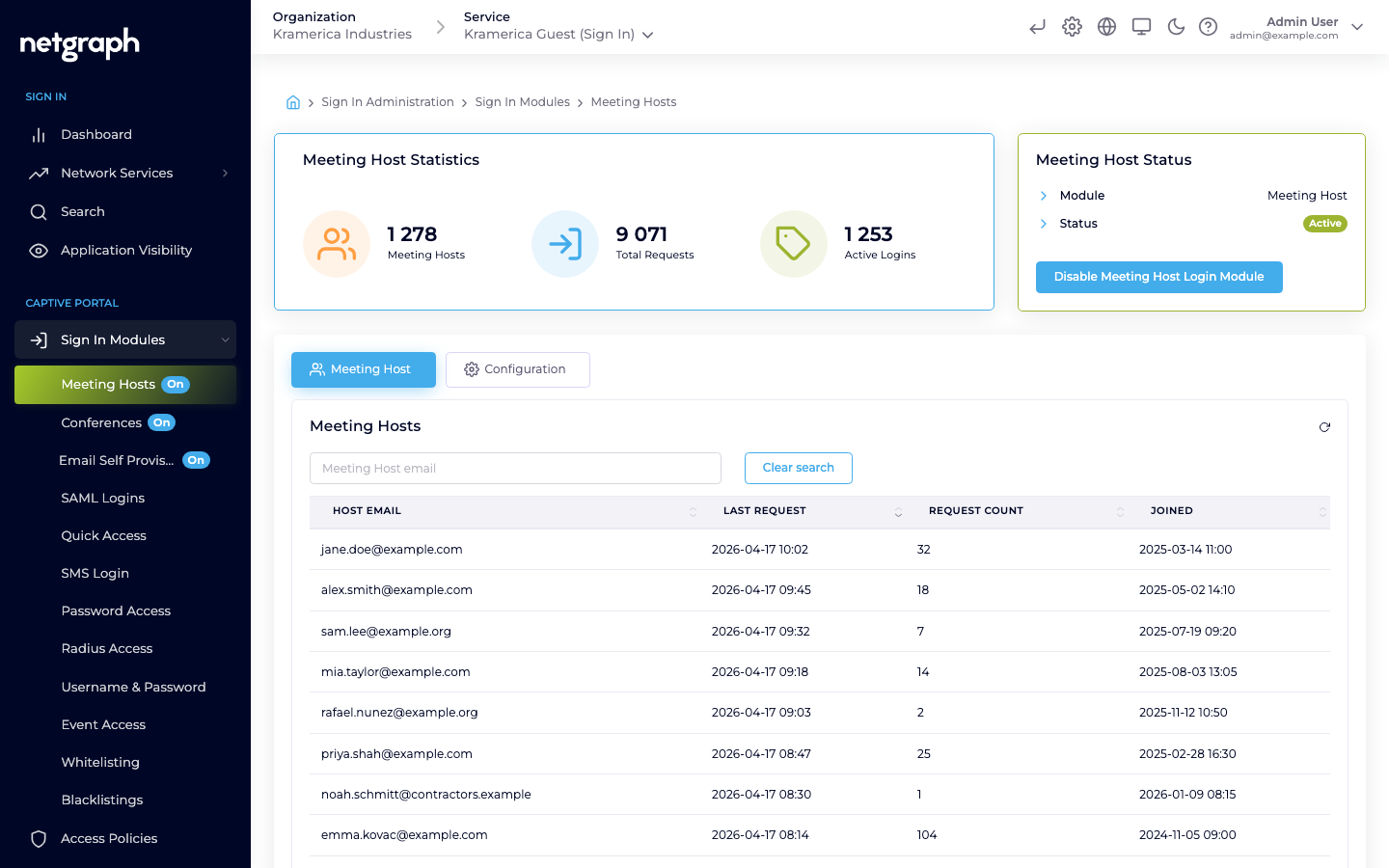
Section titled “Managing meeting hosts”The main tab lists recent visits with columns for visitor, host, request time, status (pending / approved / denied), and session details.
- Filter by visitor or host to narrow the list.
- Manual override — admins can approve or deny a pending request on behalf of the host. Useful when the host is unavailable.
- Revoke an active session — terminates a visitor’s access immediately.
Access Policy options
Section titled “Access Policy options”On each policy’s Sign-In Permissions → Meeting Host sub-tab:
- Meeting Host — master flag. When on, visitors matched by this policy can use the Meeting Host flow.
- Redirect URL — where the host lands after clicking Approve or Deny.
- Default visit duration — how long an approved visit lasts by default. Shown as the Access Nh button in the approval email.
- Max schedule advance — the furthest-ahead end date the host can pick through the Schedule action.
Which visitors a policy applies to is decided by the policy’s Applies To email patterns, not by a per-module allow-list.
Self-Service Portal
Section titled “Self-Service Portal”A Meeting Host does not need Organization-admin access to manage their visitors. Alongside the email-based flow above, the same outcomes are available under My Guests in the Self-Service Portal — plus the filters, history, and scheduling surfaces that don’t fit in a single email.
The My Guests list
Section titled “The My Guests list”My Guests is the host’s filterable list of every visitor who has requested access under their name. Filter pills split it into Active (already approved), Waiting (pending the host’s decision), Expired, and All.
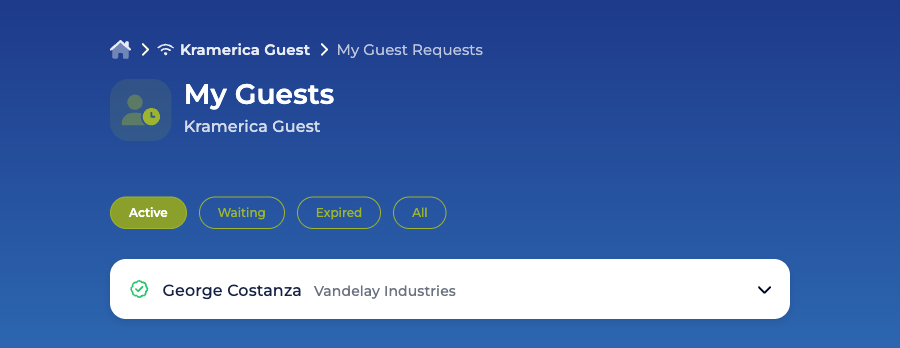
Expanding a pending row reveals Approve (Nh), Schedule, and Deny — the same three outcomes the approval email offers, for hosts who prefer a dashboard over per-request clicks.
Adjusting an already-approved visit
Section titled “Adjusting an already-approved visit”Once a visit is approved, the host can extend or revoke access from the same row:
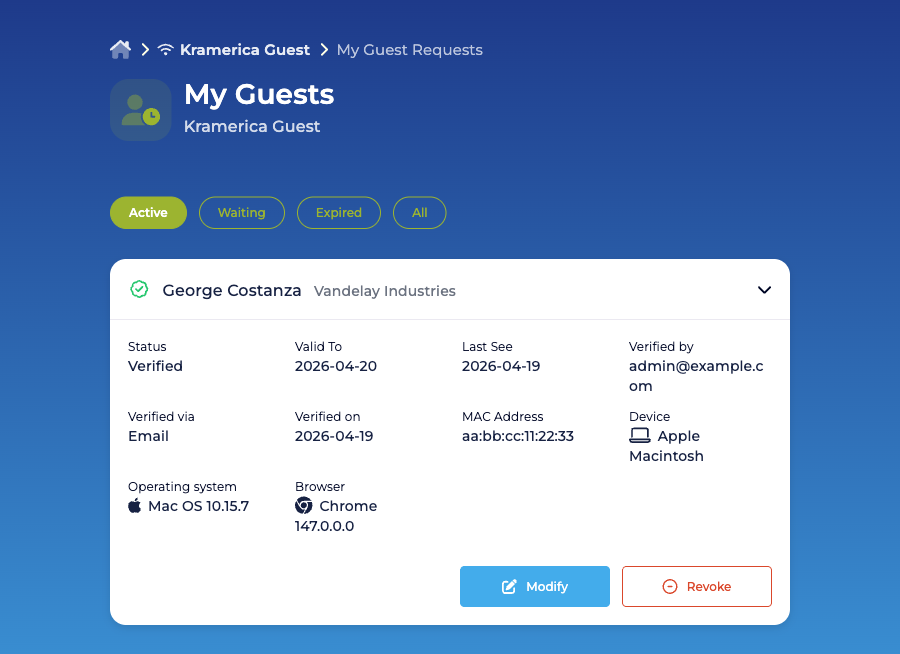
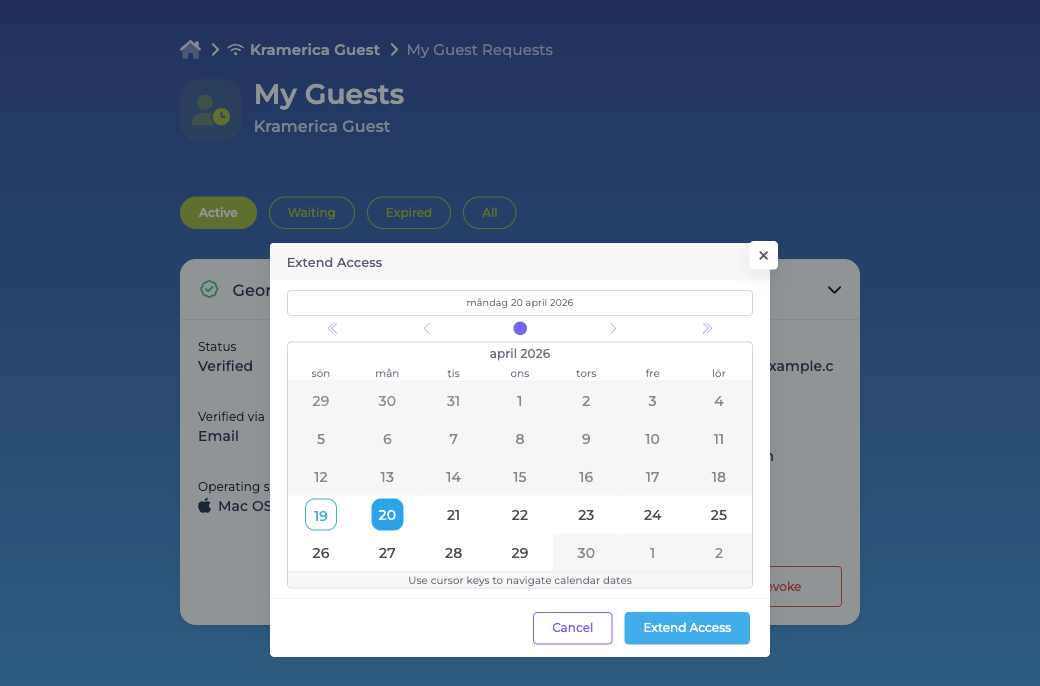
- Modify opens a date picker and sets a new end date for the visit, bounded by the Access Policy’s Max schedule advance.
- Revoke terminates access immediately.
Admin override
Section titled “Admin override”An Organization admin can approve or deny a pending request on the host’s behalf from the admin listing above. Any such decision is reflected in the host’s My Guests view.
For the surrounding portal — sign-in, the Context picker, the capability-driven rendering of each card — see the Self-Service Portal overview.