Categories
The curated blocklists Netgraph maintains, grouped into Security, Content and Ads and tracking, which two are recommended, and how to choose the ones your network needs.
Categories are blocklists that Netgraph curates and keeps up to date for you. Each one covers a single subject, such as malware infrastructure or gambling sites, and is built from established public sources that we fetch, parse and merge. You select the categories you want in a policy; there is nothing to subscribe to and nothing to maintain.
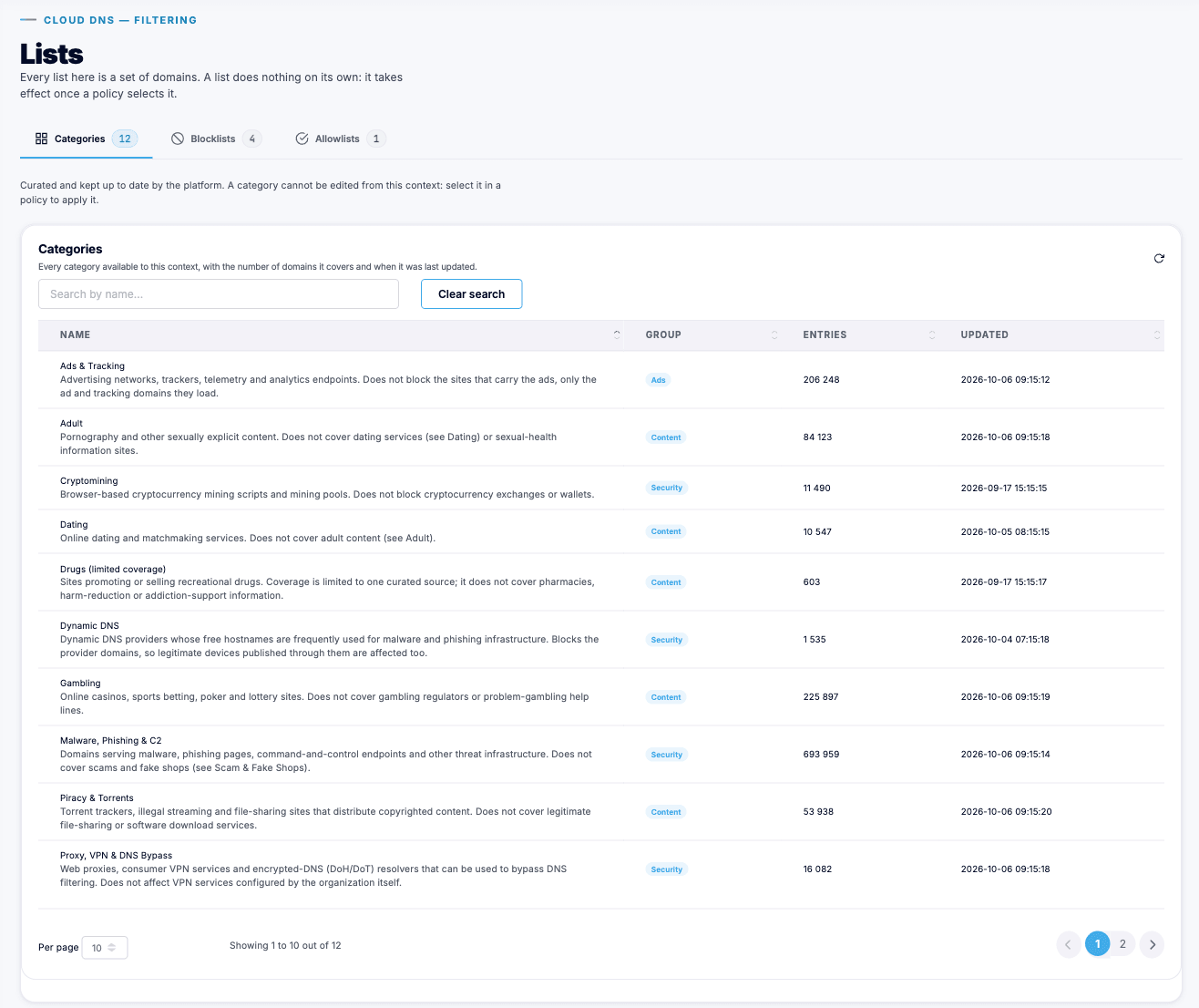
You find them under Lists, on the Categories tab. The tab is a catalogue: you can read and select from it, but its contents are maintained centrally. It lists the categories that are active right now, which is also what the Categories available figure on the Policies page counts.
What a category tells you
Section titled “What a category tells you”Every category carries the same four things, both in the catalogue and on the tiles in the policy editor:
- Name and description. The description says what the category covers and, just as importantly, what it does not. Malware, Phishing & C2 does not cover scams and fake shops, for example, because those are their own category.
- Domain count. How many domains the category currently blocks.
- Last updated. When its content was last refreshed.
- Recommended. Two categories are marked as recommended, Malware, Phishing & C2 and Scam & Fake Shops. They are the ones that suit almost any network, whatever it is for.
The categories are built from third-party sources, and a domain is included by technical classification rather than by review. That is what makes them broad, and it is also why a legitimate domain is sometimes included by mistake. Check a category against the traffic your network carries, and when it catches something you need, keep the category and add the name to an allowlist.
A category the platform has switched off is not in the catalogue, and cannot be selected in a new policy. A policy that had already selected it keeps it, marked Inactive: it blocks nothing while it is off and applies again on its own when it is active. You can remove it from that policy, but not add it to another.
The three groups
Section titled “The three groups”Security
Section titled “Security”Threat infrastructure and filter evasion.
| Category | Covers | |
|---|---|---|
| Malware, Phishing & C2 | Domains serving malware, phishing pages and command-and-control endpoints | Recommended |
| Scam & Fake Shops | Fake web shops, fraudulent offers and scam sites | Recommended |
| Cryptomining | Browser-based mining scripts and mining pools. Does not block exchanges or wallets | |
| Proxy, VPN & DNS Bypass | Web proxies, consumer VPN services and encrypted-DNS resolvers that can be used to get around DNS filtering | |
| Dynamic DNS | Dynamic DNS providers whose free hostnames are often used for malware and phishing |
Content
Section titled “Content”Categories most often restricted by policy.
| Category | Covers |
|---|---|
| Adult | Pornography and other sexually explicit content. Does not cover dating services or sexual-health information |
| Gambling | Online casinos, sports betting, poker and lottery sites |
| Social Media | Social networks and their content delivery domains, including messaging that runs on them |
| Piracy & Torrents | Torrent trackers, illegal streaming and file-sharing sites that distribute copyrighted content |
| Dating | Online dating and matchmaking services |
| Drugs (limited coverage) | Sites promoting or selling recreational drugs. Coverage is limited to one curated source, which is why the name says so, and it does not cover pharmacies, harm-reduction or addiction-support information |
Ads and tracking
Section titled “Ads and tracking”Advertising, analytics and telemetry endpoints.
| Category | Covers | |
|---|---|---|
| Ads & Tracking | Advertising networks, trackers, telemetry and analytics endpoints. It blocks the ad and tracking domains a page loads, not the sites that carry the ads |
Start from the recommended categories
Section titled “Start from the recommended categories”A context with no policies yet offers Start from the recommended categories on the Policies page. It opens the policy editor with Malware, Phishing & C2 and Scam & Fake Shops already selected, so a new network gets sensible protection without anyone having to decide what to block first. Add or remove whatever you like before you save.
Note
The recommended two are deliberately uncontroversial: nobody wants malware or scams on their network. Ads & Tracking is a common third pick, but it is the largest category and it changes how pages behave, so it is a choice rather than a default. The Content categories depend on what the network is for, which is why none of them are recommended either. A guest network in a hotel and a school network do not want the same things blocked.
Choosing categories for a network
Section titled “Choosing categories for a network”A few starting points:
- A guest or visitor network. The two recommended categories, usually Ads & Tracking as well, plus Piracy & Torrents if you are concerned about what is distributed over your connection.
- A school or youth network. Add Adult, Gambling and often Social Media, and put the social block on a schedule so it applies during lessons only. See Policies for scheduling.
- A purpose-limited network, such as Wi-Fi in a parking garage or a charging station, where people should be able to pay and get on their way. Block the Content categories broadly, then allowlist the handful of services that must work. An allowlist always wins over a blocklist.
- A network that must not be worked around. Proxy, VPN & DNS Bypass blocks the services people use to get past DNS filtering. It does not affect a VPN the organization configures itself.
If a category blocks something your network needs, do not remove the category. Put the exact name on an allowlist instead: you keep the protection and make one exception. Look up a domain on the Policies page tells you which category holds the entry, and whether the block comes from the name itself or from a parent domain.
When categories are not enough
Section titled “When categories are not enough”Categories cover the subjects that are common to many organizations. For the domains that are specific to yours, keep your own lists alongside them. A policy can combine both, and most do.