
Policies
A policy decides what a network blocks, what it always allows, where it applies and when. Build one from categories and your own lists, and put it on a weekly schedule.
A policy is what puts your filtering into effect. It answers four questions: what to block, what to always allow, where it applies, and when. Nothing is filtered until a policy selects it, so this is where a network’s DNS policy actually comes together.
Policies is the landing page of the Cloud DNS section.
Read the Policies page
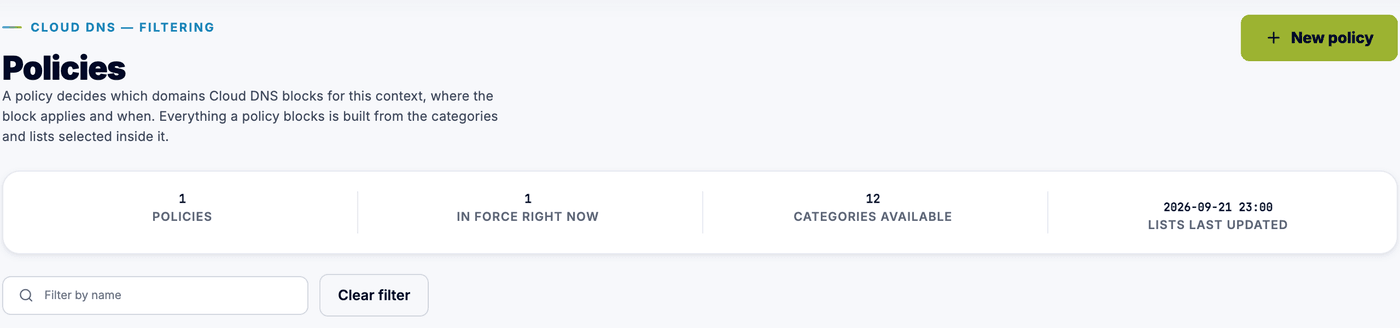
Section titled “Read the Policies page”The page opens on a row of figures:
- Policies is how many exist in this context.
- In force right now is how many of them are active at this moment. A policy on a schedule counts only inside its windows.
- Categories available is how many curated categories you can choose from.
- Lists last updated is when list content was last refreshed.
Below that is a card per policy. Each card carries a status (Always on, In force now, Outside its hours, or Too large to apply), then what the policy blocks, what it always allows, where it applies to and when it applies when, with the number of domains it currently blocks and when that list was built underneath. A policy that has just been created reads Not applied yet until the resolver has built its list.
Anything that needs attention is called out at the top of the page rather than hidden on a card: a policy that has grown past the domain limit, or a list downloaded from a URL that could not be refreshed. In both cases the previous content stays in use until you fix the cause.
Each card’s menu holds Edit, Duplicate and Delete. Duplicate creates a copy named after the original with (copy) appended, which is the quickest way to make a stricter or looser variant for another site. If the original selects a category the platform has since switched off, the copy leaves it out and tells you which one. Deleting a policy stops blocking the domains it selected; the lists themselves are untouched.
Above the cards sits Look up a domain, which answers the question support calls actually start with: is this name blocked here, and by what? See Look up a domain below.
Build a policy
Section titled “Build a policy”The editor is its own page, with five numbered sections in reading order.
-
01 Name
Give the policy a name that says what it is for, such as Guest Wi-Fi or School hours. You will read this name on the card, so describe the intent rather than the mechanism.
-
02 Where it applies
Choose Everywhere in this context to cover the whole network, or Selected sites only to scope the policy to particular sites. When you choose selected sites, pick them in the Sites field. A site-scoped policy with no site selected cannot be saved, and a site reaches clients through the network ranges of its DHCP scopes, so a site without a scope covers nobody.
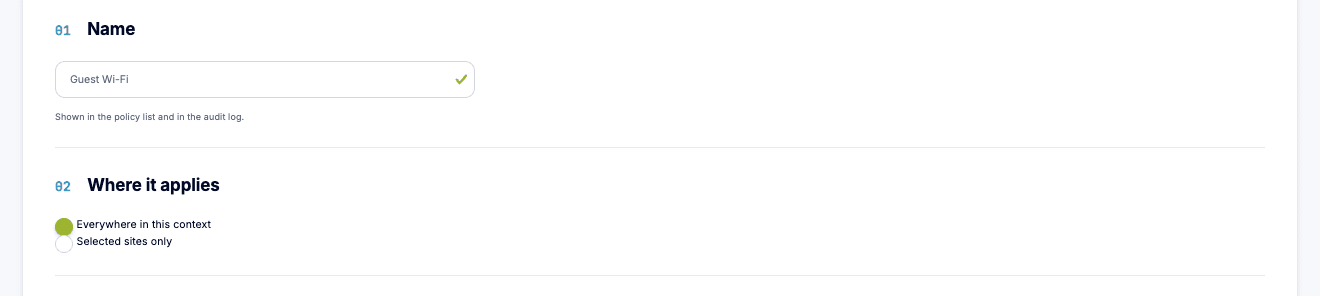
The name is what you read on the card and in the audit log, so describe the intent. -
03 When it applies
Leave Apply this policy only during selected hours off and the policy is always on. Turn it on to limit it to certain hours, then draw a block on the week calendar: click and drag on a day to create it, then move or resize it, or type the times under each day. Blocks are set in half-hour steps and can run past midnight. Outside the blocks the policy does not apply, and a scheduled policy with no block at all cannot be saved.
Two presets cover the common cases: Weekdays 08:00-17:00 and Weekdays 07:00-18:00. Clear empties the week again. Set the Time zone so the windows follow local time; it defaults to Europe/Stockholm.
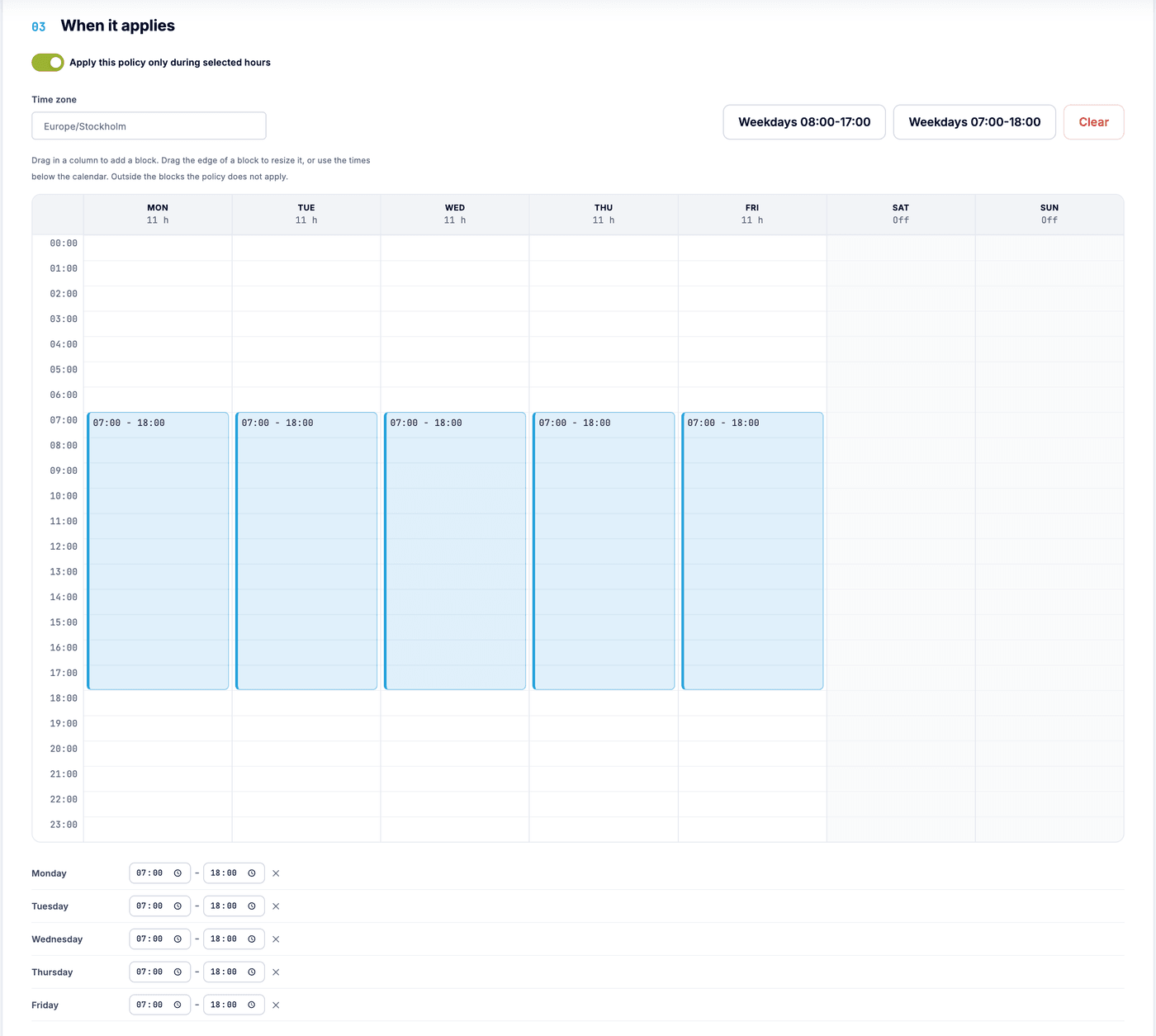
The week calendar. Each day shows how many hours it covers, and the exact times are listed underneath. -
04 What it blocks
Two kinds of list, chosen as tiles:
- Categories are the curated lists Netgraph maintains. Each tile carries the category’s description, its domain count and when its content was last refreshed, so you choose where it is explained. The categories are built from third-party sources by technical classification, not by review, so a legitimate domain is sometimes included by mistake; check the selection against the traffic your network carries, and fix a false positive with an allowlist entry rather than by dropping the category. A tile marked Inactive is a category the platform has switched off after this policy selected it: it blocks nothing for now, applies again on its own when it is active, and you can remove it but not add it to another policy.
- Your own blocklists are grouped by where their domains come from: Downloaded from a URL, which are fetched and refreshed automatically, and Maintained in this context, whose domains an administrator adds. A list you have disabled shows as Paused.
Cloud DNS blocks the union of everything selected here. The footer of the editor keeps count: how many categories and how many lists of your own the policy blocks, and roughly how many domains the categories cover. A policy holds at most 50 categories and at most 50 lists of each kind of your own; the editor says so before you save.
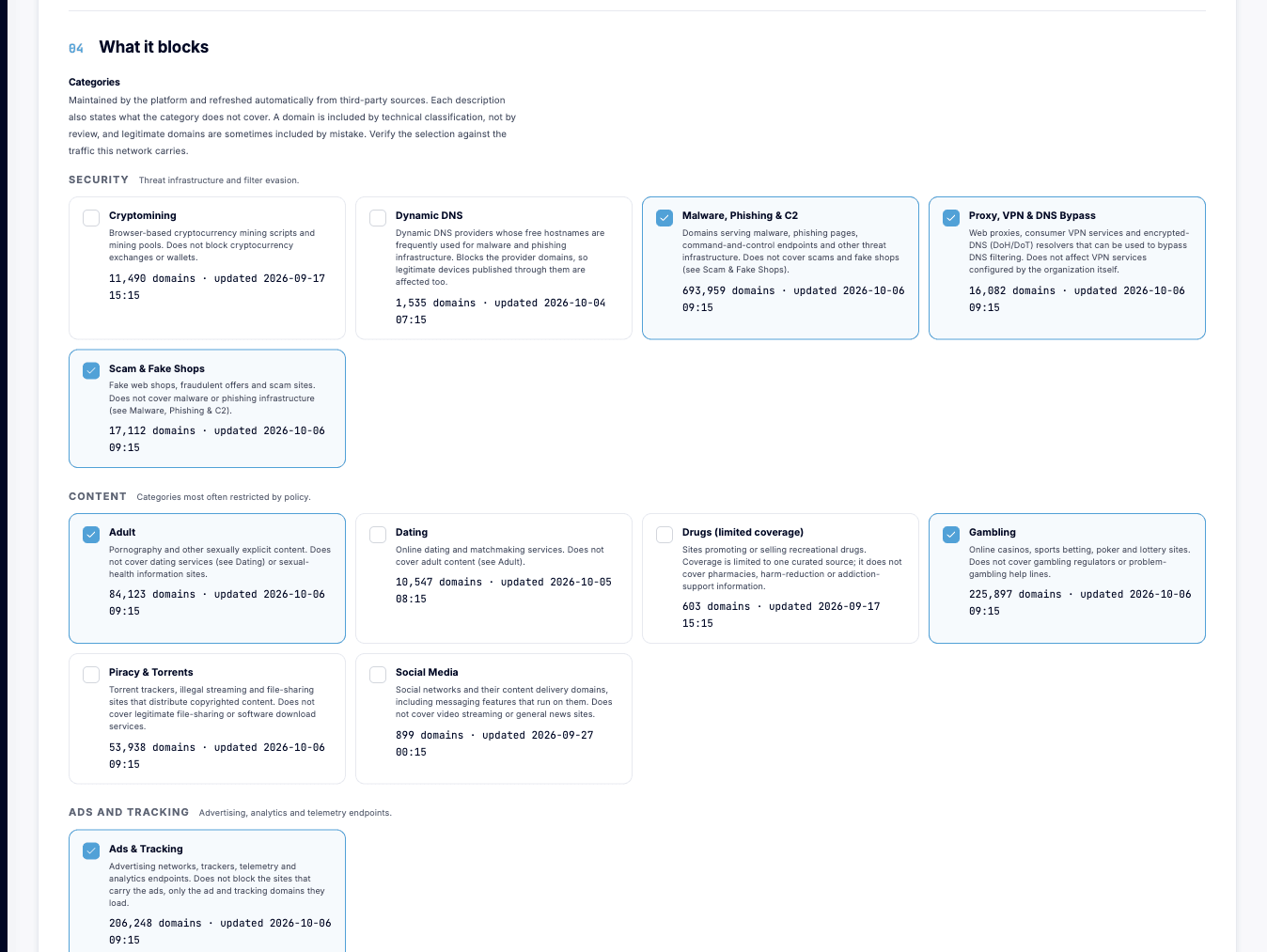
Categories are chosen where they are explained. A selected tile is filled and ticked. -
05 Always allow
Select the allowlists whose domains must resolve no matter what. An allowlist entry removes that exact name from what the policy blocks, whichever category or list contains it. This is how you keep a payment provider, a booking system or your own services reachable while a broad category stays blocked. The exact name is the point: an allowlist entry does not cover the names under it, and it does not help when a parent domain is what the list blocks. See Allowlists for how to handle that case.
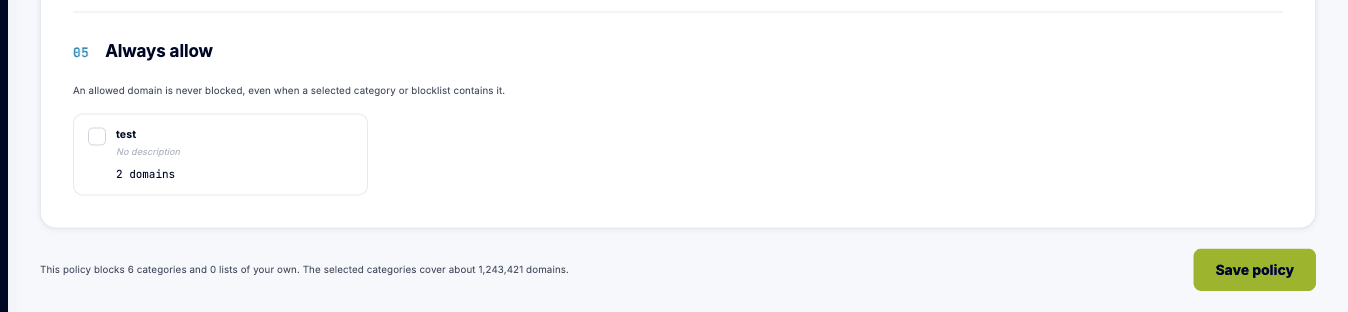
Allowlists are chosen as tiles too, and the footer keeps count of what the policy blocks.
Save when you are done. Changes take effect at the next resolver refresh, which is a matter of minutes; the DNS mode switch itself is immediate. Leaving the editor with unsaved changes asks first.
Look up a domain
Section titled “Look up a domain”The Look up a domain card on the Policies page checks one name against every policy in the context at once. Type the domain and select Look up. You get a row per policy:
- Blocked, Not blocked, or No list yet for a policy the resolver has not built.
- Why. Either the name itself is in a list the policy selects, or a parent
domain is: an entry applies to that domain and everything under it, so
cdn.ads-tracker.exampleis blocked whenads-tracker.exampleis listed. If neither the name nor any parent is listed, the row says so. - Caused by, naming the category or the list of your own that carries the entry. This is the part no merged list could tell you, and it is what you need in order to do something about it.
- A warning when an allowlist entry is not doing what you expected: the name you allowlisted is on the allowlist, but the block comes from a parent domain, and an allowlist entry removes only the exact name. The row says what to do: remove the parent entry from your list, or allowlist the parent, which also allows everything under it.
- A note when the policy is above the size limit, because the resolver is then serving the last list that fitted while the lookup describes what the policy selects now.
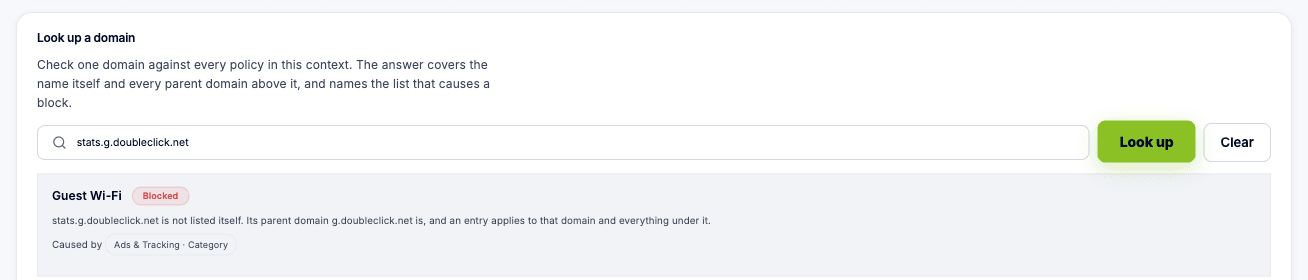
A name typed with a wildcard prefix, a trailing dot or capital letters is looked up in its stored form, and the card shows Looked up as with that form. The lookup reads the lists the policies select; to see what a particular client actually gets, including internal DNS records and forwarding, make the lookup from that client.
If a policy grows too large
Section titled “If a policy grows too large”A policy can serve at most five million domains in total. If a change would take it past that limit, the policy keeps the list it had, shows Too large to apply, and is flagged at the top of the Policies page and in the editor instead of quietly half-applying. A brand-new policy that is over the limit has no earlier list to fall back on and filters nothing until it is fixed. Remove a category or a list, or split the policy in two, and it recovers at the next build.
An example
Section titled “An example”To block distractions on a school network during lessons: create a policy called School hours, apply it to the school’s sites, use the Weekdays 07:00-18:00 preset, select the Social Media and Adult categories under what it blocks, and allowlist the services the school itself uses. Outside those hours the policy is inactive and the network resolves normally.