
Cisco Catalyst 9800
Point a Cisco Catalyst 9800 WLAN at your EasyPSK Context with Cisco's Easy PSK feature: the RADIUS server and lists, the WLAN with MAC Filtering and the Easy-PSK AKM, the policy profile with Allow AAA Override, the tags, and how to verify the first client.
On Cisco Catalyst 9800 wireless LAN controllers, EasyPSK via RADIUS works the same way as on Meraki: the WLC authenticates connecting devices against the platform over RADIUS, and the key the user typed identifies the group. This is what brings EasyPSK to estates that run Catalyst wireless instead of Meraki.
The wireless LAN controller authenticates connecting devices against the Context's RADIUS endpoints. The Meraki and Catalyst 9800 flows are equivalent: same groups, same flavours, different wireless platform.
On the controller the delivery uses Cisco’s Easy PSK feature: a WLAN with MAC Filtering whose authorization is answered by an external RADIUS server, with several pre-shared keys bundled on one SSID and the key a device presents matched to its group. Cisco documents the controller side in the Easy PSK Deployment Guide; the steps below follow it, with the platform as the AAA server.
What it requires on the Catalyst 9800
Section titled “What it requires on the Catalyst 9800”- A Catalyst 9800 (9800-CL, 9800-L, 9800-40, 9800-80 or the CW9800 family) on IOS-XE 17.6.1 or later, with the WLAN in Local mode with central authentication and central switching. Easy PSK is not available on the Embedded Wireless Controller, in fabric mode or with WPA3.
- The Context’s RADIUS endpoint: the hostname, the authentication and accounting ports and the RADIUS client secret from Configuration → Network Integration.
- A way for the controller to reach the Context: over the internet (its public address in the Context’s RADIUS access allow-list), with RadSec, or through a Service Connector. See Transport.
- A WLAN whose SSID matches the Context’s SSID Name exactly.
Configuring the controller
Section titled “Configuring the controller”-
Add the platform as a RADIUS server, in a server group
Under Configuration → Security → AAA → Servers / Groups → RADIUS → Servers, add a server with the Context’s hostname (or the Service Connector’s address), the authentication and accounting ports and the client secret. Then, under Server Groups, add a RADIUS server group that holds it.
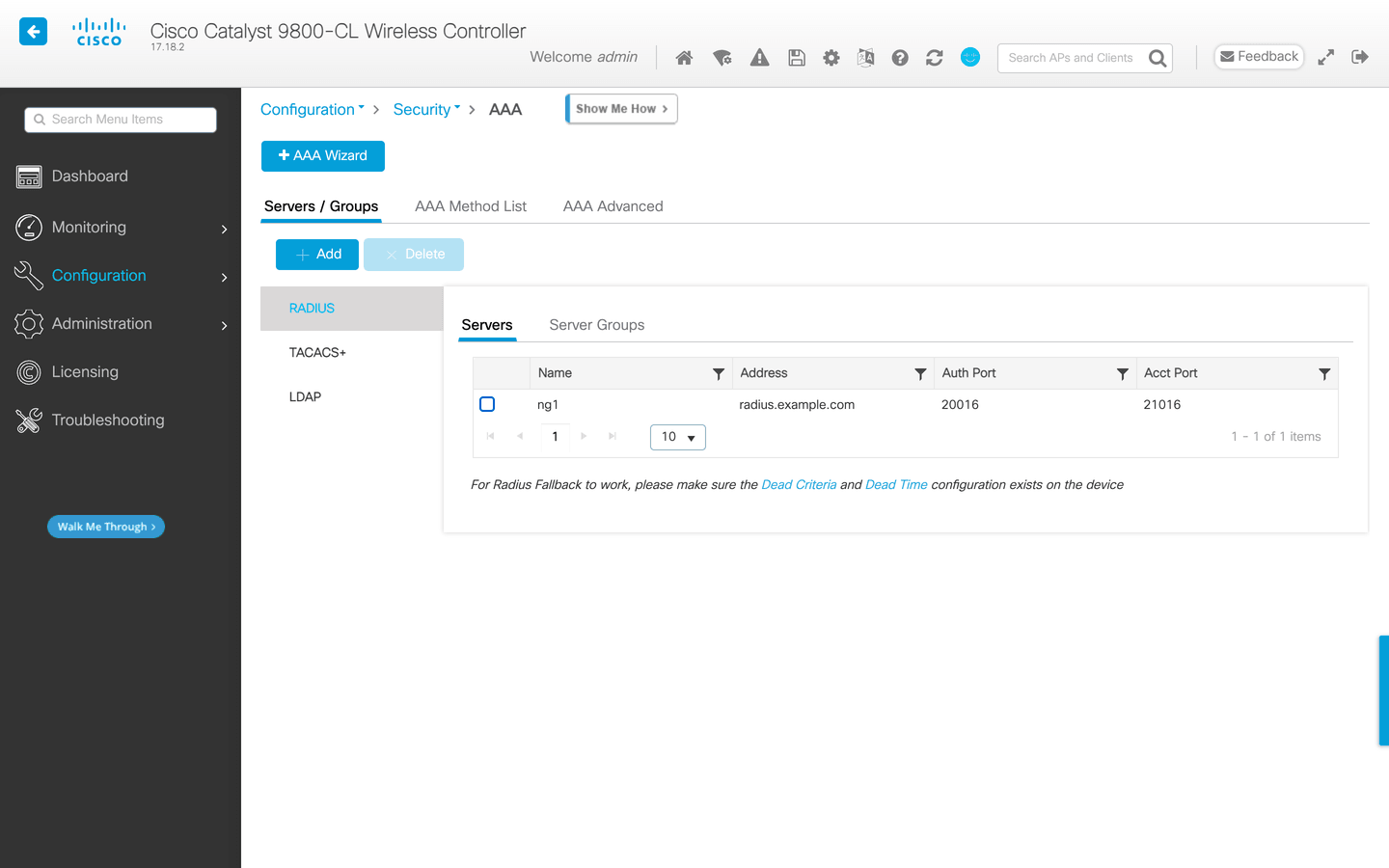
The EasyPSK Context as a RADIUS server: hostname, ports and secret from Network Integration. 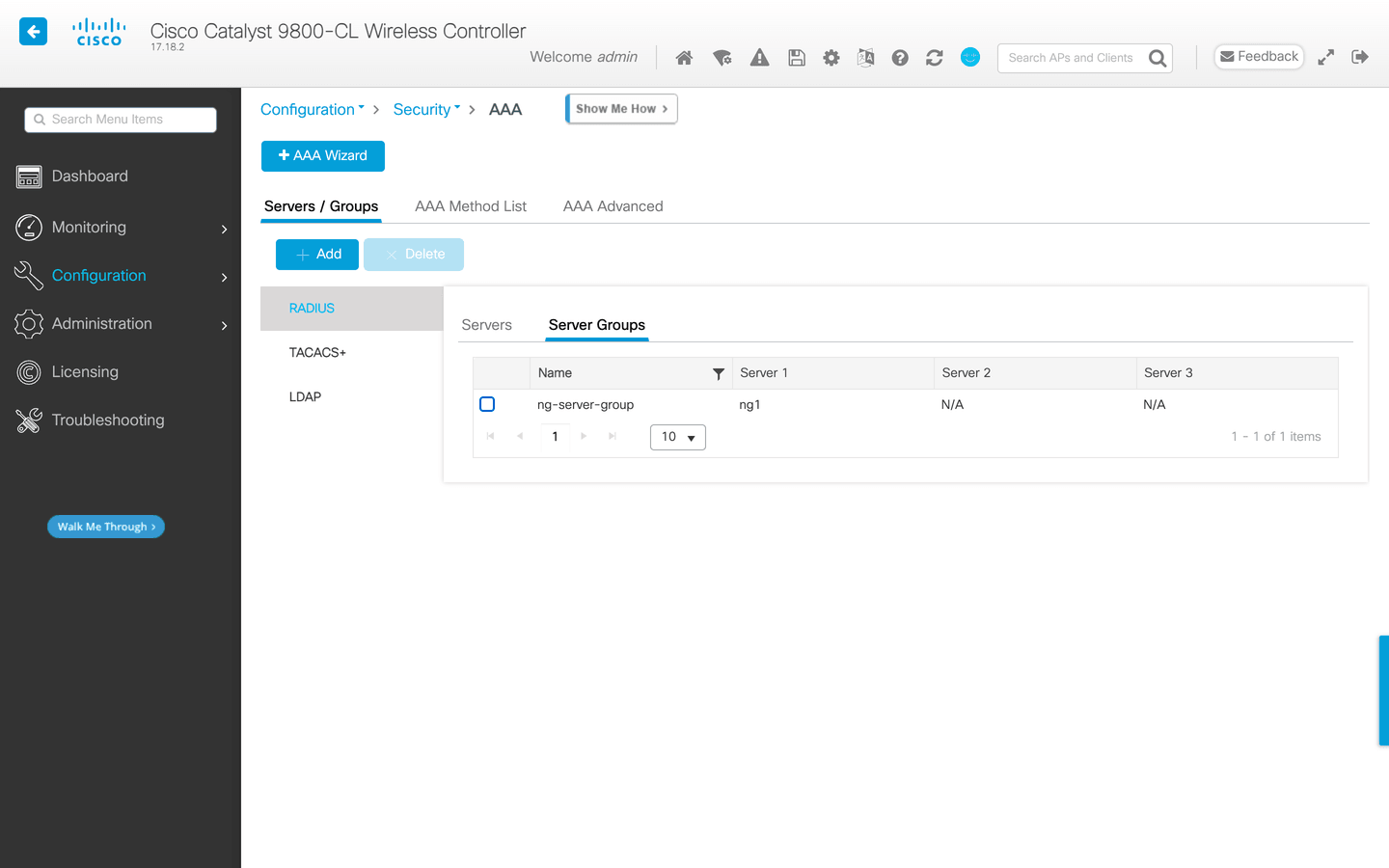
The server group the lists and the WLAN refer to. -
Create the authorization and accounting lists
Under AAA Method List, add an Authorization list of type network and an Accounting list of type identity, both with group type group and the server group from step 1. The authorization list is what the WLAN’s MAC filtering asks; the accounting list carries the sessions and the device profiling data back to the platform.
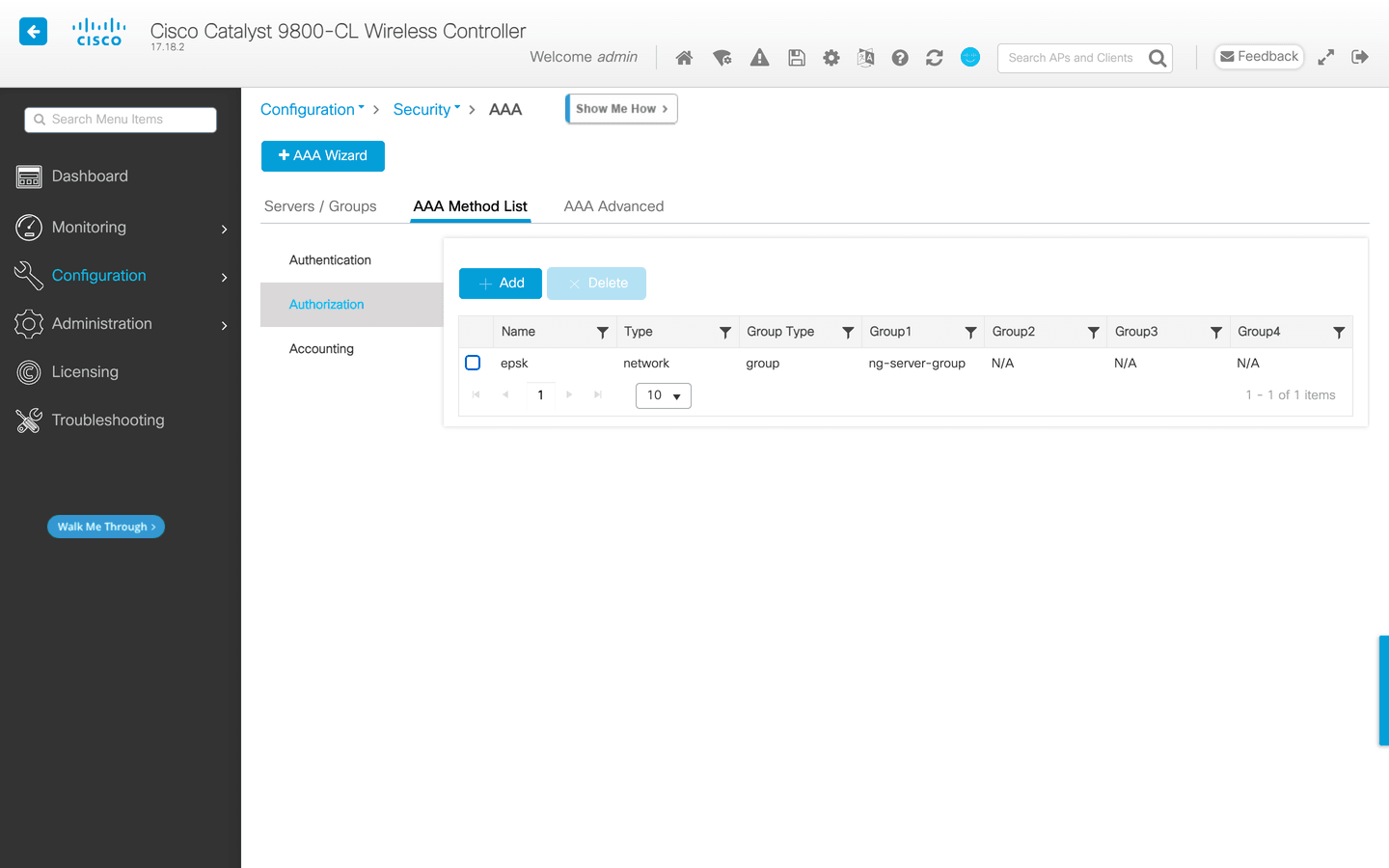
The authorization list, type network, pointed at the server group. 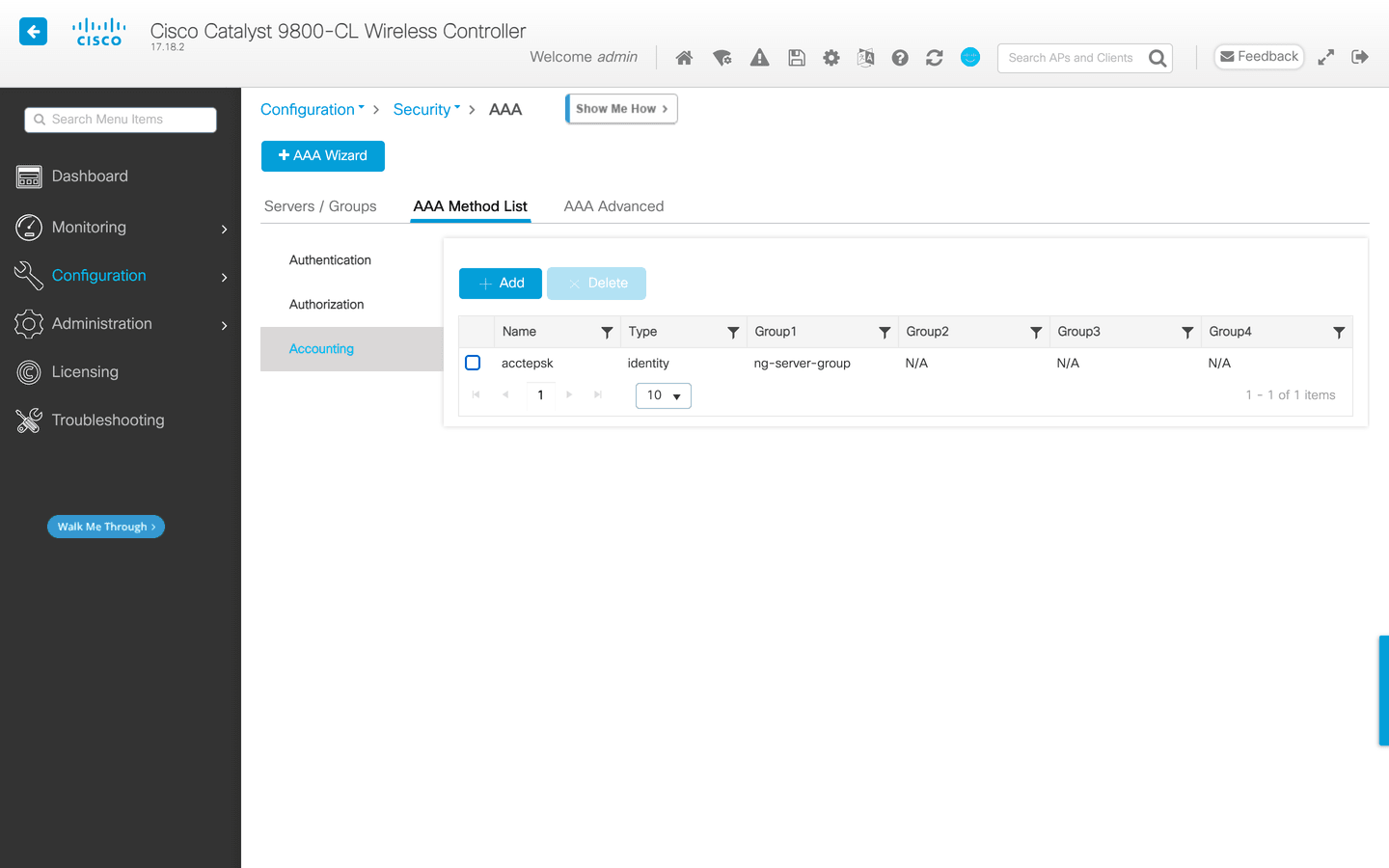
The accounting list, type identity. -
Create the WLAN with Easy PSK
Under Configuration → Tags & Profiles → WLANs, add a WLAN. On General, give it a profile name, set the SSID to exactly the Context’s SSID Name and enable it. On Security → Layer2, choose WPA + WPA2, tick MAC Filtering and pick the authorization list from step 2, keep WPA2 Policy with AES (CCMP128), and under Auth Key Mgmt tick both PSK and Easy-PSK. The PSK field needs a placeholder key; the real keys come from the platform at connect time. Click Update & Apply to Device.
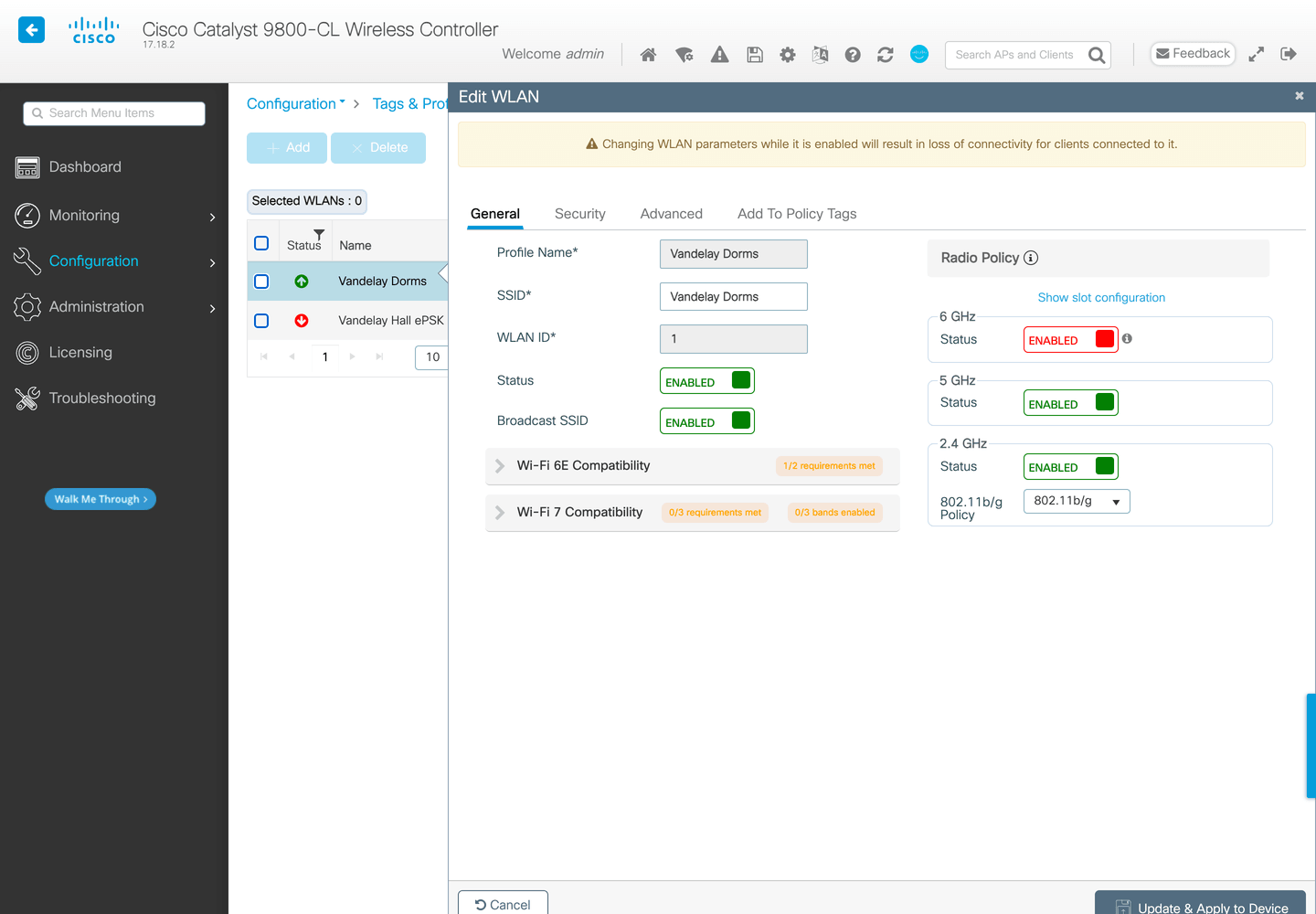
The WLAN's SSID is the Context's SSID Name, exactly. 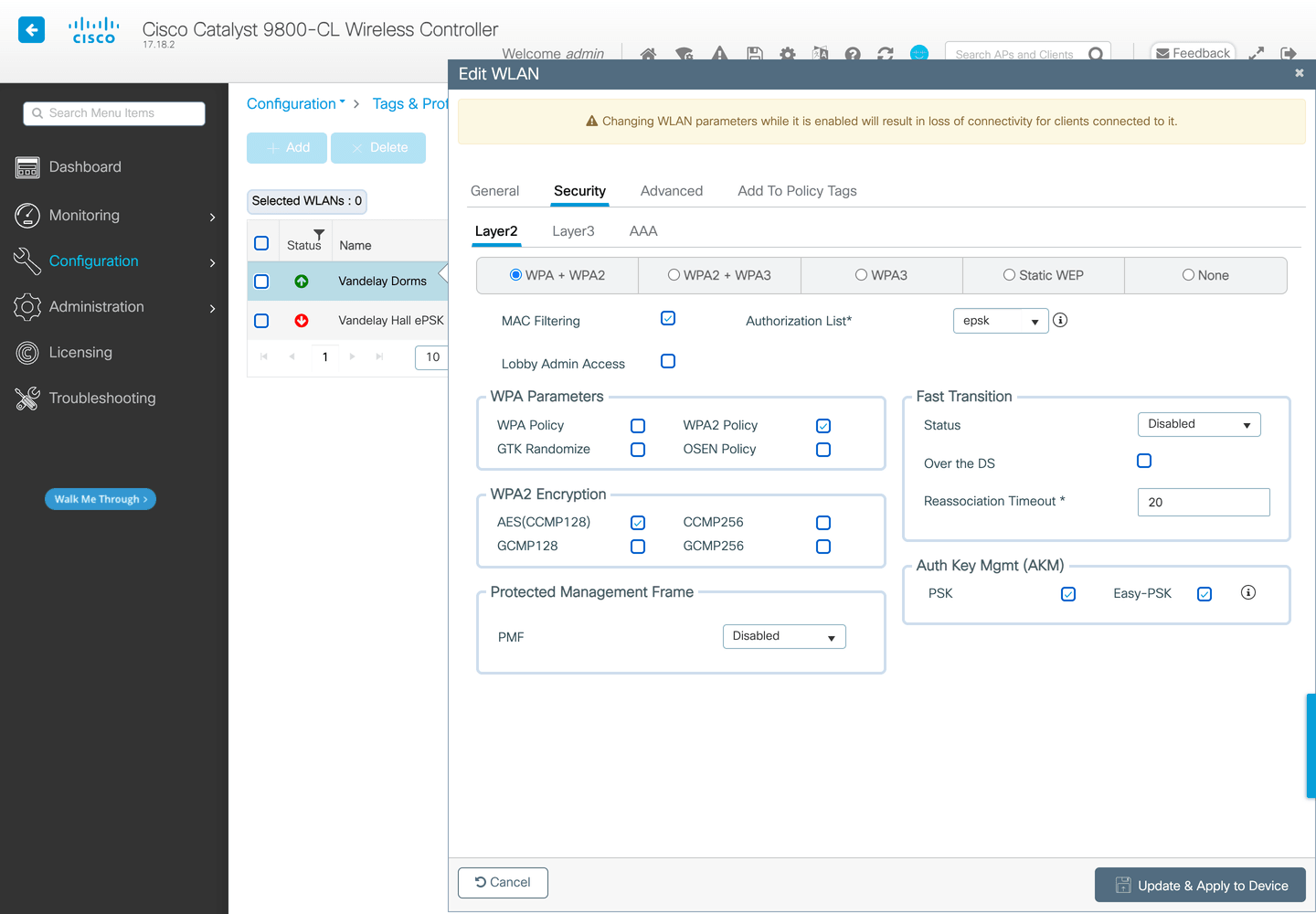
Layer2: MAC Filtering with the authorization list, and the PSK and Easy-PSK AKMs. -
Allow AAA Override on the policy profile
Under Tags & Profiles → Policy, open the policy profile the WLAN will use. On Advanced, turn on Allow AAA Override and set the Accounting List to the identity list from step 2. Without AAA Override the controller ignores the key and the attributes the platform returns, which is the most common reason a Catalyst deployment does not work.
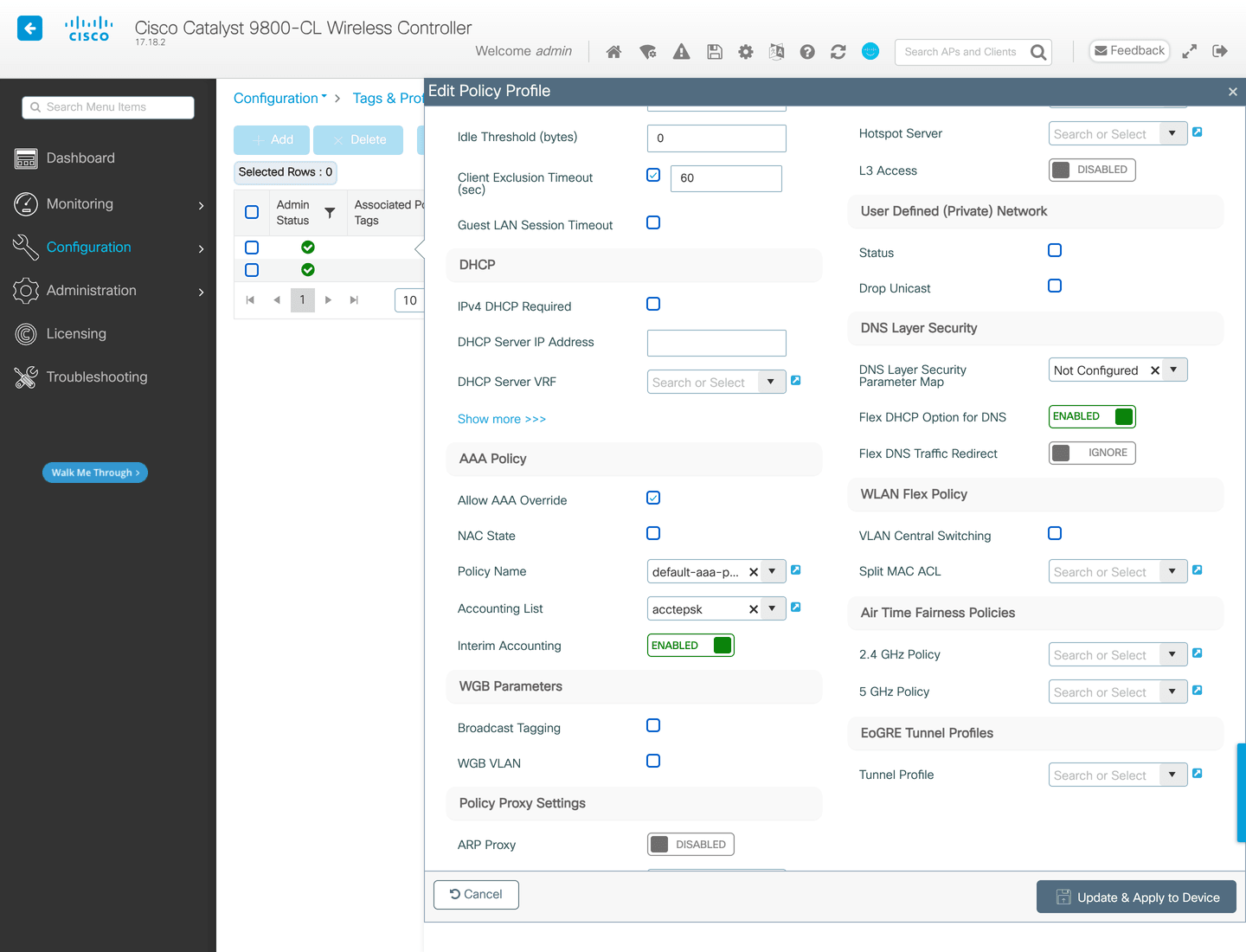
The policy profile: Allow AAA Override on, and the accounting list set. -
Bind the WLAN with a policy tag, and tag the access points
Under Tags & Profiles → Tags → Policy, map the WLAN to the policy profile in a policy tag. Then assign the tag to the access points that should broadcast the SSID (Wireless → Access Points, the AP’s Tags).
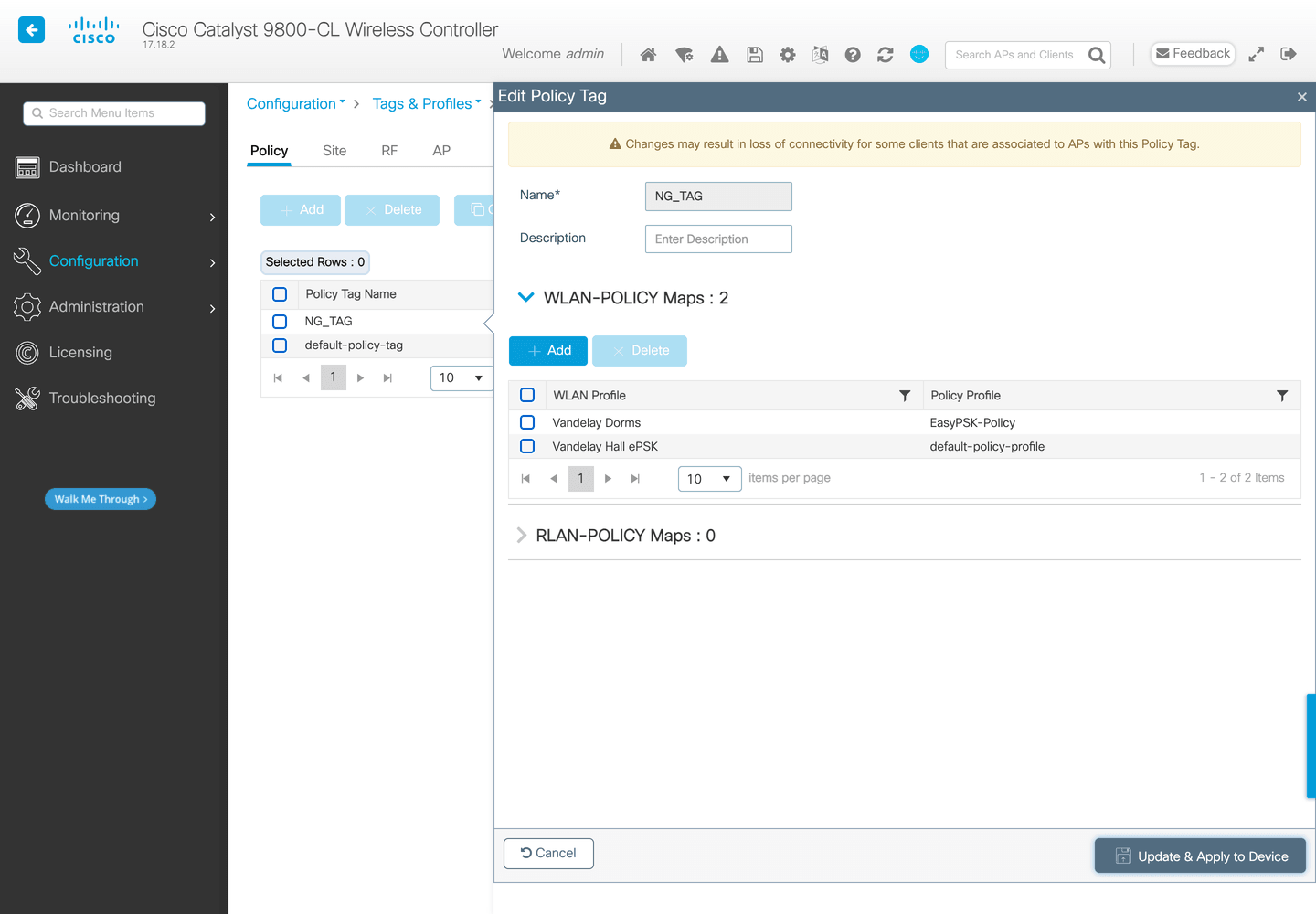
The policy tag: WLAN and policy profile together. 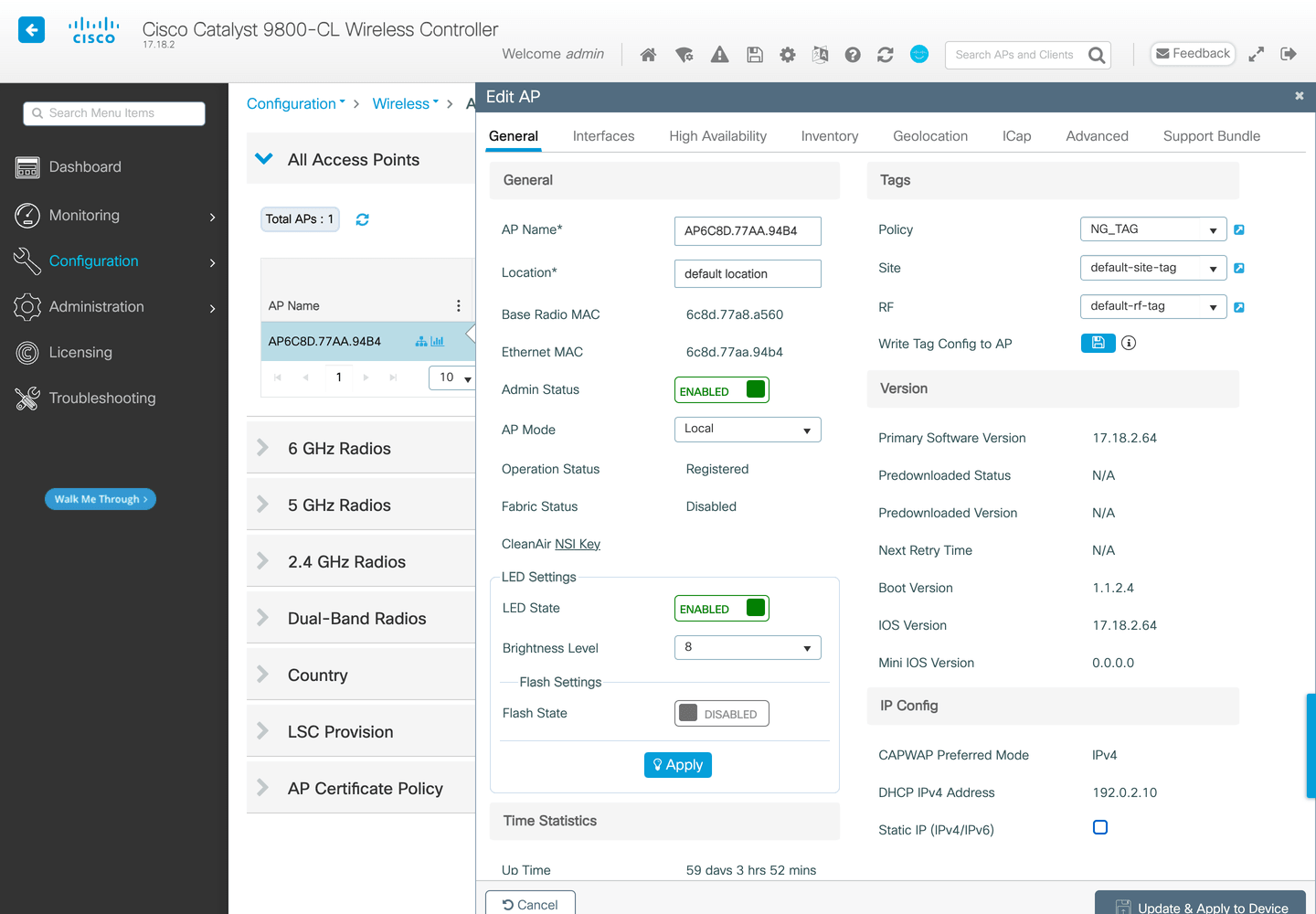
The tag on the access points that broadcast the SSID. -
Device profiling and the AP name
Two settings give the platform the same picture it gets from Meraki. Under Configuration → Wireless → Wireless Global, enable Device Classification: the controller learns what each device is and reports it in RADIUS accounting, so the groups’ device lists show types and names. Under Security → AAA → AAA Advanced → Global Config → RADIUS Attributes, set Called-station-id to ap-name-ssid for both authentication and accounting, so each session names the access point it came through.
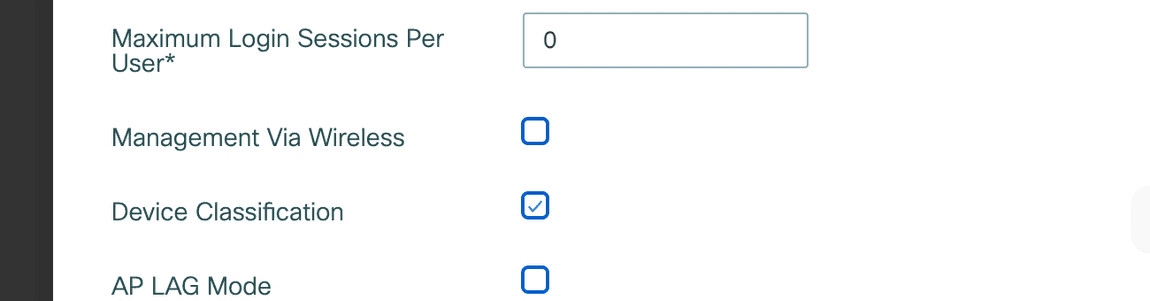
Device Classification on. 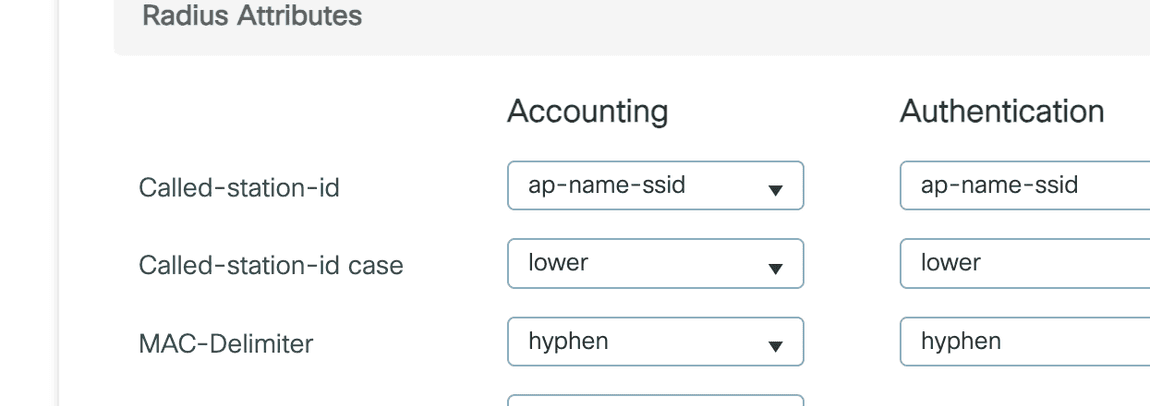
Called-station-id as ap-name-ssid, for authentication and accounting.
What the platform returns
Section titled “What the platform returns”The platform answers the authorization request with the matched key
as the Cisco AV-pairs psk-mode=ascii and psk=<key>. On Catalyst
the key rides in psk=, not the Tunnel-Password that Cisco Meraki
expects. The response also carries the group’s private-group
identity, and whatever the group’s
Attribute Profile
adds, such as a VLAN.
Verify the first client
Section titled “Verify the first client”Create a group, join the SSID with its key from a phone, and check the client on the controller:
show wireless client upnlists the connected clients per private group.show wireless client <mac> | sec Privateshows the group a client landed in.- A packet capture on the controller’s uplink shows the Access-Accept
with the Cisco AV-pair
private-group-idand a Reply-Message that the key matched.
A client that is refused with a correct key usually hits one of three things: AAA Override is off on the policy profile, the WLAN’s SSID differs from the Context’s SSID Name, or the controller’s address is missing from the Context’s allow-list.
Transport
Section titled “Transport”RadSec (RADIUS over TLS, on the Context’s RadSec port) secures the session over the public internet; alternatively, bind the Context to a Service Connector so the RADIUS path runs through your Organization’s private IPsec tunnel. Either way, the Context’s RADIUS access allow-list governs which source ranges may reach the service.
Per-group network attributes and segmentation
Section titled “Per-group network attributes and segmentation”VLANs, Cisco AV-pairs, and other attributes returned to the WLC at authentication are controlled with Attribute Profiles on the Context, assignable per group.
One difference from Meraki: the Catalyst 9800 keeps Identity-PSK groups segmented through the WLC’s own iPSK peer blocking, so you do not return a UDN tag here. Set only the VLAN or policy attributes each group should receive, and the WLC handles the per-group isolation. On Cisco Meraki the same isolation needs an explicit UDN tag in the RADIUS response.