
Self-Service & Personal PEAP Accounts
What a PEAP Group's members actually see — their auto-generated Personal PEAP Account, per-OS setup instructions, and the Connected Devices list. Plus the two-role matrix that governs who can invite whom.
A PEAP Group’s members don’t log in to your Admin Dashboard. They use the Self-Service portal — an end-user surface, scoped to the one Group they belong to, that feels a lot like a home-router admin page.
This page covers two things:
- The Personal PEAP Account each user gets auto-generated on first sign-in, and what the portal renders for them.
- The two-role matrix (User (default) vs Group Administrator) that decides who can invite or revoke whom.
The Personal PEAP Account
Section titled “The Personal PEAP Account”When a user accepts a Self-Service invitation and signs into the portal, EntryPoint provisions their Personal PEAP Account — the username + password the user types into their 802.1X supplicant to join the SSID.
The account is visible only to the user, in the portal’s Your Credentials card:
- Username — the user’s own email address, used as the PEAP identity on the wire.
- Password — a long random value, masked by default with reveal and copy-to-clipboard controls. Admins never see it; if the user loses it, they rotate it themselves from the Change Password card.
Personal PEAP Accounts are bound to the Group. A user who is a Self-Service User on two Groups has two separate Personal PEAP Accounts — one per Group.
What the user sees in the portal
Section titled “What the user sees in the portal”The common case is a user who belongs to exactly one Group (the audience’s Group — their employer, their consulting firm, their vendor team, their project cohort). The portal lands them on that Group’s detail view directly. Users who are members of more than one Group see a quick picker first and then drill into the Group.
On the Group detail, the Your Credentials card is always at the top; below it, an Account Management section lists four cards that take the user to the right action:
| Card | What it does |
|---|---|
| Setup Instructions | Opens a per-OS step-by-step guide — macOS, Windows, iPhone, Android, Chromebook. Each guide walks through the native 802.1X supplicant and references the user’s Personal PEAP Account. |
| Change Password | Rotate the Personal PEAP Account password. Takes effect on the next authentication. |
| View Connected Devices | The list of devices that have authenticated with this account — MAC, OS, browser, last seen online, connection info. |
| Group Users | Only renders for users with the Group Administrator role. Lists every Self-Service User in the Group; from here Group Administrators invite, modify, and revoke other members. |
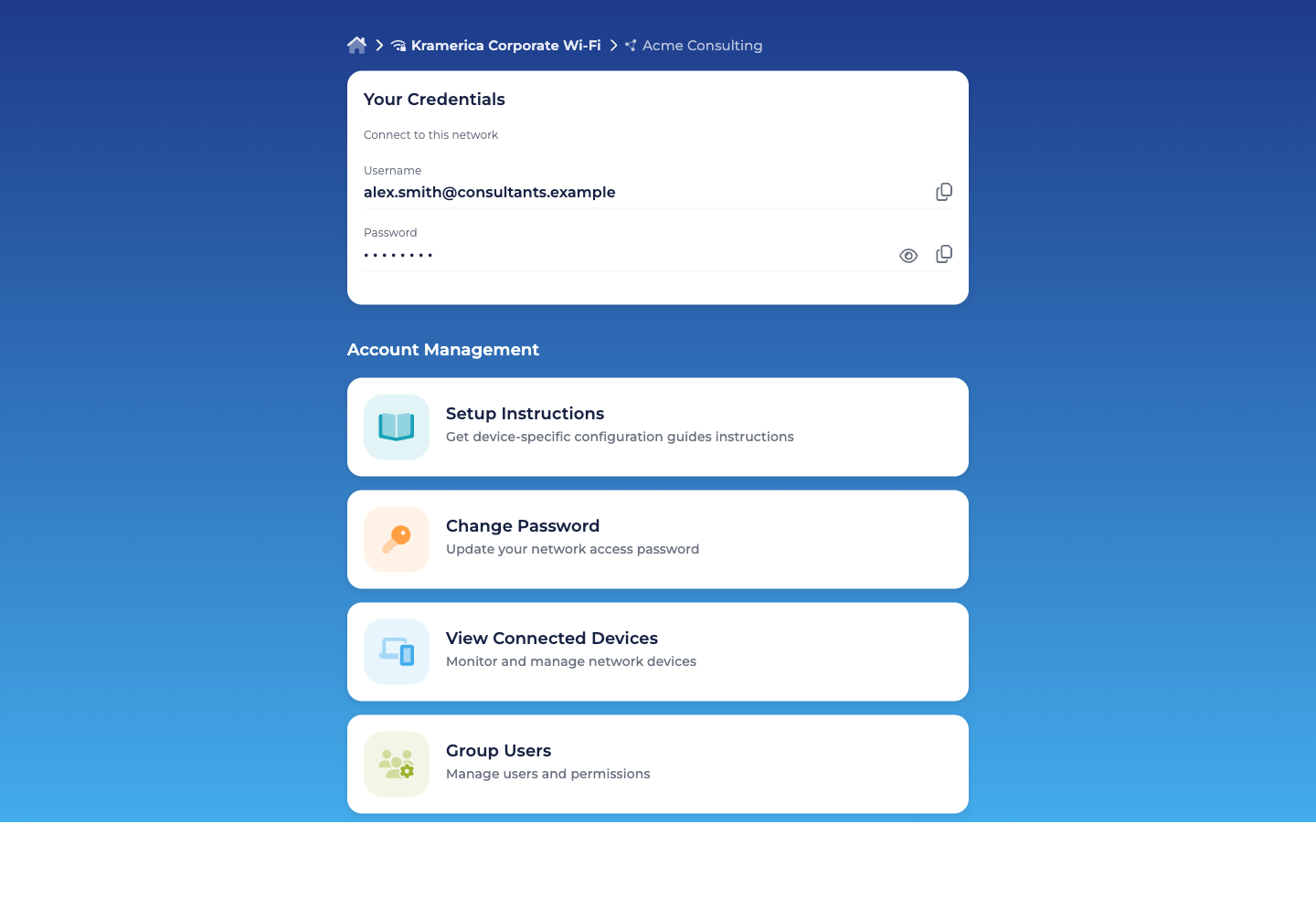
The per-OS setup instructions are text-based — no downloadable mobileconfig profile. Each guide names the Network (SSID) the user should join and references the user’s own Personal PEAP Account by name.
The two roles
Section titled “The two roles”Every Self-Service User in a PEAP Group has User (default). It’s always on and cannot be removed. On top of that, any user can additionally hold Group Administrator.
| Role | Scope | Authority |
|---|---|---|
| User (default) | Their own account in one Group. | View and update their Personal PEAP Account (username + password). View their own Connected Devices. |
| Group Administrator | One Group. | Everything a User does, plus view all Connected Devices in the Group and add / modify / revoke other Self-Service Users. |
Both labels are what the portal and the admin dialog show verbatim. Scope is always one Group — the same person can be a Group Administrator on one audience’s Group and a User (default) on another; those are two separate Self-Service User records.
How a user gets invited
Section titled “How a user gets invited”Two paths:
- From the admin dashboard. Organization admins invite the audience’s lead — typically with both User (default) and Group Administrator permissions — from the Group’s Users tab.
- From the Self-Service portal. A Group Administrator invites everyone else — their own team members, a second lead for redundancy. Same Add Self-Service User dialog, same two-role matrix, scoped to their own Group.
The invitee receives an email with a Self-Service portal login link. On first sign-in:
- The platform auto-generates their Personal PEAP Account for this Group.
- The portal renders Your Credentials with the username and (masked) password.
- The user copies the credentials into their 802.1X supplicant following the Setup Instructions for their OS, and connects to the Wi-Fi.
The first device they authenticate appears on the Group’s Connected Devices tab (both in the portal and on the admin side) within seconds.
Rotating a password
Section titled “Rotating a password”End-users rotate their own Personal PEAP Account password from the portal’s Change Password card. The new password takes effect on the next authentication; devices currently connected stay up until they try to re-associate and then fail with the old password (and get prompted by the supplicant to re-enter the new one).
Admins cannot reset a user’s password — they can only revoke the user entirely, which destroys the account. This is deliberate: the password never leaves the user’s own session.
Common rotation triggers:
- Password exposure (shoulder-surfed, shared inadvertently, pasted into a screenshot).
- Suspected device compromise where the PEAP credentials may have been extracted.
- Organisation hygiene policy — some audiences (employees, a specific contractor firm, a regulated project cohort) rotate on a cadence set by their own policy.
Revoking a user
Section titled “Revoking a user”Group Administrators revoke members from the Self-Service portal’s Group Users card; Organization admins revoke from the admin dashboard’s Users tab on the Group. Either way:
- The user’s Personal PEAP Account is deleted.
- Active sessions survive until the next re-auth, at which point they fail.
- The user loses portal access to the Group immediately; if they were a member of another Group, they retain access to that one.
- Historical records (audit log, Connected Devices list) remain for the Group’s operational history.
A confirmation dialog states the impact verbatim:
This action will immediately revoke access for all devices connected by this user.
What an Organization admin is still responsible for
Section titled “What an Organization admin is still responsible for”Most per-user work happens inside the audience’s own Group. The admin-side role shrinks to:
- Onboarding the first lead per audience. You invite the Group Administrator the first time; they bootstrap the rest.
- Managing the lead lifecycle. If the audience’s lead moves on, promote another Self-Service User to Group Administrator from the admin side, then (optionally) revoke the outgoing lead.
- Handling exception requests. A member has lost phone and email access; only you can confirm their identity out-of-band and reset their enrolment.
- Reviewing audits. See Audit Log for every invite, revocation, password rotation, and configuration change.
Self-Service Enrollment
Section titled “Self-Service Enrollment”PEAP Groups can additionally turn on Self-Service Enrollment. When
enabled, you set an email-domain filter for the Group (for example
@acmecorp.com), and any user whose email matches that domain is
auto-attached as a User (default) the first time they sign in to the
Self-Service portal — no admin-side invite necessary. You also choose
the default roles those users receive on enrollment. Where you want
tighter control, leave it off and add Self-Service Users by hand
instead.
For small audiences (a consulting firm, a vendor team, an event crew) this is usually overkill — the lead invites the rest directly. Self-Service Enrollment pays off when the audience is large and shares a single email domain: employees on the corporate Wi-Fi Group, student cohorts, flex-workforce and staff-augmentation pools where the authoritative roster lives outside EntryPoint.
If the Organization is configured with SAML for Self-Service authentication (see Self-Service Portal authentication), that simply governs how users sign in to the portal; enrollment itself is still driven by the email-domain filter on the Group.
Related
Section titled “Related”Groups per audience
The admin-side flow that creates and delegates each Group.
Combining with EAP-TLS & MAB
When to pair per-audience PEAP Groups with other methods on the same Context.
Self-Service Portal authentication
IdP wiring for the Self-Service portal.
Audit Log
Every Self-Service action, timestamped and diffed.