
Entra connection
Connect an EntryPoint Context to a Microsoft Entra ID tenant. Required for EAP-TLS with User Certificate; not used by EAP-PEAP. Sets up the Graph-API credentials EntryPoint uses on every EAP-TLS authentication.
A Dot1x EntryPoint Context can delegate identity to Microsoft Entra ID. Once wired up, every authentication against the Context’s EAP-TLS User Certificate Groups uses Entra as the source of truth for group membership, user identity, and (optionally) device compliance.
The connection is per-Context and configured on Configuration → Basic Configuration → Backend Identity Store. This page walks through the end-to-end setup and the day-to-day maintenance (secret rotation).
Who needs this
Section titled “Who needs this”- EAP-TLS with Microsoft Entra ID variants require an Entra connection. The certificate-bearer-to-Entra-group-lookup is what ties an EntryPoint Group to its Entra group.
- EAP-PEAP variants do not use the Entra connection. PEAP always validates against the Personal PEAP Accounts held in EntryPoint, whatever the Identity Store is set to. For staff, the Self-Service portal’s SAML single sign-on is how Entra fits the PEAP picture: they retrieve their Personal PEAP Account with the sign-in they already have.
Radius Proxy and iPSK Contexts don’t have an Identity Store configuration at all — they work differently. See Comparing variants.
The Identity Store dropdown
Section titled “The Identity Store dropdown”On Basic Configuration, the Backend Identity Store dropdown has two options (verbatim):
--- No Backend Identity Store ---(default). No directory is consulted at authentication time. EAP-PEAP works as normal (its accounts live in EntryPoint in either mode); EAP-TLS User Certificate Groups are not creatable in this mode through the admin UI’s shipped path.Microsoft Entra ID. Pick this to enable the Entra connection and reveal the configuration fields below.
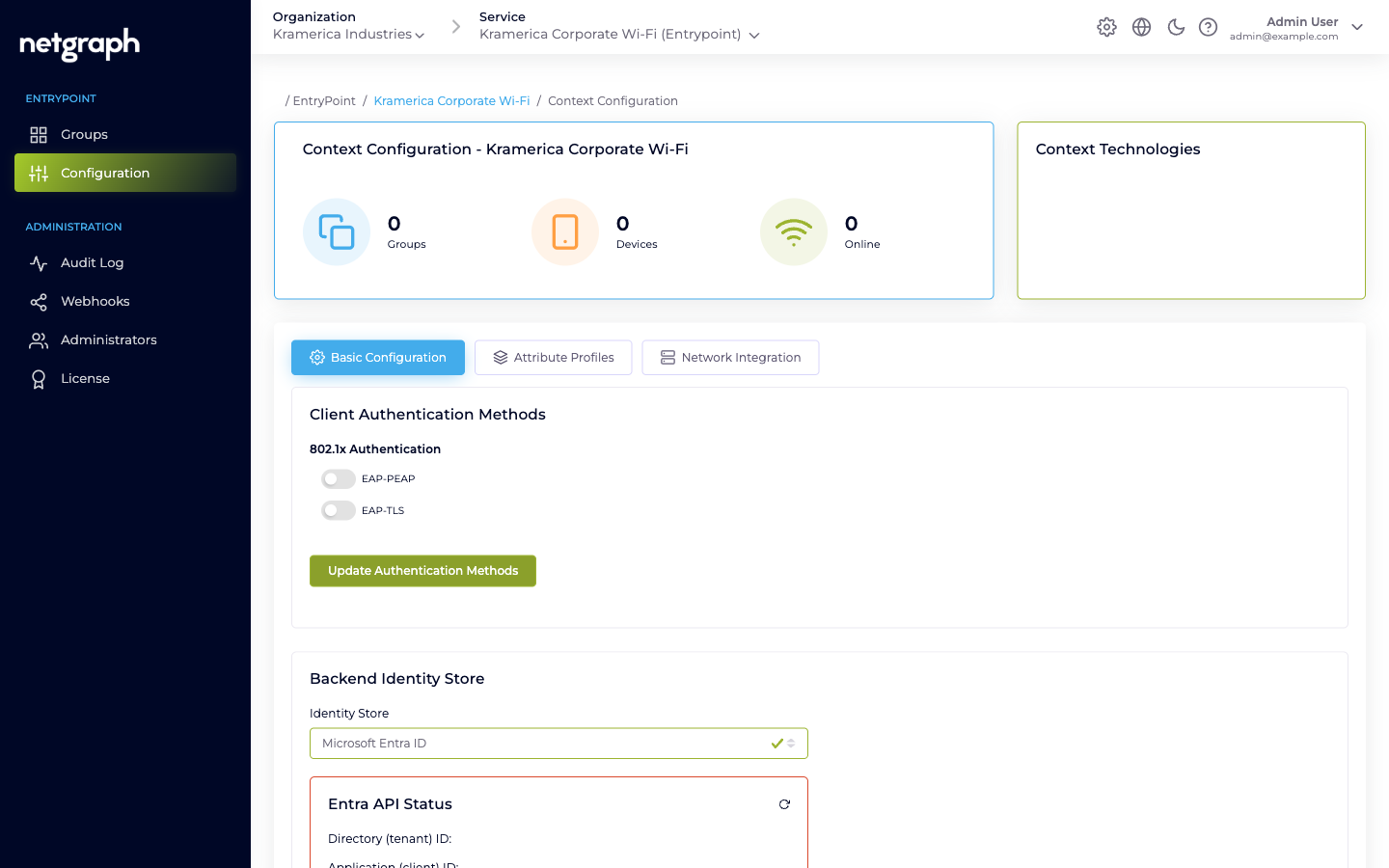
Click Update Identity Store to save the selection; the Entra configuration form and Entra API Status card appear once the selection is saved.
The three Entra values
Section titled “The three Entra values”EntryPoint needs three values that you generate in the Entra admin centre against an App Registration for this EntryPoint deployment:
- Directory (tenant) ID — the GUID of your Entra tenant.
- Application (client) ID — the GUID of the App Registration.
- Client Secret — the secret value generated on the App Registration.
Plus one checkbox:
- Enable Device Compliance Check — when on, EntryPoint queries Entra at authentication time to verify the device is registered and (if paired with Intune) compliant. Rejects non-compliant devices at the RADIUS layer.
Entra-side setup
Section titled “Entra-side setup”-
Register an application in Entra
In the Entra admin centre, create an App Registration named something like Netgraph EntryPoint. Note the Directory (tenant) ID and Application (client) ID.
-
Grant Microsoft Graph API permissions
The application needs enough permission to read user identities and group memberships. Your Netgraph contact can supply the minimum required set; broadly it covers
Group.Read.AllandUser.Read.All, plus directory read access for the device-registration lookup, and (for Device Compliance Check) the compliance-related permissions. Grant admin consent for the tenant once the permissions are added. -
Generate a client secret
On the App Registration’s Certificates & secrets page, create a new client secret. Copy the value immediately — Entra only shows it once. Note the expiry date; you’ll need to rotate the secret before then.
-
Paste the three values into EntryPoint
In the Context’s Entra configuration, paste the Directory ID, Application ID, and Client Secret. Save.
-
Verify the Entra API Status card turns green
The card at the bottom of the Identity Store configuration exercises the credentials against the Graph API. If it shows an error, the typical causes are wrong secret (retype carefully), missing permissions (add on the App Registration and grant admin consent), or firewall egress issues on EntryPoint’s side.
-
(Optional) Enable Device Compliance Check
Only relevant if you have Intune posture-management wired up and want device-compliance gating at the RADIUS layer. Test with a single device before turning it on for the whole fleet.
How Entra is used at authentication time
Section titled “How Entra is used at authentication time”Per authentication, for EAP-TLS User Certificate Groups:
- EntryPoint reads the user or device identifier from the presented certificate (the certificate bearer).
- Calls Microsoft Graph via the Application credentials to resolve the identifier to an Entra user / device record.
- Reads the principal’s group memberships.
- Matches against the EntryPoint Group’s mapped Entra group ID.
- (Optional) If Enable Device Compliance Check is on, calls Graph again to check the device’s compliance posture.
- Access-Accept or Access-Reject, with the Group’s Attribute Profile on accepts.
The latency cost is two short Graph calls per authentication, which is well inside the typical WLAN-controller RADIUS timeout.
Rotating the Entra client secret
Section titled “Rotating the Entra client secret”Entra client secrets expire — typically every 12 or 24 months, depending on what your Entra admin picked on creation. Rotate before expiry to avoid an outage.
-
Generate a new secret alongside the old one
On the App Registration in Entra, add a new client secret. Keep the old one in place for now.
-
Paste the new secret into EntryPoint
Update the Identity Store configuration on every Context using this App Registration. Save.
-
Verify the Entra API Status card turns green
Across every Context you updated.
-
Remove the old secret from Entra
Once all Contexts are on the new secret and verified green, revoke the old secret on the App Registration. Nothing authenticates with it any more.
Plan the rotation in a change window. Every EAP-TLS User Certificate authentication depends on the Entra connection; if the secret fails during rotation, those users lose access until the configuration is fixed. PEAP Groups are unaffected.
Other identity providers
Section titled “Other identity providers”Microsoft Entra ID is the only backend identity store available today. Don’t plan integrations that depend on another identity provider; check in with your Netgraph contact if you have a specific need.
When to pick No Backend Identity Store
Section titled “When to pick No Backend Identity Store”- Small or isolated deployments where no central IdP is in scope (a single venue, a test environment, a contractor-only deployment).
- PEAP-only Contexts. PEAP never consults the Identity Store, so there is nothing to wire up: EntryPoint is the only system in the loop.
You can flip an existing Context from No Backend Identity Store to Microsoft Entra ID later. PEAP Groups keep working unchanged (their accounts live in EntryPoint either way); EAP-TLS User Certificate Groups become creatable once Entra is wired up.