
SCIM provisioning
Provision users and teams from your identity provider over SCIM 2.0: administrators and Teams for the Admin Portal, self-service users and Self-Service Teams for the Self-Service Portal.
With SCIM provisioning, your identity provider (IdP) creates, updates and removes users in the Organization. Any IdP that supports SCIM 2.0 provisioning can be used, for example Microsoft Entra ID or Okta.
Two SCIM registrations
Section titled “Two SCIM registrations”The Organization has two SCIM registrations, one for each portal. They are connected the same way, and each has its own SCIM endpoint URL, bearer token and activity log.
| Admin Portal registration | Self-Service Portal registration | |
|---|---|---|
| Where | Admin Access Control → Provisioning | Selfservice Access Control → Provisioning |
| Users become | Administrators with the Organization Member role | Self-service users, who sign in to the Self-Service Portal |
| Groups become | Teams | Self-Service Teams, with a SCIM badge |
| Requires | SAML for the Admin Portal | SAML for the Self-Service Portal |
Set up SAML first
Each registration needs SAML for its portal. Provisioned administrators have no password, so SAML is their only way to sign in. Set up the matching configuration before you connect SCIM: see SAML configuration.
Connect your identity provider
Section titled “Connect your identity provider”-
Open the SCIM configuration
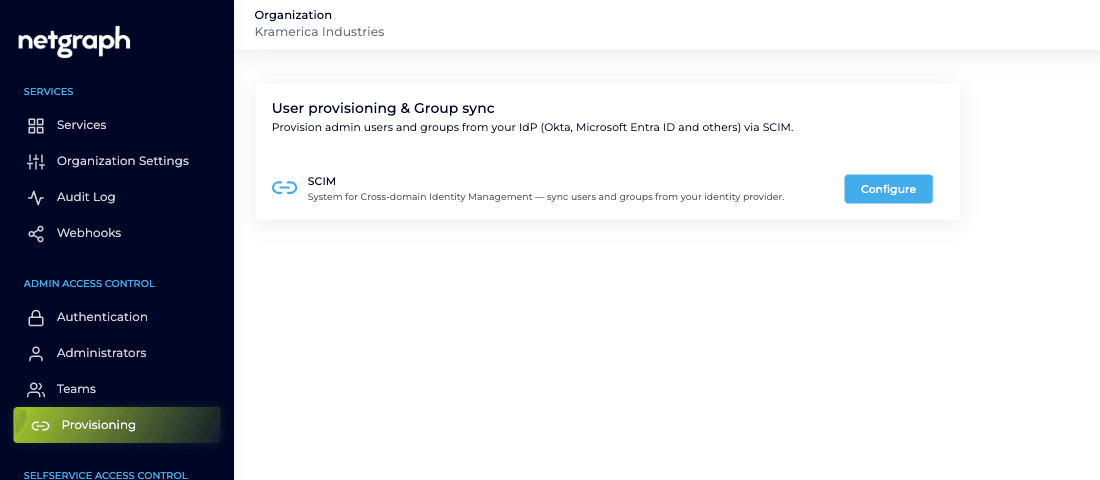
Open Provisioning under Admin Access Control or Selfservice Access Control, depending on the registration, and click Configure on the SCIM row.
-
Copy the SCIM endpoint URL
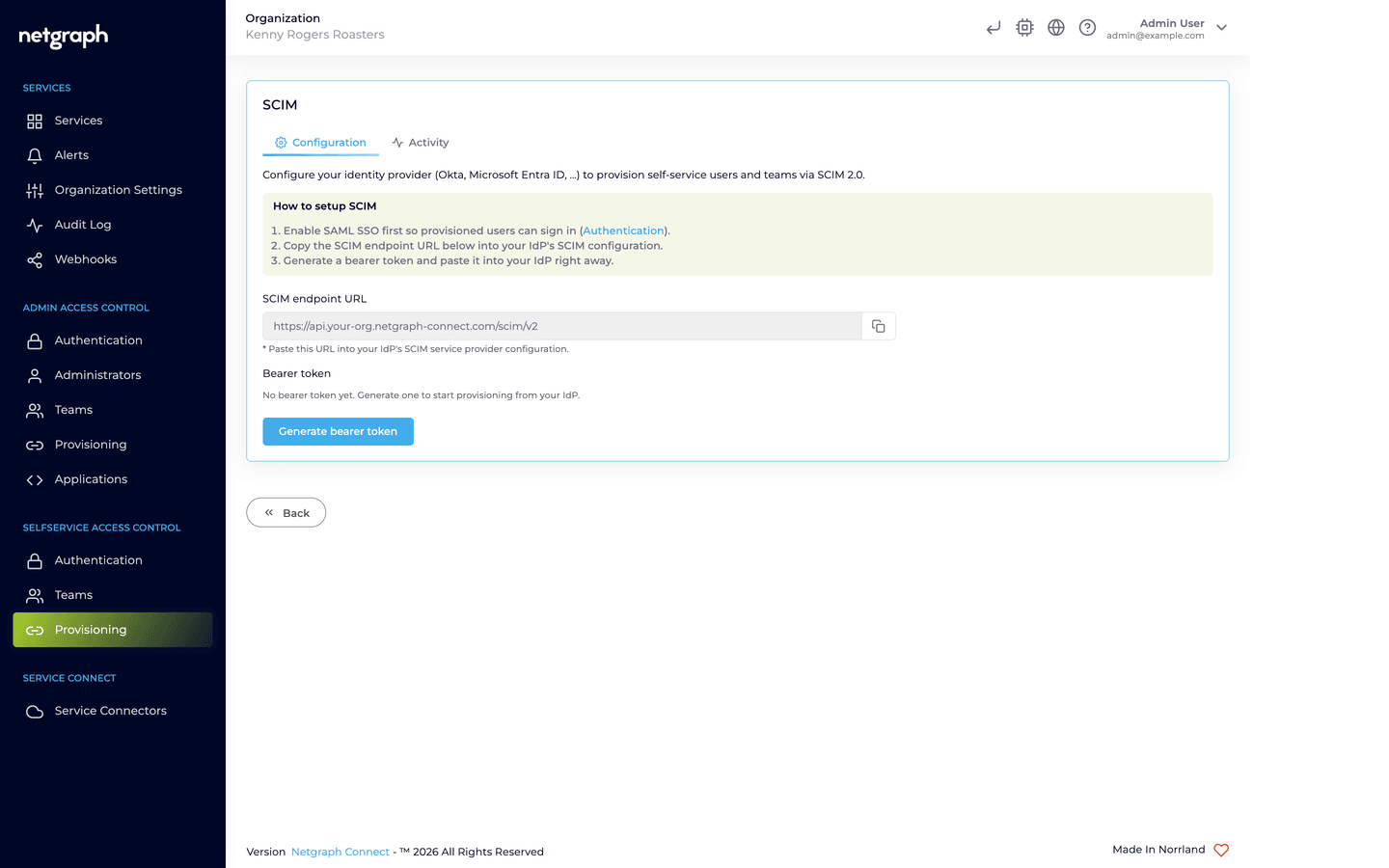
Copy SCIM endpoint URL into the SCIM (provisioning) settings of the application in your IdP. The IdP sends users and groups to this address.
-
Generate a bearer token
Click Generate bearer token and paste the token into your IdP as the secret token or bearer token. The token is shown only once.
-
Turn on provisioning in your IdP
Turn on SCIM provisioning for the application in your IdP and assign the users and groups to provision. They appear on the platform as the IdP sends them.
The SCIM userName becomes the user’s username on the platform. It must be the same value that SAML sends as the username (see How the username is chosen), otherwise the platform sees two different users. Microsoft Entra ID provisions userName from the user principal name by default. If that differs from the users’ email address, map userName from mail in the provisioning attribute mappings.
The bearer token is shown once
The platform stores only a hash of the token and cannot show it again. If the token is lost, click Regenerate bearer token and update your IdP: the previous token stops working immediately. Remove configuration revokes the token and stops provisioning.
What happens on changes in the IdP
Section titled “What happens on changes in the IdP”The platform applies changes when the IdP sends them. How often the IdP sends changes depends on the IdP.
Admin Portal registration
Section titled “Admin Portal registration”| Change in the IdP | Result on the platform |
|---|---|
| A user is assigned | The user becomes an administrator with the Organization Member role. |
| A user is added to a provisioned group | The user is added to the matching Team. |
| A user is deactivated or removed | The administrator access SCIM gave the user ends at once, and the user leaves every Team synced from the IdP. Administrators hides the user, and removes the user after 30 days. If the IdP brings the user back within 30 days, the user is restored. |
| A provisioned group is deleted | The matching Team is deleted. |
SCIM does not assign roles beyond Organization Member. To give a group more access, map its Team to roles in Teams. The mapping is kept on the platform and is not changed by the IdP.
Keep the Default Role Mapping at Organization Member
Every SAML sign-in adds the roles of the Default Role Mapping, or of the Custom SAML Role Mapping that the IdP’s role claim selects, also for users provisioned over SCIM. Keep the Default Role Mapping at Organization Member and leave Custom SAML Role Mappings unused, so that roles come only from Teams. See Admin Portal roles.
Access granted on the platform is not changed by SCIM: an administrator added by invitation keeps that access, and Teams created on the platform keep their members, even if the user is deactivated in the IdP.
Self-Service Portal registration
Section titled “Self-Service Portal registration”For the users and Self-Service Teams that come from the IdP, the IdP decides access to the Self-Service Portal.
- A Self-Service Team from the IdP has a SCIM badge. Its name and members can’t be edited in the Admin Portal.
- A Self-Service Team gives access only where it is bound: a Sign In Access Policy, an EasyPSK group, an onboarding rule or a Site manager role. See Self-Service Teams.
- SCIM does not create EasyPSK groups. An onboarding rule bound to the team creates the user’s group on the user’s first sign-in.
- A user who is blocked or deleted in the IdP loses the Self-Service session on the next request, and can no longer sign in with an email link or through SAML.
- What the IdP blocked is kept for 30 days, so that a return restores it unchanged. After 30 days it is removed. Lists in the Admin Portal show a blocked user with the date, and the Show blocked filter brings blocked users into view.
- If the user’s email address changes in the IdP, everything the user has moves to the new address.
Provisioning activity
Section titled “Provisioning activity”The Activity tab on the SCIM configuration lists the changes the IdP has sent: users and groups created, updated and deleted, users deactivated, and members added to or removed from groups. Entries are kept for 7 days and can be searched by user, group or member email.
Related
Section titled “Related”- Organizing administrators in Teams: what groups from the Admin Portal registration become, and how Teams get roles.
- Self-Service Teams: what groups from the Self-Service Portal registration become.
- Managing administrators: administrators added by invitation or through SAML.
- SAML configuration: the SAML sign-in that provisioned users rely on.